This is Dora here! How’s everything going, guys? Last month, I watched a friend spend $800 on a one-day product shoot for twelve candle SKUs. The photos were gorgeous. Then she launched a new scent two weeks later and had to do it all over again. I remember thinking: there has to be a smarter way.
So I spent the last few months testing AI product photography tools — not for fun, but because I was helping three different seller friends build out their catalogs without killing their budgets. I ran nearly 200 image generations across six tools, cross-checked outputs against real platform requirements, and kept notes on what actually worked in production. Here’s everything I found.
What AI Product Photography Actually Does
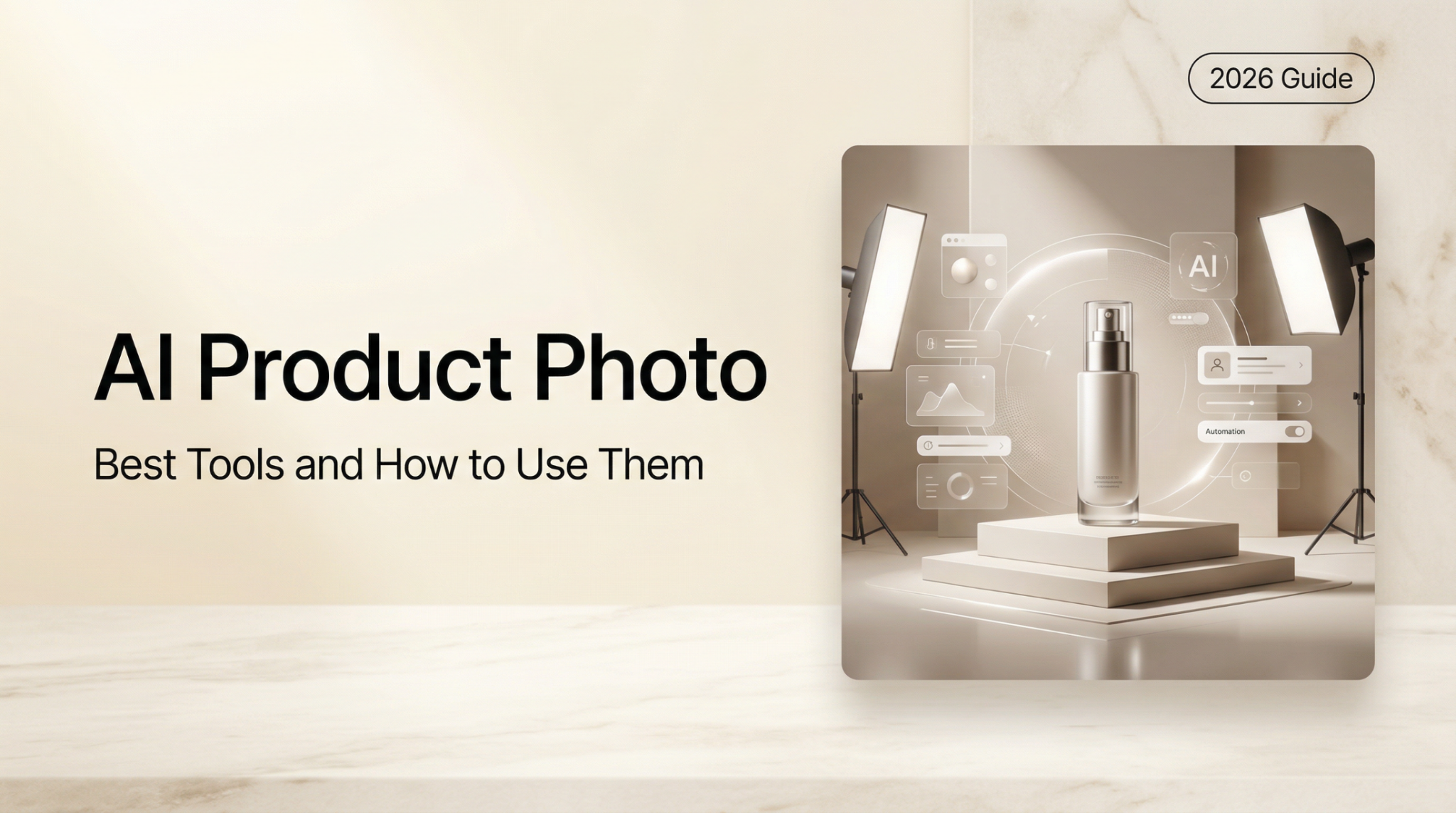
Before jumping to tools, let’s be clear about what these tools actually do — because “AI product photography” gets used to mean very different things.
Background Removal + Replacement vs. Full Scene Generation vs. Editing
There are three distinct workflows hiding under one label:
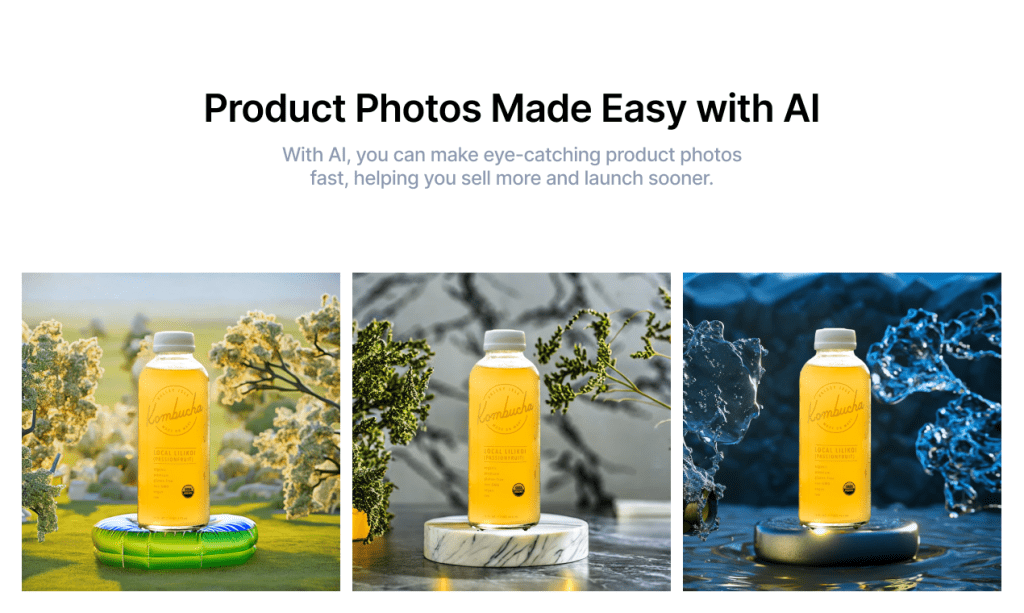
Background removal + replacement — The AI isolates your product from its original background and drops it onto a new one. This is the most common use case and where most tools start. Quality ranges from clean edge masks (great) to blurry, artifact-heavy cutouts (frustrating).
Full scene generation — The AI creates an entirely new environment around your product: a kitchen counter, a forest path, a minimalist studio. The product is composited into a generated scene. Results vary wildly depending on background complexity and product type.
AI editing — Adjusting shadows, relighting, sharpening details, upscaling resolution, or fixing color casts without replacing the background at all. This is often the most underused capability.
Who Uses It: Solo E-commerce Sellers, Brand Teams, Agencies
The user base is genuinely wide, and the right tool changes based on where you sit:
- Solo Shopify/Amazon sellers — Need speed, low cost, and marketplace compliance out of the box. Batch capability matters more than creative control.
- Brand teams — Need consistency across hundreds of SKUs, often with a defined visual identity. Style locking and API access matter.
- Agencies — Need to handle multiple client catalogs with different aesthetics. Flexibility, white-labeling, and volume pricing are priorities.
How We Evaluated These Tools
I didn’t just read feature pages — I ran real product images through each tool and scored outputs against specific criteria.
Background Realism, Product Edge Accuracy, Batch Capability, Free Tier
| Criterion | What I tested | Why it matters |
| Background realism | Did generated scenes look photographic or obviously AI? | Fake-looking backgrounds tank buyer trust |
| Product edge accuracy | Did the cutout preserve fine details (jewelry chains, bottle necks, fabric fringe)? | Edge errors are the #1 sign of cheap AI edits |
| Batch capability | Could I process 50+ images without manual intervention? | Non-negotiable for real catalog work |
| Free tier | How many usable outputs before paying? | Entry point for testing |
| Commercial license | Is generated output cleared for ads and marketplace use? | Surprisingly, not all tools cover this |
I tested on four product categories: a glass perfume bottle (transparent), a fabric tote bag (textured), a skincare tube (solid, matte), and a stainless steel mug (reflective). Each category has different failure modes.
Best AI Product Photography Tools (Ranked)
Tool 1 — Best for E-commerce Background Generation
Photoroom, one of the most widely deployed tools in this space — 150M+ downloads as of early 2026 — and for solo e-commerce sellers, earns that position. Background removal is fast and accurate on most product types. The one-tap studio mode generates clean, on-brand backgrounds in seconds, and the batch editor handles up to 1,000 images in a single run.
What surprised me: the Virtual Model feature for fashion actually produced usable outputs on the first try. Not perfect, but good enough for secondary images on a Shopify listing.
Pricing: Free tier (250 exports/month) / Pro from $12.99/month Best for: Any seller who needs volume + speed + marketplace-ready outputs Watch out for: Fine-detail edge accuracy on transparent products — still the weak spot
Tool 2 —Best for Batch Product Image Editing
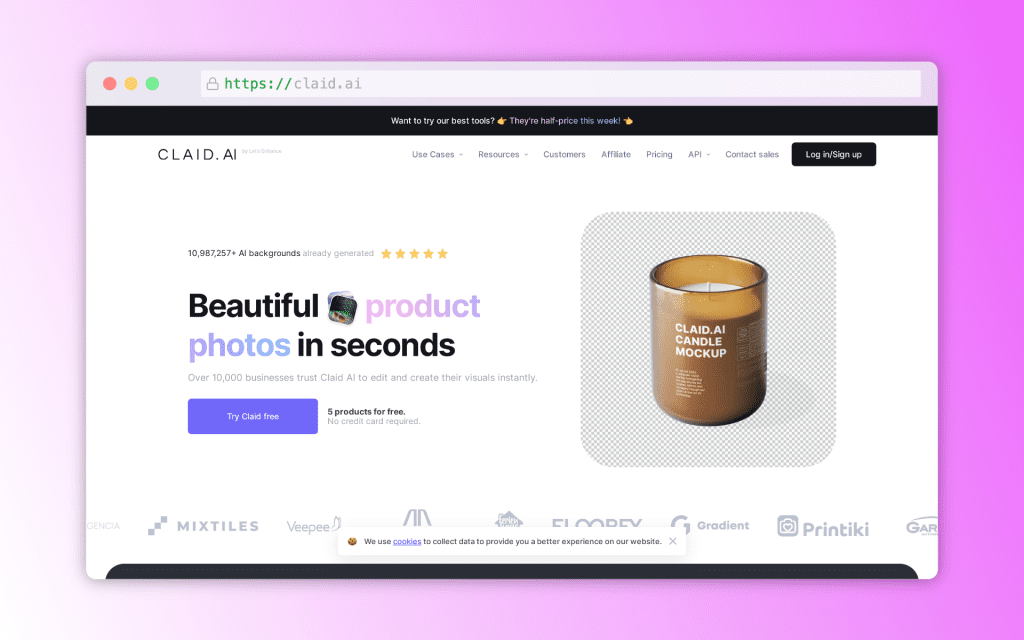
Claid is where I’d send someone managing a 500+ SKU catalog. Its API is genuinely well-designed — you can pipe in raw product images and get back enhanced, background-replaced, resolution-upscaled outputs at scale without touching a UI. The team behind it built the tool specifically for product photography, which shows in edge handling and background matching.
Real result from my test: a batch of 40 skincare tube images processed in under 4 minutes via the web UI, with consistent lighting and shadow across every output. That kind of consistency is hard to achieve even in a studio.
Pricing: Free trial / from $15/month Best for: Brands and agencies needing API-driven batch automation Watch out for: Learning curve on the API setup for non-technical users
Tool 3 — Best Free Access Path
Pebblely gives you 40 free images per month, no credit card required — and that’s actually enough to test it across your full product range before committing. The interface is theme-based rather than prompt-based: pick from 90+ pre-built lifestyle backgrounds (kitchen, outdoor, minimalist studio, seasonal), drop your product in, generate.
The trade-off is control. You get what the themes offer. But for a solo candle seller or skincare brand that just needs clean lifestyle imagery without a design background, this workflow is genuinely fast and the outputs are solid on opaque, matte products.
Pricing: Free (40 images/month) / Basic $19/month / Pro $39/month Best for: Beginners and small sellers testing AI photography for the first time Watch out for: Theme constraints limit creative direction for branded campaigns

Tool 4 — Best for Lifestyle Scene Generation
Firefly’s Generative Fill is the most powerful tool I tested for creating custom lifestyle scenes when you need something beyond pre-made templates. The text prompt control is unmatched: I generated a glass perfume bottle placed on a marble vanity with soft morning window light, and the background was convincingly photographic.
The catch: you need to handle background removal separately (Photoshop’s built-in removal works fine), and there’s no batch mode. This is a per-image, hands-on tool. It’s also part of the Creative Cloud subscription most design-adjacent professionals already have.
Pricing: From $5/month (Firefly standalone) / included in CC plans Best for: Marketers and brand teams who need custom, high-quality lifestyle scenes Watch out for: No batch processing, no dedicated e-commerce workflow
Feature Comparison Table
| Tool | Background Gen | Batch | Free Credits | Commercial License | Max Resolution |
| Photoroom | ✅ | ✅ (1000/run) | 250/month | ✅ | 4K |
| Claid.ai | ✅ | ✅ (API) | Trial only | ✅ | 4K native |
| Pebblely | ✅ (themes) | ❌ | 40/month | ✅ | 2K |
| Adobe Firefly | ✅ (custom) | ❌ | Limited | ✅ | 4K |
Step-by-Step: How to Use AI for Product Photography
Step 1 — Shoot or Source Your Product Image
You don’t need expensive gear, but input quality still matters. A sharp phone photo on a neutral background in good natural light will outperform a blurry DSLR shot every time. Key rules: no harsh shadows on the product, fill the frame, shoot against a surface that contrasts with your product color.
If you’re sourcing from a supplier, ask for high-res “white background” shots — these are fastest to work with in any AI tool.
Step 2 — Remove Background Cleanly
This step determines everything downstream. A messy cutout produces a messy final image regardless of how good the background generation is.
For most products: Photoroom’s background removal is the fastest starting point. For fine details (jewelry, hair, transparent bottles): use Claid.ai’s removal or Adobe Photoshop’s Select Subject + Refine Edge workflow.
Quick Python approach for batch removal using the rembg library (open source, runs locally):
from rembg import remove
from PIL import Image
import os

input_folder = "raw_products/"
output_folder = "cutouts/"

for filename in os.listdir(input_folder):
    if filename.endswith((".jpg", ".png")):
        input_path = os.path.join(input_folder, filename)
        output_path = os.path.join(output_folder, filename.replace(".jpg", ".png"))

        with open(input_path, "rb") as f:
            input_data = f.read()

        output_data = remove(input_data)

        with open(output_path, "wb") as f:
            f.write(output_data)

        print(f"Processed: {filename}")
This runs entirely offline with no API costs — useful for large batches before sending to a paid generation tool.
Step 3 — Generate or Choose a Background
Match your background to your sales channel. Marketplace main images need clean, simple settings. Social content can go more lifestyle-heavy.
For Amazon listings: stick to generated studio environments (soft gradient, seamless paper look). For Instagram or Shopify hero images: go for lifestyle scenes that place your product in context — a skincare product on a bathroom shelf, a coffee mug on a morning desk.
Step 4 — Edit Shadows, Lighting, Product Edges
Most AI tools add a drop shadow automatically, but it’s often generic. For realistic compositing, shadows should match the light direction of your generated background. In Photoroom and Claid.ai, you can adjust shadow softness and angle. In Firefly, the generative fill handles this contextually if you prompt it correctly (“soft window light from the left, natural shadow on marble surface”).
Check product edges at 200% zoom before finalizing — this is where AI artifacts hide.
Step 5 — Export for Marketplace (Amazon, Shopify Specs)
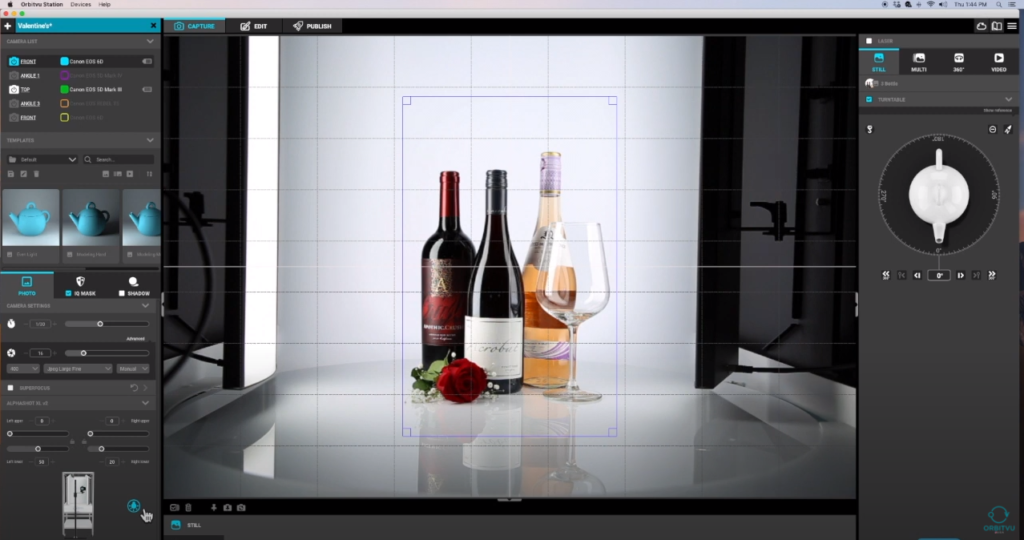
This is where a lot of people trip up at the finish line. Amazon’s main image requirements are strict: pure white background (RGB 255,255,255), product filling at least 85% of the frame, minimum 1,600px on the longest side for zoom functionality, no text or watermarks, JPEG preferred.
Quick export spec reference:
| Platform | Background | Min Resolution | Format | Notes |
| Amazon (main) | Pure white RGB 255,255,255 | 1,600px (2,000px recommended) | JPEG | Product = 85%+ of frame |
| Amazon (secondary) | Any | 1,000px+ | JPEG/PNG | Lifestyle OK |
| Shopify | White or brand | 2,048px recommended | JPEG/PNG/WebP | Square preferred |
| Any | 1,080×1,080px | JPEG/PNG | 1:1 or 4:5 | |
| Any | 1,000×1,500px | JPEG/PNG | 2:3 ratio optimal |
Where AI Product Photography Still Falls Short
Reflective/Transparent Products, Complex Textures, Fine Detail Loss
I’ll be straight with you: AI has a hard limit, and it shows up fast with certain product types.
Reflective products (stainless steel, chrome, glass with visible reflections) — The AI has to invent what would actually be reflected in the product surface based on the new background. It almost always gets this wrong. The reflection doesn’t match the generated environment, which immediately reads as fake to a trained eye.
Transparent products (clear glass bottles, acrylic accessories) — Background removal itself is difficult because the product is partially see-through. AI tools struggle to know where the product ends and the background begins. The result is usually a halo artifact or color contamination.
Fine texture details — Embossed logos, knit fabric patterns, fine jewelry chain links — these often get softened or distorted during background replacement, especially at lower resolutions.
Complex textile draping — For apparel flat-lays, AI handles solid garments reasonably well. The moment you introduce heavy pleating, sheer fabric, or complex pattern alignment, the results degrade fast. For those categories, a hybrid approach — real photography + AI background replacement — still outperforms full AI generation.
For high-value or detail-critical products, AI photography handles about 80% of catalog needs well. The remaining 20% still needs a human photographer.
FAQ
Q: What is the best free AI tool for product photography?
Pebblely offers 40 free images per month with no credit card required — genuinely the best no-risk starting point. Photoroom’s free tier (250 exports/month) is also strong if you need more volume or batch capability. Both produce marketplace-usable outputs on standard opaque products.
Q: How much does AI product photography cost vs. traditional photography?
Traditional product photography runs $30–$200 per product including studio time, photographer fees, and basic retouching. AI tools bring this down to roughly $0.10–$0.50 per image at scale on a paid plan, or effectively zero on free tiers for small volumes. For a catalog of 100 SKUs, the annual cost difference can exceed $15,000.
Q: Can AI product photography tools maintain consistency across hundreds of images?
Yes — this is actually one of AI’s strongest advantages over traditional shoots. Tools like Claid.ai and Photoroom’s batch mode apply the same background, lighting treatment, and shadow style across every image in a run. Getting this consistency from a human photographer across multiple shoot days requires extensive style guides and still produces variation.
Verdict: Match by Use Case
There’s no single best tool here — the right choice is entirely about your workflow:
| Use Case | Recommended Tool |
| Solo Amazon seller, simple products | Photoroom (free tier to start) |
| 100+ SKU catalog, need consistency | Claid.ai (batch + API) |
| First-time tester, zero budget | Pebblely (40 free/month) |
| Custom lifestyle scenes, brand campaigns | Adobe Firefly |
| Apparel with on-model shots | Photoroom Virtual Mode |
Previous Posts: