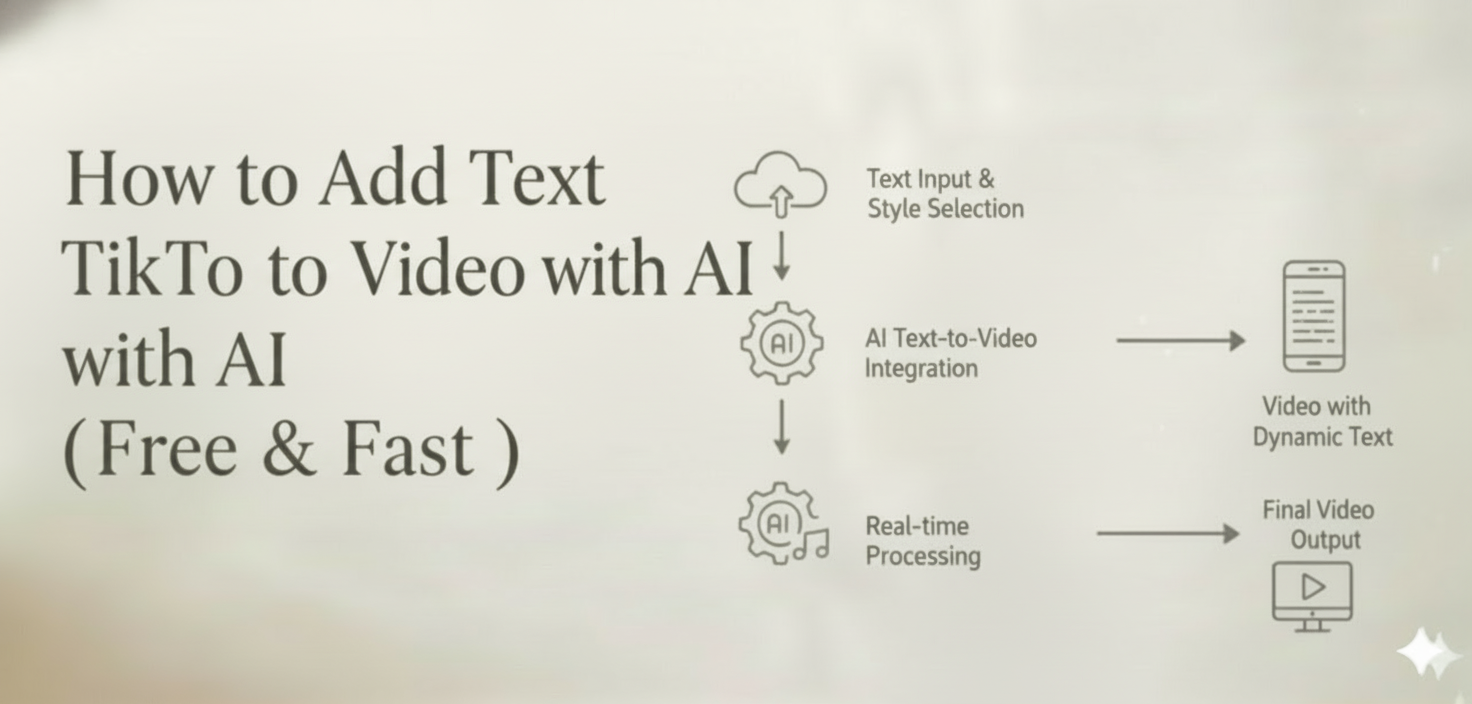
Meta: Learn how to add text to video for free using AI tools in 2026 — captions, titles, subtitles and animated overlays on desktop or mobile. No editing skills are needed.
You recorded a solid product walkthrough, a TikTok skit, or a training clip. You watch it back — and something is off. No captions. No title card. No call-to-action. Without text, the video only does half its job.
The data backs this up: roughly 85 percent of Facebook videos are watched on mute, and captioned posts consistently see higher completion rates. Adding text to video — subtitles, titles, CTAs, lower-thirds — is no longer a nice-to-have. It is the baseline for any content that needs to perform.
The traditional fix is painful. Premiere Pro and Final Cut Pro demand hours of keyframing and layer management. Even lighter online editors still push you through timelines, font menus, and export queues. If you want to add text to video free, the options historically came loaded with watermarks, resolution caps, or both.
AI tools have reshaped this workflow — though it is worth being honest about what they can and cannot do today. Auto-captioning accuracy has improved significantly but still is not flawless with heavy accents or niche terminology. AI-generated title cards look good out of the box but sometimes need manual refinement. The technology removes the biggest friction points; it does not eliminate all human judgment.
This guide walks through every practical method to add text to video in 2026 — from manual editors to free caption generators to AI-native platforms like CrePal.ai that build text into the video from the start. You will get honest tool comparisons, export-resolution details, mobile-versus-desktop guidance, and a step-by-step workflow you can start using today.
Why Adding Text to Video Still Matters in 2026
Text is not decoration — it is a functional layer that directly impacts reach, retention, and revenue.
Accessibility and Global Reach
Over 466 million people worldwide experience disabling hearing loss (WHO). Captions serve deaf and hard-of-hearing viewers, non-native speakers, and the enormous audience scrolling in sound-off environments — commutes, waiting rooms, open offices. In 2026, platforms including YouTube, Instagram, and TikTok actively reward captioned content with better algorithmic placement.
Engagement and Watch Time
A bold title in the first frame reduces early drop-off by setting clear expectations. On-screen callouts guide attention to key moments. End-screen CTAs drive measurable actions — clicks, sign-ups, purchases. Internal studies from Meta have reported that captioned video ads can lift average view time by around 12 percent, though results vary by audience and creative quality.
Brand Consistency
Consistent fonts, colors, and text positioning signal professionalism. Whether you are a solopreneur posting Reels or an agency delivering client work, polished text overlays separate amateur content from credible video.
SEO and Discoverability
Search engines cannot watch your video, but they can index your captions. Accurate subtitles and transcripts improve ranking on YouTube search, Google Video, and social discovery feeds. If you want organic traffic, text in video is a ranking factor you control.
5 Types of Text You Can Add to Video
Before choosing a tool, clarify what kind of text you actually need:
| Text Type | Purpose | Best For |
| Subtitles / Captions | Display spoken dialogue or narration | Accessibility, social media, tutorials |
| Titles and Headings | Introduce the video, sections, or topics | Intros, YouTube chapters, course modules |
| Lower Thirds | Show speaker name, title, or location | Interviews, podcasts, news-style content |
| Call-to-Action (CTA) | Drive a specific viewer action | Ads, landing pages, Reels |
| Animated / Kinetic Text | Create visual emphasis and energy | Music videos, promos, storytelling |
The type you need determines which method — and which tool — is the right fit.
Method 1: Add Text to Video Manually with Traditional Editors
How It Works
Software like Adobe Premiere Pro, Final Cut Pro, and DaVinci Resolve offers frame-level control. You create text layers, select fonts, set position and sizing, keyframe entrance and exit animations, and hand-sync every word to the timeline.
Desktop vs. Mobile Experience
These editors are desktop-first by design. Premiere Pro and Final Cut require macOS or Windows with dedicated GPU resources. DaVinci Resolve has a full-featured free desktop version (more on that below). Mobile counterparts — like Premiere Rush or CapCut’s mobile app — exist but offer significantly reduced text-animation capabilities. If your primary editing device is a phone, traditional desktop editors are not the right starting point.
Export Resolution and Pricing Details
| Editor | Free Tier Available | Watermark on Free Tier | Max Export (Free) | Max Export (Paid) |
| DaVinci Resolve | Yes | No watermark | 4K (3840×2160) | 8K+ (Studio, $295 one-time) |
| Premiere Pro | 7-day trial only | N/A | N/A | 8K ($22.99/month) |
| Final Cut Pro | 90-day trial only | N/A | N/A | 8K ($299.99 one-time) |
| CapCut Desktop | Yes | No watermark | 4K (2160p) | 4K (Pro, $7.99/month) |
Notable free option: DaVinci Resolve deserves special attention here. It is one of the very few professional-grade editors that exports up to 4K with no watermark and no time limit on the free tier. If you need full manual control over text placement without paying anything, Resolve is the strongest desktop option available in 2026.
Pros
- Total creative control — every pixel, every keyframe
- Advanced motion graphics and text animation possible
- Industry-standard formats accepted by clients and studios
Cons
- Steep learning curve — weeks to become comfortable with text animation
- Time-intensive — adding captions to a 5-minute video can take 1 to 2 hours manually
- Desktop hardware requirements are significant (especially for Resolve and Premiere)
- Zero automation — every caption, every title is placed and timed by hand
Best For
Professional editors working on high-budget productions where every detail must be pixel-perfect, and teams that already have established editing workflows.
Method 2: Add Text to Video Free with Online Caption Generators
How It Works
Browser-based tools like Kapwing, Veed.io, and Descript use speech-to-text AI to automatically generate subtitles from your video’s audio track. You upload footage, the AI transcribes spoken words, and captions appear on an editable timeline. From there you can correct wording, adjust timing, and customize font styles.
Desktop vs. Mobile Experience
Because these tools run in the browser, they work on both desktop and mobile devices. However, the editing experience on mobile is notably more cramped — timeline scrubbing, precise text positioning, and style customization are all easier on a desktop screen. Kapwing and Veed.io both offer mobile-friendly interfaces, but expect slower workflows and limited styling options compared to their desktop counterparts.
Export Resolution and Pricing Details
| Tool | Free Tier Available | Watermark on Free Tier | Max Export (Free) | Max Export (Paid) |
| Kapwing | Yes | No watermark (as of 2026) | 1080p | 4K ($24/month) |
| Veed.io | Yes | Veed.io watermark | 720p | 4K ($18/month) |
| Descript | Yes | Descript watermark | 720p | 4K ($24/month) |
Notable free option: Kapwing removed watermarks from its free tier, making it one of the best options to add text to video free without branding on your export. The trade-off is a 1080p resolution cap and limited monthly export minutes on the free plan.
Accuracy Disclaimer
Auto-captioning in 2026 is good but not perfect. Expect 90 to 95 percent accuracy on clear English audio with minimal background noise. Accuracy drops noticeably with heavy accents, overlapping speakers, domain-specific jargon, or low-quality microphone recordings. Plan to review and correct AI-generated captions before publishing — especially for professional or client-facing content.
Pros
- Fast transcription — minutes instead of hours
- No software installation required
- Pre-built caption style templates for TikTok, Reels, and YouTube Shorts
- Kapwing offers watermark-free exports on the free tier
Cons
- Transcription accuracy requires manual review and correction
- Limited beyond captions — these tools focus on subtitles, not full-scene text design
- You need existing video footage before you can add text
- Mobile editing is functional but noticeably less efficient than desktop
Best For
Creators who already have video footage and primarily need captions or subtitles added quickly. Excellent for repurposing podcast clips, adding accessibility to existing content, or generating quick social media captions.
Method 3: Add Text to Video with AI Video Generators
This is where the workflow fundamentally shifts. Instead of creating a video first and adding text after, AI video generators can build text into the video from the start — titles, captions, CTAs, and overlays generated as part of the video itself.
How It Works
You provide a text prompt — a description, a script, or even a document — and the AI generates a multi-scene video with visuals, transitions, voiceover, background music, and text overlays included in the output. The text is not a layer you add in post-production. It is part of the video structure from the beginning.
Important Caveats
This approach is powerful but not magic. A few honest limitations to keep in mind:
- Text placement may need adjustment. AI does a solid job of positioning titles and captions, but complex layouts — like text that needs to avoid a specific visual element — sometimes require manual correction or an additional prompt.
- Font and style choices are AI-selected. The results are generally appropriate, but if you have strict brand guidelines (specific hex colors, proprietary fonts), you may need to refine the output.
- Caption sync is good, not perfect. AI-generated captions timed to voiceover are accurate in most cases, but fast-paced narration or unusual timing can cause minor sync issues that benefit from a human review pass.
Why This Approach Changes the Workflow
Traditional workflow: Write script, record or generate footage, edit footage, add text manually, add music, export.
AI-native workflow: Describe your idea, AI generates everything including text, edit through conversation, export.
The difference is not just speed — it is the removal of an entire category of manual work.
Best For
- Marketers who need ad videos with CTAs produced quickly
- Educators creating explainer videos with on-screen labels and terms
- Social media managers producing captioned Reels and TikToks at scale
- Anyone who wants text in their video without opening a timeline editor
How to Add Text to Video with CrePal.ai — Step by Step
CrePal.ai takes the AI-native approach further than single-model generators. As an AI Director Agent, CrePal orchestrates multiple AI models — Google Veo, Pika Labs, Runway, Suno, and others — to produce complete multi-scene videos where text, visuals, and audio work together as a coherent whole.
Here is how the process works in practice.
Step 1: Describe Your Video in Natural Language
Open CrePal.ai and type a prompt that includes what kind of text you want in the video. Be specific about text types, placement, and messaging:
“Create a 60-second product launch video for a new fitness app. Include bold title cards introducing each feature, auto-generated captions throughout the voiceover, and a closing CTA that reads Download Free Today.”
CrePal’s AI Director Agent analyzes your prompt, plans the scene structure, selects appropriate AI models from its integrated network, and generates a full storyboard — including text placements for every scene.
Step 2: Review the Generated Video with Text
Within minutes, CrePal delivers a multi-scene video that typically includes:
- Title cards — styled intro and section headers matching the visual tone
- Auto-generated captions — synced to voiceover narration
- On-screen text overlays — feature callouts, statistics, quotes as specified
- End-screen CTA — positioned and styled for visibility
- Background music and transitions — scored and timed to the visual flow
The AI selects fonts, colors, and animation styles to match the overall visual direction. Results are generally cohesive, though you should review for brand alignment — particularly if you have strict style guidelines.
Step 3: Edit Text Through Conversation
This is where CrePal’s agent-based architecture provides a distinct advantage. Instead of hunting through layers on a timeline, you describe changes in plain language:
“Make the title font cleaner and more modern. Move the CTA to appear 10 seconds earlier. Add Spanish subtitles below the English captions.”
The AI Director Agent processes your instructions, maintains context from previous edits, and regenerates the affected sections while keeping the rest of the video consistent. It is not instant — complex edits may take a moment to process — but it is dramatically faster than manual editing.
Step 4: Export and Publish
Download your finished video in the resolution your plan supports. CrePal offers multiple export options:
| CrePal Plan | Max Export Resolution | Watermark |
| Free | 720p | CrePal watermark |
| Plus | 1080p | No watermark |
| Pro | 1080p | No watermark |
| Max | 4K (2160p) | No watermark |
Captions can be exported as burned-in (hardcoded into the video frames) or as separate SRT/VTT subtitle files for platform-native captioning on YouTube, TikTok, or Instagram.
Desktop vs. Mobile Experience
CrePal.ai is browser-based and works on both desktop and mobile devices. The core prompt-and-generate workflow functions well on mobile — you can describe a video and receive results on your phone. However, detailed review and conversational editing are more comfortable on desktop, where you can see the full video preview alongside the chat interface. For quick generation on the go, mobile works. For thorough review and iterative refinement, desktop is recommended.
Side-by-Side Comparison: All Methods for Adding Text to Video
| Feature | Traditional Editor | Caption Generator | Generic AI Video Tool | CrePal.ai |
| Auto-generate captions | No (manual) | Yes | Sometimes | Yes, auto-synced |
| Animated title cards | Yes (manual setup) | Limited | Basic templates | AI-designed per scene |
| CTA text overlays | Yes (manual setup) | No | Limited | Prompt-driven |
| Multi-scene video with text | Yes (manual assembly) | No | Single clips only | Full multi-scene |
| Edit text via conversation | No | No | No | Yes |
| No editing skills needed | Expert level required | Beginner-friendly | Beginner-friendly | Beginner-friendly |
| Multi-model AI selection | N/A | Single model | Single model | Multiple models |
| Character and style consistency | Manual effort required | N/A | Often inconsistent | AI-maintained |
| Free tier without watermark | DaVinci Resolve only | Kapwing only | Varies | Free tier has watermark; Plus and above watermark-free |
| Max free export resolution | 4K (DaVinci Resolve) | 1080p (Kapwing) | Varies (often 720p) | 720p |
Best Use Cases for Adding Text to Video with AI
Social Media Content (TikTok, Reels, Shorts)
Platform algorithms favor captioned content. With CrePal, describe a trending topic and receive a vertical video with text hooks, animated captions, and a follow CTA — formatted for the platform you specify.
Prompt example: “Create a 30-second TikTok about 5 morning habits for productivity. Use bold pop-up text for each habit and add captions throughout.”
Note: You will likely want to review caption timing and text sizing for the specific platform’s safe zones, particularly on TikTok where interface elements overlap certain screen areas.
Marketing and Ad Videos
Ad performance depends on text clarity — the headline, the value proposition, the CTA. CrePal generates ad videos where text hierarchy is structured into every frame, helping your message land whether the viewer has sound on or off.
Prompt example: “Make a 15-second Instagram ad for an online cooking course. Headline: Cook Like a Chef in 30 Days. End CTA: Enroll Now.”
Explainer and Tutorial Videos
Step-by-step instructions need on-screen labels, numbered steps, and highlighted keywords. CrePal’s Explainer Video feature structures these elements automatically based on your prompt, matching text to each scene’s content.
Prompt example: “Create an explainer video showing how to set up a Shopify store in 5 steps. Include numbered text labels for each step and a summary screen at the end.”
Education and Training
Educators and corporate trainers need videos with key terms displayed, definitions highlighted, and chapter titles for navigation. CrePal can transform lesson outlines — or uploaded PDFs — into captioned educational videos. The PDF-to-Video feature is particularly useful for converting existing materials.
Prompt example: “Turn this uploaded PDF about climate change into a 3-minute educational video with on-screen key terms and auto-captions.”
Music Videos and Storytelling
Lyric overlays, karaoke-style text, and cinematic title sequences bring music videos and narrative content to life. CrePal’s AI MV Generator can sync text animations to audio — though complex lyric timing may need a review pass for precision on fast-paced tracks.
Prompt example: “Generate a music video for this track. Display animated lyrics synced to the vocals in a neon retro style.”
Pro Tips for Better Text in Video
- Keep text short. Aim for a maximum of two to three lines on screen at any time. Viewers scan — they do not read paragraphs mid-video.
- Prioritize contrast. White text on a light background disappears. Use text shadows, semi-transparent dark backgrounds behind text, or high-contrast color pairings. When using CrePal, mention your preferred contrast approach in the prompt for more consistent results.
- Match text style to tone. Playful content suits rounded, bold typefaces. Corporate or educational videos call for clean sans-serifs. Include tone direction in your AI prompt — “professional and minimal” or “fun and energetic” — and the tool will adapt its typography selection.
- Time text to reading speed. Text that flashes too briefly gets missed; text that lingers too long feels sluggish. The general standard is around 150 to 200 words per minute for on-screen captions. AI tools handle this reasonably well, but review the pacing on your final export.
- Use visual hierarchy. Not all text should be the same size or weight. Titles should be large and bold. Captions should be readable but not dominant. CTAs should stand out with distinct color or animation. When prompting an AI tool, describe the hierarchy you want explicitly.
- Always preview on mobile. Over 75 percent of video consumption happens on mobile screens. Text that looks perfectly sized on a desktop preview may be unreadable at phone resolution. Check your final video at actual mobile dimensions before publishing — or specify “optimize for mobile viewing” in your CrePal prompt.
- Review AI-generated text before publishing. No AI captioning system is 100 percent accurate. Budget a few minutes to scan captions for transcription errors, awkward line breaks, or timing misalignments. This is especially important for client-facing, educational, or accessibility-critical content.
Frequently Asked Questions
How do I add text to a video for free?
Several options exist depending on your needs. For manually adding text to existing footage, DaVinci Resolve is a full-featured desktop editor that exports up to 4K with no watermark on its free tier. For auto-generated captions, Kapwing offers a free browser-based plan with no watermark at up to 1080p. For AI-generated videos with text built in, CrePal.ai has a free tier that generates complete videos with captions and titles, though exports are capped at 720p with a CrePal watermark. Upgrading to a paid plan removes the watermark and increases resolution.
Can AI automatically add captions to my video?
Yes, but with a caveat. AI-powered speech-to-text tools can generate captions in minutes rather than hours. Accuracy typically falls in the 90 to 95 percent range for clear English audio. You should expect to do a manual review pass to correct errors — especially with accented speech, technical vocabulary, or multiple overlapping speakers. CrePal.ai generates captions as part of its video creation process, syncing and styling them automatically, but the same review recommendation applies.
What is the best AI tool to add text to video in 2026?
It depends on your starting point. If you have existing footage and need captions, Kapwing (free, no watermark, browser-based) and Descript (strong transcription, paid plans required for watermark-free export) are reliable choices. If you want a tool that generates the entire video with text included from a single prompt, CrePal.ai offers the most comprehensive approach — multiple AI models, multi-scene output, conversational editing, and integrated text overlays.
Can I add animated text to video without After Effects?
Yes. CrePal.ai generates animated titles, kinetic text, and motion-synced captions without requiring motion graphics expertise. Describe the animation style you want in your prompt — “smooth fade-in titles,” “bouncy pop-up captions,” “clean slide-in lower thirds” — and the AI generates appropriate animations. The results are solid for social content and marketing videos. For broadcast-quality motion graphics with frame-precise control, After Effects or DaVinci Resolve Fusion remain more capable.
How do I add text to video for TikTok or Instagram Reels?
Specify the platform in your prompt when using CrePal.ai — for example, “Create a TikTok video with hook text and captions” — and the AI formats output for vertical 9:16 aspect ratio with platform-appropriate text sizing and positioning. When using other tools, manually set your project to 1080×1920 resolution and keep text within the center-safe zone (roughly the middle 80 percent of the screen) to avoid overlap with platform UI elements like usernames, like buttons, and description text.
Does adding text to video help with SEO?
Yes, meaningfully. Search engines index caption and subtitle text, which improves discoverability on YouTube, Google Video search, and social platform search features. Uploading SRT or VTT caption files alongside your video gives search algorithms readable text to associate with your content. Hardcoded (burned-in) captions help viewers but are not readable by search crawlers — for maximum SEO benefit, use both burned-in captions for viewer experience and uploaded subtitle files for indexing.
Start creating multilingual videos with CrePal.ai — free to try