Meta : Animate any image with AI for free — compare 5 tools, learn which offer real motion vs basic zoom, and follow a step-by-step guide using CrePal.ai’s AI Director Agent. No editing skills are needed.
Do you want to AI animate image files — photos, illustrations, AI art — without spending a cent? Here is the fastest free path: go to, click “Start Creating,” upload any image, type a one-sentence motion description, and export your animated video in under two minutes. No account paywall, no watermark on the free tier, no editing software required.
But CrePal is not the only option — and not every “animate” button does the same thing. Some tools merely apply a slow zoom or horizontal pan (the old Ken Burns effect repackaged with an AI label). Others generate true subject-level and scene-level motion: a person blinks, water ripples, fabric sways in the wind, and the camera orbits the scene with realistic parallax depth.
That distinction matters. If you are investing creative energy into choosing a tool, you deserve to know exactly what kind of animation you are getting.
This guide breaks down the honest differences across five leading tools, gives you a detailed step-by-step workflow, and shares pro-level prompting techniques — all so you can turn any still image into a scroll-stopping video clip today.
What Does “AI Animate Image” Actually Mean in 2026?
Before comparing tools, let us establish clear definitions. The phrase “AI animate image” covers a spectrum of capabilities, and vendors are not always transparent about which level they deliver.
The Three Levels of AI Image Animation
| Level | What Happens | Visual Example | Technical Method |
| Level 1 — Camera-Only Motion | The image itself stays static. AI simulates a camera zoom, pan, or slow tilt across the frame. | A landscape photo with a gentle zoom-in toward the horizon. | 2.5D depth estimation plus virtual camera path. No new pixels generated for subject motion. |
| Level 2 — Localized Subject Motion | Parts of the image move — hair, water, clouds, fabric — while the rest stays anchored. | A portrait where hair blows in the wind and eyes blink, but the background is still. | Regional motion prediction plus inpainting for revealed areas. |
| Level 3 — Full Scene Dynamics | Everything moves naturally. Subjects perform actions, environments animate, and the camera can move independently. | A street scene where people walk, cars drive, leaves fall, and the camera dollies forward. | Full video diffusion model (e.g., Veo 3, Runway Gen-4) generating motion frame-by-frame from the source image. |
Why this matters: A tool that only offers Level 1 is not doing the same thing as one offering Level 3. Yet both may market themselves as “AI image animation.” Every tool reviewed below is labeled with its actual capability level.
Best AI Animation Generator from Image: 5 Free Tools Compared
Choosing the right ai animation generator from image depends on what type of motion you need, your technical comfort level, and how much control you want over the result. Here is an honest, feature-by-feature breakdown.
- CrePal.ai — AI Director Agent [Recommended]
Animation Level: 3 (Full Scene Dynamics)
Free Access Path:— Start Creating — Upload Image — Describe Motion — Export
CrePal.ai is fundamentally different from every other tool on this list. It is not a single model — it is an AI Director Agent that orchestrates multiple best-in-class video models (Google Veo, Pika, Seedance, Runway, and more) and automatically selects the one best suited for your specific image and motion request.
What “animate” means in CrePal: When you upload an image and type “The woman turns her head and smiles as the camera slowly orbits around her,” CrePal’s AI Director:
- Analyzes your image’s content, depth, style, and resolution.
- Interprets your natural-language motion prompt.
- Routes the job to the optimal model for that exact combination.
- Returns a Level 3 animation with full subject motion, environment dynamics, and camera movement.
Key Differentiators:
- Multi-model intelligence — you do not have to know which model is best. The Director decides.
- Conversational editing — do not like the result? Say “Slow down the camera” or “Add more wind effect” instead of re-prompting from zero.
- Multi-scene extension — animate one image, then extend it into a full narrative video with additional scenes.
- Character consistency — if you animate multiple images of the same character, CrePal maintains visual coherence across clips.
Free Tier: Generous credits upon signup. No watermark. Up to 720p export.
Limitations: Advanced models and 1080p export require a paid plan.
- Runway Gen-4
Animation Level: 3 (Full Scene Dynamics)
Free Access Path:— Sign up — Image to Video — Upload — Prompt — Generate
Runway Gen-4 is a strong standalone image-to-video model. It generates authentic Level 3 motion — subjects move, environments animate, and camera motion is realistic.
What “animate” means in Runway: You upload an image, write a text prompt describing the desired motion, and Gen-4 generates a 4-10 second video clip. Motion is diffusion-based and can handle complex scene dynamics.
Key Strengths:
- High motion fidelity, especially for cinematic-style shots.
- Good understanding of physics (fabric drape, fluid motion, light changes).
- Browser-based, no installation needed.
Limitations:
- Single model only — you get Runway’s model. If it is not ideal for your specific image style, you cannot switch to a better fit.
- No conversational editing — adjustments require re-prompting and using new credits.
- Free tier is very limited — approximately 125 credits (roughly 3-5 short generations) before you must subscribe.
- Single-clip output — no built-in way to extend into multi-scene videos.
- Pika Labs
Animation Level: 2-3 (Localized to Full, depending on content)
Free Access Path:— Sign up — Image to Video — Upload — Prompt
Pika sits in an interesting middle ground. For many images, it produces excellent Level 2 animations (localized motion like flowing hair, rippling water, subtle expressions). For some well-composed images, it can achieve Level 3 with full scene motion — but results are less consistent than Runway or CrePal’s top-tier model routing.
What “animate” means in Pika: Pika generates short animated clips (typically 3-4 seconds) from your image. It excels at stylized, artistic motion — think painterly effects, surreal movements, and exaggerated dynamics that feel more illustrative than photorealistic.
Key Strengths:
- Strong artistic and stylized animation quality.
- Intuitive interface with quick generation times.
- Free daily credits refresh.
Limitations:
- Inconsistent Level 3 results — complex scenes sometimes produce artifacts or unnatural motion.
- Short output length — 3-4 seconds on free tier, limited extension options.
- No model selection — Pika’s model only; no multi-model routing.
- Manual re-prompting for edits — no conversational editing.
- Lower resolution on free tier — 720p max with potential quality compression.
- Stable Video Diffusion (Open Source)
Animation Level: 2 (Localized Subject Motion)
Free Access Path: GitHub – Stability-AI/generative-models — Clone repo — Install — Run locally
Stable Video Diffusion (SVD) is the open-source option. It is 100% free forever — but “free” comes with a significant technical tax.
What “animate” means in SVD: SVD generates motion from a conditioning image, primarily producing Level 2 animations. Expect subtle, flowing motion — water, clouds, fabric, gentle head turns. It struggles with complex multi-subject motion or dramatic camera moves.
Key Strengths:
- Completely free, no account or credits needed.
- Full control over parameters (motion scale, frame count, seed).
- Private — your images never leave your machine.
Limitations:
- Requires a powerful GPU (minimum 12GB VRAM recommended).
- Command-line setup — not accessible for non-technical users.
- Limited motion complexity — rarely achieves true Level 3 dynamics.
- No text prompt guidance — motion direction is hard to control precisely.
- No editing workflow — each generation is standalone.
- PixVerse
Animation Level: 1-2 (Camera Motion to Localized Motion)
Free Access Path:— Sign up — Image to Video — Upload
PixVerse is a newer platform that offers free image-to-video generation with a low barrier to entry.
What “animate” means in PixVerse: For most images, PixVerse produces Level 1 animations (camera zoom, pan, tilt) with occasional Level 2 elements (minor subject motion). Full Level 3 scene dynamics are rare and inconsistent.
Key Strengths:
- Very easy to use, minimal learning curve.
- Free tier with daily refreshing credits.
- Fast generation times.
Limitations:
- Primarily camera-only motion — often just a dressed-up Ken Burns effect.
- Inconsistent subject animation — when it attempts Level 2 or above, results can be glitchy.
- Limited output control — few parameters to adjust.
- No multi-model intelligence or conversational editing.
Head-to-Head Comparison: All 5 Tools at a Glance
| Feature | CrePal.ai | Runway Gen-4 | Pika Labs | Stable Video Diffusion | PixVerse |
| Animation Level | Level 3 (Full) | Level 3 (Full) | Level 2-3 (Mixed) | Level 2 (Localized) | Level 1-2 (Basic) |
| Multi-Model Selection | Yes — Auto-routes | No — Single model | No — Single model | No — Single model | No — Single model |
| Conversational Editing | Yes — Natural language | No — Re-prompt | No — Re-prompt | No — CLI only | No — Re-prompt |
| Free Tier | Generous | Very limited | Daily refresh | Fully free (local) | Daily refresh |
| No Technical Setup | Yes — Browser | Yes — Browser | Yes — Browser | No — GPU plus CLI | Yes — Browser |
| Max Free Resolution | 720p | 720p | 720p | Unlimited (local) | 720p |
| Clip Length | 4-10s (extendable) | 4-10s | 3-4s | 2-4s | 3-5s |
| Multi-Scene Extension | Yes — Full narrative | No | No | No | No |
| Character Consistency | Yes — Built-in | Inconsistent | Inconsistent | No | No |
| Best For | All-in-one quality plus ease | High-fidelity single clips | Artistic stylized clips | Technical self-hosted use | Quick basic animation |
Step-by-Step: Animate Any Image with CrePal.ai (Free)
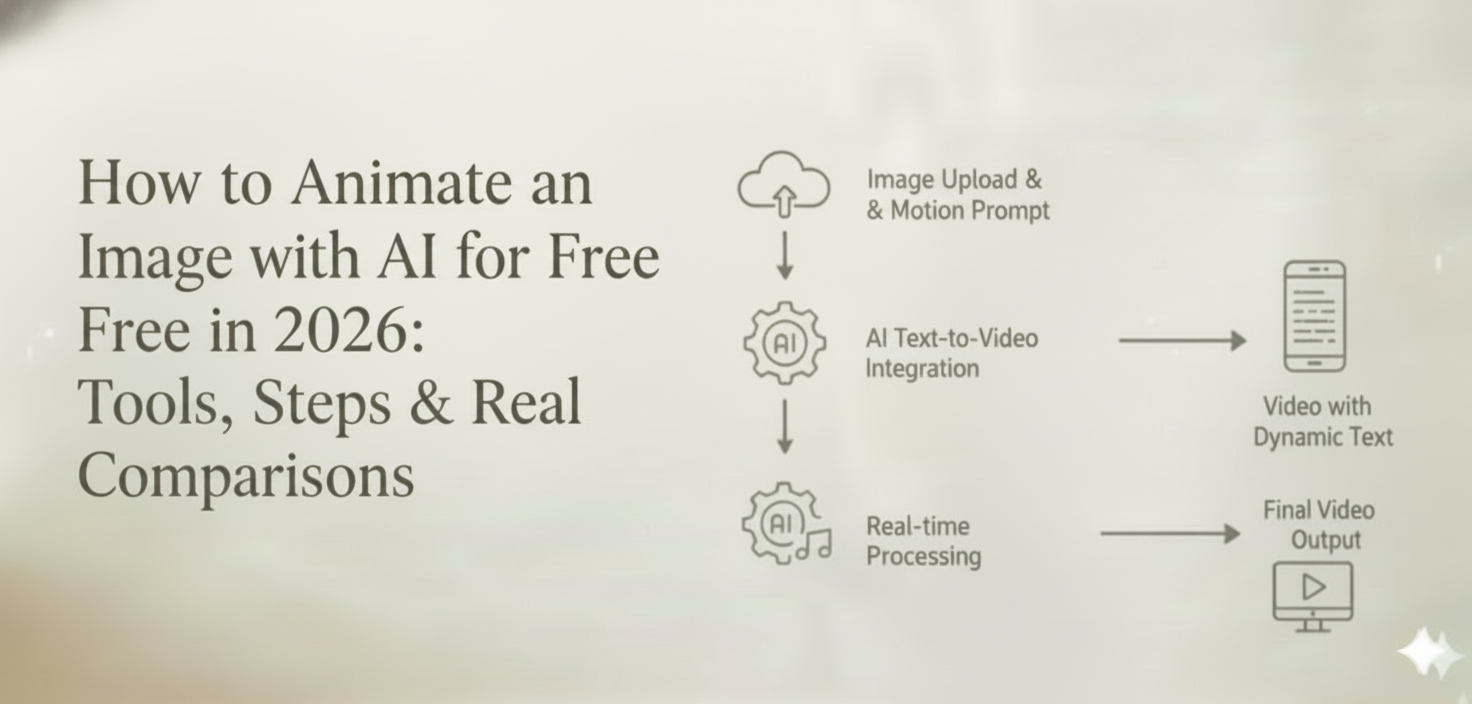
Let us walk through the complete workflow so you can animate your first image in under five minutes.
Step 1 — Upload Your Image
Navigate to and click “Start Creating.” Upload your source image — this can be:
- A smartphone photo (portrait, landscape, product shot)
- A digital illustration or painting
- AI-generated artwork (from Midjourney, DALL-E, Flux, etc.)
- A screenshot, infographic, or book illustration
Supported formats: PNG, JPG, WebP. Recommended minimum resolution: 1024 x 1024 pixels for best results.
Pro tip: Images with clear depth layers (foreground subject plus background) animate more dramatically than flat graphic designs.
Step 2 — Describe the Motion You Want
In the text input, describe your desired animation in natural language. You can be brief or detailed:
Basic prompt:“Gently animate this photo with soft wind and a slow zoom in.”
Detailed prompt:“Slow cinematic dolly-in. The woman’s hair sways in a gentle breeze. Her eyes blink once, then she smiles subtly. Background trees rustle. Warm afternoon light flickers through the leaves. 24fps filmic quality.”
What to include in your prompt for best results:
- Camera motion: dolly, orbit, pan, tilt, static, handheld
- Subject motion: what specific elements should move and how
- Environment motion: wind, water, clouds, particles
- Mood and style: cinematic, dreamy, energetic, slow-motion
Step 3 — Let the AI Director Choose the Best Model
This is CrePal’s defining advantage. After you submit, the AI Director Agent works behind the scenes:
- Image analysis — scans your image for content type, artistic style, resolution, depth complexity, and subject count.
- Prompt interpretation — parses your motion description into technical parameters.
- Model matching — routes your job to the model with the strongest track record for this specific image-prompt combination (Google Veo for photorealistic scenes, Pika for stylized art, Seedance for character motion, etc.).
You do not need to know which model is best. The Director knows.
Generation time: Typically 30-90 seconds, depending on complexity.
Step 4 — Preview, Refine by Conversation and Export
Once your animated clip generates, preview it directly in the browser. Here is where CrePal’s conversational editing transforms the experience.
Instead of scrapping the result and re-prompting (burning credits on other platforms), simply type what you want to change:
- “Slow down the camera movement by 50%.”
- “Make the water ripple more intensely.”
- “Remove the head motion — just keep the environment moving.”
- “Try a more painterly, artistic style.”
- “Switch to a different model for a more cinematic look.”
CrePal iterates on your existing generation, preserving what works while adjusting what does not. This dialogue-based workflow saves credits and time.
When you are satisfied, click Export. Choose your aspect ratio (9:16 for TikTok and Reels, 16:9 for YouTube, 1:1 for Instagram feed) and download or share directly.
7 Creative Use Cases for AI-Animated Images
- Social Media Reels and Stories
Animate a travel photo or lifestyle shot into a 5-second loop. Video format gets 3x the organic reach of static posts on Instagram and TikTok.
- Product Showcase Videos
Upload a flat-lay product photo. Animate with a slow orbit and soft lighting shifts. Result: a professional product video without a photo studio or videographer.
- Storytelling and Children’s Book Illustrations
Bring illustrated pages to life with subtle character motion. Parents and educators are using this to create engaging read-along videos.
- Educational and Explainer Content
Animate diagrams, infographics, or historical images to make complex concepts visual and digestible.
- Art Portfolio Showreels
Digital artists animate their best pieces into a cinematic portfolio reel. Platforms like Behance and ArtStation increasingly favor video-format presentations.
- Marketing and Ad Creative
Repurpose existing brand photography into animated ad units. A single hero image becomes a video banner, social ad, and email GIF — all from one upload.
- Memes and Viral Content
Animate reaction images or meme templates for extra comedic effect. Animated memes consistently outperform static ones in shares and engagement.
Pro Tips for Higher-Quality AI Image Animation
- Source image quality is everything. AI models extract motion cues from your image’s details, depth, and texture. A 512 x 512 compressed JPEG will produce muddy, artifact-heavy animation. Start with at least 1024 x 1024 and minimal compression.
- Describe motion direction and speed, not just the fact of motion. Weak: “Animate this image.” Strong: “Slow dolly-in. Ocean waves roll left-to-right. Seagulls glide across the frame from right.”
- Match aspect ratio to your platform before generating. Cropping after animation often cuts critical motion. Set 9:16, 16:9, or 1:1 upfront.
- Use CrePal’s conversational editing for iteration. First generations are starting points. Refining through dialogue is faster, cheaper, and produces better results than re-prompting from scratch.
- Add style modifiers for dramatic effect. Appending keywords like “cinematic color grading,” “film grain,” “slow motion,” “stop-motion style,” or “Studio Ghibli aesthetic” significantly shifts the output mood.
- For character animation, provide clear facial features. Models animate faces best when the face is well-lit, front-facing or three-quarter view, and occupies a significant portion of the frame.
- Combine image animation with CrePal’s multi-scene capability. Animate one image, then ask CrePal to extend it: “Now continue the story — the character walks through the door into a sunlit garden.” The AI Director maintains visual consistency across scenes, turning a single animated image into a complete narrative video.
FAQ
Can I really animate any image with AI for free?
Yes. CrePal.ai’s free plan lets you upload any image — photographs, illustrations, AI-generated artwork, product shots, even screenshots — and animate it without paying. Free-tier limits apply to the number of generations per month and maximum export resolution (720p), but there is no watermark and no feature lockout on the animation itself.
What is the difference between “AI animate image” and a simple zoom effect?
A critical difference. Level 1 tools (like PixVerse in many cases) only apply camera motion — zoom, pan, tilt — to a static image. The image pixels do not actually move. Level 3 tools like CrePal.ai and Runway Gen-4 use video diffusion models to generate true frame-by-frame motion: subjects perform actions, environments animate naturally, and the camera moves independently. Always check whether a tool offers genuine subject and scene motion or just dressed-up camera moves.
How long of a video can I create from one image?
Most tools generate 3-10 second clips from a single image. CrePal.ai allows you to extend beyond this by using its multi-scene narrative feature — animate the initial image, then prompt additional scenes that continue the story. The AI Director maintains character and style consistency across scenes, so you can build a 30-second to 2-minute video from a single starting image.
Which AI model produces the best image animations?
It depends entirely on the image content and desired animation style. Photorealistic scenes often work best with Google Veo or Runway. Stylized illustrations may animate more beautifully with Pika or Seedance. This is exactly why CrePal.ai’s AI Director Agent is valuable — it analyzes your specific image and prompt, then automatically routes to the optimal model, removing the guesswork.
Do I need video editing skills to animate an image with AI?
No. CrePal.ai’s entire workflow is built around natural-language interaction. You describe what you want in plain English (or any supported language), and the AI Director handles the technical execution. Edits are made through conversation — “Make the camera slower,” “Add more motion to the background” — not through timelines, keyframes, or complex software interfaces.
Can I use AI-animated images for commercial purposes?
CrePal.ai’s paid plans (Plus, Pro, Max) include full commercial usage rights for all generated content. The free tier is suitable for personal projects and experimentation. If you plan to use animated images in client work, advertising, or commercial products, upgrading ensures you have the appropriate license. Always verify the terms of any specific tool you use.
Your Images Are Ready to Move
Every static image is a video waiting to happen. A photograph holds a frozen moment that AI can unfreeze. An illustration contains characters that AI can bring to life. A product shot sits flat on a page until AI gives it dimension and motion.
The tools exist. They are free to start. And the difference between a basic zoom effect and true cinematic animation is now a choice you can make intentionally — armed with the knowledge from this guide.
If you want the highest-quality result with the least friction, CrePal.ai’s AI Director Agent handles the complexity for you: multi-model intelligence, conversational editing, character consistency, and multi-scene extension — all from a single image and a single sentence.
Your images have stories to tell. Let them move.