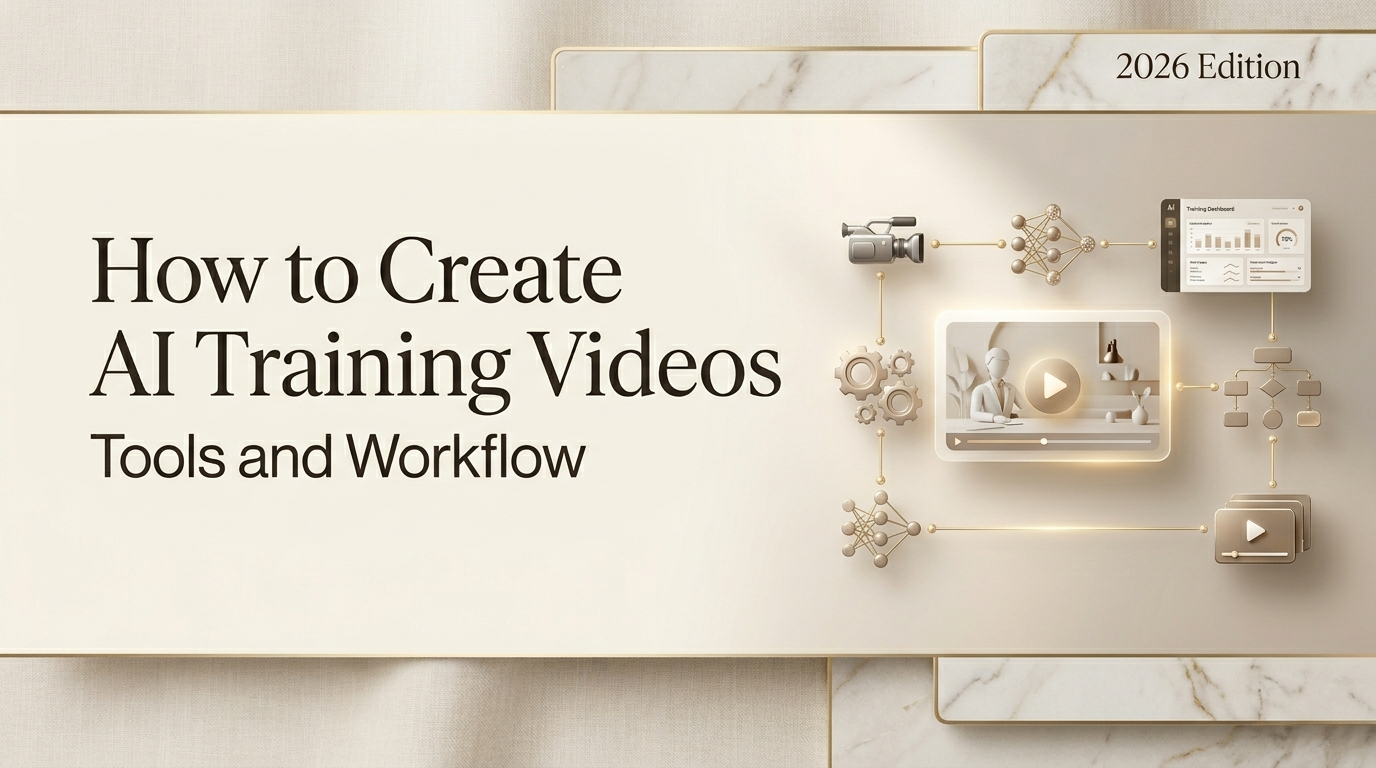
Hey you guys! Here I come again! A startup founder friend asked me a few weeks ago to help her turn a 40-page employee onboarding doc into something people would actually watch. The doc had everything — compliance policies, product walkthroughs, SOP steps — and absolutely nobody was reading it. “Can AI just… make it a video?” she asked.
Honestly, I wasn’t sure. So I spent two weeks testing tools and building real training video drafts from scratch. What I found: yes, AI can handle a huge chunk of this — but the results vary wildly depending on which tool you pick and how you set it up. Let me show you exactly what worked.
Why AI Training Videos Work (and Where They Don’t)
Use Cases: Onboarding, Compliance, Product Demos, SOPs
AI-generated training videos genuinely shine in four scenarios:
Employee onboarding is the obvious one. New hire orientation content is repetitive, consistent, and doesn’t need a human presenter in the room. According to SHRM’s onboarding research, organizations with structured onboarding programs see 69% higher employee retention at the three-year mark — and video is the format new hires absorb fastest.
Compliance training is another perfect fit. The content is standardized, legally defined, and needs to be delivered identically to everyone. AI avatars don’t ad-lib. That consistency is actually a feature here.
Product demos and software walkthroughs work extremely well with screen recording + AI narration. You capture the screen, the AI narrates the steps, and you skip the “uh… so if you click… here” energy of a live recording.
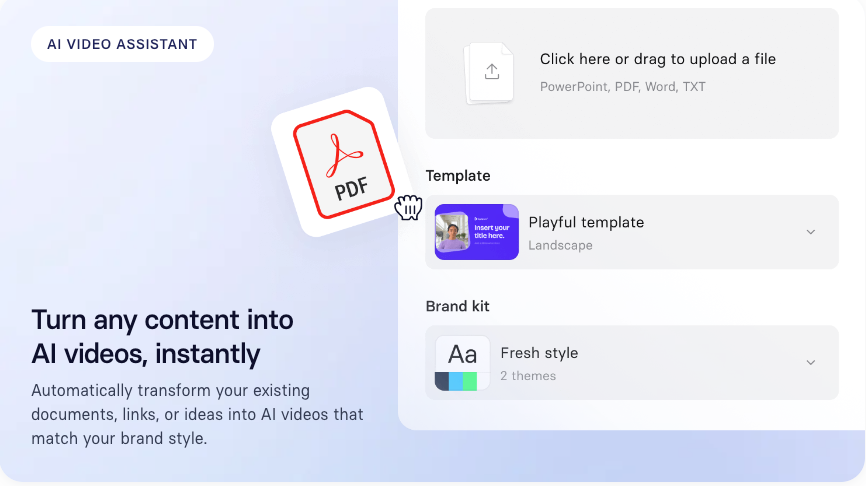
SOP documentation — this is the sleeper use case. Turning a written SOP into a short explainer video takes about 15 minutes with the right tool. We’ll get there.
Where Human-Led Training Still Beats AI Video
I want to be straight with you: AI video doesn’t replace everything. For anything that requires emotional attunement — grief counseling training, conflict resolution workshops, leadership coaching — a human presence matters in ways no avatar can replicate. Same goes for hands-on technical skills that require physical demonstration. AI training video is a tool, not a wholesale replacement for human learning design.
What You Need Before You Start
Script or Outline, Brand Assets, Voiceover Preference
Before you open any tool, get three things ready:
- A script or structured outline. Even 5 bullet points per section beats starting blank. Most AI video tools accept plain text — you don’t need a screenplay.
- Brand assets. Logo, brand colors, preferred fonts. Most tools have a brand kit section; use it. Unbranded training videos look cheap and feel disposable.
- Voiceover decision. Do you want an AI-generated voice, a cloned voice (your own voice, AI-reproduced), or a recorded voiceover? This affects which tool you choose.
Tool Types: Avatar-Based vs Screen Recording vs AI Narration
| Type | Best For | Learning Curve | Avg Cost/Month |
| Avatar-based | Soft skills, onboarding, explainers | Low | $30–$150 |
| Screen recording + AI narration | Software tutorials, SOPs, product demos | Low–Medium | $20–$80 |
| AI narration only (slides/doc) | Quick policy updates, lecture-style content | Very low | Free–$50 |
Best AI Tools for Creating Training Videos
Tool 1 — Best for Avatar-Based Explainer Videos
Synthesia is the one I keep coming back to for client-facing or onboarding content. You paste your script, pick an AI presenter from their library of 230+ avatars, choose a language, and the video is rendered in minutes. The avatars are realistic enough that several colleagues didn’t immediately clock them as AI on first watch.
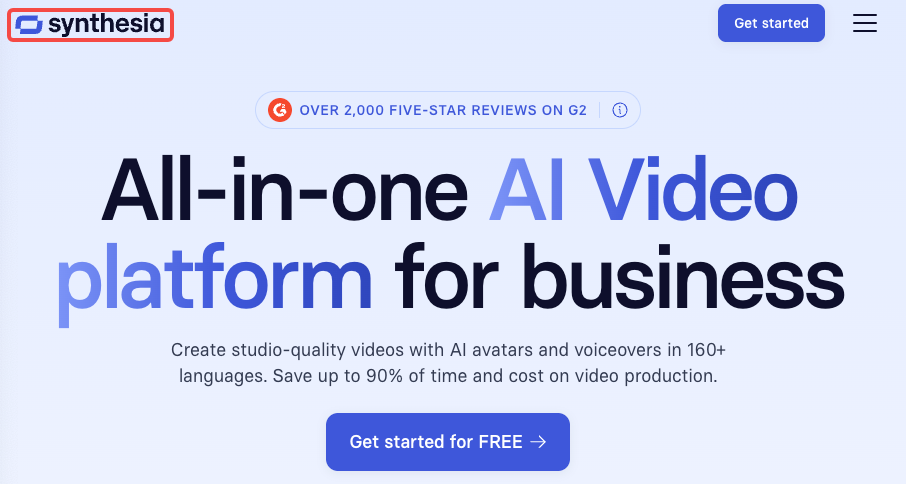
What I tested: a 5-minute product onboarding video using a British English avatar, 3 slides of supporting visuals, and auto-generated captions. Render time: 4 minutes. The lip-sync quality on the English output was solid. Non-English outputs (I tested French and Spanish) had slightly stiffer expression — worth noting if you’re building multilingual training programs.
What it won’t do: give you a custom avatar that looks like you without the Enterprise plan. And the slide templates are functional but not beautiful. You’ll want to bring your own branded visuals.
Pricing: Starter at $29/month (10 videos/month); Creator at $89/month; Enterprise custom.
Tool 2 — Best for Screen Recording + AI Narration
Trupeer caught me off guard. It’s newer and less talked about than Loom, but for AI-narrated screen recordings it’s significantly smarter. You record your screen (or import an existing recording), and the AI generates a narration script based on what’s happening on screen — then reads it in a natural-sounding voice.
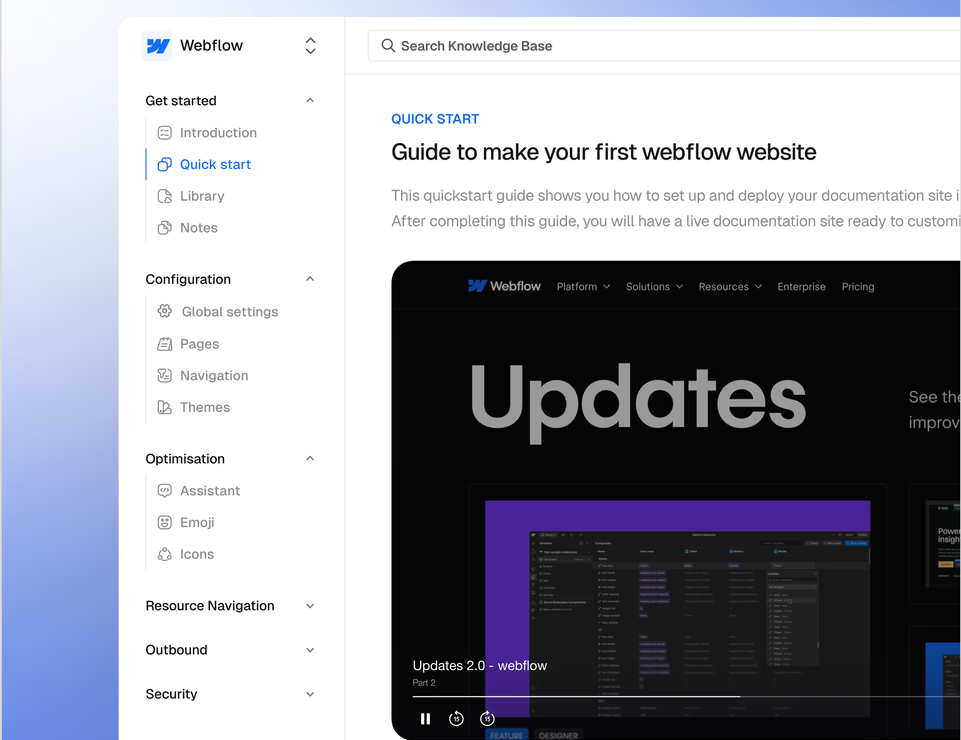
I used it to turn a 6-minute software walkthrough I’d recorded messily (lots of pauses, backtracking) into a clean 4-minute tutorial with AI narration. The AI correctly identified every click action and described it in plain language. The screen recording format it exports is fully compatible with Google Drive hosting and most LMS platforms.
Where it stumbles: if your screen recording includes lots of typed text, the AI occasionally misreads what you’re doing and narrates incorrectly. Quick fix — just record more deliberately and let the AI do less guessing.
Pricing: Free tier available (5 videos/month); Pro at $39/month.
Tool 3 — Best for Fast SOP-Style Videos
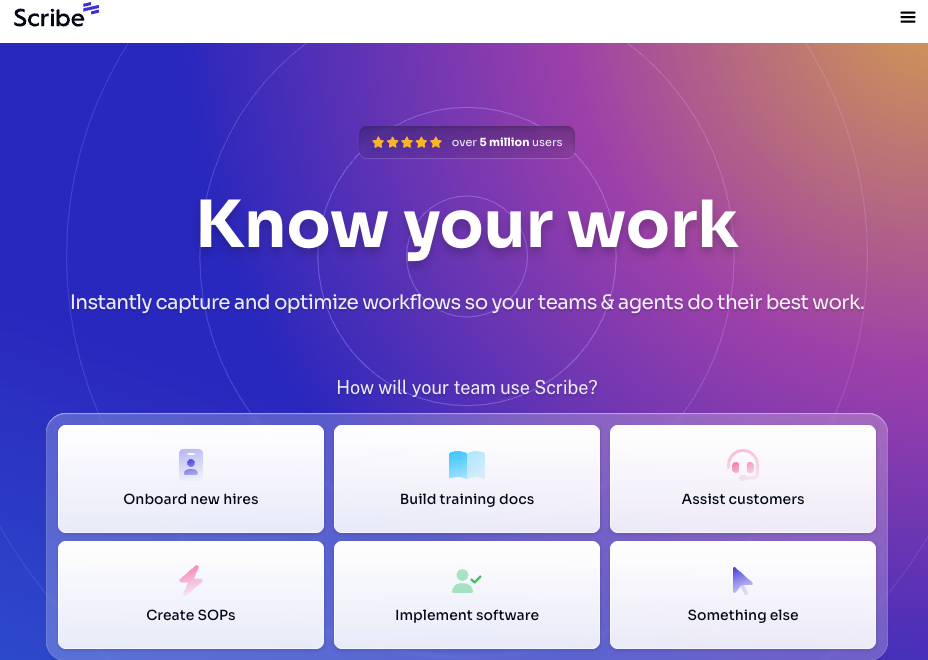
For SOP documentation that needs to become a video fast, Scribe is the most efficient tool I’ve found. You click through the process once while Scribe records, and it auto-generates a step-by-step visual guide — which you can then export as a video or embed directly. It’s less “video” and more “interactive visual doc,” but for SOP use cases, that often works better anyway.
The reason I include it here: for teams that need to document 20+ processes quickly, Scribe is genuinely faster than any other tool. What would take a day in Synthesia takes an hour in Scribe.
Pricing: Free tier; Pro at $23/seat/month.
Step-by-Step: How to Create an AI Training Video
Step 1 — Write or Paste Your Script
Keep it short. A rule I use: 1 minute of video = roughly 130–150 words of script. For a 5-minute training video, that’s 650–750 words. Most teams write 1,500 words and wonder why the video feels exhausting. Cut ruthlessly.
Step 2 — Choose or Generate Your Presenter / Visual
In Synthesia: pick an avatar and a template. In Trupeer: use your screen recording as the visual. In Scribe: the screenshots are auto-generated. The choice here defines the whole feel of the output.
Step 3 — Add Voiceover (AI or Recorded)
If you’re using AI voice, preview at least 3 options before committing. Pacing matters enormously — some AI voices rush through dense technical content. For compliance and accessibility standards, audio should be clear, well-paced, and match the on-screen content timing.
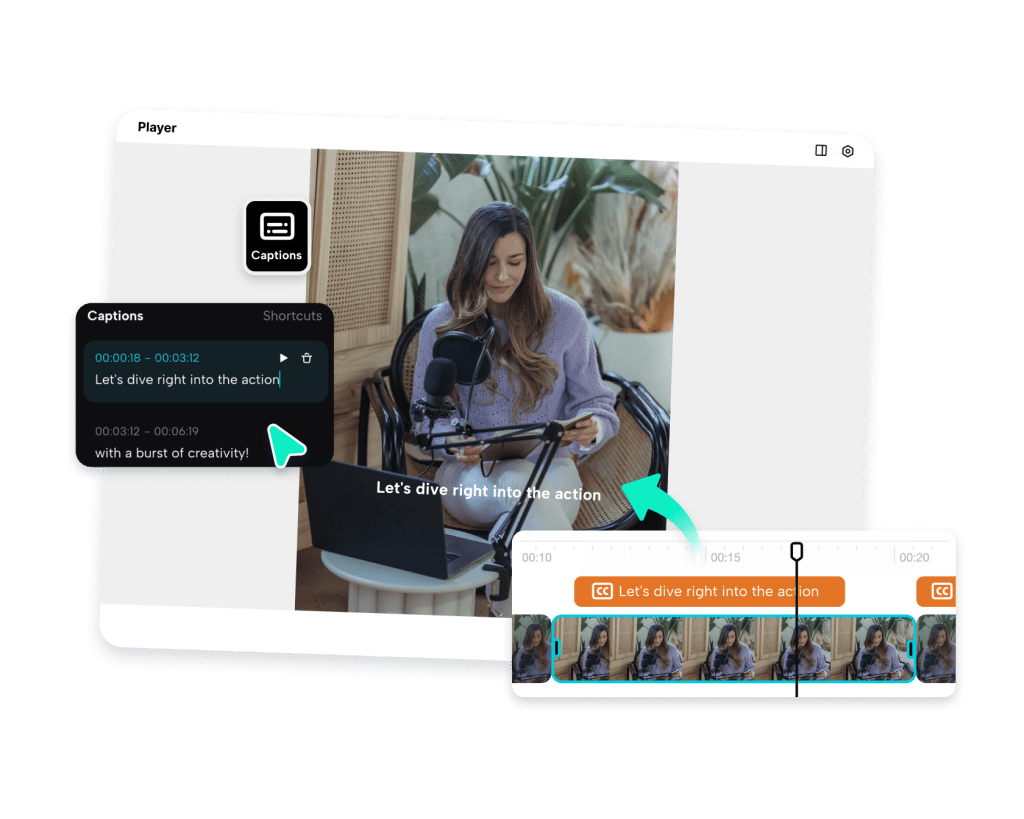
Step 4 — Add Captions and On-Screen Text
Non-negotiable. Captions aren’t just for accessibility — they dramatically improve retention. Research from 3Play Media (2025) found that 80% of viewers watch work-related video with captions on, even when audio is available. Most AI video tools generate captions automatically; review them for accuracy, especially with technical terminology.
Step 5 — Export and Host (LMS, Google Drive, Notion)
Export in MP4 (H.264) for maximum compatibility. For LMS hosting: SCORM packages are supported by Synthesia Enterprise. For lighter setups, a Google Drive or Notion embed is perfectly functional for most teams.
Common Mistakes in AI Training Videos
Too Long, Too Dense, Wrong Pacing for Retention
The single biggest mistake I see: 20-minute training videos built like lectures. According to research published in Computers & Education, video engagement drops sharply after 6 minutes — and for training content specifically, 3–6 minute modules outperform longer formats on knowledge retention. Break your content into chapters. Five 4-minute videos beat one 20-minute video every time.
The second mistake: reading the script verbatim on screen and in the voiceover simultaneously. Pick one. Text on screen should complement audio, not duplicate it.
Free vs Paid Tool Comparison
| Tool | Free Tier | Paid Start | Avatar | Screen Rec | AI Voice | LMS Export |
| Synthesia | No (free trial) | $29/mo | ✅ 230+ | ❌ | ✅ | ✅ (Enterprise) |
| Trupeer | ✅ 5 videos/mo | $39/mo | ❌ | ✅ | ✅ | ✅ |
| Scribe | ✅ Limited | $23/seat/mo | ❌ | ✅ | ❌ | ✅ |
| HeyGen | No (free trial) | $29/mo | ✅ 100+ | ❌ | ✅ | Limited |
FAQ
Q: Can AI training videos replace in-person employee training?
A: For knowledge transfer, compliance, and software tutorials — mostly yes. For anything requiring social dynamics, hands-on practice, or emotional intelligence development, no. Use AI video for the “what” and “how,” keep human sessions for the “why it matters.”
Q: What format should AI training videos be exported in for an LMS?
A: MP4 (H.264 codec) for standard embedding. If your LMS tracks completion and quiz performance, you’ll want SCORM 1.2 or xAPI format — Synthesia Enterprise and some Articulate integrations support this.
Q: How long should an AI training video be for best retention?
A: 3–6 minutes per module is the research-backed sweet spot. If your content runs longer, chapter it into separate videos. Anything over 9 minutes sees significant drop-off in corporate training contexts.
Q: Do employees actually engage with AI-generated training videos?
A: More than you’d expect — especially when captions are on, modules are short, and the content is directly relevant to their role. The “this feels fake” objection fades fast when the information is genuinely useful.
Verdict
If I had to pick one tool for most teams: Synthesia for any content that needs a “presenter” feel, Trupeer for software tutorials and SOPs. Both are solid starting points that don’t require video production experience.
The honest verdict on AI training videos overall: they work best when you treat them like a communication tool, not a magic shortcut. You still need a good script. You still need to think about what your viewer needs to understand and do after watching. The AI handles the production layer — but the thinking? That’s still on you.
Previous Posts: