Hi fellows, I’m Dora — and a few weeks ago I was trying to repurpose a 40-minute webinar recording into short clips for three different platforms. My usual tools were either behind a paywall or overkill for a simple format conversion. A friend in our creator group mentioned MiniTool Video Converter. Free, Windows-only, no watermark on the converter itself. I downloaded it, ran a full batch test, and spent the better part of a weekend putting it through its paces.
Here’s everything I found — the good, the annoying, and the “you should probably look elsewhere” parts.
What MiniTool Video Converter Actually Does
MiniTool Video Converter is a free Windows desktop tool built by MiniTool Solution Ltd. Its core job is converting video and audio files between formats — and it does that without charging you upfront. As of version 4.6.0 (the current build), it also includes a screen recorder and a YouTube download feature, though the latter has some meaningful caveats I’ll cover below.
The software runs on Windows 10 (64-bit) and Windows 11 (64-bit) only. No Mac, no Linux. If you’re on anything else, you can stop reading here.
Format Support, Speed, Batch Conversion
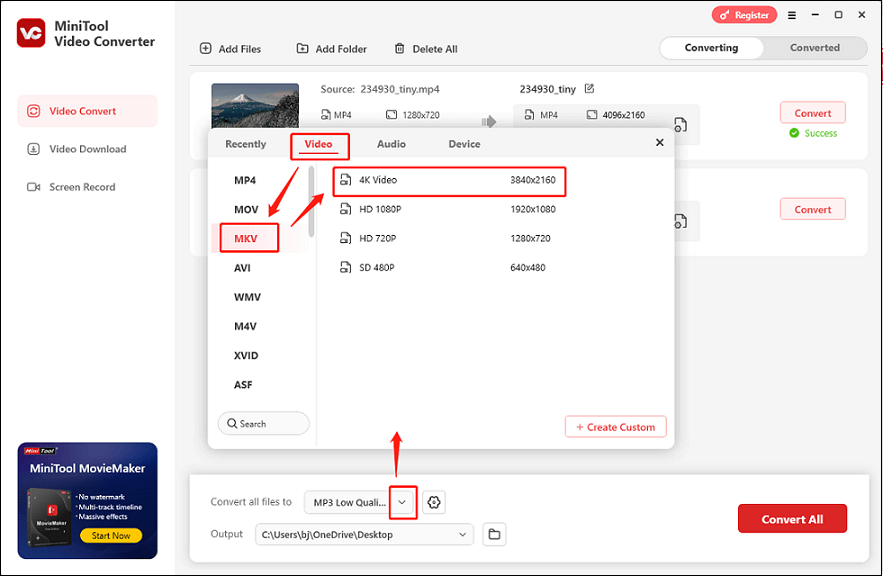
The converter handles over 1,000 output formats, covering 4K, FHD, and HD outputs in formats like MP4, MOV, MKV, AVI, WMV, and M4V, along with audio formats including MP3, WAV, M4A, WMA, AAC, and AC3. In practice, that “1,000+” number is a bit marketing-heavy — many entries are device presets (Samsung Galaxy S-series, iPad generations, gaming consoles) rather than truly distinct formats. But the actual format coverage for a working creator is solid.
Speed is where it genuinely earns points. MiniTool Video Converter uses hardware acceleration, working with Intel, NVIDIA, or AMD GPUs to deliver faster conversions while maintaining quality. In my test, converting a 2GB MKV to H.264 MP4 at 1080p took about 4 minutes on an NVIDIA RTX 3060 system. That’s competitive.
Batch conversion works as advertised for the free tier — up to 5 files simultaneously. The free plan limits batch size to five media files in one run and caps file size at 100MB; beyond that, the converter adds a watermark to outputs. For my 40-minute webinar, the file was 2.8GB — which immediately hit the free tier’s wall. That’s a real limitation for creators working with long-form content.
What It’s Genuinely Good At
Let me be clear about what MiniTool does well, because there’s real substance here for the right user.
- Zero-friction short file conversion. For files under 100MB — think clips for social media, audio rips, format-switching for device compatibility — the free version is genuinely fast and clean. No registration, no mandatory account, no ads inside the interface. That’s increasingly rare.
- Device presets. The preset library for smartphones, tablets, and platforms (YouTube, Instagram, Vimeo, Facebook) saves time. Instead of manually entering codec parameters, you pick a target device and it handles the settings. Useful if you’re not deeply familiar with codec specs.
- Screen recorder. The built-in screen recorder lets you capture full-screen or a selected region, with system audio or microphone, and saves as MP4, WMV, MKV, AVI, MOV, FLV, or TS. No watermark on recordings. For a free tool, this is a genuine bonus — especially for tutorial creators who want one less app open.
- Safety. The core executable passes 2026 security benchmarks, though users should navigate the installation wizard carefully to avoid bundled adware anomalies — downloading from the official MiniTool site keeps this clean.
Where It Falls Short
This section matters more than the pros list, honestly.
Quality Loss, UI Friction, Missing Features
Quality degradation on re-encoding. This is inherent to any transcoding tool, but MiniTool’s default settings don’t always optimize for quality. When I converted a high-bitrate MKV to MP4 using default settings, I noticed visible banding in gradient sky shots. The issue is that the default bitrate targets are conservative.
For context: for 1080p at 30fps, a target of 8–12 Mbps VBR is the standard recommendation; for 4K at 30fps, you’re looking at 35–45 Mbps VBR. MiniTool’s defaults sit below these ranges in some presets. You can manually adjust — but then you’re in the settings panel, which brings me to the next issue.
UI friction. The interface is clean on the surface but becomes clunky once you go beyond one-click presets. Finding the custom bitrate, frame rate, and encoder settings requires clicking a small pencil icon that isn’t obviously labeled. New users miss it regularly. For a tool positioning itself as beginner-friendly, this is a UX gap.
Free tier watermark on large files. The 2026 free tier caps online video downloads at 5 clips total, and if you exceed certain batch functions, the software halves the saved video length. For local file conversion, the watermark kicks in past 100MB. The paid plan removes these limits at $9.99/month or $49.99/year — but there’s no lifetime license option, which adds up for long-term users.
Windows only. No exceptions. While you can technically force MiniTool to run on macOS via virtual machines like Parallels Desktop, the experience is severely degraded — transcoding through Apple Silicon’s translation layer causes significant heat and slow rendering. Mac users should plan for a native alternative.
YouTube download reliability. The v4.6.0 changelog notes fixes for error 429 and bot errors, which tells you something about the ongoing cat-and-mouse with platform restrictions. In my tests, standard YouTube downloads worked fine for short public videos. Long-form content above ~20 minutes was hit-or-miss.
Who Should Use It (and Who Should Look Elsewhere)
MiniTool is right for you if:
- You’re on Windows and need occasional format conversion for files under 100MB
- You want a free screen recorder bundled in, no watermark
- You’re converting for device compatibility (phone, tablet, gaming console) and want presets without learning codecs
- You’re a student, hobbyist, or occasional creator who doesn’t need batch processing of large files
Look elsewhere if:
- You’re on Mac or Linux
- You regularly work with files over 500MB or long-form video (30+ minutes)
- You need reliable YouTube archiving at scale
- You want a lifetime license instead of a subscription
- You need advanced encoding controls as part of a professional workflow
How to Get the Best Output Quality — 4 Settings to Change
If you’re using MiniTool, here’s what to actually change before you hit convert. These are the settings that matter most.
Setting 1: Switch codec from default to H.264 (High Profile). The default sometimes uses a Baseline profile, which is less efficient. High Profile supports CABAC entropy coding, which improves quality at the same bitrate. Click the pencil icon next to your output format to access this.
Setting 2: Set bitrate manually using VBR.
Here’s a quick reference table based on current industry standards (March 2026):
| Resolution | Frame Rate | Recommended Bitrate (VBR) | Codec |
| 1080p | 30fps | 8–12 Mbps | H.264 |
| 1080p | 60fps | 12–15 Mbps | H.264 |
| 4K | 30fps | 35–45 Mbps | H.265 |
| 4K | 60fps | 53–68 Mbps | H.265 |
For a deeper breakdown of why these numbers matter, this guide on video bitrate optimization for exports explains VBR vs CBR tradeoffs clearly.
Setting 3: Match your source frame rate exactly. Don’t let MiniTool default to 30fps if your source is 25fps (common in European broadcast content) or 23.976fps (film). Frame rate mismatch causes subtle audio drift over long clips.
Setting 4: Set audio to 192kbps stereo AAC minimum. MiniTool’s default audio output can drop to 128kbps, which is audibly degraded for music-heavy content. Bump it to 192kbps for clean stereo, or 256kbps if your source is high-quality audio.
Alternatives if MiniTool Doesn’t Fit Your Workflow
Here’s the honest decision matrix — what situation should push you to a different tool.
| Situation | Recommended Alternative | Why |
| You’re on Mac | HandBrake (free) | Native macOS build, excellent H.264/H.265 output, x264/x265 encoders |
| You need large batch processing | HandBrake or Shutter Encoder | No file size cap, queue-based workflow |
| You need pro-grade codec control | Adobe Media Encoder | Full integration with Premiere/After Effects, VBR 2-pass |
| You need cross-platform + GUI | Shutter Encoder (free) | Windows + Mac + Linux, supports ProRes, DNxHD, custom targets |
| You want lifetime license + features | Movavi Video Converter | One-time purchase, cleaner UI, Mac support |
| You need YouTube downloading reliably | yt-dlp (command line) | Open source, actively maintained, handles cipher updates |
HandBrake is the most important alternative to knowing. It’s free, open-source, runs everywhere, and uses the x264/x265 encoders — which produce better quality at equivalent bitrates than most GUI-wrapper tools. The learning curve is steeper, but the output quality ceiling is meaningfully higher.
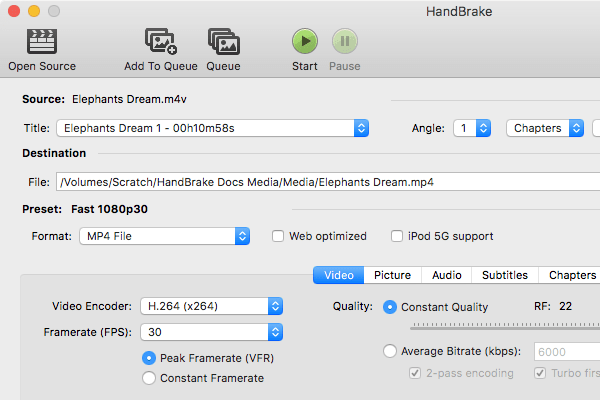
For yt-dlp, it’s a command-line tool, which is a dealbreaker for some. But if you’re comfortable with a terminal, it’s the most reliable YouTube archiver available and handles the cipher decryption issues that GUI tools like MiniTool struggle with after platform updates.
FAQ
Q: Is MiniTool Video Converter actually free? Yes, with real limits. The free version converts local files without a watermark up to 100MB per file, handles up to 5 files in batch, and includes the screen recorder at no cost. The YouTube downloader is capped at 5 downloads on the free tier. Paid plans start at $9.99/month or $49.99/year and remove these restrictions.
Q: Is it safe to install? Yes, when downloaded from the official MiniTool site. The installer is clean. The caution is during installation — read each screen and decline optional extras. Third-party download mirrors sometimes bundle adware.
Q: Does MiniTool Video Converter add a watermark? On the video converter: only when you exceed the free tier limits (files over 100MB or certain batch operations). The screen recorder does not add a watermark, even on the free version. This is one of its genuine strengths.
Q: Will it work on Mac? Not natively. MiniTool is Windows 10/11 (64-bit) only. Running it through Parallels or similar virtualization on Apple Silicon causes performance and heat issues. Use HandBrake or Shutter Encoder instead.
Q: What’s the quality like compared to HandBrake? HandBrake typically produces better output at equivalent bitrates because it uses the open-source x264/x265 encoders. MiniTool’s output is perfectly usable for most purposes, but if you care about preserving fine detail in gradient-heavy or high-motion footage, HandBrake gives you more control and better defaults. For casual use, the difference is minor.
Q: Can it convert 4K video? Yes. MiniTool supports 4K output and can handle H.265 encoding for 4K files. Just make sure to set the bitrate manually — the default may be too low for 4K without visible compression artifacts, especially in high-motion scenes.
Previous Posts: