Hey guys! I’m Dora. While I was staring at my inbox with 23 unread messages, all subject lined variations of “RE: RE: RE: v4_FINAL_edit_reallyfinal.mp4.” My editor was confused. My client was frustrated. I’d somehow approved the wrong version. Again.
That night I decided I was done managing video feedback through email and Slack. I spent the next two weeks testing dedicated video feedback tools, and honestly? The difference is embarrassing. This guide is everything I learned — including the tools table, a comment framework that changed how I work, and the honest trade-offs no one else talks about.
Why Video Feedback by Email and Slack Is Broken
We’ve all convinced ourselves that email threads and Slack messages are “good enough.” They’re not. They’re just familiar.
The core problem is that video is a time-based medium. When a client writes “fix the transition around the 1-minute mark,” that’s already ambiguous — are they talking about 0:58 or 1:04? And by the time the editor opens Slack, watches the video from the beginning, scrubs to roughly the right spot, reads the comment, and cross-references two other messages from a different thread… You’ve burned 20 minutes on a 3-second fix.
According to Wistia, teams that manage video review through general-purpose messaging tools average 4.2 revision rounds per project. Teams using dedicated video feedback platforms average 1.9. That’s not a small gap.
The 3 Failure Patterns That Kill Projects
Pattern 1: The version chaos spiral. Someone downloads v3, gives feedback, but v4 was already uploaded somewhere else. Now you have feedback that applies to the wrong cut. I’ve lost entire afternoons to this.
Pattern 2: The vague timestamp problem. “The beginning feels slow” or “tighten up the middle” — without a timestamp pin, these comments send editors on a scavenger hunt. It’s not their fault; it’s the tool’s fault.
Pattern 3: The approval ghost. You think something is approved because nobody said no. Then the client sees the published version and says “wait, I never signed off on that.” No paper trail, no defense. Projects stall. Relationships crack.
What a Dedicated Video Feedback Tool Changes
The moment I switched to a proper review platform, three things happened immediately: feedback got specific, versions stayed organized, and approvals left a record.
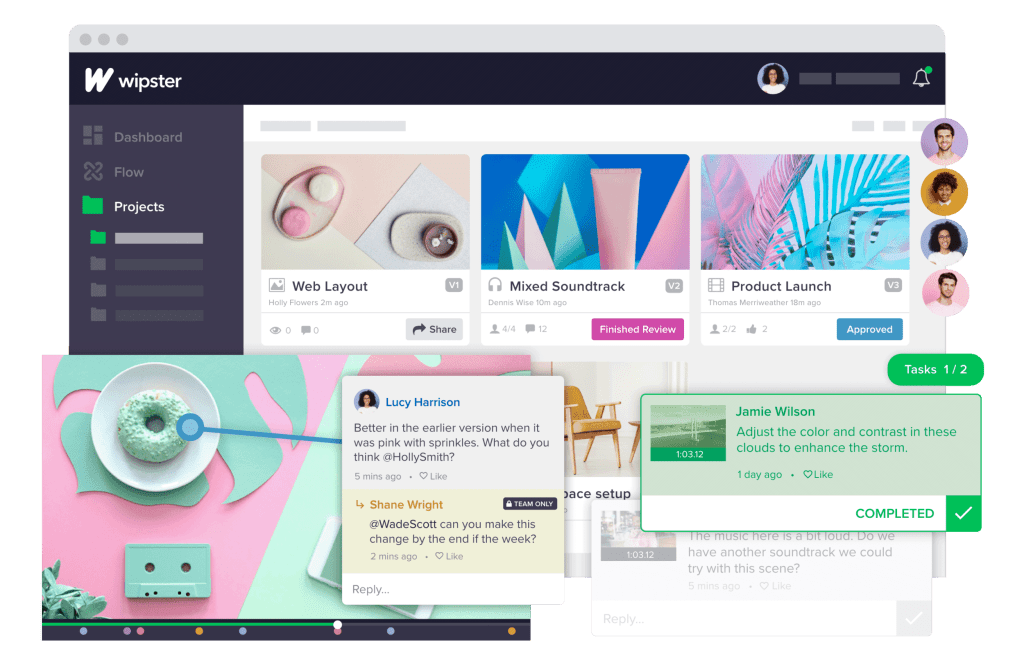
Time-Coded Comments, Approval Flows, Version Control
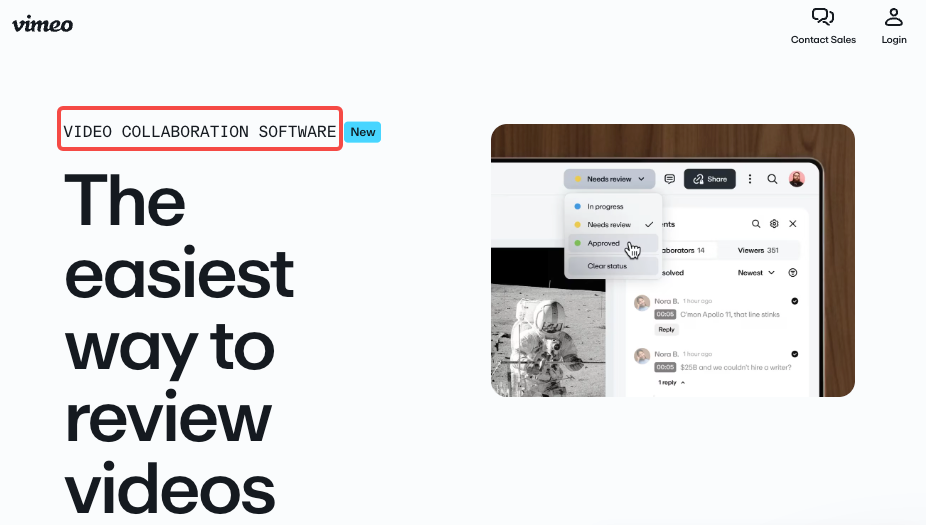
Time-coded comments are the foundation. When a reviewer clicks directly on a frame to leave a note, the editor lands on the exact moment — no scrubbing, no guessing. Tools like Frame.io and Vimeo Review have done this well for years, but newer players like Screenlight and Kollaborate have closed the gap significantly as of recent days.
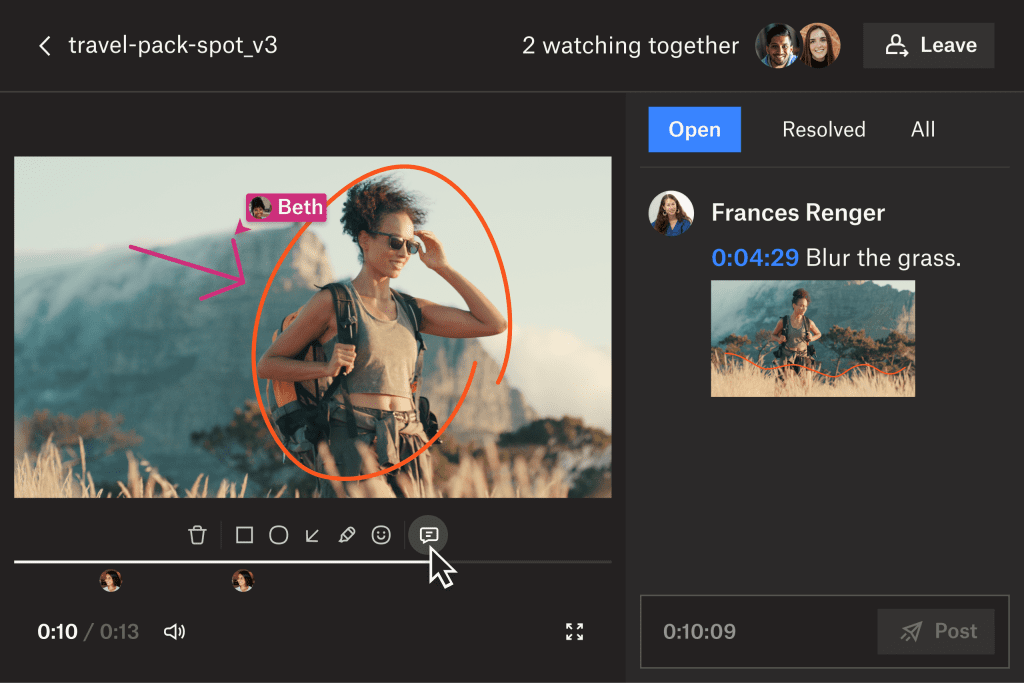
Approval flows matter more than people expect. A structured approval means someone has actively clicked “approve” on a specific version. That action is logged with a timestamp and the reviewer’s name. When questions come up later (and they will), you have receipts.
Version control keeps the feedback history clean. Instead of “v3_client_edits_FINAL_v2.mp4” living in three different Dropbox folders, every version lives in one place, with comments attached to the correct cut. Dropbox’s own research on team collaboration confirms that version confusion is the #1 reported reason creative projects go over budget — not scope creep, not bad briefs.
How to Choose the Right Tool for Your Team Size
Not every tool is built for every situation. I’ve used most of these in real projects, not just free trials.
Solo Creator vs Small Team vs Agency — Different Needs
Solo creators are often just trying to get clean client feedback without paying enterprise prices. You need something with a clean shareable link, basic time-coded comments, and simple approval. Frame.io’s free tier (up to 2GB storage) or Vimeo Review (included in Vimeo Standard plans) handles this well. Complexity beyond that is overkill.
Small teams of 2–8 need version control and some kind of notification system, so the right person gets pinged when feedback lands. Wipster and Screenlight hit this sweet spot. Both have real-time comment threading and work without forcing every reviewer to create an account.
Agencies need role-based permissions, client portals, and audit trails. Frame.io (now part of Adobe’s ecosystem) and Kollaborate are the serious choices here. Frame.io’s integration with Premiere Pro and After Effects means editors can receive comments without leaving their timeline — that alone saves hours per project.
How to Give Feedback That Editors Can Actually Use
Here’s the thing nobody says: the tool is only half the equation. Bad feedback in a good tool is still bad feedback. I developed this framework after watching dozens of client review sessions go sideways.
A 5-Part Comment Framework
Good feedback comments follow this structure — I call it TLACR:
- Timestamp — Pin the exact moment. “At 0:32” not “near the beginning.”
- Location — Be specific about what element. “The lower-third text” not “the text.”
- Action — State what you want done. “Remove,” “shorten,” “change color to #1A1A2E.”
- Context — Explain why if it’s not obvious. “The pacing here makes the hook feel slow.”
- Reference (optional) — Link a comparison if helpful.
That comment takes 15 seconds to write and 30 seconds to execute. Compare that to “the text looks off” — which could mean font, color, size, position, or timing, and kicks off a back-and-forth thread that eats the afternoon.
For anyone building a client onboarding doc, I’d recommend checking out Google’s documentation on clear technical writing — the principles translate surprisingly well to video feedback clarity.
Cloud vs Desktop Tools — The Real Difference
People frame this as a price debate. It’s actually a workflow debate.
Cloud-based tools (Frame.io, Vimeo Review, Wipster) are built for collaboration. The entire point is that a reviewer in a different city opens a link, watches the video, and leaves a comment — no software install, no account required in most cases. The video is streamed from the cloud, so you’re not emailing 2GB files. For remote teams and client-facing reviews, cloud wins every time.
Desktop tools (DaVinci Resolve’s built-in collaboration, Premiere‘s shared project features) are built for editors already inside a specific ecosystem. They’re powerful but require everyone to be on the same software. If your client uses nothing, they won’t install a desktop app just to review one video.
The honest summary: cloud for client-facing review, desktop collaboration for internal editor teams working in the same NLE. Many professional workflows use both — cloud for client rounds, desktop sync for internal versions.
Top Tools Compared (Quick Table)
| Tool | Best For | Free Tier | Time-Coded Comments | Approval Flow | Starting Price |
| Frame.io | Agencies / Adobe users | Yes (2GB) | ✅ | ✅ | $15/mo |
| Vimeo Review | Solo + small teams | With Vimeo plan | ✅ | ✅ | $20/mo (Vimeo Standard) |
| Wipster | Small teams | No | ✅ | ✅ | $25/mo |
| Screenlight | Client portals | Yes (limited) | ✅ | ✅ | $19/mo |
| Kollaborate | Studio / agency scale | No | ✅ | ✅ | $24/mo |
| Filestage | Marketing teams | 14-day trial | ✅ | ✅ | $49/mo (team) |
Frame.io remains the most feature-complete option for teams already in Adobe’s ecosystem — its direct integration with Adobe Creative Cloud means comments appear inside Premiere Pro’s timeline without switching windows, which is genuinely useful once you’re used to it.
FAQ
Q: Can clients leave feedback without creating an account?
Most cloud tools let you share a review link that anyone can open in a browser and comment on. Frame.io, Vimeo Review, and Screenlight all support guest review as of March 2026. Wipster requires reviewers to create a free account, which adds one step but also keeps the comment thread more organized.
Q: What’s the difference between “approval” and just not getting any more comments?
A huge difference. Silence in a Slack thread doesn’t mean approval — it often means the message got buried. A formal approval click in a feedback tool is a logged, timestamped action. If a client later says “I never approved that,” you can show them exactly when and from which device they clicked approve. This has saved me from at least two uncomfortable client conversations.
Q: Do I need a different tool for short-form video (Reels, TikTok) vs long-form?
Not necessarily. Most tools handle any video length. The real variable is file size — short-form is usually under 200MB, so upload speed is a non-issue. For long-form content over 30 minutes (documentaries, courses), prioritize tools with streaming review rather than download-to-watch. Frame.io and Vimeo both stream natively.
Q: How many revision rounds is normal?
For well-briefed projects with a clear brief, 2 rounds is the industry standard for short marketing videos. 3 rounds is acceptable. If you’re consistently hitting 5+, the problem is usually upstream — vague briefs, no reference examples, or the wrong stakeholders reviewing at the wrong stage. A good feedback tool helps enforce process, but it can’t fix a missing brief.
Q: Is Frame.io worth the extra cost for solo creators?
Probably not at full price. The free tier (2GB) covers most solo needs. If you’re producing more than 3–4 client videos per month and need version history, it’s worth $15. Otherwise Vimeo Review bundled with an existing Vimeo plan is the better value.
Previous Posts: