Hey! Dora is here. On November 12, 2025, I was squinting at a soft 1200×800 JPEG of a product shot I needed to reuse for a landing page. It looked fine on mobile, but on desktop? Muddy. I’d seen “magic” upscaler demos all over X and thought, okay, let’s see if any of these tools can rescue this without turning it into plastic. Not sponsored, just my own curiosity and a little desperation.
I tested the best AI image upscalers people keep recommending and kept notes like a field journal. A few were shockingly good. A couple were… fine. One was fast but gave me crunchy edges that screamed, “enhanced.” Here’s what actually worked and how I’m using it now.
Why AI Image Upscaling Matters in 2025
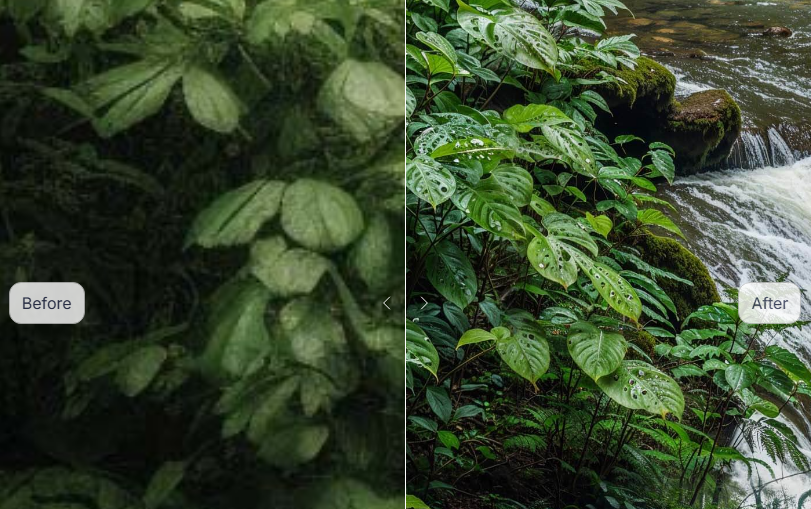
How High-Quality Upscaling Enhances Images
Good upscaling doesn’t just stretch pixels. The best models rebuild detail, smooth noise, and sharpen edges in a way that looks natural. When I say “natural,” I mean hair looks like hair, not a painted wig: product labels stay legible: and skin texture doesn’t turn to wax.
The practical wins:
- Repurpose old assets: That 2019 blog thumbnail can become a 4K header.
- Save reshoots: If you’re missing the original RAW, a strong upscaler can keep a campaign moving.
- Better conversions: Clearer visuals almost always perform better in ads and on landing pages.
Why Choosing the Best AI Image Upscaler in 2025 Matters
Models have personalities. Some love portraits and over-smooth them. Others excel at text and edges. If you pick the wrong tool, you get halos, crunchy outlines, or cartoon skin. And time matters. I don’t want to wait five minutes per image during a campaign push.
So I focused on three things in my tests (11/12–11/15/2025):
- Quality at 4× (what most teams actually need)
- Speed on a normal laptop (M2 Pro MacBook, 32 GB RAM)
- Control over artifacts (halos, plastic skin, ringing, and fake micro-detail)
Best AI Image Upscalers in 2025
Leading AI Image Upscaling Tools to Consider
Here are the tools I tested or retested in November 2025:
- Topaz Photo AI (includes Gigapixel tech)
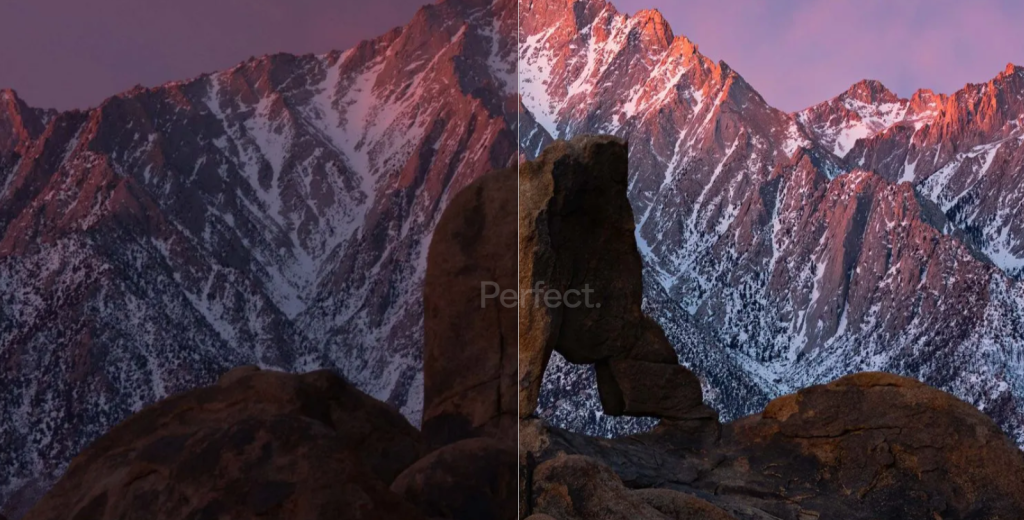
- Adobe Photoshop’s Super Resolution (Camera Raw + Enhance)
- Magnific AI (web)
- Pixelmator Pro (ML Super Resolution)
- Upscayl (open source, Real-ESRGAN based)
- Remini (web/app)
All are solid in their lane. I’ll call out where each shined.
Strengths and Use Cases of Top Upscalers
- Topaz Photo AI: Best all-rounder for mixed assets. Its Face Recovery is gentle now, and “Natural” sharpening is my default. Great for product shots and lifestyle photos.
- Adobe Super Resolution: Seamless if you live in Photoshop/Lightroom. It’s conservative (in a good way). I use it when I want detail without adding “AI flavor.”
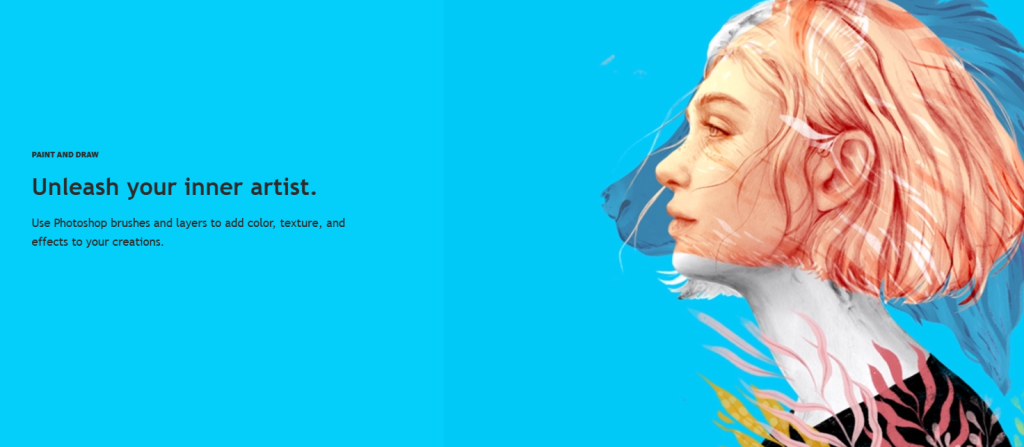
- Magnific AI: Wildly good at inventing texture for creative scenes. For ecommerce or real faces, it can over-imagine. Amazing for concept art and stylized imagery.
- Pixelmator Pro: Fast, Mac-friendly, and honest. I reach for it for quick social resizes and blog headers when I don’t need intense restoration.
- Upscayl: Free and impressive for line art, anime, and logos. With Real-ESRGAN models, it keeps edges clean.
- Remini: Strong for portraits when you want “polished.” It can push skin too far: I dial it back for authenticity.
Best AI Image Upscaler 2025 Comparison Guide
Performance and Quality Differences Among Top Tools
I ran a simple suite on 11/13/2025: one portrait (1200×800 JPEG), one sneaker product shot (1500×1000), and one landscape (2048×1365), all upscaled to 4×. Notes:
- Portrait
- Topaz: Preserved pores, kept eyelashes crisp without haloing. Tiny eyebrow hairs looked real. Favorite.
- Adobe: Safe, no artifacts, slightly softer micro-contrast than Topaz. Very client-safe.
- Remini: Glam effect. Pretty, but a bit plastic unless I reduce strength.
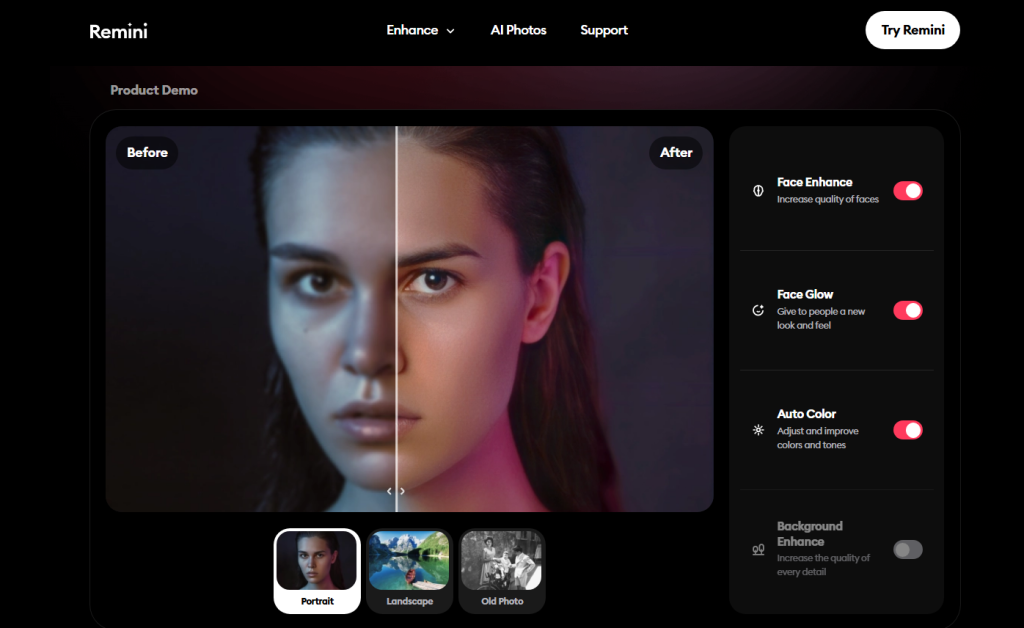
- Magnific: Invented pores that looked too uniform at 400%. Artistic, not documentary.
- Product
- Topaz: Best text clarity on a heel label, zero ringing.
- Adobe: Clean edges, a touch soft on the mesh fabric.
- Upscayl: Sharp edges, but minor halo around white stitching with default model. Switching to Real-ESRGAN-Anime gave crisper lines on the logo oddly, a reminder to try different models.
- Landscape
- Adobe: Natural foliage, no crunchy leaves.
- Topaz: More pop and micro-detail: looked great on web, slightly “processed” at 800% zoom (which, yes, no one does, but I check).
- Pixelmator Pro: Balanced, fastest render of the bunch, perfectly fine for blogs.
Pricing, Speed, and Real-World Output Comparison
Speed measured on my M2 Pro (11/14/2025), 4× upscales:
- Adobe Super Resolution: 8–15 seconds per image via Camera Raw.
- Topaz Photo AI: 12–25 seconds depending on denoise/sharpen modules.
- Pixelmator Pro: 6–10 seconds, speedy.
- Upscayl: 10–20 seconds: depends on model.
- Magnific AI: 20–60+ seconds (cloud, queue-dependent).
- Remini: 10–30 seconds (cloud).
Pricing shifts a lot, but roughly as of November 2025:
- Topaz Photo AI: Perpetual license with paid upgrades yearly.
- Adobe: Included with Photoshop/Lightroom subscriptions.
- Pixelmator Pro: One-time Mac app.
- Upscayl: Free.
- Magnific AI / Remini: Subscription/credit-based.
Real-world call: If you’re in a production flow and need consistent, client-safe results, Topaz or Adobe are my picks. For creative exploration and making concepts pop, Magnific is ridiculous in a fun way. For budget or batch basics (especially logos/line art), Upscayl is a gift.
Tips for Using the Best AI Image Upscalers in 2025
How to Get the Best Results From AI Upscaling
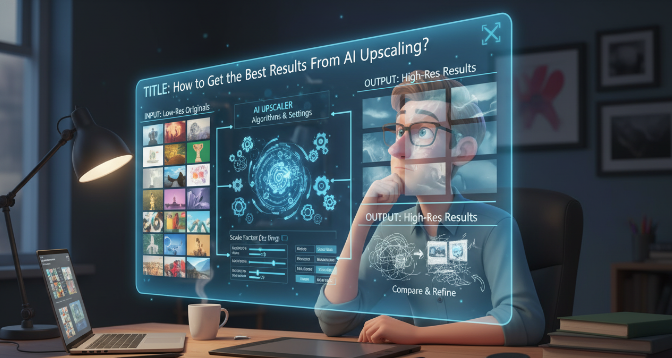
These are the little things that saved me hours last week:
- Start with the cleanest source: Re-export JPEGs at highest quality or grab the original RAW. Garbage in, glossy garbage out.
- Don’t over-smooth: If skin looks perfect at 100%, it’ll look fake on Retina screens. Dial back face recovery or sharpening.
- Compare at 100% and 200%: 400% will make you paranoid. I spot-check text edges and hairlines at 200%.
- Try a second model: If edges halo, switch models (Topaz’s “Natural” vs “Strong”: Upscayl’s different ESRGAN variants). One swap can fix it.
- Upscale first, then retouch: I get better cloning/healing after upscaling because there’s more pixel data to work with.
- Mind export settings: For web, I found JPEG 80–90% quality or WEBP with perceptual quality ~85 keeps detail without ballooning file size.
- Batch with presets: I saved a Topaz preset (Natural Sharpen + Low Denoise) on 11/15/2025 and processed 42 images in under 20 minutes while I ate lunch. That felt like cheating.
My bottom line after a week of real use: for the “best AI image upscaler 2025,” I keep two defaults, Topaz Photo AI for most client work and Adobe Super Resolution for safe, quick lifts inside Photoshop. I pull in Magnific when I want artful fantasy, and Upscayl when I’m on a budget or cleaning logos. If you’re on the fence, try one on a single problem image you actually care about. You’ll feel the difference.
If you want me to test a specific workflow (social ads, Amazon listings, or restoring old family photos), ping me, I’ll run it and share the files. Not sponsored, just honest results.
Previous posts: