I kept seeing quick clips of people “spinning up agents” in DIA Browser and, honestly, I wondered if it was just another shiny panel I’d open twice and then forget. Curiosity won. I gave myself one afternoon, coffee on standby, to turn DIA into something that actually saves time in my content workflow. This is my dia browser guide, field notes, small wins, a couple of facepalms, and what finally clicked.
DIA Browser Overview 2025
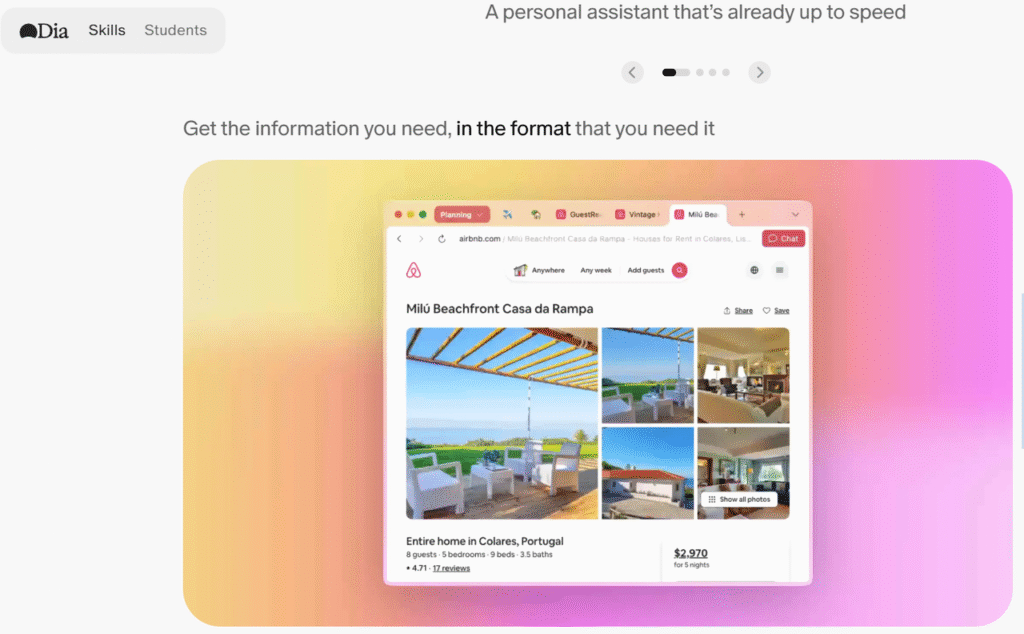
So, DIA Browser in 2025 is basically a workspace for building and running AI agents that can browse, fetch data, click around the web, and stitch steps together like a junior assistant who doesn’t get bored. It lives in your browser (no surprise), and the core idea is simple: describe what you want, give it tools (like web access, docs, sheets), and let the agent execute.
What stood out fast:
- It’s workflow-first. Instead of writing code, you chain steps (think: “search → visit → extract → summarize → post”).
- Agents can remember state during a run. That means fewer “wait, what did we just do?” moments.
- The UI tries to keep you in the flow: logs on the right, play/pause on top, and quick edits without diving into settings hell.
If your mental model is “ChatGPT but with legs,” you’re close, but DIA adds real buttons and guardrails so tasks can repeat without babysitting. It’s not magic, but when it’s set up right, it’s surprisingly capable. And if you found this by searching for a dia browser guide, you’re probably deciding whether it’s worth the setup time. Short answer: for repeatable web tasks, yes.
Custom Agent Features
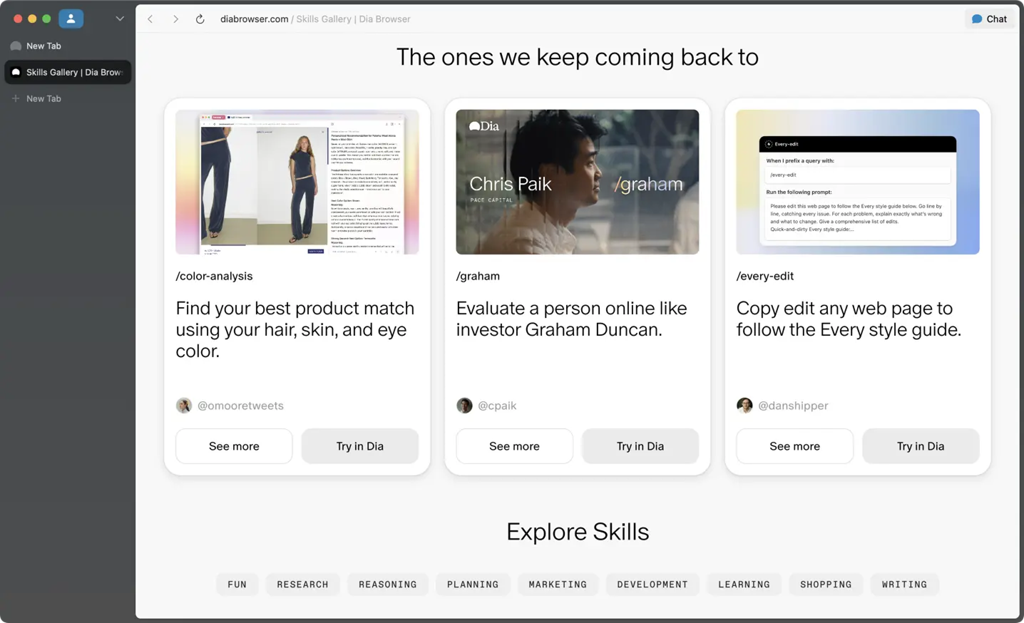
I expected a generic chat with a fancy name. Instead, custom agents in DIA feel like little playbooks you can save and reuse. You pick a base model, toggle web access, add tools (browser, spreadsheets, APIs), and give it a personality/role. The role matters more than you think, my “skeptical researcher” agent pulled better sources than my default “assistant” personality.
What I liked: reusable prompts with variables. I created a template like “Summarize this article for [audience] with [tone], add three pull quotes” and passed audience/tone each run. It made the agent feel less… random.
No-Code Interface
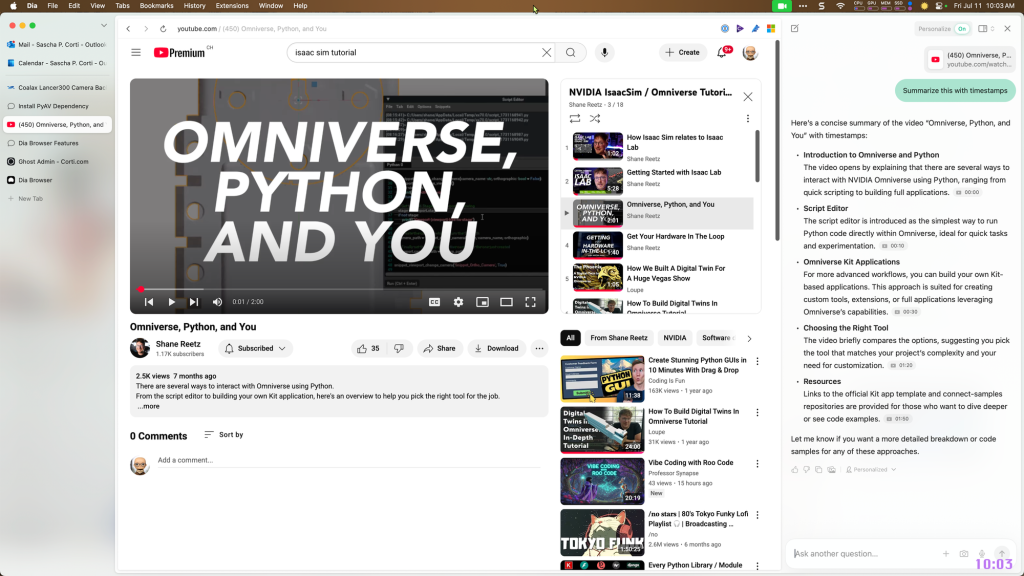
The no-code canvas is where DIA sold me. You drag blocks (Search, Visit Page, Extract, Classify, Write to Sheet, etc.), then wire outputs to inputs. It’s not perfect, sometimes the connection lines felt fiddly, but I built a working research loop in 15 minutes without touching code.
Tiny tip: name your blocks clearly (“Extract h2+h3 from results page” beats “Extract 2”). When things misbehave (they will), named steps are sanity savers.
Agent Building Workflow
Here’s the workflow that finally clicked for me after two false starts:
- Define the exact output first. I wrote a small spec in plain English: “CSV with columns: source_url, title, 3-key-points, author, date.” Once you know the finish line, the blocks make sense.
- Map the steps like you’d explain to a human intern. Mine: “Google query → open top 5 credible results → extract title/author/date → grab 3 key points → store to sheet → summarize trend.” If you can’t say it simply, the agent won’t either.
- Build in checks. I added a quick “Is this page paywalled?” condition and a fallback path to skip it. Saved a lot of dead runs.
- Run small, then scale. Test on two URLs first. If it’s clean, bump to 10 or 20. DIA handles batches, but debugging a crowd is misery.
- Save it as a custom agent with inputs. I exposed “query,” “max_results,” and “min_publisher_quality.” Now I can reuse it without editing the canvas each time.
My favorite part: logs are readable. You can open any step, see what the model saw, and tweak prompts right there. I wish more tools made the invisible visible like this.
Task Automation Setup
If you want automation (not just ad-hoc runs), schedule the agent. I set mine to pull fresh sources every Monday 8am and drop a summary into a Google Sheet plus a Slack channel. The schedule dialog is straightforward, pick cadence, set inputs, choose outputs.
Two setup notes from the trenches:
- Permissions first. Connect Sheets/Slack before you schedule, or you’ll get a cheerful fail at 8:01am.
- Guard your prompts. Add boundaries like “Ignore forums and Reddit unless explicitly requested” to keep noise down. It reduced junk links by a lot.
import gspread
from oauth2client.service_account import ServiceAccountCredentials

# Set up Google Sheets API authentication
scope = ["https://spreadsheets.google.com/feeds", "https://www.googleapis.com/auth/drive"]
creds = ServiceAccountCredentials.from_json_keyfile_name('path/to/your/credentials.json', scope)
client = gspread.authorize(creds)

# Open the spreadsheet
spreadsheet = client.open("Your Google Spreadsheet Name")
sheet = spreadsheet.sheet1

# Insert data into the sheet
data = [
    ['URL', 'Title', '3 Key Points', 'Author', 'Date'],
    ['http://example.com', 'Example Title', 'Point 1, Point 2, Point 3', 'John Doe', '2025-10-28']
]

sheet.append_rows(data)

print("Data successfully written to Google Sheets!")
Multi-App Integration
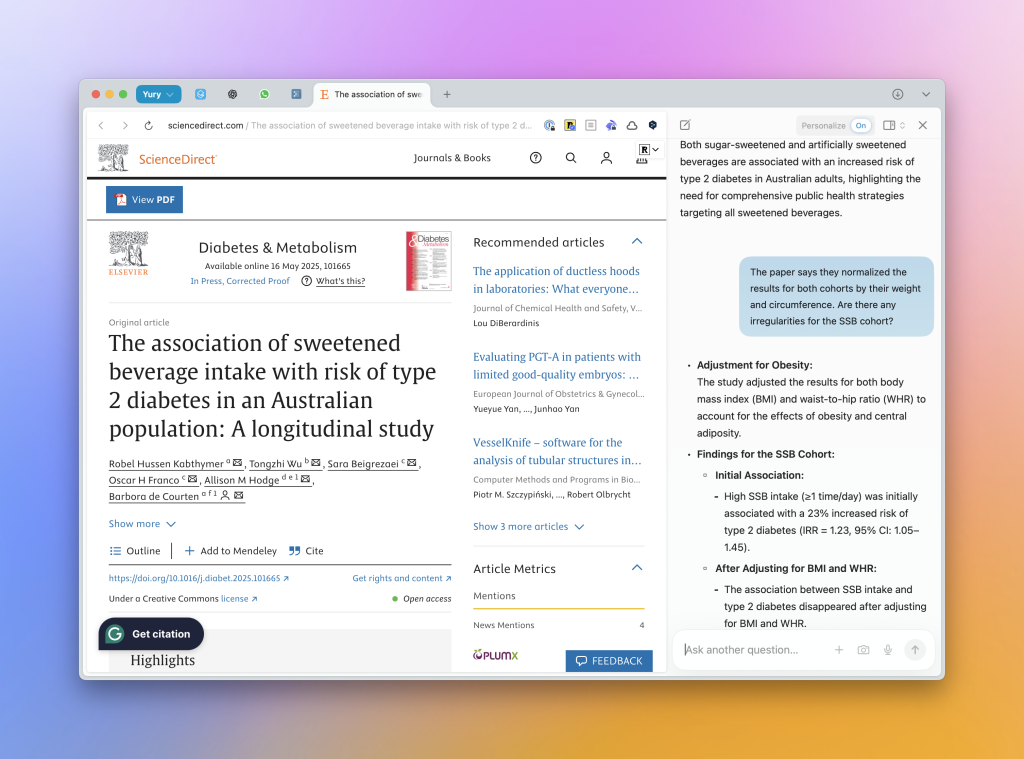
DIA’s integrations cover the usual suspects: Google Drive/Sheets, Slack/Discord, Notion, basic webhooks, and generic APIs. The API block is where things get spicy, you can hit a third-party endpoint mid-run, transform the response, then keep going. I used it to fetch YouTube video data (duration, channel, keywords) before drafting a description.
Heads-up: mapping fields is the part that made me squint. Test your API call in isolation, copy the exact JSON path you need, and annotate the block with a quick example. Future-you will thank present-you.
import requests

# Request YouTube API to fetch video data
def fetch_youtube_data(video_id):
    api_key = "YOUR_YOUTUBE_API_KEY"
    url = f"https://www.googleapis.com/youtube/v3/videos?id={video_id}&key={api_key}&part=snippet,contentDetails"

    response = requests.get(url)
    data = response.json()

    # Extract video information
    video_data = {
        'title': data['items'][0]['snippet']['title'],
        'channel': data['items'][0]['snippet']['channelTitle'],
        'duration': data['items'][0]['contentDetails']['duration'],
        'keywords': data['items'][0]['snippet']['tags']
    }

    return video_data

# Example usage
video_id = "dQw4w9WgXcQ"
video_info = fetch_youtube_data(video_id)
print(video_info)
Practical Applications
Here are the use cases that actually stuck in my weekly workflow:
- Research to brief: Agent searches, extracts key points, and drafts a one-pager with sources. I still edit (obviously), but it cuts the “collect links” phase by 70%.
- Content refresh finder: Given a sitemap or topic, the agent flags pages older than X months, checks competing SERPs, and proposes updates. This is gold for SEO maintenance without spending hours clicking.
- Lead list pre-qual: It scrapes public pages for basic fit criteria and outputs a shortlist. Not perfect, but great for a first pass.
If you’re juggling indie projects or client work, these are the low-friction wins. Nothing flashy, just fewer repetitive clicks.
Social Media Scheduling
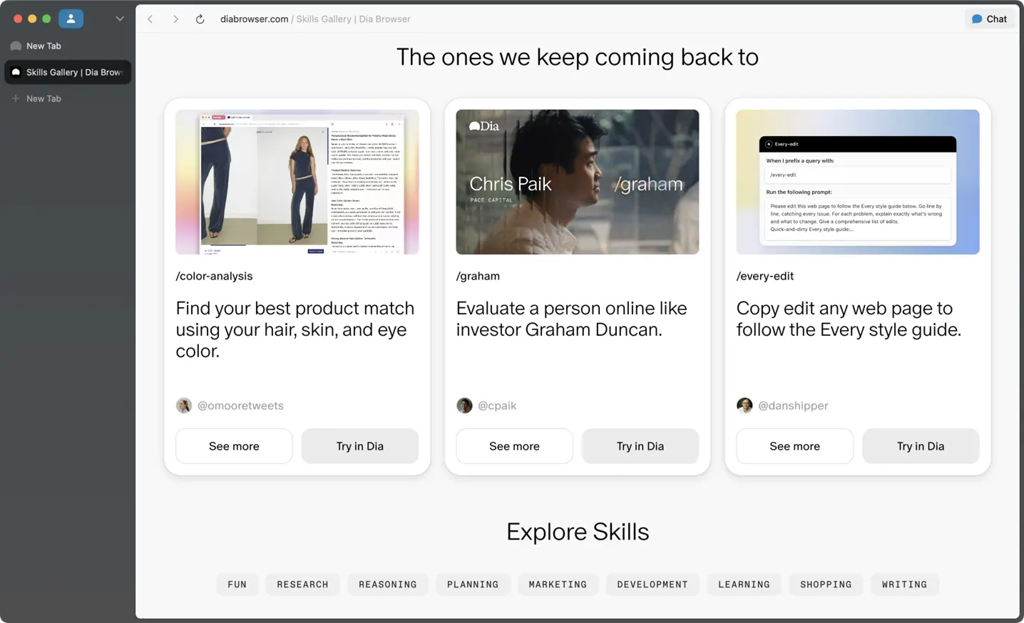
I built a small agent that turns a blog post into a week of social posts: pulls quotes, drafts platform-specific captions, suggests alt text, then drops everything into a scheduling sheet. If you write SEO blogs, this is where DIA Browser quietly shines, consistent, on-brand snippets without sitting there rephrasing the same idea five times.
Caveat: I turned off auto-posting. I prefer a human pass to tweak tone and timing. The agent is the prep cook: I’m still the chef.
Global Team Sync
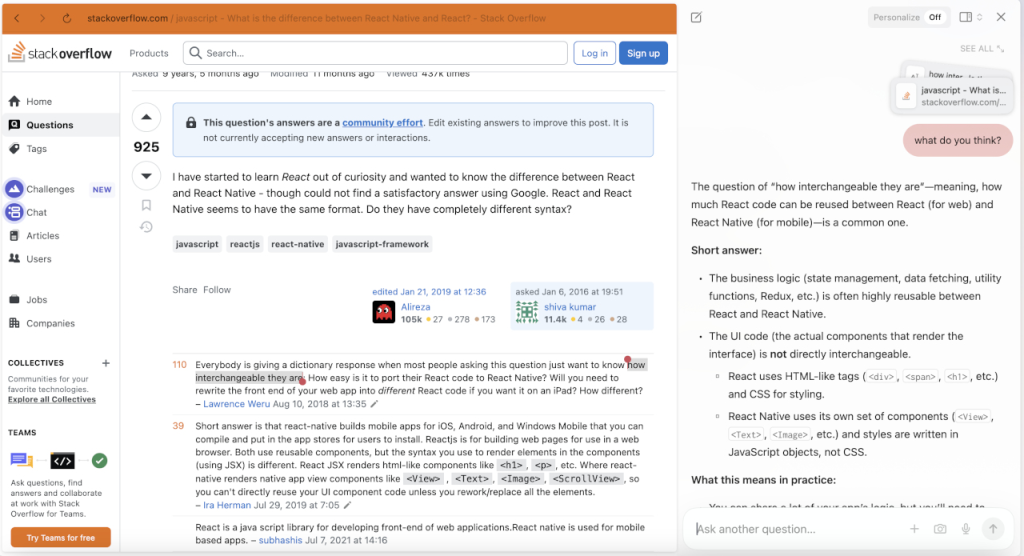
For a remote team, I set a daily sync agent: pull top mentions of our brand, summarize product feedback themes, and post a one-paragraph digest to Slack at 9am UTC. The small joy here is time zones, it keeps everyone aligned without a meeting.
One tweak that helped: include a “confidence” line. Mine says “Sources weighted: high/medium/low.” It nudges folks to click through when something looks spicy.
Tips & Troubleshooting
Some honest lessons so you don’t repeat my mistakes:
- Start with hard boundaries. “Max 10 pages, skip duplicates, skip paywalls” saves you from mystery loops.
- Name and version your agents. I keep “Research Agent v3 (news-heavy)” vs “v2 (blog-heavy).” When one breaks, I can roll back.
- Use small evaluation steps. Insert a tiny “Does this look like a product page? yes/no” classifier. Branch early instead of cleaning a mess later.
- Keep a sandbox sheet. I log raw extractions to a separate tab so I can spot weirdness (like dates parsed as titles, yep, happened).
- Rate-limit yourself. If you’re scraping, be respectful. DIA lets you set delays: use them. Getting blocked mid-run is a vibe killer.
If something feels off, crack open the run logs and read exactly what the model was fed. Nine times out of ten, the prompt assumed context that never existed.
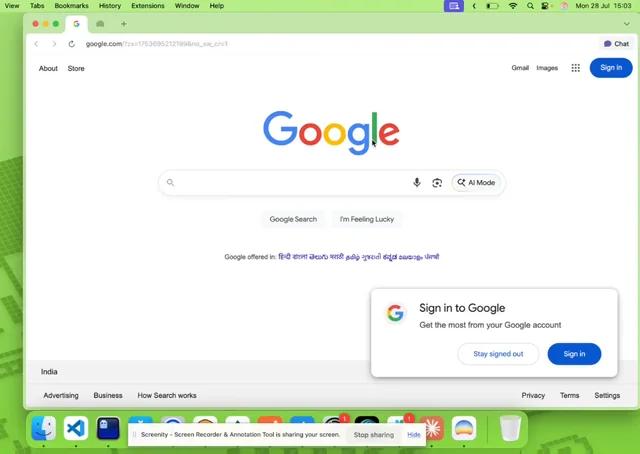
Common Agent Errors
These tripped me up at least once:
- Infinite scroll pages: The agent “visited” but only saw the first fold. Fix: enable scrolling or use the site’s API/feeds when possible.
- Over-eager summarization: It summarized the search results page instead of clicking through. Fix: add a strict condition, “only summarize if page URL domain ≠ search engine.”
- Broken CSV/Sheet writes: Field counts didn’t match. Fix: set a schema check step that pads missing fields with blank values.
- Stale sessions: Auth expired quietly. Fix: re-auth integrations every few weeks: scheduled runs won’t warn you kindly.
Not gonna lie, a few of these made me question my life choices at 11pm. But once I added those guardrails, the agents behaved.
If you’re like me and you care about saving time on repeatable web tasks, research, briefs, content repurposing, DIA Browser is worth a weekend test. If you’re expecting push-button perfection or fully autonomous posting with zero oversight, skip it for now. It’s powerful, just better as a smart sidekick than a robot boss.
Previous posts: