
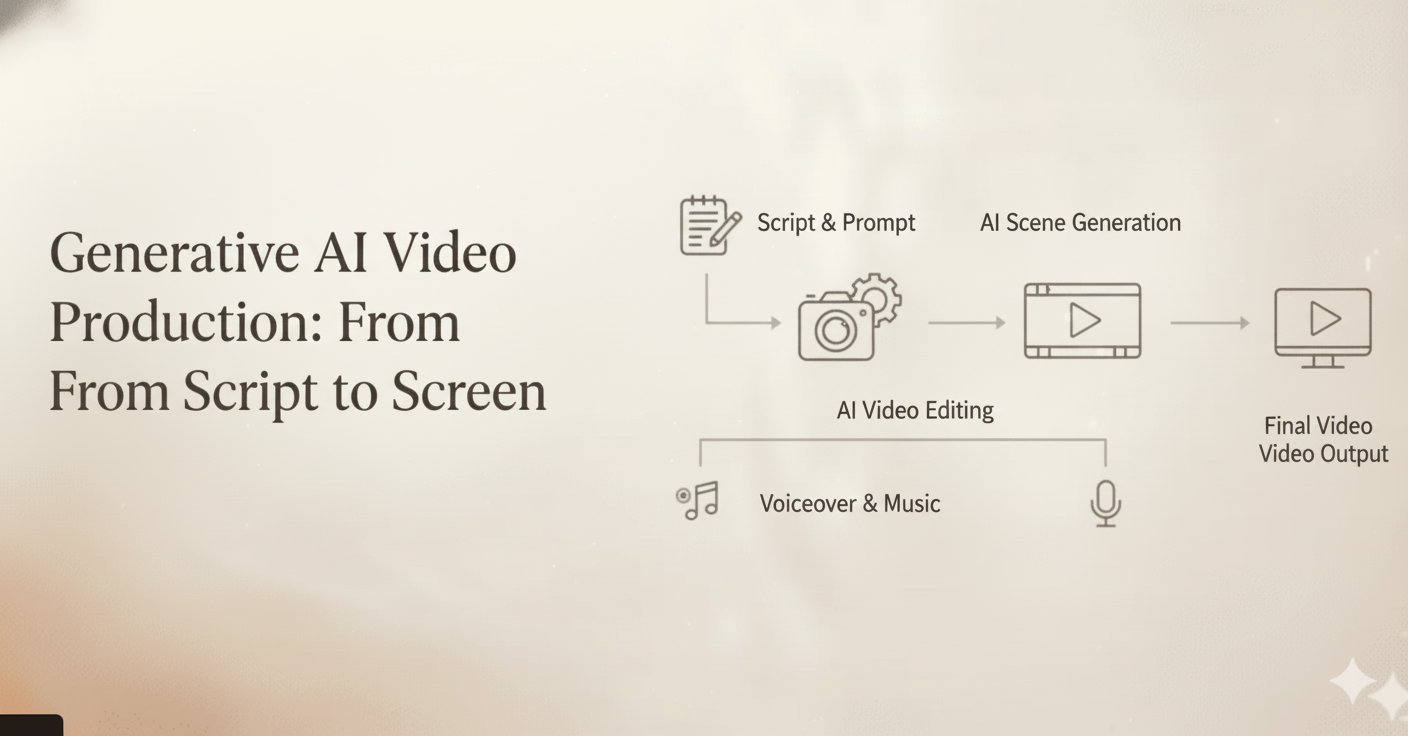
Meta Description: Learn how to create professional multi-scene videos with CrePal’s AI Director Agent—from character consistency to final edits. Turn hours of work into minutes with this step-by-step guide.
Here’s the thing about most AI video tutorials: they teach you how to make one clip.
Cool. Great. You’ve got a clip. Now what?
If you’re actually trying to finish a real project—like a video that tells a story, or an ad that doesn’t look like it was made by five different people—you know that one clip isn’t gonna cut it.
You need scenes that flow together. Characters that don’t randomly change faces halfway through. A cohesive visual style. And some way to actually edit and refine things without starting over every single time.
Sound familiar? Yeah, I’ve been there too.
Here’s what I’ve figured out: the hard part isn’t getting AI to generate cool-looking stuff. It’s getting AI to help you finish something. There’s a massive gap between “wow, that’s a neat clip” and “okay, this is actually a complete video I can use.”
That’s what this guide is about. I’m going to walk you through a workflow that treats AI video creation like actual production—not just pushing a button and crossing your fingers. We’re talking character consistency, intentional shot direction, editing through conversation, the whole thing.
And honestly? Once you get the hang of it, stuff that used to take hours takes fifteen minutes. Not exaggerating.
Let’s get into it.
Why Most AI Video Workflows Don’t Work
Before we dive into the how-to stuff, let’s talk about why so many people struggle with AI video.
Most people use AI video tools like they’re playing slots. Generate, generate, generate. Scroll through. Hope something’s usable. Rinse and repeat.
And look, I get it. When the tech is new and exciting, you just want to see what it spits out. But if you’re trying to actually make something—like, a real video for a real purpose—that approach is going to drive you crazy.
The Problem With Single-Clip Tools
Traditional AI video generators give you isolated clips. You describe something, you get a 4-second video. Want a full story? You’ll need to:
- Generate dozens of separate clips
- Hope the character looks consistent (spoiler: they won’t)
- Export everything to editing software
- Try to Frankenstein it all together
- Realize nothing matches
- Start over
- Question your life choices
This is where CrePal does something different.
The AI Director Agent Approach
CrePal isn’t just another AI video generator—it’s an AI Director Agent. Think of it like having a production coordinator who understands your vision and knows how to execute it across an entire project.
Here’s what that means practically:
Old way:
- Generate random clips
- Pray something matches
- Try to edit them together somehow
- Realize nothing works
- Start over
AI Director Agent way:
- Describe what you want to create
- The system plans your scenes, picks the right AI models for each part, maintains consistency
- You direct and refine through conversation
- End up with something cohesive
- Actually finish the project
The difference isn’t about luck or better prompts—it’s about having a system that thinks like a director instead of a random clip machine.
Step 1: Define What You’re Making (Clearly)
Every good project starts with clarity. What are we making here? Who’s in it? What’s it supposed to feel like?
When you’re working with CrePal, that clarity takes the form of your initial description. Think of it like the creative brief you’d give to a production team—except this team works in seconds and never needs coffee breaks.
What to Nail Down
The basics: What kind of video? How long? What’s the point?
Your character(s): Who are we looking at? What do they look like? How do they carry themselves?
The vibe: What’s the visual style? What’s the mood? What should people feel when they watch this?
A Template That Works
“I’m making a [length] [type of video]. Main character: [describe them—appearance, clothing, personality, how they move]. Visual style: [what does it look like? references help here]. Mood: [how should it feel?]. Basic story: [what happens?]”
Real Example
Here’s what a solid creative brief looks like:
“I’m making a 60-second brand story video. Main character: A woman in her early 30s, shoulder-length black hair, wearing a simple white blouse and dark jeans. She’s got this calm, confident energy—moves deliberately, doesn’t rush, like she knows exactly what she’s doing. Visual style: Modern, minimal, lots of natural light. Soft focus backgrounds, muted earthy colors. Think high-end documentary vibes. Mood: Contemplative but hopeful. Quiet determination. Basic story: Following her morning routine as she gets ready for a big presentation, ending with her walking confidently into a meeting.”
Why This Matters So Much
Here’s the deal: vague input equals chaotic output. If you’re fuzzy about what you want, the AI’s going to be fuzzy too. But when you’re specific? That specificity carries through the entire project.
And here’s where CrePal’s multi-model intelligence comes in. The system doesn’t just use one AI model—it orchestrates multiple top-tier models like Google Veo, Pika Labs, Runway, and Suno, automatically selecting the best tool for each part of your video. Your clear brief helps it make smarter choices.
Think of this first description as setting the rules of the game. Everything else builds on it.
Step 2: Keep Your Characters Consistent (This Is the Big One)
Real talk: character consistency is probably the number one thing that separates “random AI clips” from “actual video I can use.”
Nothing kills a project faster than your main character looking like three different people across four scenes. It’s jarring. It’s unprofessional. And with most AI tools, it’s really hard to fix.
CrePal handles this differently. You maintain consistency through natural language—describing your character the same way across scenes, and the system keeps them looking like the same person.
The Secret: Use the Same Anchors
When you describe a new scene, reference your character the same way every time. Same name (if you gave them one). Same key physical details. The system picks up on that continuity.
Scene 1:
“Sarah stands at her kitchen counter, shoulder-length black hair a little messy from sleep, wearing her white blouse and dark jeans. Morning light behind her. She’s staring at her coffee, thinking.”
Scene 2:
“Same Sarah, now at her desk. Hair’s neater now. Same white blouse, but buttoned up, more professional. She’s reviewing something on a tablet, calm and focused.”
Scene 3:
“Sarah walking down an office hallway. Same outfit. She’s carrying a leather portfolio, moving with purpose—not rushing, but she knows where she’s going.”
See how “Sarah” and the key details (black hair, white blouse, dark jeans, that calm energy) stay consistent? That’s the approach.
What NOT to Do
Don’t describe your character differently every time:
- Scene 1: “A woman with dark hair…”
- Scene 2: “A professional-looking lady…”
- Scene 3: “The main character…”
That’s going to give you three different-looking people. Not great.
When You WANT Things to Change
Sometimes your character should look different—new outfit, different hairstyle, time has passed. That’s fine! Just make it explicit:
“That evening. Sarah’s changed into a cozy grey sweater, hair pulled back in a loose ponytail. She looks more relaxed now, curled up on her couch with a glass of wine.”
When you’re clear about what changed, the system knows to keep the person the same while updating the details.
Step 3: Direct Your Shots Like an Actual Director
Here’s where it gets fun. You’re not just generating “video of a person doing stuff.” You’re creating cinematography. Camera angles, framing, visual approach—all that good stuff that makes video feel intentional instead of random.
And yeah, you can communicate all of this through plain English.
What You Can Direct
Shot types:
- Extreme close-up (just the eyes, hands, small details)
- Close-up (face, emotions)
- Medium shot (waist up, conversational distance)
- Full shot (whole body)
- Wide shot (environment, context)
- Super wide / aerial (big picture, establishing)
Camera approach:
- Static (locked down, stable)
- Moving (push in, pull back, follow alongside)
- Handheld feel (that natural, documentary vibe)
Angles:
- Eye level (neutral, relatable)
- Low angle (makes subjects look powerful)
- High angle (makes subjects look smaller, vulnerable)
How to Ask for What You Want
Keep it simple:
“Close-up on Sarah’s face as she reads the email. She looks worried.”
Add some intention:
“Start on a medium shot of Sarah, then move closer to a close-up as her expression changes from curious to concerned.”
Get specific:
“Low angle shot following Sarah down the hallway. We’re looking up at her slightly. Background is blurred, focus on her face.”
Think Like a Filmmaker
Every shot should mean something. Ask yourself:
- What’s the emotional beat of this moment?
- What should the audience focus on?
- How do I want them to feel?
Then describe that. The AI Director Agent interprets your creative intent and executes it.
Step 4: Edit Through Conversation (Without Starting Over)
Okay, this is the part that used to make me want to flip a table.
Old AI video workflow: Generate something. It’s 80% right. But that 20% that’s wrong? Welp, gotta regenerate the whole thing. Lose the stuff you liked. Hope the new version doesn’t have different problems. Repeat until you give up or get lucky.
That’s not a workflow. That’s torture.
CrePal’s conversational editing changes this completely. You can refine and adjust through natural language, keeping what works while fixing what doesn’t.
How Conversational Editing Works
Instead of learning complex editing software or starting over, you just… talk about what you want to change.
Adjusting visuals:
“Make this scene warmer—more golden hour lighting.”
“The colors feel too saturated. Can you make it more muted and cinematic?”
Adjusting composition:
“I want to see more of the environment in this shot. Pull back a bit.”
“Focus more on her hands in this scene.”
Adjusting pacing:
“This section feels too fast. Let the moments breathe more.”
“The middle part drags. Can we tighten it up?”
My Editing Workflow
First pass: Get the basic content. Don’t obsess over details yet. Just get the scenes to exist.
Second pass: Structural stuff. Is the order right? Does it flow? Big changes happen here.
Third pass: Refinement. Visual adjustments, pacing tweaks. This is where conversational editing is a lifesaver.
Fourth pass: Polish. Final style treatment, detail work.
Working in layers like this keeps you from wasting time perfecting something you might end up cutting.
Step 5: Put It All Together
This is where everything comes together—transitions between scenes, overall pacing, making sure it all feels cohesive.
Connecting Your Scenes
Through conversation, you can direct how scenes flow together:
“Add a smooth transition between scene 2 and scene 3.”
“I want an abrupt cut here—make it feel sudden.”
“Can these two scenes flow more seamlessly?”
Checking Overall Consistency
Before you finalize, watch the whole thing with fresh eyes:
Characters: Same face throughout? Same clothes (unless they’re supposed to change)? Same energy?
Visuals: Do the colors match? Is the lighting consistent within scenes?
Pacing: Does anything drag? Does anything feel rushed?
Story: Does it make sense? Does it achieve what you set out to do?
Adding Audio Elements
For projects that need voice or music:
“Sync her lip movements to this voiceover.”
“Add music that matches the contemplative mood.”
CrePal’s Lip Sync feature handles the technical complexity of matching mouth movements to audio—you just describe what you need.
Step 6: Export and Iterate
You’re in the home stretch. But here’s the beautiful thing about this workflow: creating variations is fast now.
Making Variations
Testing different approaches:
“Give me an alternate version of the opening—more energetic, brighter colors. I want to A/B test it.”
Different platforms:
“Create a vertical version for Stories/TikTok.”
Client options:
“Show me two different endings—one hopeful, one more ambiguous.”
When generating options takes minutes instead of hours, you can actually explore creative possibilities instead of just shipping the first thing that works.
Quick Export Checklist
- ☐ Character consistency throughout
- ☐ Visual style matches across all scenes
- ☐ Pacing feels right
- ☐ Audio synced properly
- ☐ Right format for your platform
Using Mini Apps for Specific Projects
CrePal includes specialized Mini Apps for common video types. Instead of building everything from scratch, you can start with purpose-built tools:
AI Story
Perfect for narrative content, explainer stories, and content that needs to follow a clear arc. Describe your story, and the AI Director structures it into scenes automatically.
AI MV Generator
For music video creators. Give it your track and visual concept, and it creates scenes that match the energy and rhythm of your music.
AI Ads Video
Optimized for marketing content. Understands ad structures, calls-to-action, and the pacing that works for commercial content.
Explainer Video
Ideal for educational content, product explanations, and how-to videos. Breaks down complex topics into visual sequences.
PDF to Video
Turn documents into video presentations. Great for repurposing existing content into video format.
AI Talking Avatar
Create realistic talking head videos. Perfect for announcements, tutorials, and personalized content at scale.
Each Mini App applies the AI Director Agent approach to a specific use case, so you get both specialized optimization and the consistency benefits of the full system.
Tips for Different Types of Creators
Different work means different priorities. Here’s what I’d focus on depending on what you’re making.
Short Films and Narrative Content
Go hard on character consistency. Nothing matters more. Your audience needs to believe they’re watching the same person throughout. Spend extra time on those character descriptions.
Use your shot language. You’ve got real cinematographic control here—use it like a filmmaker would. Every shot should mean something.
Let it breathe. AI video tends to feel rushed because people pack too much in. Quiet moments are okay. Give performances time to land.
Ads and Brand Content
Make templates. If you’re making similar content regularly, develop standard approaches you can adapt fast. The AI Ads Video Mini App is built for this.
Use the iteration speed for client rounds. When someone asks “can we see it a different way?”—you can actually show them quickly instead of promising it for next week.
Plan for formats. You’re probably going to need vertical, square, and horizontal versions. Think about how compositions work across ratios from the start.
Content Creators and Studios
Build a character library. If you’ve got recurring characters, document those descriptions religiously. You should be able to bring them back reliably every time.
Standardize your workflow. This six-step process? Make it yours. Customize it, but keep it consistent so you (and your team) can move fast.
Batch similar work. If you’re making multiple videos, group similar tasks. All rough generation, then all refinement, then all polish. You’ll get faster through focus.
Getting Started: Your First Project
Theory is nice. Doing things is better. Here’s how to start.
Start Small
Don’t jump into your dream project on day one. Pick something manageable:
- 2-3 scenes, max
- One character
- Simple progression
- Low stakes (this is practice, not delivery)
Your First Run-Through
- Start a new project in CrePal. Choose the Mini App that fits your content, or start from scratch.
- Write your setup. Character, vibe, mood—the whole Step 1 thing.
- Generate your first scene. Establishing shot, introduce your character.
- Play with it. Use conversational editing to adjust. See how changes feel.
- Generate scene two. Focus on keeping that character consistent.
- Connect them. Try transitions, check the flow.
- Export and watch. See what worked. Notice what you’d do differently.
Then Level Up
Once you’ve done a simple one, start adding complexity:
- More scenes
- More intentional camera work
- Multiple characters
- Creative style treatments
Each project teaches you something. You’ll develop your own style and learn what descriptions get the results you want.
The Bottom Line
Here’s what I want you to take away from this: AI video creation doesn’t have to be a frustrating guessing game.
When you approach it like a director—with clear vision, consistent direction, and iterative refinement—you get something completely different. Not random clips you hope will work. Actual, complete, cohesive videos that look like you meant to make them.
The workflow:
- Define what you’re making (clearly!)
- Keep characters consistent (same descriptions, same anchors)
- Direct your shots (you’re the cinematographer now)
- Edit through conversation (refine, don’t regenerate)
- Put it together (transitions, pacing, polish)
- Export and iterate (variations are fast now)
The technology’s only going to get better. But this approach—thinking like a director, communicating clearly, building systematically—that’s the foundation no matter what tools come next.
So go make something. Start small. See what happens.
[Get Started with CrePal Free →]
FAQs
Do I need video editing experience to use CrePal?
No. Everything works through natural language—you describe what you want instead of clicking through menus. If you can explain your ideas in words, you can make videos. That said, knowing basic concepts like shot types and transitions definitely helps, but you can learn those as you go.
How long does it take to create a multi-scene video?
Depends on complexity, but we’re talking 10-30 minutes for a multi-scene video that would have taken hours the traditional way. Your first projects will take longer while you’re learning the workflow, but you’ll get faster quickly.
Can I edit things after I generate them?
Yes! This is kind of the whole point. Through conversational editing, you can adjust visuals, pacing, style—without regenerating everything from scratch. You’re not stuck with whatever comes out first.
What makes CrePal different from other AI video tools?
Most AI video tools generate isolated clips. CrePal is an AI Director Agent that orchestrates multiple AI models (Google Veo, Pika Labs, Runway, Suno, and more), maintains character consistency across scenes, and produces complete multi-scene videos. It thinks like a production coordinator, not a random clip generator.
Is this good enough for professional work?
Absolutely. The workflow is designed for professional use—ads, brand content, short films, ongoing content production. The focus on consistency, intentional cinematography, and conversational editing is specifically about meeting professional standards.
What if I need something very specific that’s hard to explain?
Get detailed and specific. Reference particular aesthetics, describe exactly what you’re seeing in your head, break complex ideas into smaller pieces. Clear, layered direction gets complex results—not one magical prompt that tries to do everything at once.
Ready to turn your ideas into professional multi-scene videos?






