Hey everyone, it’s Dora. Hope you’re all having a good one. While I was in the middle of building a client demo reel — totally routine stuff — when they sent back one note that made me groan out loud: “Can we get this in 4K?” I’d generated everything in 1080p. And I’d already used up most of my paid credits.
So I went down a rabbit hole figuring out which AI video tools could actually give me 4K output without making me pay again. What I found: the honest answer is more interesting than the marketing copy suggests. Some tools genuinely deliver. Some are doing something sneaky with the label “4K.” And there’s a free workflow that most creators don’t know about.
Here’s exactly what I found.
What “4K AI Video” Actually Means
Before we talk tools, this distinction matters — because two tools can both call their output “4K” and mean completely different things.
True 4K Output vs Upscaled 4K — The Real Difference
True 4K means the model rendered your video at 3840×2160 pixels from the start. Every pixel was generated at full resolution. The detail is native — fine textures, sharp edges, realistic grain — because the model worked at that scale the entire time.
Upscaled 4K means the model generated at 720p or 1080p, then a super-resolution algorithm stretched it to 4840×2160 after the fact. The result looks higher resolution on a small screen, but zoom in on any complex texture — fabric, hair, foliage — and you’ll see the telltale softness and occasionally AI-hallucinated detail that wasn’t in the original.
The distinction matters significantly for professional use. Earlier AI video models generated at 720p or 1080p and then applied super-resolution algorithms to stretch the output to higher resolutions — introducing artifacts: softened edges, hallucinated texture details, and temporal flickering where the upscaler makes inconsistent frame-to-frame decisions.
That flickering is the thing that always gives it away on a big screen.
Why Most Free AI Video Tools Cap at 1080p
The reason is almost always compute cost. Rendering a 5-second 4K video requires roughly 4× the processing power of 1080p. Free tiers exist to let you try the tool, not to subsidize production-quality output. Most “free tiers” cap resolution at 720p or 1080p to save on server costs. That’s the honest reason. It’s not a technical limitation — it’s a business decision.
AI Tools That Output 4K Video (Free or Freemium)
Tool 1 — True 4K Output (Paid Tier, Free Tier Capped)
Kling 3.0 dropped on earlier this year, and it’s genuinely the most significant resolution upgrade in this category right now. Kling 3.0 is the first AI video model to generate native 4K resolution at 60 frames per second, eliminating the need for post-generation upscaling and producing footage that holds up on large displays and professional editing timelines.
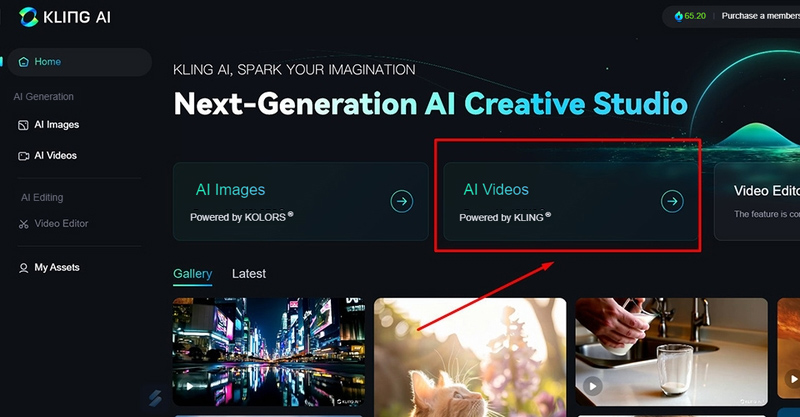
I tested it on product demo footage. The 4K output at 30fps held detail on reflective surfaces and fine texture in a way that previous AI video outputs never have. The difference vs upscaled 1080p was visible without zooming in.
But here’s the real talk on “free”: the Kling 3.0 free tier caps at 720p resolution, watermarks all output, and restricts commercial use entirely. You get 66 daily credits, which is enough for 1–2 short test clips. Native 4K requires the Pro plan at ~$89/month.
Tool 2 — 4K on Paid Tier, Best Cinematic Value
Veo 3.1 is Google DeepMind‘s latest video generation model — and the jump isn’t incremental. Native audio synthesis is back, but you also get 4K output, reference-to-video for character consistency, and first-last-frame-to-video for precise scene control.
What I noticed testing Veo 3.1: the cinematic quality on motion is the best I’ve seen. Slow dolly shots, tracking shots, crane moves — the physics hold in a way that Kling still occasionally stumbles on. The color science is also strong if you’re outputting it on YouTube.
The access situation is annoying, though. The full-quality model runs $0.20/second without audio and $0.40/second with audio at 720p–1080p. True 4K access sits behind the Ultra subscription tier at $250/month — or via API on fal.ai for pay-per-second use.
For creators who need cinematic 4K output and already have budget, Veo 3.1 is the strongest option. For free users, it’s a dead end.
Tool 3 —AI Upscaling to 4K as the Best Free Workaround
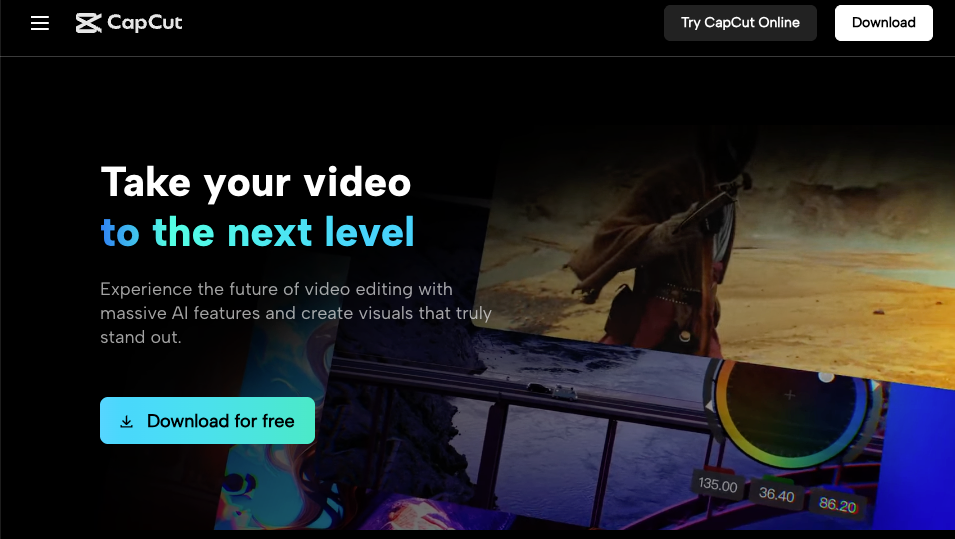
This is the one that actually saved my client project.CapCut Desktop’s AI Video Enhancer isn’t a video generator — it’s an upscaler. But it’s legitimately the best free 4K workaround I’ve found. The desktop version allows 4K exports without a “Pro” watermark in many regions, and unlike many web tools, it’s frequently cited as the best free video enhancer for AI clips.
My workflow: generate in Kling at 1080p (free tier), export, run through CapCut Desktop’s Upscale/Clarity filter, export at 4K. The result isn’t native 4K — I want to be clear about that — but on YouTube and on client preview screens, the quality gap versus true 4K is much smaller than the gap between raw 1080p and upscaled 4K.
Free Tier Reality: What You Actually Get
Resolution Caps, Credit Limits, Watermark on 4K Exports
Let me lay this out plainly because most tool comparison articles bury it:
| Tool | Free Resolution | 4K Access | Watermark | Commercial Use |
| Kling 3.0 | 720p | Paid only (~$89/mo) | Yes | No |
| Google Veo 3.1 | 720p–1080p (limited) | Ultra tier ($250/mo) | Varies | No |
| CapCut Desktop | Up to 4K (upscaled) | Yes (free, region-dependent) | No (desktop) | Check ToS |
| Runway Gen-4 | 720p | Standard $15/mo+ | Yes | No |
| Pika 2.0 | 720p–1080p | Pro tier required | Yes | No |
The pattern is consistent: free = 720p, watermarked, no commercial rights. Any tool claiming “free 4K” in 2026 is either (a) offering upscaled output, (b) giving you a very limited trial, or (c) being creative with definitions.
How to Get 4K-Quality Output Without Paying
Generate at Highest Free Resolution → Upscale with Free Tool
Here’s the workflow I’ve settled on. It’s not true 4K, but it gets you close enough for most use cases — and it costs nothing:
Step 1: Generate your clip in Kling 3.0 or any other tool at the highest free resolution available (usually 1080p on paid-adjacent free trials, 720p on true free tiers). Write a detailed prompt — more texture description = better upscaling results downstream.
Step 2: Download the raw clip (watermark-free if you can access it via trial credits).
Step 3: Run it through your free upscaler of choice.
Step 4: Export at 4K from the upscaler. For YouTube specifically, this matters more than you’d think — more on that in the export section below.
Recommended Free AI Upscaling Tools
CapCut Desktop (AI Video Enhancer) — My first recommendation for most creators. The Upscale/Clarity filter handles AI-generated content well, likely because CapCut has optimized for exactly this use case. Free, no subscription required on desktop, and the output is clean.
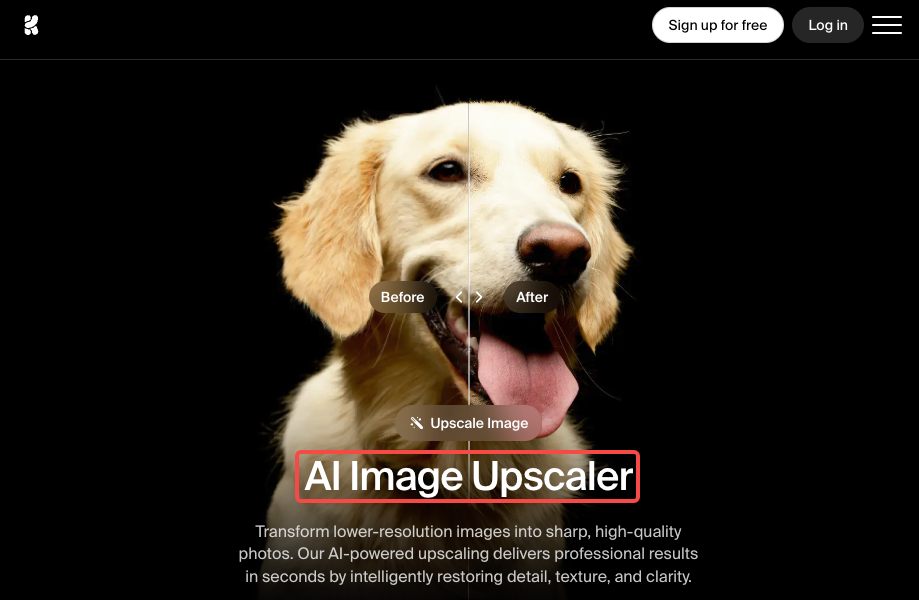
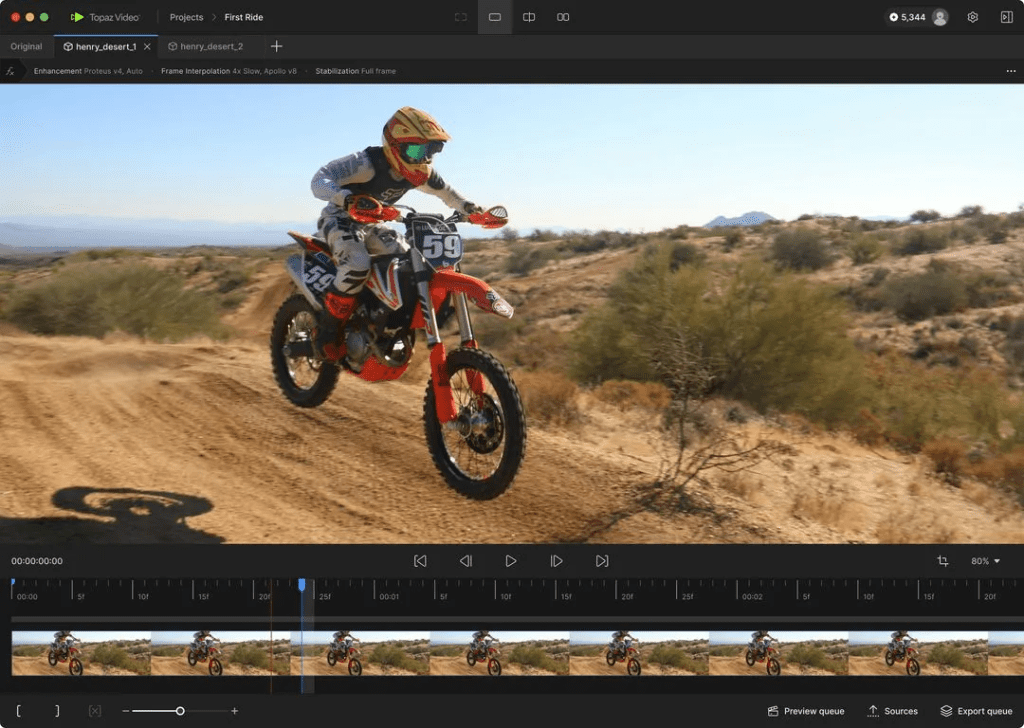
Krea.ai Enhance — Better than CapCut specifically for faces and intricate textures. For clips involving faces or intricate textures, Krea.ai’s “Enhance” mode is a top-tier free alternative to Topaz Video AI in 2026. Free tier is limited to a few clips per day, but worth it for hero shots.
TensorPix — Good for batch processing. TensorPix upscales videos up to 4K and enhances overall quality, fully online and easy to use, with no technical expertise needed. Free tier available; paid tier unlocks faster processing.

4K Export Settings That Matter
Codec (H.264 vs H.265), Bitrate, Frame Rate
This section matters more than most creators realize — because even perfect 4K source footage can look bad if you export with the wrong settings.
Codec choice: H.264 is the compatibility standard — plays everywhere, every device. H.265 (HEVC) gives you the equivalent quality at roughly 40–50% smaller file size. For YouTube uploads specifically, H.264 is the safer default because of wider decoder support.
Bitrate for 4K: For 4K at 30fps, the recommended bitrate is 35–45 Mbps using H.264 encoding, or 15–25 Mbps with H.265. For 4K at 60fps, use 53–68 Mbps (H.264) or 25–35 Mbps (H.265).
Quick reference table for export settings:
| Use Case | Resolution | Codec | Target Bitrate |
| YouTube 4K 30fps | 3840×2160 | H.264 | 35–45 Mbps |
| YouTube 4K 60fps | 3840×2160 | H.264 | 53–68 Mbps |
| Client delivery (storage-efficient) | 3840×2160 | H.265 | 15–25 Mbps |
| Archive master | 3840×2160 | H.264 | 50+ Mbps |
YouTube Compression Behavior for 4K Uploads
Here’s something that genuinely surprised me when I first learned it: uploading 4K to YouTube is actually better for 1080p viewers than uploading native 1080p.
YouTube processes 4K uploads with its more efficient VP9 codec, which it reserves for 4K and other high-resolution content. The standard AVC1 codec used for 1080p is good, but VP9 is better — meaning your video will look much sharper and more detailed, even when viewers watch it at 1080p resolution.
This is the legitimate reason to upload at 4K even if most of your audience watches at 1080p. The VP9 re-encode YouTube applies to 4K uploads produces noticeably crisper output at every resolution. I tested this side by side — same source file, uploaded at 1080p vs 4K — and the 4K upload viewed at 1080p was visibly sharper after YouTube processing. Per YouTube’s official upload encoding guidelines, container format should be MP4 with H.264 video and AAC audio for best compatibility.
FAQ
Q: Can free AI video tools actually output true 4K?
A: Genuinely, no — not in nowadays. Every major tool (Kling, Veo, Runway, Pika) gates native 4K behind paid plans. CapCut Desktop can export upscaled 4K for free, but that’s post-processing, not native generation. Anyone claiming a tool outputs “free true 4K” is either describing upscaling or a time-limited trial.
Q: What codec should I use when exporting 4K AI video?
A: H.264 for maximum compatibility (YouTube, social, client delivery). H.265 if file size matters and you know your delivery platform supports it. For YouTube specifically, upload in H.264 at 35–45 Mbps for 30fps, or 53–68 Mbps for 60fps — and upload in 4K even if your content was upscaled, to trigger YouTube’s VP9 re-encode.
Q: Does YouTube compress 4K video on upload?
A: Yes — YouTube re-encodes every uploaded video. But the key insight is that 4K uploads get processed with the VP9 codec, which produces better output at every playback resolution. Upload 4K over 1080p whenever you can, even for audiences watching at 1080p.
Honest Verdict: Is Free 4K AI Video Actually Possible?
Here’s the real answer: true free 4K AI video generation doesn’t exist for now. Every tool that can render native 4K puts it behind a paid plan. That’s not a conspiracy — it’s the compute economics of generating 8 million pixels per frame.
But free 4K-quality output? That’s absolutely achievable with the tool-stacking workflow I described. Generate at 1080p (free), upscale via CapCut Desktop or Krea.ai (free), export at 4K with the right bitrate settings (free), and upload to YouTube in 4K to trigger VP9 processing (free). The final result won’t survive a frame-by-frame comparison against Kling 3.0 Pro’s native 4K — but for social content, YouTube, and most client deliverables, it’s genuinely good enough.
Previous Posts: