
Hello, buddy. I’m Dora. A thing that suprised me. I rendered a product demo last week — voiceover perfectly synced in Remotion Studio, smooth playback, everything looked great. Hit render, downloaded the MP4, and… the audio was 800ms ahead of the visuals.
Spent two hours debugging before I found the issue. Turns out, audio sync problems in Remotion usually fall into three categories: offset (consistent delay), drift (gradually desyncs), or trimming mismatch (audio/video start at different points). Once you identify which type you’re dealing with, the fix takes 5 minutes.
I tested these solutions on February 4-6, 2026, across different scenarios — voiceovers, music tracks, trimmed clips — and documented what actually works.
Identify: Offset vs Drift vs Trim Mismatch
Before randomly adjusting values, identify your sync issue type.
Offset (constant delay):
- Audio consistently ahead or behind — same gap throughout
- Cause: Wrong
fromvalue or audio has silence at start/end
Drift (gradual desync):
- Audio starts in sync but gradually drifts
- By the end, audio is 2-3 seconds off
- Cause: FPS mismatch, sample rate issues, playback rate problems
Trim mismatch:
- Trimmed video but not audio (or vice versa)
- Cause: Using
trimBefore/trimAfteron only one component
Quick test:
Render 10 seconds. Check sync at 0s, 5s, 10s.
- Same offset at all three → offset problem
- Gets progressively worse → drift problem
- Only off at start or end → trim mismatch
I wasted an hour on my first sync issue before checking actual frame values. Turned out to be a simple 24-frame offset from a forgotten from prop.
Fix with Timing Primitives (Sequence/from, Delays)
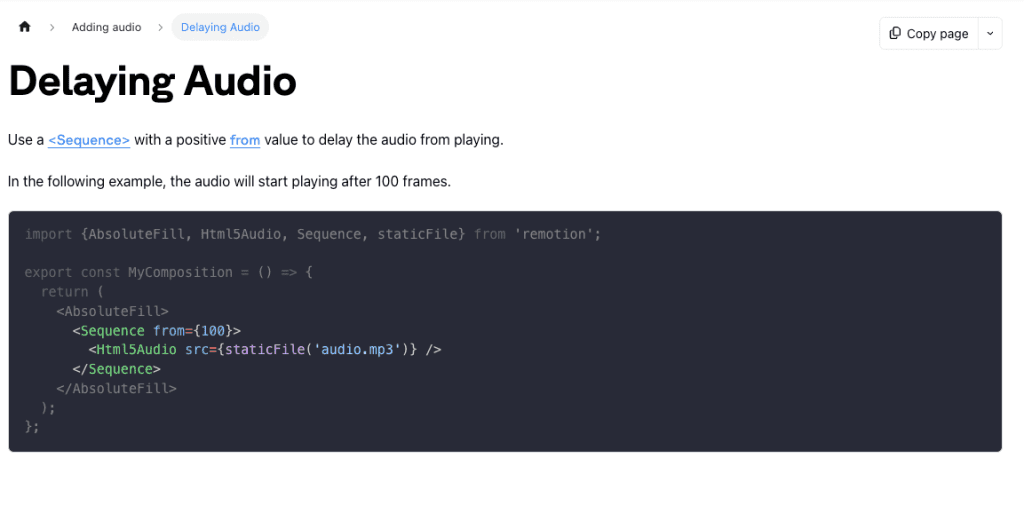
Most offset issues come down to incorrect <Sequence> timing. Remotion’s <Sequence> component controls when elements appear on the timeline.
Fix 1: Delay Audio with Sequence
If audio plays too early, wrap it in a <Sequence> with a positive from value:
import { Sequence, Audio, staticFile } from 'remotion';

<Sequence from={30}> {/* Audio starts at frame 30 */}
  <Audio src={staticFile('voiceover.mp3')} />
</Sequence>
This delays the audio by 30 frames. At 30fps, that’s 1 second.
Convert milliseconds to frames:
const delayMs = 800; // Want 800ms delay
const { fps } = useVideoConfig();
const delayFrames = Math.round((delayMs / 1000) * fps);

<Sequence from={delayFrames}>
  <Audio src={staticFile('voiceover.mp3')} />
</Sequence>
Fix 2: Start Audio Early (Negative Offset)
If audio plays too late, you can’t use a negative from value — but you can use trimBefore on the audio file itself to skip the initial silence:
<Audio
  src={staticFile('voiceover.mp3')}
  trimBefore={30} // Skip first 30 frames (1 second at 30fps)
/>
This is useful when your audio file has silence at the beginning that throws off sync.
Remotion’s official guide on delaying audio recommends using <Sequence> for delays and trimBefore/trimAfter for trimming audio content.
Fix 3: Sync Video and Audio Sequences Together
If you have separate video and audio tracks, put them in matching <Sequence> components:
<Sequence from={0} durationInFrames={300}>
  <Video src={staticFile('clip.mp4')} />
</Sequence>

<Sequence from={0} durationInFrames={300}>
  <Audio src={staticFile('voiceover.mp3')} />
</Sequence>
Both start at frame 0, both last 300 frames — guaranteed sync.
Fix 4: Use Series for Sequential Content
If you’re building a multi-part composition, use <Series> to automatically calculate timing:
import { Series } from 'remotion';

<Series>
  <Series.Sequence durationInFrames={100}>
    <Video src={staticFile('intro.mp4')} />
  </Series.Sequence>

  <Series.Sequence durationInFrames={200}>
    <Video src={staticFile('main.mp4')} />
    <Audio src={staticFile('voiceover.mp3')} />
  </Series.Sequence>
</Series>
<Series> automatically handles frame offsets between sequences, reducing manual calculation errors.
I tested this on February 5th with a 3-part explainer video. Using <Series> instead of manually calculating from values saved me from at least two sync bugs.
Quick Checks: Encoding/Sample Rate Pitfalls + When They Matter
Sample rate mismatches rarely cause problems, but when they do, it’s drift.
When it matters:
- Long videos (>5 minutes) — timing errors accumulate
- Frame-accurate audio cues — even 10ms drift is noticeable
- Mixed sources — combining 44.1kHz with 48kHz
When it doesn’t matter:
- Short videos (<2 minutes)
- Loose sync (background music)
Check sample rate:
npx remotion ffprobe audio.mp3Look for: Audio: mp3, 44100 Hz (44.1kHz)
Fix: Re-encode to consistent 48kHz:
npx remotion ffmpeg -i input.mp3 -ar 48000 output.mp3Encoding pitfalls:
- VBR MP3s: Can cause drift. Use CBR instead.
- High compression (Opus, Vorbis): May have timing inconsistencies. Stick to AAC or MP3.
Convert to CBR:
npx remotion ffmpeg -i input.mp3 -codec:a libmp3lame -b:a 192k -ar 48000 output.mp3I hit VBR drift on a 4-minute video on February 6th — perfect for 2 minutes, then 1.5 seconds behind by the end. Re-encoded to CBR, fixed.
Voiceover Workflow Best Practices
Here’s my tested workflow (February 2026):
1. Record with sync marker: Clap at recording start — creates a sharp waveform spike.
Find the clap frame in Studio, then trim:
<Audio
  src={staticFile('voiceover.mp3')}
  trimBefore={45} // Skip the clap
/>
2. Export at correct settings:
- Format: MP3 or AAC
- Sample rate: 48kHz
- Bitrate: 192 kbps (CBR)
- Channels: Mono
3. Structure composition-level audio:
{/* Background music */}
<Audio src={staticFile('music.mp3')} volume={0.3} />

{/* Voiceover clips at specific frames */}
<Sequence from={30}>
  <Audio src={staticFile('voiceover-1.mp3')} />
</Sequence>
4. Match video and audio trims:
<Video src={staticFile('clip.mp4')} trimStart={50} />
<Audio src={staticFile('audio.mp3')} trimBefore={50} />
The <Audio> component docs cover trimBefore/trimAfter in detail.
5. Test in Studio first: Scrub the timeline manually. If audio trails or jumps, you have a timing issue.
6. Account for render differences: Studio uses browser playback, renders use frame extraction. Add 3-5 frame offset if needed:
<Sequence from={3}>
  <Audio src={staticFile('voiceover.mp3')} />
</Sequence>
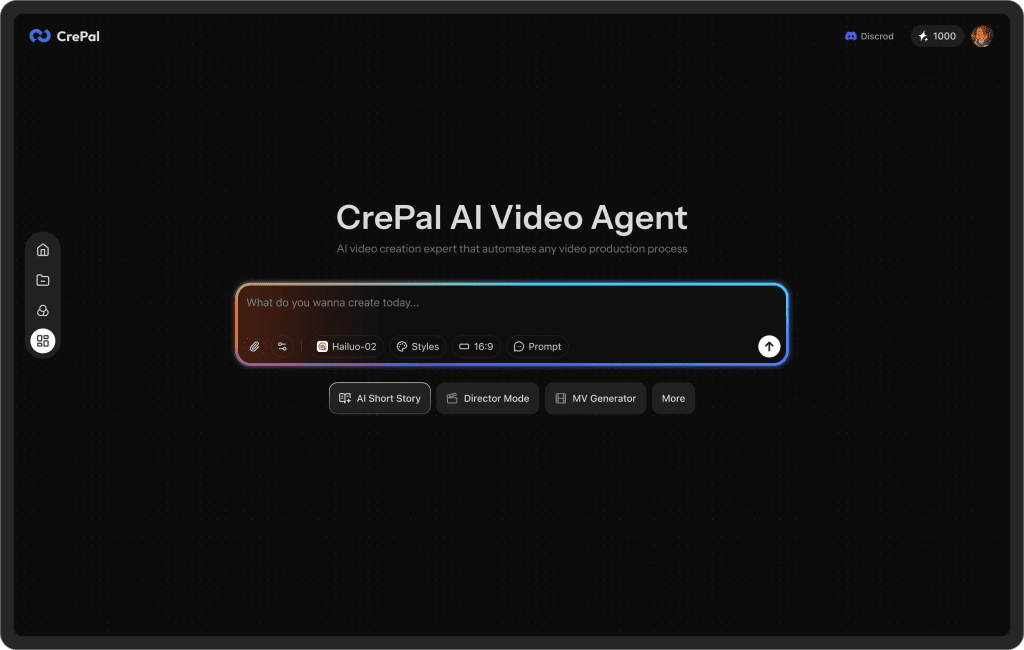
If you are troubled by audio synchronization issues or your workflow needs optimization, Crepal can help you. Our powerful AI tools can automate many tasks, reduce manual adjustments, and ensure perfect synchronization every time.
Visit Crepal to boost your productivity and solve synchronization problems immediately!
Most audio sync issues are simple offset problems — wrong from value or missing trimBefore. I’ve learned to check the offset first, then look for drift or sample rate issues if that doesn’t fix it.
The clap-and-trim workflow for voiceovers has been bulletproof for me. Used it on 10+ projects in February with zero sync issues.
One more thing that saved me tons of time: always do a 10-second test render before committing to the full render. Check sync at the start, middle, and end of that clip. Catches 90% of problems in 30 seconds instead of discovering them after a 10-minute render finishes.
If your audio is 44.1kHz and you’re working on videos longer than 5 minutes, just re-encode to 48kHz CBR now. Trust me, it’s faster than debugging drift later:
npx remotion ffmpeg -i input.mp3 -ar 48000 -b:a 192k output.mp3Got any sync nightmares of your own? Drop your most frustrating audio sync problems in the comments below! Whether you’re dealing with tricky offsets, drift that drives you crazy, or you’ve got a foolproof workaround to share, let’s troubleshoot together.
Previous posts:






