
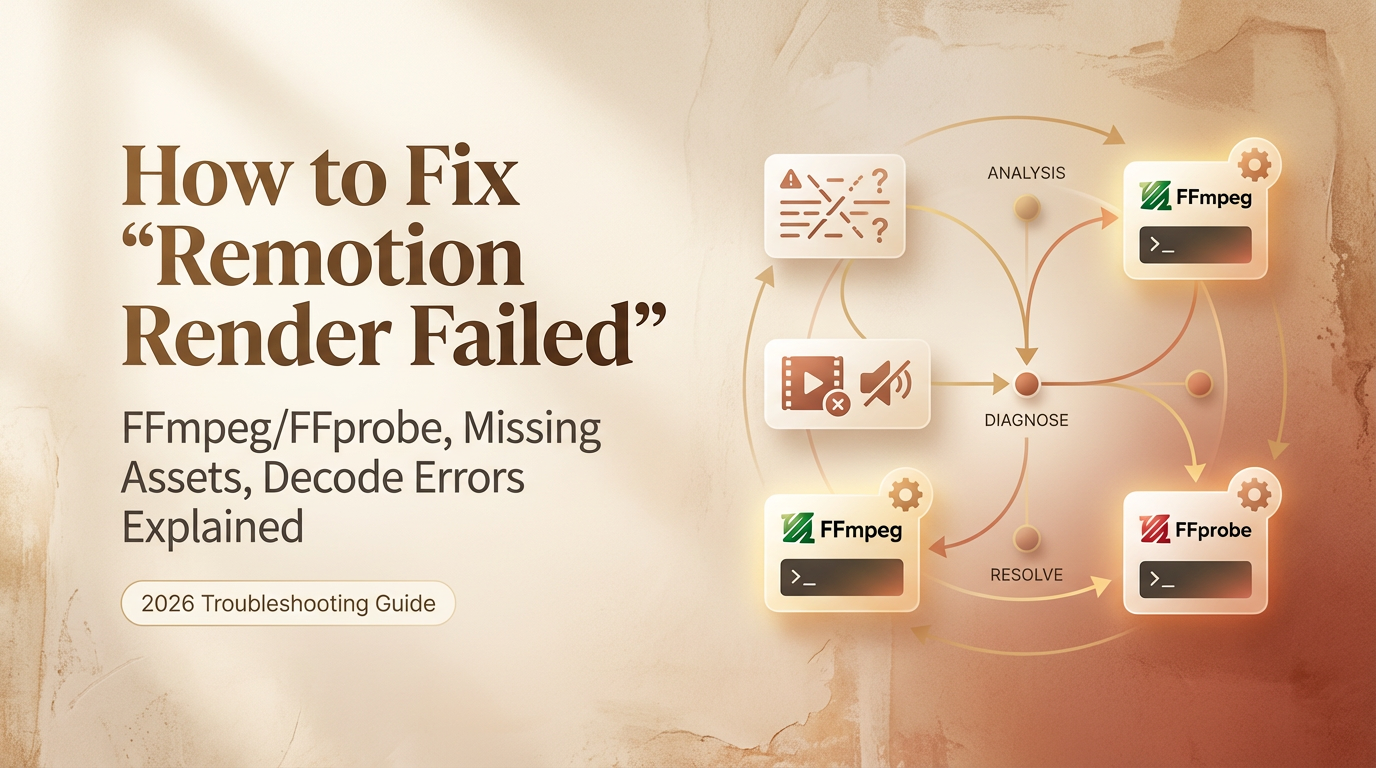
I spent three hours last Tuesday staring at “Render failed” errors. The video previewed perfectly in Remotion Studio — smooth animations, audio synced, everything looked great. Hit render, and… crash. No helpful error message, just a vague failure.
Turns out, there are about five common reasons Remotion renders fail, and once you know what to look for in the logs, most of them take 2 minutes to fix. I’m Dora. I tested these fixes across different setups on February 2-4, 2026, and documented what actually works.
Here’s how to diagnose the failure fast, fix the usual suspects, and avoid them next time.
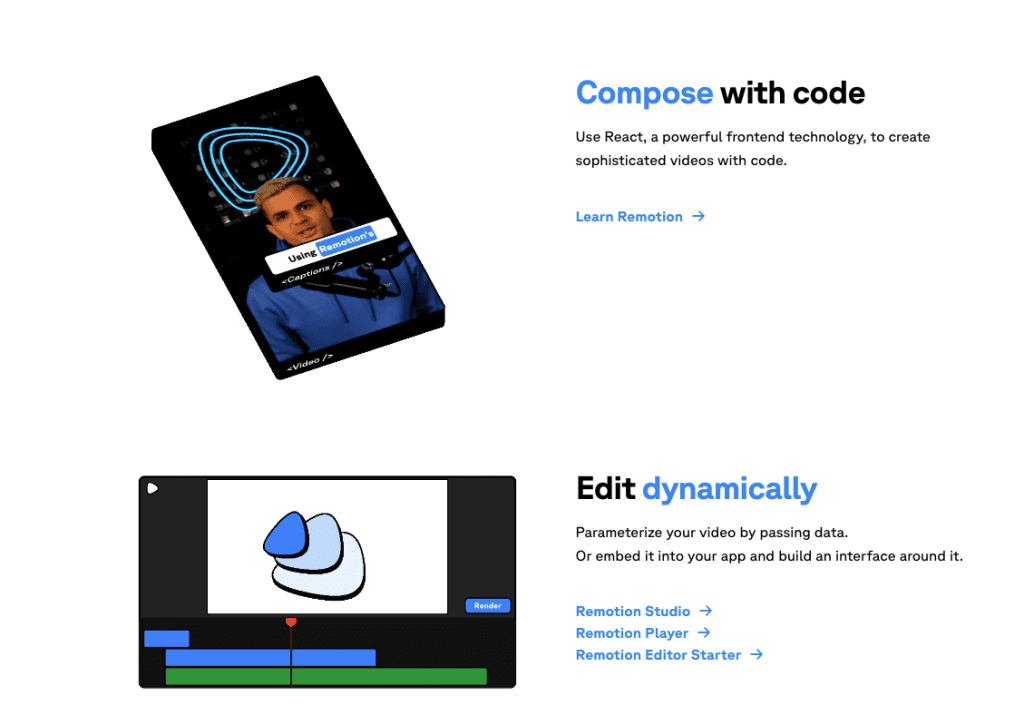
Diagnose in 60 Seconds (Which Log Lines Matter)
When a render fails, Remotion dumps a wall of text. Most of it is noise.
Three critical patterns to find:
- FFmpeg/FFprobe errors:
Command failed with exit code 1: ffmpegorffprobe— FFmpeg can’t find a file or can’t decode something - Asset errors:
Error loading image/video/audioorNo such file or directory— wrong path or missing file - Decode errors:
Cannot decodeorCompositor error: No frame found— corrupted file or unsupported format
Quick diagnosis: Scroll to the bottom of the error first. The last 5-10 lines usually contain the actual failure. Everything above is just stack traces.
I wasted 20 minutes reading logs top-to-bottom my first time. The actual error — ffprobe: No such file or directory — was right at the end.
Example error:
Error: Command failed with exit code 1: ffprobe -v error
/tmp/remotion-assets/371949071995914.mp4: No such file or directory
This tells you: FFprobe tried to analyze a video that doesn’t exist. Asset problem, not FFmpeg problem.
Fix FFmpeg/FFprobe Issues (Auto-Install vs PATH vs Custom Binaries)
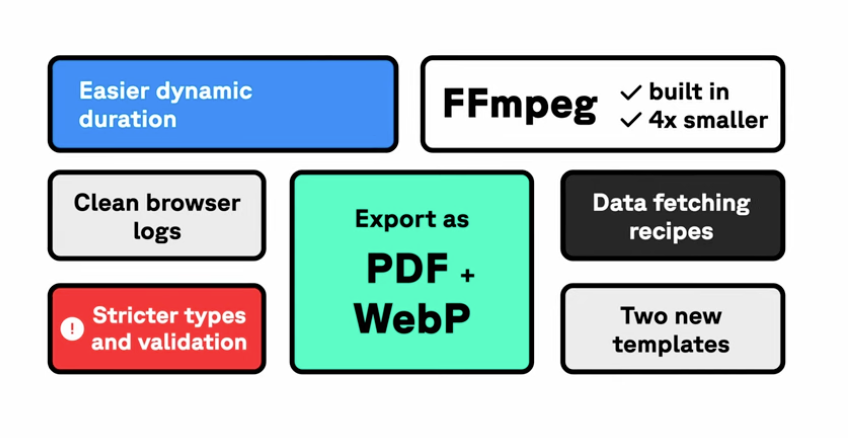
Good news: Remotion v4.0+ bundles FFmpeg automatically. You don’t need to install anything.
But sometimes it still breaks.
Issue 1: You’re on Remotion v3 (Upgrade)
Check your version:
bash
npm list @remotion/cliIf it says 3.x.x, upgrade to v4:
bash
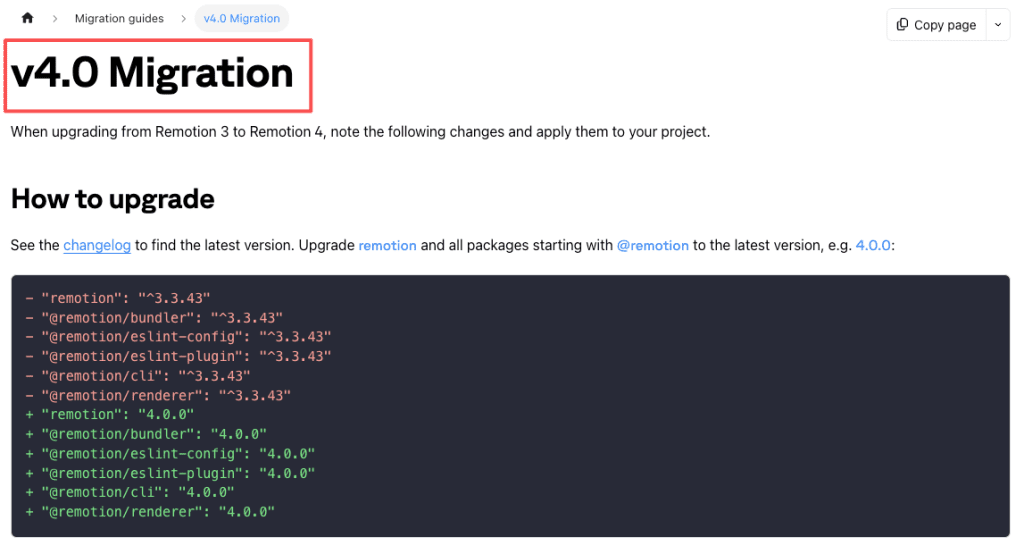
npm install @remotion/cli@latest @remotion/renderer@latestAccording to the v4 migration docs, FFmpeg is now baked into @remotion/renderer — no manual installation needed.
Can’t upgrade? On v3, force FFmpeg reinstall:
bash
npx remotion install ffmpeg
npx remotion install ffprobe
(These commands don’t exist in v4 since FFmpeg is bundled.)
Issue 2: Custom FFmpeg Binary Conflicts
If you set ffmpegExecutable or ffprobeExecutable in your render config, remove them — v4 doesn’t support these options.
javascript
// ❌ Remove this
await renderMedia({
  ffmpegExecutable: '/usr/local/bin/ffmpeg',
});

// ✅ Use this
await renderMedia({
  composition,
  outputLocation: './out.mp4',
});
“Cannot Decode” Root Causes + Safe Asset Rules
The most frustrating errors: Cannot decode or No frame found at position X. These happen when FFmpeg can’t decode your file’s data.
Root cause 1: Unsupported codec
Remotion supports: H.264, H.265, VP8, VP9, ProRes (video); AAC, MP3, Opus (audio). Anything else won’t work.
Check your codec:
bash
npx remotion ffprobe your-video.mp4Look for Video: and Audio: lines. If unsupported, re-encode:
bash
npx remotion ffmpeg -i input.mp4 -c:v libx264 -c:a aac output.mp4Root cause 2: Variable frame rate (VFR)
Screen recordings often use VFR. Remotion needs constant frame rate (CFR).
Convert to CFR:
bash
npx remotion ffmpeg -i input.mp4 -vsync cfr -r 30 output.mp4Root cause 3: Corrupted file
Test if the file is readable:
bash
npx remotion ffmpeg -i your-video.mp4 -f null -If this throws errors, re-download or re-export.
Root cause 4: Container issues
Re-mux to fix weird metadata:
bash
npx remotion ffmpeg -i input.mp4 -c copy -map 0 output.mp4Safe asset rules:
- Video: H.264 MP4, CFR, AAC audio
- Images: PNG, JPEG, WebP, SVG
- Audio: MP3 or AAC
- Avoid: Special characters in filenames (#, ?, &), absolute paths, relative paths
Fix Missing Assets + Wrong Paths
This is the most common render failure. Your asset exists, but Remotion can’t find it.
Rule 1: Always Use staticFile() for Assets
Remotion runs in a browser during preview but bundles everything during render. You can’t use absolute paths or relative paths like ../assets/video.mp4.
Wrong:
javascript
// ❌ These won't work during render
<Video src="/videos/intro.mp4" />
<Img src="../images/logo.png" />
<Audio src="C:/Users/me/music.mp3" />
Right:
javascript
import { staticFile } from 'remotion';

// ✅ Put assets in public/ folder, reference with staticFile()
<Video src={staticFile('videos/intro.mp4')} />
<Img src={staticFile('images/logo.png')} />
<Audio src={staticFile('music.mp3')} />
According to Remotion’s asset documentation, all assets must be in the public/ folder and referenced via staticFile(). This ensures they’re bundled correctly and work in both preview and render modes.
Rule 2: staticFile() Doesn’t Support Relative Paths
A common mistake:
javascript
// ❌ staticFile() expects paths relative to public/, not ./
staticFile('./videos/intro.mp4')  // FAILS
staticFile('../assets/logo.png')  // FAILS// ✅ Correct usage
staticFile('videos/intro.mp4')    // Looks in public/videos/
staticFile('logo.png')            // Looks in public/
Rule 3: Special Characters Break Paths (Before v4)
If you’re on Remotion v3, filenames with #, ?, or & cause issues. For example:
public/video#1.mp4  → Breaks (# treated as URL fragment)
public/image?.png   → Breaks (? treated as query string)
Remotion v4 fixed this by encoding filenames automatically, but if you’re on v3, rename files to remove special characters.
Rule 4: Assets Added After Bundling Won’t Work
Remotion bundles your project before rendering. If you add files to public/ after the bundle step, they won’t be included.
Solution: Restart the render or re-bundle if using server-side APIs.
Dynamic Imports (Advanced)
If you need to load assets dynamically at runtime, you can’t use variables directly:
javascript
// ❌ Doesn't work (Webpack can't bundle it)
const videoName = 'intro';
<Video src={staticFile(`${videoName}.mp4`)} />
Workaround: Use getStaticFiles() to enumerate available assets at runtime:
javascript
import { getStaticFiles, staticFile } from 'remotion';

const files = getStaticFiles();
const video = files.find(f => f.name === 'videos/intro.mp4');

<Video src={video.src} />
This works because getStaticFiles() reads the bundled assets list.
Pre-Render Checklist + FAQ
Here’s my actual pre-render checklist. I run through this before every render now — saves so much time.
Before clicking render:
- ✅ All assets in
public/folder - ✅ Using
staticFile()for every asset reference - ✅ No absolute paths (
C:/...or/Users/...) - ✅ No relative imports (
../or./) - ✅ Filenames don’t contain
#,?,& - ✅ Video assets are H.264 MP4 with AAC audio
- ✅ Check logs for “deprecated pixel format” warnings (usually harmless but worth noting)
Quick test:
Run a 1-second test render before committing to a full render:
bash
npx remotion render src/index.ts MyComp out/test.mp4 --frames=0-30This renders just the first second. If it fails, you catch it in 10 seconds instead of waiting 10 minutes for a full render to crash.
FAQ:
Why does my render work in Studio but fail in CLI?
Studio uses a local dev server with hot reloading. CLI renders use a bundled version. Asset path issues usually appear in CLI renders, not Studio. Always test with CLI before deploying.
Can I use remote URLs for assets?
Yes, but with caveats. You can pass https:// URLs to <Video>, <Img>, etc. But network issues, CORS, or rate limits can cause render failures. For production, download assets to public/ and use staticFile().
What if I need assets outside the project folder?
You can’t. Remotion’s bundling architecture requires all assets in public/. Copy them there or symlink the folder (on Linux/macOS).
Why does FFprobe fail with “No such file or directory” randomly?
This usually happens with concurrent renders or temp file cleanup race conditions. If you’re rendering multiple videos in parallel, Remotion might delete temp files before FFprobe finishes analyzing them. Solution: reduce concurrency or add delays between renders.
How do I debug “Compositor error: No frame found at position X”?
This means FFmpeg couldn’t extract a specific frame from your video, usually due to VFR issues or seek problems. Re-encode to CFR and test again. If it persists, the video file might have corrupted frames — try re-exporting from the source.
The biggest lesson I learned debugging these failures: 90% of render errors come down to asset paths and FFmpeg expecting specific formats. Once you internalize the staticFile() rule and stick to H.264 MP4 assets, most problems disappear.
Start with the checklist, check logs for the specific error pattern, and fix from there. Most fixes take under 2 minutes once you know what you’re looking for.
If you’re still finding these issues repetitive, or want to streamline the process even further, try Crepal. With its automatic workflow management, you can reduce the amount of time spent troubleshooting and focus more on creativity.
Visit crepal.ai to get started today.
Previous posts:






