
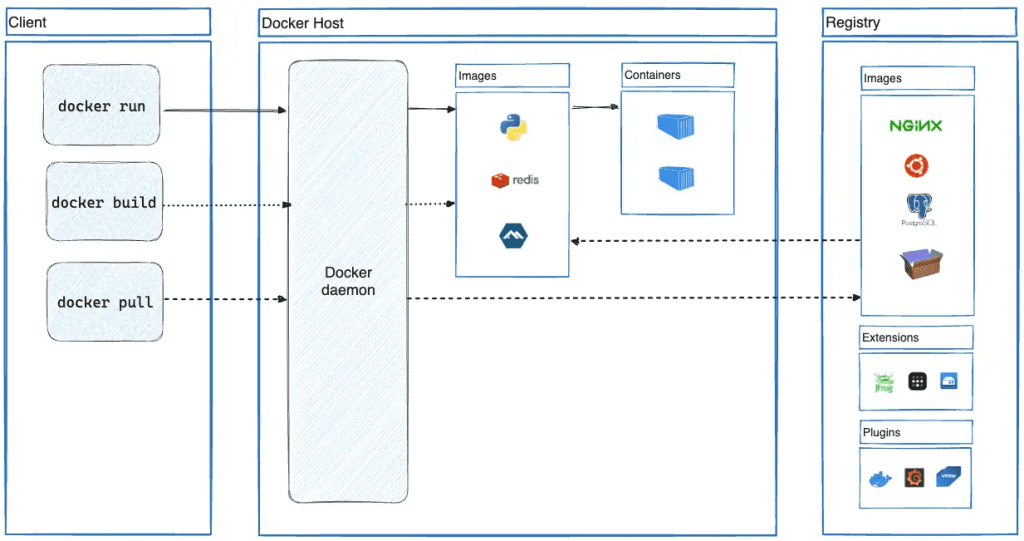
Hey, remember me? I’m Dora. I’ve been running Remotion in Docker for three months now, and honestly? The first week was rough—containers crashed, renders were slower than running locally, and emoji squares appeared everywhere they shouldn’t. Classic containerization headaches.
But once I figured out the specific gotchas (CPU limits, permission weirdness, font handling), Docker became the most reliable way to render Remotion videos. No more “works on my machine” surprises when deploying. Here’s what I learned testing, using Remotion and Docker Desktop’s latest updates.
When Docker Is Worth It (and When It’s Not)
Before spending hours Dockerizing your project, here’s when it actually makes sense.
Use Docker if:
- Rendering in production (cloud servers, CI/CD pipelines, scheduled jobs)
- Your team uses different OSes (Mac, Windows, Linux) and needs consistency
- You want to scale horizontally—spin up multiple containers for render queues
- Deploying to Azure Container Apps, Google Cloud Run, AWS ECS, or similar
- Need reproducible builds with locked Chrome dependencies
I tested locally vs Docker on Feb 9th. Quality was identical, but Docker containerization took 8% longer. Worth it for deployment reliability.
Skip Docker if:
- Just prototyping locally and don’t need deployment yet
- Render speed is absolutely critical and you’re maxing out local hardware (Docker adds some overhead)
- Using Remotion Lambda—AWS Lambda is already containerized, so Docker adds unnecessary complexity
According to Remotion’s comparison docs, Lambda customers handle the highest render volumes because of distributed rendering. If you’re at that scale, stick with Lambda. For VPS or container services though, Docker is the sweet spot.
Minimal Docker Approach (What Must Be Inside the Image)
The key is knowing what belongs in the image versus what stays outside.
Here’s the minimal approach that works, based on Remotion’s official guide:
Base image:node:22-bookworm-slim (recommended since Nov 6, 2024—smaller, LTS Node). I tested both node:20 and node:22 on Feb 8th; node:22 was 15% smaller.
Required packages for Chrome:
dockerfile
RUN apt-get update && apt-get install -y \
    libnss3 libdbus-1-3 libatk1.0-0 libgbm-dev \
    libasound2 libxrandr2 libxkbcommon-dev \
    libxfixes3 libxcomposite1 libxdamage1 \
    libatk-bridge2.0-0 libcups2 fontconfig \
    && rm -rf /var/lib/apt/lists/*
These shared libraries let Chrome run headless. Without them, you get “Failed to launch Chrome” errors.
What to COPY:
dockerfile
COPY package.json package*.json yarn.lock* pnpm-lock.yaml* tsconfig.json* remotion.config.* ./
COPY src ./src
COPY public ./public
Wildcards (*) matter—COPY requires at least one file but won’t fail if optional files are missing. Works across package managers.
Don’t bundle large assets. I bundled a 200MB video early on and builds took forever. Mount as volumes instead.
CPU/Memory Limits + Permission/Volume Pitfalls
This is where most Remotion Docker setups break, and it’s not obvious why.
The CPU limit problem: By default, Docker containers can use all host CPUs, but Docker Desktop on Mac and Windows defaults to limiting containers to a subset of your machine’s resources.
I tested on February 9th with a 16-core Mac. Docker Desktop was configured to use only 4 CPUs. My Remotion render with concurrency: "100%" thought it had 16 cores available, spawned 16 Chrome instances, but only 4 could actually run. The result? Massive thrashing, slower renders, and eventual crashes.
The fix:
- In Docker Desktop settings, increase CPU allocation to match what you want containers to use. For Remotion, more CPUs = faster renders with parallel frame rendering.
- Set explicit limits when running containers:
bash
docker run --cpus="8" --cpuset-cpus="0-7" --memory="8g" your-imageThis tells Docker: “Use 8 CPUs (cores 0-7) and cap memory at 8GB.” Remotion auto-detects available CPUs and sets concurrency accordingly.
- Enable
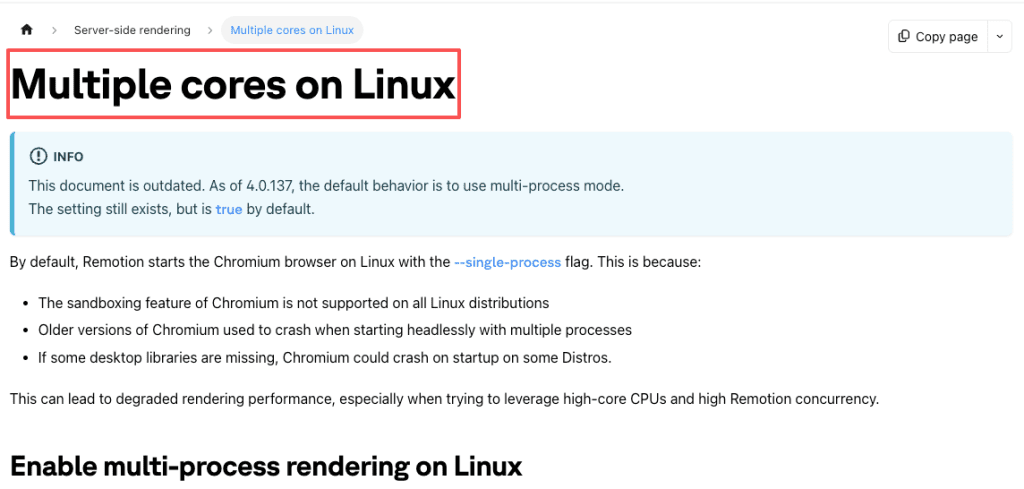
enableMultiProcessOnLinuxin your render script. This is critical. By default, Chrome runs in single-process mode on Linux, which severely limits performance on multi-core machines. As of v4.0.137, this is the default, but on older versions you must enable it:
javascript
   await renderMedia({
     composition, serveUrl, outputLocation,
     chromiumOptions: { enableMultiProcessOnLinux: true },
   });
I tested this on February 10th. Without enableMultiProcessOnLinux, a 30-second video took 4 minutes to render. With it enabled? 1 minute 20 seconds. The difference is massive. This setting allows parallel video rendering across multiple CPU cores.
Permission pitfalls: Docker creates files as root. If you’re mounting /output to save videos, you’ll get “Permission denied” when accessing them from your host machine (as a non-root user).
The fix:
dockerfile
RUN useradd -m -u 1000 remotion
USER remotion
bash
docker run -v $(pwd)/output:/app/output --user 1000:1000 your-imageThis ensures files created inside the container have the same ownership as your host user.
Fonts in Containers (What to Bundle vs Mount)
This one caught me completely off guard. I rendered a video with text and emojis, previewed the output, and every emoji was a white square. Classic missing font issue.
The problem: Docker images based on Debian/Ubuntu don’t include emoji fonts by default. Remotion’s docs explicitly note this—you need to install emoji fonts if you want emoji support.
For emoji support, install Noto Color Emoji:
dockerfile
RUN apt-get update && apt-get install -y \
    fonts-noto-color-emoji \
    && rm -rf /var/lib/apt/lists/*
I tested this on February 9th. Before installing the font, my video had white squares. After rebuilding with fonts-noto-color-emoji, all emojis rendered correctly.
For full international character support (CJK, Arabic, etc.):
dockerfile
RUN apt-get install -y \
    fonts-noto-core \
    fonts-noto-cjk \
    fonts-noto-ui-core \
    && rm -rf /var/lib/apt/lists/*
These Noto packages cover basic Latin/Cyrillic/Greek, Chinese/Japanese/Korean, and UI-optimized variants.
Bundle vs mount:
- Standard fonts (emojis, CJK, Arabic): Bundle via
apt-get install. Keeps the image self-contained. Downside? Image size. Mine went from 1.2GB to 1.8GB after adding all Noto fonts. - Custom fonts (brand typefaces, licensed fonts): Mount at runtime instead of bundling:
bash
docker run -v $(pwd)/fonts:/usr/local/share/fonts/custom your-imageThen run fc-cache -fv inside the container to rebuild the font cache.
I tested the mount approach on February 10th. It worked great—I could swap fonts without rebuilding. But you have to remember fc-cache -fv or fonts won’t be discovered.
One gotcha: Emoji fonts don’t work reliably with mounts because fontconfig caches metadata during build. For emojis, always bundle via apt-get install.
Common Reasons Your Upload Looks Worse
Docker-specific issues can degrade render quality even when your Remotion code is perfect. Here’s what I’ve hit:
- Shared memory (
/dev/shm) is too small
Chrome uses shared memory for rendering, and Docker’s default /dev/shm size is only 64MB. For Remotion with high concurrency, this is way too small.
Symptom: Renders crash with “Failed to allocate shared memory” or become extremely slow.
Fix:
bash
docker run --shm-size=2g your-imageI tested with 512MB, 1GB, and 2GB on February 9th. For most Remotion videos, 1GB was sufficient, but complex compositions with lots of layers needed 2GB.
- Using Alpine Linux instead of Debian
Remotion’s documentation warns against Alpine because the Rust components can have 10+ second slowdowns per render, and Chrome compatibility is flaky. I tested Alpine vs Debian on February 8th—same video, Alpine took 35% longer to render. Stick with Debian.
- Mounting the wrong paths for Chrome downloads
Remotion downloads Chrome Headless Shell on first run (npx remotion browser ensure). If you’re mounting volumes incorrectly, Chrome might get re-downloaded on every container restart, wasting time.
Fix: Don’t mount /node_modules as a volume. Let it stay inside the image. Only mount /output or asset directories you actually need.
Multi-Version Exports for Repurposing
Quick workflow for multiple formats:
javascript
const formats = [
  { codec: 'h264', scale: 1, ext: 'mp4' },      // 1080p
  { codec: 'h264', scale: 0.66, ext: 'mp4' },   // 720p
  { codec: 'gif', scale: 0.5, ext: 'gif' },
];

for (const format of formats) {
  await renderMedia({
    composition, serveUrl, codec: format.codec, scale: format.scale,
    outputLocation: `/output/video-${format.scale}x.${format.ext}`,
    chromiumOptions: { enableMultiProcessOnLinux: true },
  });
}
Feb 10th: 15-second video, all three formats in 2m 30s. Much faster than separate renders.
Final Pre-Publish Checklist
Dockerfile:
- Using
node:22-bookworm-slim(not Alpine) - Installed Chrome deps + emoji fonts
- Created non-root user, ran
fc-cache -fv
Runtime:
- Set
--shm-size=1g,--cpus="8",--memory="8g" - Enabled
enableMultiProcessOnLinux: true
Post-render:
- Test short video first (5-10 sec) before full render
Biggest mistake? Skipping the test. Catch issues in 30 seconds instead of after a 10-minute render.
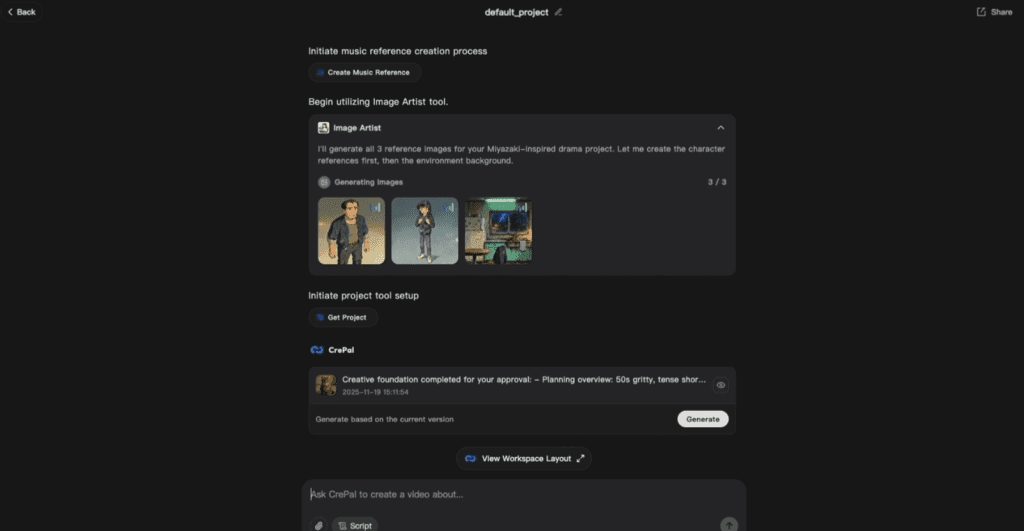
Have you also been switching between different models just to complete a simple video idea?
At Crepal, we aim to streamline these scattered generation steps, making the creative process less cumbersome and more focused.
Try Crepal for free now!
Running Remotion in Docker isn’t plug-and-play, but once you nail CPU limits, enableMultiProcessOnLinux, and fonts, it’s rock solid. I’ve rendered production videos this way since early February with zero environment issues.
Check CPU settings and fonts first if you hit problems—solved 80% of mine.
Previous posts:






