
I had a tiny moment of panic that day. A client asked for a 45-second product teaser by the next day, and I had zero time to sketch frames. I opened my notebook, drew a rectangle, stared at it, and laughed. No storyboard was happening.
So I tried a storyboard-free video workflow, half out of necessity, half curiosity. And honestly? It worked better than I expected.
Why You Can Create a Storyboard-Free Video
Benefits of Skipping Traditional Storyboards
I’m not anti-storyboard. For big campaigns, they’re great. But for short-form content, explainer clips, or iterative social posts, a “storyboard free video” approach can unlock speed.
- Speed: I cut my turnaround from ~4 hours to 90 minutes on that Dec 12 teaser. No pre-visual frames, just rapid scene blocks.
- Iteration: When you build directly on a timeline, you learn by watching. You can try 3 cuts in 10 minutes. That pace is hard when you’re committed to a sketch.
- Creative flow: Traditional boards can make you over-commit to an idea too early. Without them, I followed energy, start with the strongest clip, build from there.
- Real-time collaboration: I’ve shared live edits in Descript and got timed comments, which is way more useful than discussing a static PDF.
Not sponsored, just honest results.
When a Storyboard-Free Approach Works Best
- Short videos (15–90 seconds): ads, teasers, quick how-tos, landing page hero loops.
- Explainers with clear structure: problem → demo → outcome. You can map that in a 3-block timeline.
- Content with existing assets: screen recordings, product footage, B-roll libraries.
- AI-first experiments: if you’re using Runway Gen-3 or Luma Dream Machine shots, you’ll iterate on generations anyway.
When I still storyboard: complex narratives, multi-character scenes, or anything with a big crew. If continuity matters, sketch it first.
Storyboard-Free Video Workflow
Rapid Scene Planning and AI-Assisted Layouts
Here’s the lightweight planning I now use:
- Write a one-line spine. Example from my Dec 12 teaser: “Show problem → show product solving it in 3 steps → end with proof.”
- Block the timeline in three chunks. I literally drop black slates or placeholder titles: A/Problem (0–10s), B/Solution (10–35s), C/Outcome/CTA (35–45s). No drawings.
- Generate or pull visuals fast. If I need motion I don’t have, I prompt Runway Gen-3 or Pika 1.0 for 3–5s clips. When I need static hero frames or product shots that match my video aesthetic, Flux 2 Dev helps me generate high-quality stills quickly without waiting for motion renders. If it’s a UI demo, I record a tight screen capture (Chrome, 1080p, 60fps) and use mouse highlight.
- Let AI help with layout and pacing. Descript’s Scenes and Captions give quick lower-thirds: CapCut’s Auto Cutout and beat detection help flow. Canva’s Beat Sync is simple but sometimes drifts: I only trust it for short cuts.
- Draft, watch, revise. I export a rough cut at 720p to watch on my phone. If I’m bored in the first 3 seconds, I redo the hook.
Small test data: I built three 30–45s videos in a row using this method. Average time per video: 62 minutes. Average revision rounds: 1.6.
Tools That Support Storyboard-Free Video Production
These are the ones that kept up with me. I note where they shine, and where they don’t.
- Descript: Edit by transcript, great for explainers. The multicam switcher is solid. I love the “Remove Filler Words” for voice-over cleanup. Not great for heavy motion graphics.
- CapCut Desktop: Fast timeline, Auto Captions, decent color presets. The stabilization is okay, not stellar. I use it for social edits and quick composites. Free tier is enough for most.
- Runway Gen-3 and Motion Brush: For AI-generated shots and stylized motion. Great for mood shots, transitions, or animating static images. Beware: generations can vary: keep prompts versioned.
- Luma Dream Machine: Gorgeous motion, cinematic feel. Render queue can be long: plan around it.
- ElevenLabs: Natural-sounding voiceovers from script. I still record my own when authenticity matters, but ElevenLabs is handy for rapid drafts.
- Canva and Adobe Express: Fast titles and branded lower-thirds. If I need custom motion curves, I hop back to CapCut or Premiere.
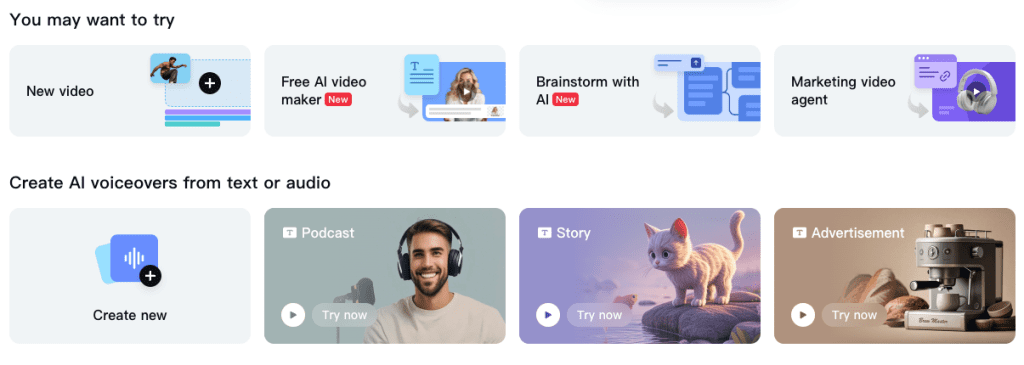
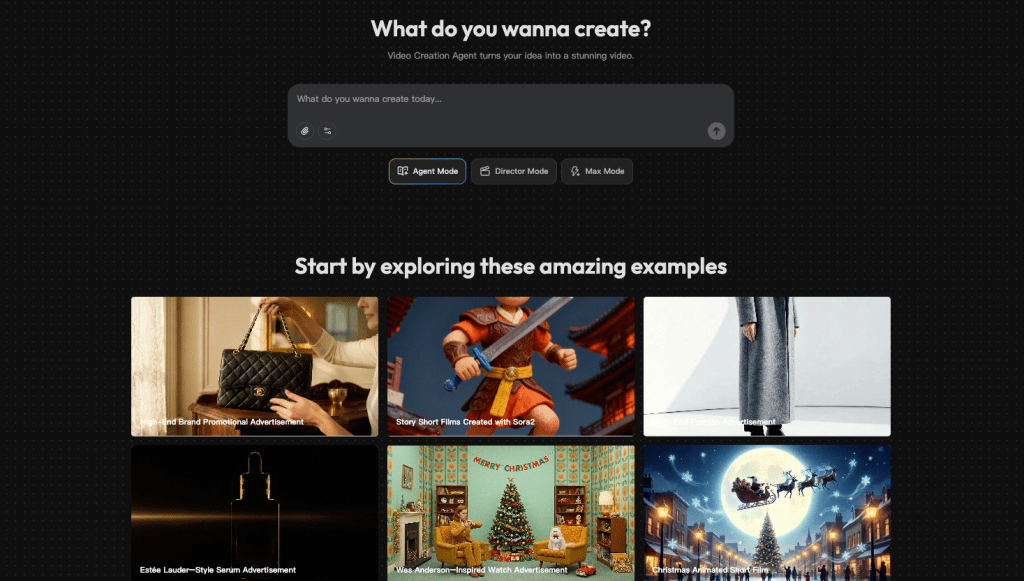
For fast rough drafts, Crepal can turn a quick outline into a multi-scene video draft, letting you focus on timing and flow before polishing in other tools.
Storyboard-Free Video Examples Across Use Cases
Here’s how I’ve used a storyboard free video approach in the wild.
- Product teaser: 45s. Assets: 2 Runway shots, 3 screen recordings, 1 voiceover. Result: 90 minutes first cut, 1 revision after client comments. Best-performing hook: a 1.5s kinetic macro shot from Runway.
- LinkedIn how-to: 38s. Script from a 70-word outline. I edited the voice track in Descript, then matched captions in CapCut. Time saved vs storyboarding: ~50 minutes.
- Research recap: 60s. I stitched three charts, added motion blur and a subtle camera push. No storyboard: I wrote a three-beat outline and built directly on timeline. Reader feedback: “Clear and fast, saved.”
- Course micro-lesson: 75s. I tried Canva Beat Sync for pacing. It was okay, but I still nudged cuts by hand. Note: AI pacing tools are helpful, not perfect.
Each time, the trick was the same: decide the spine, block the timeline, then let your eyes guide the next edit. If a shot drags, you feel it. I often start with Crepal to quickly mock up a multi-scene draft. It helps confirm the rhythm before fine-tuning cuts and captions.
Tips for Producing High-Quality Storyboard-Free Videos
Avoid Common Pitfalls
- Too many AI shots: If every clip is synthetic, the video feels fake. Mix in real footage or screen captures for grounding.
- Mushy hooks: The first 2 seconds decide if people stay. Start with the payoff, then explain.
- Captions chaos: Auto-captions are amazing but check punctuation and proper nouns. I spend 3–5 minutes fixing them.
- Unclear spine: If the final cut feels foggy, your spine line isn’t tight. Rewrite it in one sentence before editing again.
- Version sprawl: Name files with dates, e.g., teaser_v3_2026-12-12.mp4. You’ll thank yourself later.
Optimize Workflow for Speed and Consistency
- Template your first 3 seconds: logo sting? product hero? Decide once. I keep a CapCut project with pre-timed intro/outro.
- Build a micro style guide: font pair, caption style, color hex. I pin this in Notion and paste into each tool.
- Record clean audio up front: a 10-minute mic setup saves 30 minutes later. I use a USB mic at -12 dB peak: then light compression.
- Use AI where it actually helps: transcript edits in Descript, captioning in CapCut, quick B-roll via Runway/Luma. Skip AI for micro-tweaks where your eye is faster.
- Sanity check on phone: Export a 720p draft and watch it once without touching the keyboard. If you reach to pause, that’s a cut.
If you want a starting point, try this: pick a 30-second topic, write a one-line spine, block three timeline sections, pull two real clips and one AI shot, caption it, export. You’ll feel the rhythm right away.
One last thing: this isn’t about rejecting storyboards forever. It’s about choosing the fastest path to clarity. For short content, storyboard-free video often is that path.
If you test this, send me a timestamp and your three-beat spine. I’ll happily trade notes. I’m really curious about it.
Previous posts:






