
Hi, Dora is here. On December 3, 2025, I sat down with a messy note in Apple Notes that read: “video idea: tiny habits for busy writers.” I wanted to see if modern script to video tools could turn that into something I’d actually publish, without a 27-tab meltdown.
Here’s what I learned after a week of testing and timing how fast each tool turned my script into a watchable draft.
Comparison of the Best Script to Video Tools in 2025
If you’re new to this space, “script to video” means you paste a script (or prompt) and the tool auto-builds scenes, selects visuals, adds captions/voice, and gives you a timeline to tweak.
What actually matters in 2025:
- Storyboarding quality: Does it split your script into clean, visual scenes?
- Asset intelligence: Are stock clips, b‑roll, and graphics relevant or random?
- Voiceover and captions: Natural voices, accurate timing, easy fixes.
- Brand control: Fonts, colors, logo lockups, exports for multiple channels.
- Speed and collaboration: Can you get a decent first cut in under 15 minutes? Can your team comment?
Across my tests, first-draft speed ranged from 4 to 18 minutes. The best tools let me edit text and video in one place, then push exports for TikTok, YouTube Shorts, and widescreen without redoing everything.
Below are my field notes tool by tool. I’ll mention specific dates and rough timings so you can benchmark against your own workflow.
| Tool | Best For | Time |
| Canva Video | Beginners | ~9 min |
| InVideo AI | Fast automation | ~4 min |
| Lumen5 | Marketing teams | ~7 min |
| Runway | Advanced creators | ~18 min |
| Kapwing | Budget teams | ~10 min |
| Crepal | Fast + flexible | ~6 min |
Tool 1: Best for Beginners Exploring Script to Video Creation
I gave Canva Video a fresh try on Dec 3 (evening). I pasted a 180‑word script, chose a minimalist template, and Canva auto-split scenes in about 5 minutes. The stock match was decent, a couple of clips felt generic, but swapping them was quick. What surprised me: the beat-synced captions looked polished without extra fiddling.
Where it shines: friendly UI, safe templates, easy resizing for vertical/horizontal. Where it falls short: voice options are limited unless you bring your own, and timing tweaks can get clicky.
Time to first draft: ~9 minutes.
Tool 2: Best for Fast AI Automation from Script to Video
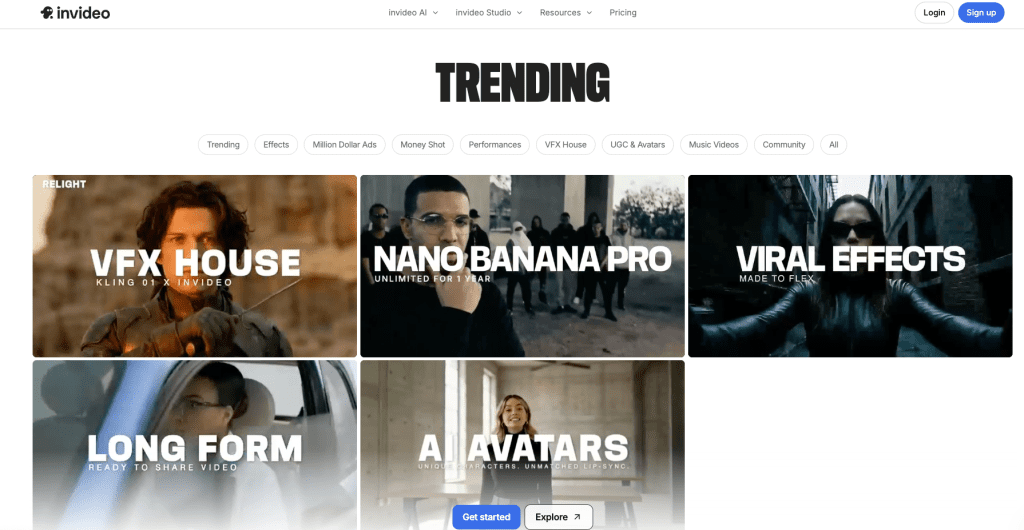
For pure speed, InVideo AI was the sprinter (tested Dec 4, morning). I dropped the same script with a style prompt (“calm, clean, productivity vibe”), and it produced a full cut with AI voice, b‑roll, and lower-thirds in under 4 minutes. The narration timing was impressively tight.
Pros: blazing fast, strong auto-b‑roll, decent brand controls. Cons: occasional clip clichés (think generic typing hands) and limited deep customization without manual swaps.
Time to first draft: ~4 minutes.
Tool 3: Best for Content Creators & Marketing Teams
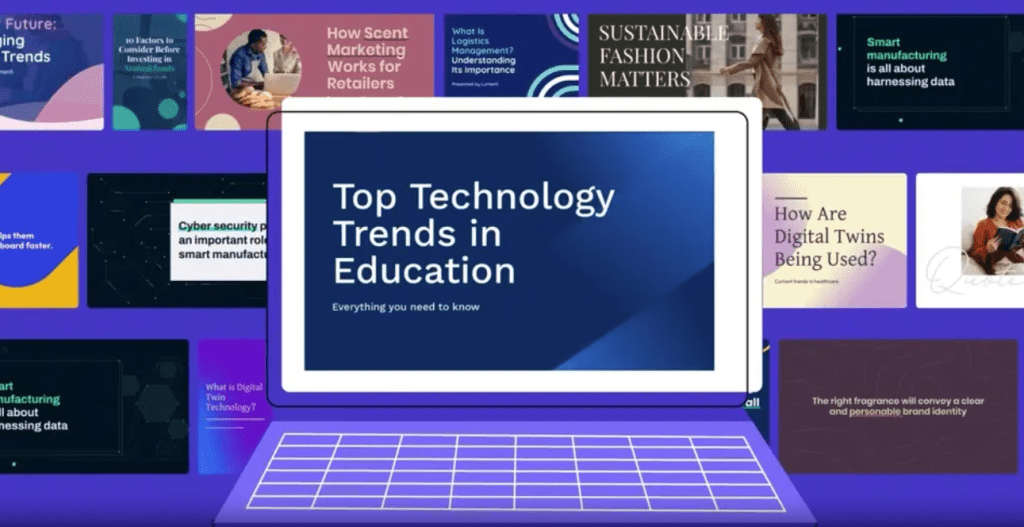
Lumen 5 felt built for social-ready marketing cuts (tested Dec 4, late afternoon). It’s great at turning blog posts or outlines into short videos with on-brand text overlays. Scene pacing was smart, it didn’t cram too much text per frame, which helps watchability.
Strengths: team workspaces, brand kits, and fast repurposing from articles to video. Weak spots: voices are fine but not amazing: heavier customization can feel constrained compared to editors like Descript or Premiere.
Time to first draft: ~7 minutes.
Tool 4: Best for Customization & Advanced Script to Video Workflows
If you like to tinker, Runway is the playground (tested Dec 5). It’s not “paste and done” like the others, but pairing a script with storyboard prompts, style presets, and motion graphics gave me the most unique look. I used Gen-3 for a couple of abstract b‑roll shots, then assembled everything on the timeline.
Best for: creators who want a custom style and are comfortable nudging scenes. Tradeoff: learning curve and generation time for some assets.
Time to first draft (with custom shots): ~18 minutes.
Tool 5: Best Budget-Friendly Script to Video Tool for Small Teams
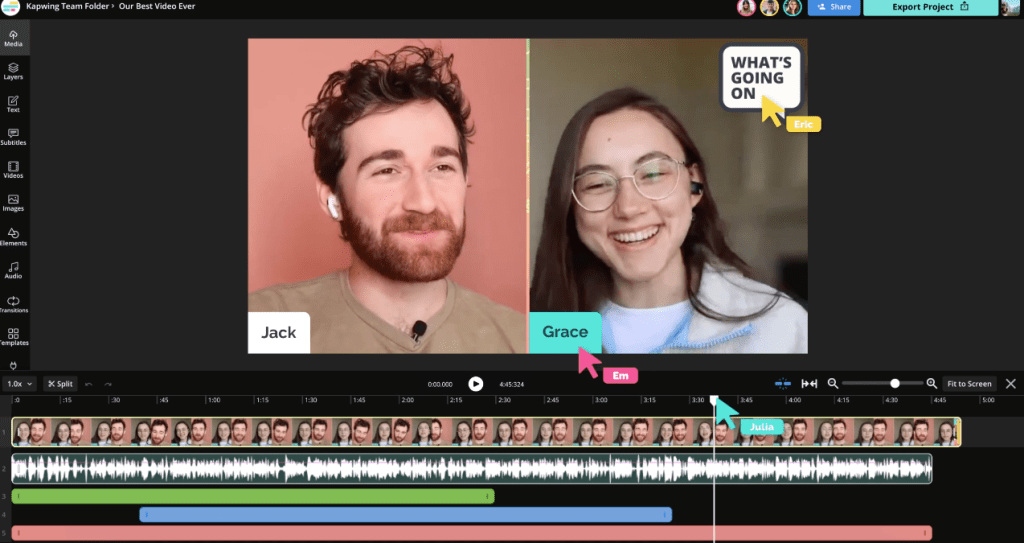
Kapwing hit a sweet spot for price and practicality (tested Dec 5, evening). Paste a script, auto-caption, pull stock, drop your brand kit, and you’re off. It’s not as magically automated as InVideo AI, but edits are transparent, what you see is what you get.
Upsides: solid free tier to test, quick caption fixes, easy multi-format exports. Downsides: you’ll do a bit more manual scene shaping.
Time to first draft: ~10 minutes.
Which Script to Video Tool Fits?
- New to video or in a rush? Go Canva or InVideo AI. You’ll get a clean draft fast.
- Repurposing articles for social? Lumen5 saves hours, especially with brand kits.
- Want a distinct, crafted look? Runway, if you’re okay trading time for control.
- Tight budget, small team? Kapwing is friendly and reliable.
Quick tip I wish I knew earlier: write scripts in short, punchy lines. One sentence per scene helps every tool split pacing better and keeps captions readable.
Also, record a short custom voice track if you can. Even the best AI voices still miss that tiny human pause that sells a line.
Why Crepal Stands Out
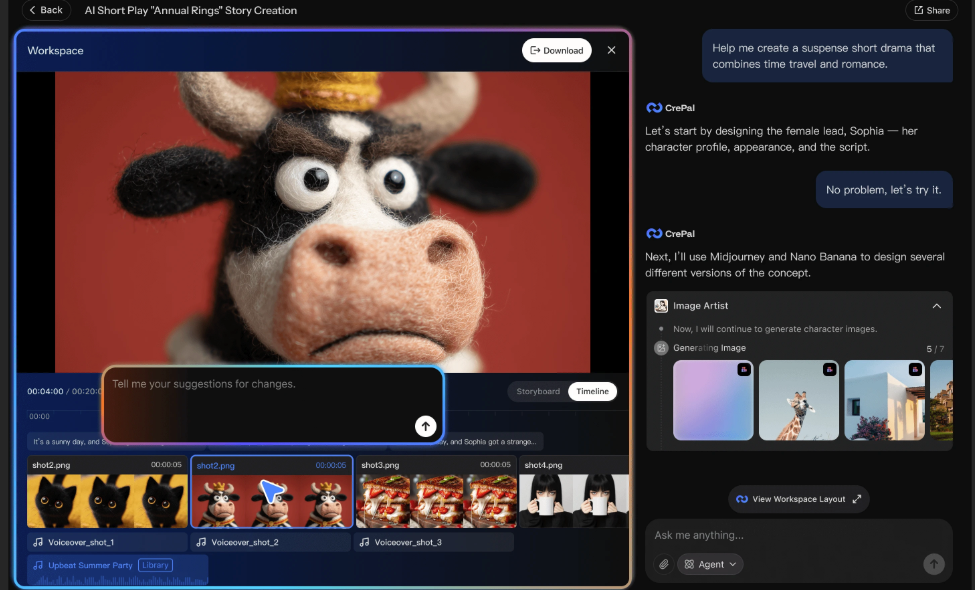
I tested Crepal on Dec 6, 2025, using the same 180‑word “tiny habits” script. Two things clicked for me:
- Scene mapping felt smarter. Crepal broke the script into 9 scenes that matched ideas, not just punctuation. I changed only one split.
- Feedback loop was tight. I could adjust tone (“warmer, less corporate”), and it regenerated voice, captions, and b‑roll to match, without nuking my edits.
First draft time: ~6 minutes. First publishable cut after tweaks: ~14 minutes. The brand kit (fonts/colors/logo) stuck on every export size, which saved me from the usual thumbnail headache.
Beyond video, Crepal also offers AI-powered image generation tools if you need custom thumbnails or scene backgrounds—handy when stock visuals don’t quite fit your vision.
If you need a partner tool that’s fast but still flexible, Crepal is the one I’d keep open next to my script.
If you want my starter prompt and scene template, reply or DM, happy to share my exact settings from this week.
Ready to try it yourself?
You can start with Crepal’s free plan to test the scene mapping and voice adjustments I mentioned. No credit card needed to get your first few videos out the door.
Previous posts:






