
On December 7, 2025, I sat down with a cup of jasmine tea and a messy Google Doc titled “video ideas.” I kept stalling at the same step: turning short scripts into clean, shareable videos. So I spent that afternoon testing script to video templates across tools like Canva, CapCut, VEED, Lumen5, InVideo, Descript, Adobe Express, Pictory, and Synthesia. Not sponsored, just me trying to save my future self time. Some templates felt like magic: others looked slick but slowed me down. Here’s what’s actually worth using, and how to match the right template to your content without getting lost in the options.
Top 10 Script to Video Templates (Template 1–10)
What Each Script to Video Template Is Best For
I grouped these by real use, not platform hype. I tested all of these between Dec 7–8, 2025 with 30–60 second scripts (about 80–150 words) and timed setup to export.
- Talking-Head Presenter (Synthesia-style)
- Best for: Training snippets, onboarding, FAQs, compliance explainers.
- Why it works: Keeps pace with your script and looks consistent across episodes.
- My note: Great for voiceover in a rush. Avatars still feel uncanny in some contexts, so I use them for utility, not brand storytelling. Setup-to-export: ~12 minutes.
- Faceless B-Roll with Kinetic Text (Lumen5/VEED)
- Best for: LinkedIn explainers, listicles, product teasers.
- Why it works: Script lines auto-map to scenes with stock b-roll and motion text.
- My note: Surprisingly strong. I cut 25 minutes vs manual editing. Swap the default font or it looks like every other startup video.
- Social Coach Cut (CapCut/Instagram Reels)
- Best for: Reels/TikTok quick tips.
- Why it works: Punchy captions, beat-matched cuts, big title card.
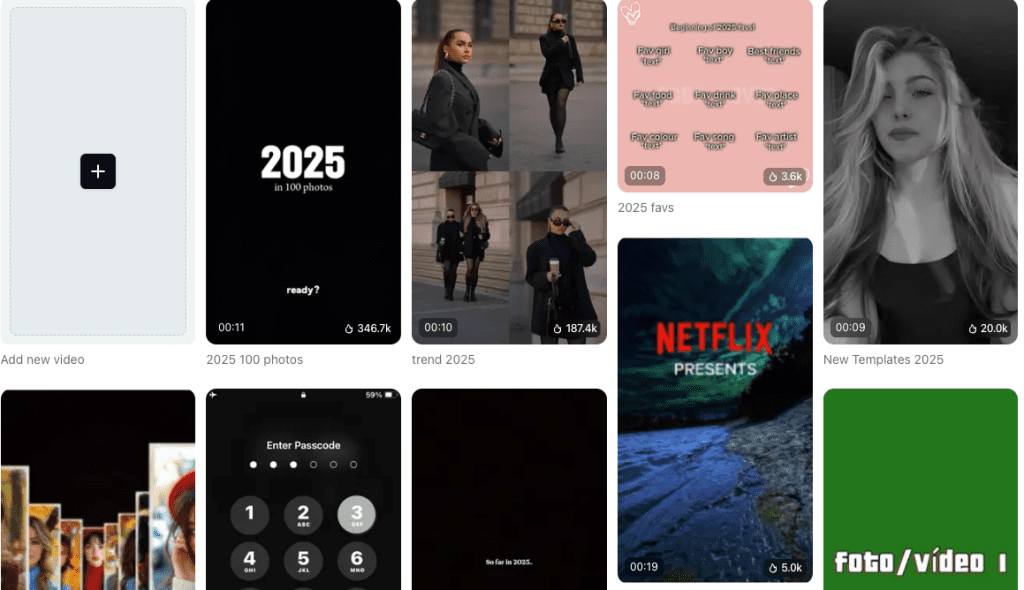
- My note: Excellent for 9:16. The auto-caption accuracy was ~93% on my test: do a quick pass for brand names. My note: Excellent for 9:16. The auto-caption accuracy was ~93% on my test; do a quick pass for brand names. CapCut’s 2025 templates have been optimized specifically for TikTok, Instagram, and YouTube Shorts, making cross-platform repurposing seamless.
- Tutorial Steps / Over-the-Shoulder (Descript + screen capture)
- Best for: How-tos, walkthroughs, micro-courses.
- Why it works: Script becomes captions + markers: easy to trim filler words.
- My note: If your script references clicks (“open settings”), this template shines. Exported a 2-minute guide in 18 minutes end-to-end.
- Text-First “Threads” Carousel-to-Video (Canva)
- Best for: Turning a Twitter/X thread or blog bullets into a motion slideshow.
- Why it works: Slide families and brand kits keep it clean.
- My note: Quick wins for repurposing. Add a 1–2 second pause on dense slides so viewers can breathe.
- Product Demo with Callouts (Adobe Express/VEED)
- Best for: Feature highlights, launch updates, comparison shots.
- Why it works: Annotations, arrows, and zooms align to script beats.
- My note: Don’t over-animate. Two callouts per scene max to avoid visual noise.
- Newsflash / Headline Card (InVideo/Lumen5)
- Best for: Research drops, market updates, weekly recaps.
- Why it works: Bold headline > subhead > quick b-roll.
- My note: I hit a sweet spot at 120–140 wpm. Faster reads felt rushed.
- Quote-to-Reel (CapCut/Canva)
- Best for: Authority bites, customer quotes, book notes.
- Why it works: Big typographic moments with subtle background.
- My note: Looks simple but converts well. Great filler content between big launches.
- Whiteboard/Chalk Sketch (Doodly-style, or Canva “hand-drawn” packs)
- Best for: Concept explainers, frameworks, mental models.
- Why it works: Draws attention to logic and sequence.
- My note: Use sparingly. Charming at 30–45 seconds: cheesy beyond a minute.
- Multi-Scene Story Ad (Runway + editor of choice)
- Best for: Narrative ads, case studies, mini-docs.
- Why it works: Script maps to scenes with transitions, sound design, and pacing.
- My note: Heavier lift, but worth it for premium pieces. I storyboarded in notes first, saved me from six timeline rewinds. For creators who need even more precise control over human poses and character positioning in their visual assets, advanced techniques like ControlNet OpenPose for SDXL can help generate consistent character poses across multiple scenes—particularly useful when creating custom illustrations or storyboards for narrative-driven videos.
Quick reality check
- If you want reach fast: #2 or #3.
- If you want clarity: #4 or #6.
- If you want authority: #1 or #8.
- If you want depth: #10.
For reference, many tools have official docs worth skimming before you commit: Descript’s Studio Sound and captions, Canva’s brand kits, and Lumen5’s scene mapping all explain the quirks that save time once you know them. If you’re looking to master video templates across multiple platforms, understanding the core principles of template-based editing can significantly speed up your workflow.
How to Customize Script to Video Templates
Step-by-Step Guide to Personalizing Your Template
I kept running into the same problem: templates looked great… until I added my own script. Here’s the flow that fixed it for me on Dec 8, 2025.
- Start with a clean script
- 120–150 words per 60 seconds. Put scene breaks in brackets: [Hook], [Proof], [CTA].
- Read it out loud once. If you stumble, viewers will too.
- Pick your aspect ratio first
- 9:16 for Reels/TikTok, 1:1 for feed posts, 16:9 for YouTube/landing pages.
- Changing later breaks text sizes and crops faces. Painful.
- Build a timing spine
- Drop the script into the template and set default scene durations.
- Example: Hook 3s, Body 18s, Proof 15s, CTA 4s. Adjust after a test play.
- Lock brand basics
- Fonts: one display, one body. No font salad.
- Colors: 1 primary, 1 neutral, 1 accent. Save to your brand kit if the tool supports it (Canva/Adobe Express do).
- Tame captions
- Use sentence case, 2–3 lines max, 36–64px depending on frame size.
- Add a subtle background box at ~30% opacity for legibility.
- Resize media the right way
- Replace stock with your b-roll or screenshots. Keep subject center-safe for 9:16.
- If your template auto-swaps media, double-check awkward crops (happens a lot with hands and dashboards).
- Add one tasteful motion
- Pick either text kinetic or camera push, not both. Less is more.
- Beat-match transitions to your voiceover peaks.
- Audio polish
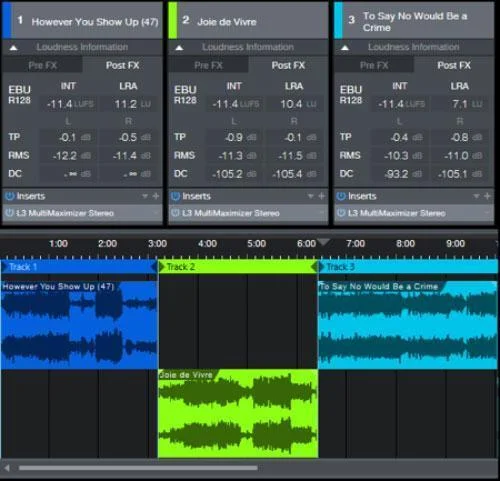
- Level music at -22 to -18 LUFS under speech. Duck during key lines.
- Descript’s Studio Sound or Adobe Enhance cleans muddy mic audio fast.
- Export tests
- Export a 540p or 720p draft to check motion and typos.
- Final export at the platform’s sweet spot: 1080×1920 for vertical, 1920×1080 for horizontal, 20–25 Mbps.
- Version notes
- I keep a tiny changelog in the project: v1 (font swap), v2 (slower captions), v3 (CTA fix, Dec 8). Future me is grateful.
Small but real time-saver: create a “starter” template with your fonts, lower-thirds, and outro pre-baked. I shaved ~12 minutes per video after doing this.
When to Use Each Script to Video Template
Matching Your Content Type to the Right Template
Here’s how I choose in real life, not theory.
- Rapid social tips (daily posts)
Use: Faceless B-Roll with Kinetic Text (#2) or Social Coach Cut (#3).
Why: Fast to produce, easy to batch. I made three in 40 minutes on Dec 8.
- Product update or feature drop
Use: Product Demo with Callouts (#6).
Why: Direct, visual, minimal fluff. Perfect for changelog posts.
- Short lesson or internal training
Use: Talking-Head Presenter (#1) or Tutorial Steps (#4).
Why: Consistency and clarity beat fancy cuts.
- Thought leadership or quotes
Use: Quote-to-Reel (#8).
Why: Clean design focuses attention on the message.
- Research recap or news
Use: Newsflash / Headline Card (#7).
Why: Skimmable structure. Works great with one strong statistic.
- Campaign ad or case study
Use: Multi-Scene Story Ad (#10).
Why: Lets you build narrative beats: problem, tension, resolution, proof.
One last filter I use: if the idea is fragile (still forming), I pick templates that take <15 minutes end-to-end (#2, #3). If the idea is proven and evergreen, I invest in #6 or #10.
If you want my starter presets, reply and I’ll share the exact caption sizes and color values I use. Friendly nudge: don’t overthink it, pick one template, ship one video, learn, repeat.
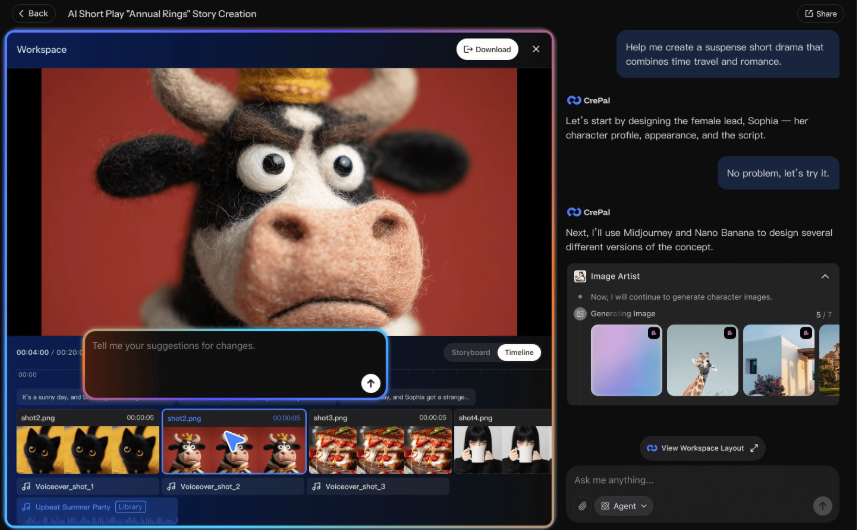
And if you need custom visuals to match your script—product shots, character illustrations, or scene-specific b-roll—Crepal’s AI image tools can generate them in minutes, so you’re not stuck hunting through stock libraries.
Previous posts:






