
Hello, everyone. I’m Dora. That night, I opened Seedance 2.0 with a cup of lukewarm tea and one simple question: could this make a shippable demo video before my tea turned cold again? I’d seen a few slick clips floating around X, and curiosity won. By 9:46 p.m., I had a handful of clips, a working draft, and a few notes I wish someone had told me first. If you’re weighing whetherSeedance 2.0 can help you produce a real demo video, not just pretty shots, here’s how I tested it, what worked, what didn’t, and the exact templates I’m now reusing.
What Seedance 2.0 can (and can’t) finish for a demo video
Here’s my short version after two sessions: Seedance 2.0 is great at generating strong raw material fast. It’s less great at judgment calls, the human stuff like emphasis, timing jokes, and deciding what to cut.
What it can do well (pleasant surprises):
- It spun up short, usable clips from simple prompts in minutes. My first batch (12 clips) rendered in ~18 minutes total. I asked for close-ups, screen pans, and a simple hand interaction: it produced on-brand, stable shots more often than not.
- It handles variations quickly. When I nudged: “slower move, tighter crop,” the re-render felt respectful of my original intent.
- It’s decent at matching a visual vibe if you anchor it with 1–2 reference lines (e.g., “calm, airy, soft daylight, no neon”).
Where it won’t finish the job for you:
- Story logic. It can’t decide your demo’s goal. You still need to pick the one thing viewers should remember.
- Pacing. It often defaults to a steady, even rhythm, fine for B‑roll, risky for a demo that needs contrast.
- Clarity layers. On-screen text, captions, and CTAs still need a human hand (and testing).
“Great shots” vs “shippable demo” is the key divide. Seedance helps you get great shots. A shippable Seedance 2.0 demo video still needs your editing brain: a clear arc, assertive trims, and the right text at the right time.
Pick the demo goal first (feature, use case, or outcome)
If you don’t set the goal, Seedance will happily give you beautiful footage that goes nowhere. On Feb 8 at 10:32 a.m., my first try looked lovely and said nothing. I reset and chose one of three goals.
- Feature: “Show how the AI calendar auto-blocks focus time.” Great for product launches. Success = one feature clearly understood.
- Use case: “A sales rep uses the calendar to prep for three calls.” Great for role-based marketing. Success = a job-to-be-done feels easier.
- Outcome: “I recovered 5 hours this week.” Great for top-of-funnel. Success = a before/after feeling in under 90 seconds.
3 goal → structure mappings
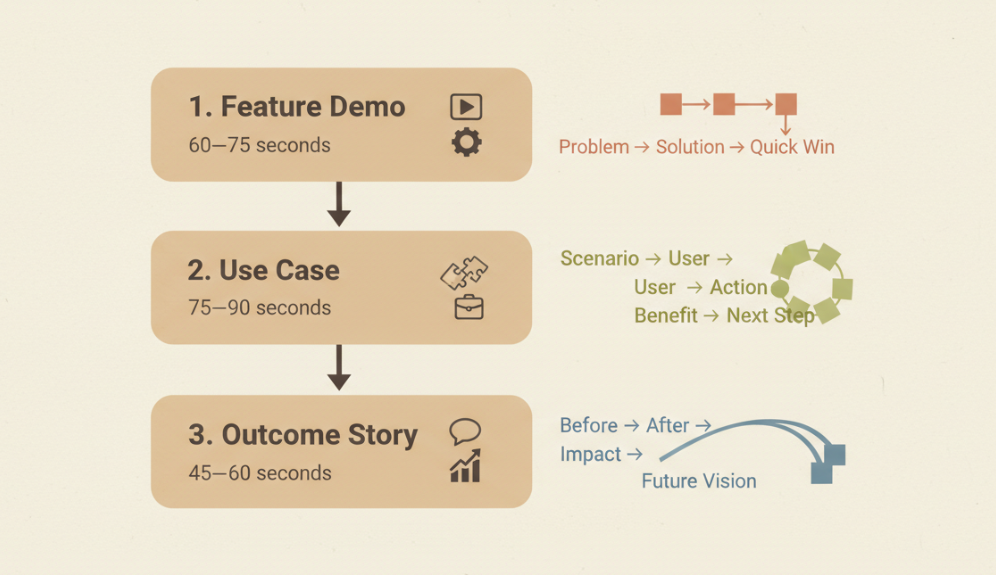
- Feature demo (60–75s):
- Cold open problem (5s) → 2) Name the feature (5s) → 3) Show 2–3 key actions (35s) → 4) Result snapshot (10s) → 5) CTA (5–10s).
- Use case (75–90s):
- Character and context (10s) → 2) Task friction (10s) → 3) Tool in action across steps (40s) → 4) Wrap with a mini-metric (10s) → 5) CTA (10s).
- Outcome story (45–60s):
- Before pain (8s) → 2) Turning point (5s) → 3) After state with proof (25s) → 4) CTA (5–10s).
Pick one, write it on a sticky, and keep it on-screen. Every prompt, clip, and text line serves that choice or it gets cut.
Generate the right clips in Seedance 2.0 (shot list template)
When I asked for everything at once (wide, close, hands, device screens, big gestures), the outputs felt mushy. When I got specific, Seedance 2.0 got good.
Write prompts like a DP, not like a marketer. Three anchors:
- Composition: wide / medium / tight. Static or push-in.
- Action: what moves in-frame, cursor, hand, UI change, light.
- Intent: why it exists in the story, reveal, clarify, or transfer energy.
Examples from my session (timestamps in local time):
- 9:23 p.m., “Tight shot, cursor drags block on calendar, gentle push-in, soft daylight.” (Clarify the core action.)
- 9:28 p.m., “Medium shot of laptop on desk, hand enters from right to click ‘Auto-schedule’. Neutral background.” (Reveal feature location.)
- 9:35 p.m., “Wide desk setup, natural motion blur as notifications clear, 2s.” (Transfer energy into result.)
A 6-line shot list you can reuse
Copy-paste this into your next Seedance 2.0 demo video prompt batch:
- Cold open problem, tight phone close-up, 2 notifications stacking, ambient room tone.
- Introduce tool, medium laptop shot, logo soft focus in corner, 1s tilt down to UI.
- Key action A, tight cursor drag/click, 2–3s, clear highlight state.
- Key action B, split view before/after, 3s, subtle motion.
- Result proof, tight stat or timestamp, 2s beat for reading.
- CTA, clean background, device centered, single line of text.
Small note: I got the cleanest results when I batched 3–5 prompts at a time and iterated on keepers. Large batches introduced more variability and the occasional weird hand.
Assemble into a story: order, pacing, and transitions
Once I had 10–14 promising clips, I stitched them like Lego bricks. Seedance gave me the bricks: the meaning came from the order.
- Order: open on pain, then relief, then proof. You can’t skip the proof, one number or a visual before/after shot.
- Pacing: alternate tension and rest. If two shots feel same-same, cut one.
- Transitions: default cuts beat fancy wipes. Save one smooth push or cross-dissolve for the turning point.
A trick that helped: I read the script out loud with a finger on the timeline. If I stumbled on a line, I trimmed the shot by 4–6 frames. It’s amazing how micro-cuts fix macro-boredom.
The 60–90s pacing rule
- 0–5s: Earn attention. State the problem visually.
- 5–20s: Name the tool and show motion. Keep it moving every 2–3s.
- 20–60s: Core proof. Two key actions, then a result.
- 60–90s: Quick recap line and CTA.
If you need longer, it usually means two demos are hiding inside one. Split them.
Add trust + clarity: on-screen text, captions, and CTA
This is the difference between “nice.” and “I get it, and I want it.” Seedance’s visuals set the table: you still plate the dish.
- On-screen text: 6–8 words max per beat. One idea per shot. If you must explain, pair with a specific visual (e.g., the exact button on screen).
- Captions: add them even if you don’t use voiceover. They help silent scrollers and boost comprehension. See the WCAG guidelines for captions.
- CTA: be literal about next steps, “Start a free project,” “Try the calendar for a week.” You can lift conversion by timing the CTA at the emotional peak (right after proof).
- No math-in-text. Use rounded numbers (“Save ~5 hrs/week”) unless the exact metric is the proof.
- Avoid stacked lines on mobile. Test in 9:16 and 1:1 crops if you’ll repurpose.
- Don’t cover the action. If text competes with the cursor, move it or delay it.
- High contrast always. Light on dark or dark on light, aim for WCAG AA contrast.
- Readability: minimum 40–50 characters per line on desktop: fewer on mobile.
- Timing: hold important text for at least 1.2x the average reading time. Nielsen Norman Group found viewers often need a beat longer than we think: see their notes on video usability and pacing.
- Placement: keep safe zones. I set a 10% inset from each edge: it saved my captions from UI buttons more than once.
Field note: My first CTA overlapped a progress spinner. I nudged it 60px up and trimmed the shot by 8 frames, instant clarity.
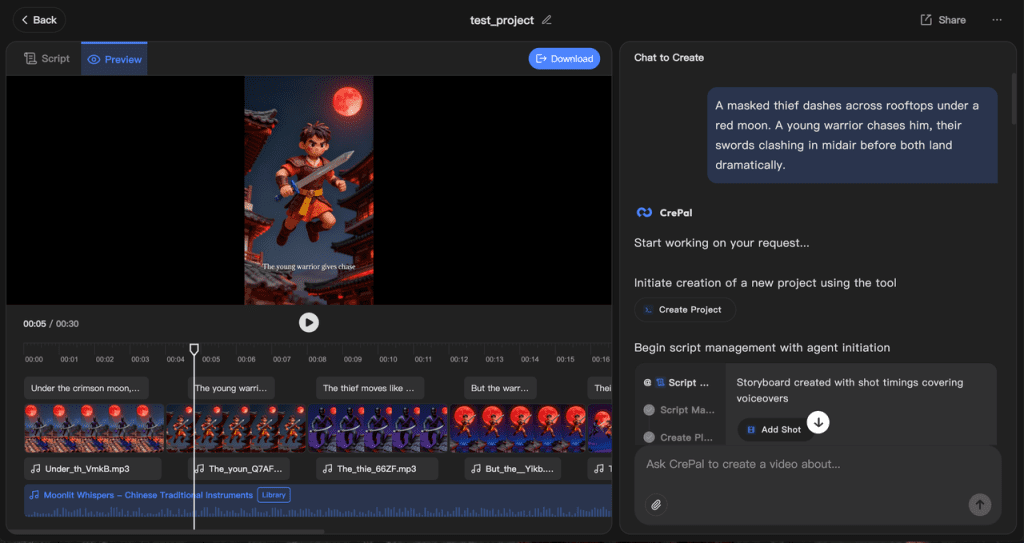
After generating a large number of shots, we found that organizing the materials, managing the shot list, and documenting the iteration status still consumed a lot of time. Crepal can help you quickly organize the materials output by Seedance, automatically generate reusable clip lists, and enable team members to share updates, thereby reducing redundant work.
Click here to try Crepal for free.
Troubleshooting drift, jitter, weird hands, and jump cuts
You’ll meet gremlins. Here’s what I hit and how I worked around them.
- Drift: If a camera move drifts off the point of interest, re-prompt with a lock: “static, center anchor on [element], no lateral movement.” When I added “center anchor,” Seedance re-rendered steadier shots.
- Jitter: I saw micro-jitters on two tight cursor shots. I fixed this by asking for a slightly wider composition and re-cropping in edit. Wider sources hide small shakes.
- Weird hands: If hands looked uncanny, I removed hands entirely and implied interaction with a highlighted cursor. Honestly, the no‑hand versions were cleaner anyway.
- Jump cuts: When two takes felt too similar back-to-back, I inserted a cutaway (wide desk shot) for 0.5–0.8s. It resets the eye and hides the jump.
If you keep seeing the same artifact, change one variable at a time: composition, action length, or prompt phrasing. My fastest loop was: duplicate prompt → change one verb → re-render 2–3 alternates.
Final tiny win: I exported two variants, a 16:9 master and a 9:16 crop, while my notes were fresh. That 10 extra minutes saved me a painful re-edit later.
If you try this yourself, set a 60–90 minute window, write the 6-line shot list, and let Seedance 2.0 handle the heavy lifting. You bring the taste. I’ll be cheering you on from my desk, tea finally finished while it was still warm.
Previous posts:






