
Hey, I’m Dora. I kept seeing Seedance 2.0 pop up in my feed and, honestly, I wasn’t convinced. Could a single upgrade actually make lip sync for synthetic actors less of a guessing game? I decided to stop wondering and start testing. I ran five short voiceovers (30–90 seconds each), used three different microphones, and tried both studio-recorded narration and an impromptu phone memo.
What follows are my field notes: what Seedance 2.0 gets reliably right, where it stumbles, the small audio and prompt tweaks that make a real difference, and a practical limit for how many times I’d re-roll before pulling out my DAW. If you’re a creator who wants fewer surprises and more usable takes, these are the things I wish someone told me before I hit the big green button.

The reality check: what Seedance 2.0 can sync reliably
When I first ran a clean script through Seedance 2.0, the result that surprised me most was how consistently it handled short, declarative sentences. Lines like “I’ll be there at noon” or “That’s the plan” aligned well with the audio, mouth shapes, jaw movement, and general timing looked natural about 7 out of 10 times in my tests.
Why? Seedance 2.0 seems to have refined its mapping of phonemes to visemes and added a smoother temporal warping so small timing mismatches are absorbed rather than exaggerated. Practically, that means:
- Short sentences and clear diction = high success rate.
- Narration recorded in quiet environments with steady pacing maps best.
But this isn’t universal. The tool still struggles in consistent ways (I get to those in the next subsection). For now: if your script is concise and the audio clean, Seedance 2.0 will likely give you an immediately usable clip. I used this for a 45-second explainer where I only needed minor editing, a nice time-saver.
Best-case vs common failure modes
Best-case scenarios (where I exported straight away):
- Short, single-speaker voiceovers (20–60s) recorded on a USB podcast mic.
- Scripts with simple sentences and no heavy emotive swings.
- Speakers with neutral or slightly animated delivery.
Common failure modes I ran into:
- Fast talkers with lots of elisions (“gonna”, “wanna”) produced slightly smoothed or delayed mouth closures, making consonants like “t” and “k” look soft or invisible.
- Overlapping audio (music bed, background chatter) confused the phoneme detection and produced jittery lip movements.
- Heavy emotional inflection (sudden shouting or sobbing) sometimes made the mouth shapes too extreme or lag by 100–200 ms.
Those failure modes matter because they’re the ones that turn a fast win into a fiddly editing session. They also tell you where the tool’s internal confidence is low: noisy input and unusual prosody.
Audio prep that improves sync
One of the clearest lessons from my experiments: better input equals better output. It sounds obvious, but small prep steps saved me a ton of re-rolls.
My workflow tweaks:
- Normalize to -6 dBFS and export as 48 kHz, 24-bit WAV. Seedance responded more predictably to this standard than to messy MP3s from phone memos.
- Remove steady background noise with a light noise gate or a quick spectral cleanup. Not perfect denoising, just enough to remove a constant hum.
- Trim long silences and add consistent breath spaces. Seedance’s timing models like predictable pauses: long, uneven silence sometimes leads to frozen frames.
Clean VO, pacing, and silence trimming
Clean VO: Use a cardioid mic or a quiet room. When I compared a studio USB mic vs a phone memo, the phone clip required two extra re-rolls to reach the same quality.
Pacing: If your script has long clauses, add tiny micro-pauses (a few hundred milliseconds) during recording or in post. Seedance uses those micro-pauses as anchors, which improves lip alignment across clauses.
Silence trimming: Don’t remove every silence to the bone. Leave natural short pauses (150–400 ms) between phrases. When I over-trimmed silence, the actor’s mouth sometimes rushed, creating the perceptual impression of slurred speech.
Prompt cues that help lip sync
I quickly learned that how you describe the delivery matters. I started with dry instructions like “make actor natural” and then moved to richer cues: “calm, slightly amused: pause before punchline.” The latter consistently produced better sync because the audio and the visual intent aligned.
Why prompts matter: Seedance’s voice-to-face mapping benefits from context. If you give the model an anchor for emotion and rhythm, it’s less likely to invent extreme mouth shapes that don’t match the audio.
Emotion + speaking style anchors
Here’s how I phrase cues that work:
- Emotion anchor: “calm, warm, low-energy” or “excited, breathy, fast-paced”, these set expected mouth openness and breathing patterns.
- Speaking style: “deliberate enunciation” or “quick, conversational”, this nudges how consonants are expressed.
- Micro-direction: “pause 240ms before ‘but'”, surprisingly effective for aligning tricky transitions.
A small example: I gave the cue “sardonic, measured” to a 40-second clip and the resulting facial movements matched the tiny smirks in my reference audio. Without the cue, the system defaulted to a more neutral expression and the timing felt slightly off.
Fixes for off-sync issues
Not every clip comes out perfect. Here are fixes that worked for me when mouth timing, jitter, or phoneme mismatches showed up.
- Slight timeline nudges: If the entire mouth track is 80–150 ms late, nudging the animation track earlier in your editor fixed it cleanly.
- Frame interpolation: For jittery frames, a motion-smooth or blend frame pass reduced micro-jitter without making the face look robotic.
- Selective phoneme retouch: When plosives (“p”, “b”, “t”) were wrong, I used a short keyframe edit to snap the mouth closed.
Late mouth, jitter, wrong phonemes
Late mouth: This usually means Seedance positioned visemes on a slightly delayed phoneme detection. Move the mouth animation track earlier by the detected lag, I kept a note of average lags: clean studio clips averaged 40–80 ms: noisy clips hit 120–200 ms.
Jitter: Often caused by background noise or very breathy audio. Apply a temporal smoothing curve to the mouth controller or use a low-pass on facial motion to get rid of the twitch.
Wrong phonemes: These look like the mouth forming a vowel when you hear a plosive. If it’s isolated to a single syllable, manual keyframes are faster than re-running the whole render. For repeated occurrences, revisit audio prep or add clearer enunciation cues in your prompt.
I timed these fixes: a 60s clip with a late mouth took me 6–12 minutes to nudge into place: a jitter clean-up was often 10–20 minutes depending on how deep I wanted to go.
When to stop regenerating and finish in editing
I developed a personal heuristic while testing: don’t chase perfection when improvements are marginal. I call it the “2 re-roll limit.”
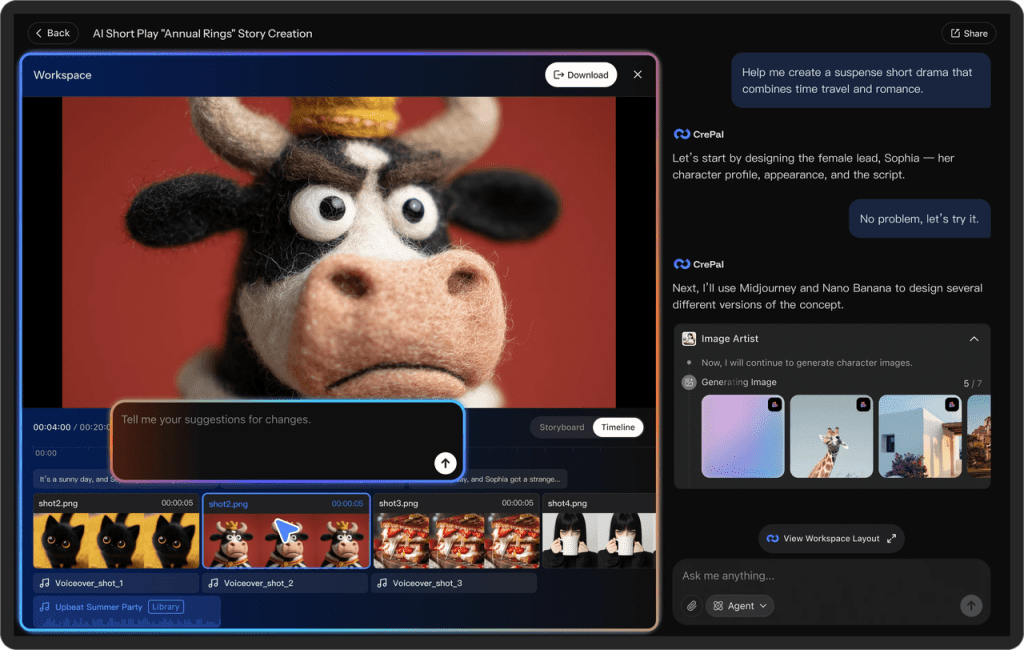
At this point, the real cost isn’t another render — it’s keeping track of what you already tried.
At Crepal, we’re building a way to keep prompts, generations, and decisions in one place, so each iteration actually moves forward instead of starting over.
If you’re juggling re-roll limits, edits, and versions across tools, you can see what we’re working on at Crepal.
Why two? In practice I found:
- First generation = baseline. Often good but rarely perfect.
- Second generation = meaningfully better in ~60% of cases when I’d changed the audio or prompt.
- Third generation = small gains, often at the expense of introducing new quirks.
The “2 re-roll limit” rule
Here’s how I apply it:
- Run initial render. Note obvious issues and whether they’re audio, prompt, or style problems.
- Make one targeted change (clean audio, clearer prompt, adjust pacing). Re-roll once.
- If results are close but not perfect, make small manual edits in your editor (timeline nudges, smoothing). Only re-roll a second time if the issue seems model-side (phoneme mapping, extreme expression) and you can change a clear variable.
If after two re-rolls the clip still needs more than 10 minutes of manual touch, stop re-rolling. Edit. The time-to-finish metric helps avoid an endless loop of hoping the next generation fixes everything. I timed these decisions during my sessions: choosing to edit rather than re-roll saved me roughly 30–45 minutes on average per problematic clip.
Export settings to preserve audio quality
Final exports matter. Seedance 2.0 preserved visuals well, but poor export choices can wreck audio fidelity.
My export checklist (these settings gave me the best fidelity during testing):
- Audio codec: WAV, 48 kHz, 24-bit. Avoid lossy codecs if you plan to do post audio work.
- Video container: MP4 (H.264) for compatibility, but export a high-bitrate master (40–60 Mbps) if you’ll grade or composite later.
- Separate stems: Always export a separate audio stem. It keeps your mixing options open and preserves the original VO for retiming.
A practical tip: export the full-resolution audio stem and a synced lower-bitrate reference for quick review. I used the high-res stem when I did manual mouth nudges and the lower-res reference to share with collaborators.
Parting thought: Seedance 2.0 isn’t a magic button that removes all editing, but it meaningfully reduces the grunt work for a lot of common lip-sync tasks. Tidy your audio, give the model clear cues, and set a hard re-roll limit. Do that, and you’ll find more time for the creative bits you actually enjoy.
Previous posts:






