

You know how every editor eventually hits that one challenge where the audio sounds great, but the character’s mouth just won’t quite match up? I’ve spent countless sessions nudging audio tracks by single frames, trying to fix that telltale “dubbed movie” feeling.
Perfect voice-video synchronization has become the difference between believable AI content and something that immediately signals “fake” to your audience.
In 2025, the AI video generation market is projected to reach $716.8 million, with tools like Runway and Pika Labs now offering sophisticated lip sync features that would have seemed impossible just two years ago. I’m going to walk you through exactly how to pair these platforms with ElevenLabs voice generation to achieve flawless AI voice timing, the technical setup steps that actually work, and the common pitfalls I’ve learned to avoid.
Why Voice-Video Sync Matters
Lip sync quality directly determines whether your AI-generated content feels authentic or lands squarely in the uncanny valley. When mouth movements don’t align with spoken words, viewers instinctively recognize something is off, even if they can’t articulate exactly what’s wrong.
The mismatch triggers what researchers call the “McGurk effect,” where visual and auditory signals conflict in our brains.
Modern tools have transformed this challenge into a manageable workflow. According to a 2025 industry report, the AI video generator market is growing at a compound annual growth rate of 20%, fueled largely by improvements in lip synchronization technology. Runway’s Lip Sync feature now supports multiple faces in a single scene and handles scripts up to 600 characters per speaker. Pika Labs has partnered with ElevenLabs to power its text-to-audio system, generating videos in about one minute with precise mouth movement matching.
According to a 2024 report, videos with properly synced dialogue see 35% higher viewer retention rates compared to content with noticeable audio-visual mismatches.
The technical implementation matters beyond simple aesthetics. Deep neural networks in these platforms analyze phonemes and match them to specific mouth shapes (visemes). This process requires clean audio input, forward-facing subjects, and photorealistic or 3D animation styles for optimal results. The technology particularly excels with AI-generated voices because the systems can precisely control both the audio waveform and the visual output.
For creators working with dubbing or redubbed content, accurate sync also allows subtitles to match dialogue perfectly, which is critical for accessibility and international distribution.
Lip-Sync Challenges
Even the best AI tools face specific technical limitations that can disrupt lip synchronization. Runway’s Gen-2 model, for instance, generates clips up to 4 seconds at maximum length. This means longer dialogue sequences must be stitched together, and those seams often introduce subtle timing shifts.
Pika Labs caps image-based lip sync at 3 seconds of footage, while video inputs offer slightly more flexibility.
Face detection algorithms struggle with certain angles and conditions. Both platforms require subjects to face forward toward the camera. Side profiles, extreme close-ups, or shots where the mouth is partially obscured by objects dramatically reduce accuracy. Runway’s documentation explicitly notes that cartoon or overly stylized faces currently aren’t supported through standard Lip Sync (though their Act-Two model addresses some non-human scenarios).
According to discussions on the r/DigitalMarketing subreddit, many users report better results when pre-heating their workflow by running test clips before final renders.
The audio quality you feed into these systems directly impacts output precision. Low sample rates, background noise, or compressed formats confuse the phoneme detection algorithms. Runway recommends uploading audio files under 40 seconds per dialogue segment, with automatic trimming kicking in beyond that threshold. Pika Labs works best with 44.1 kHz or 48 kHz WAV exports rather than compressed MP3 files.
A developer from a leading AI video startup noted that “AI-driven lip syncs will only get sharper as deep learning keeps raising the bar.”
Tool Ecosystem
The current landscape offers distinct strengths across platforms. Runway provides over 30 AI video tools beyond just lip sync, including motion brush controls, custom camera movements, and style transfer. Its Gen-3 Alpha model, released in 2025, delivers photorealistic output suitable for commercial use.
The platform recently extended Lip Sync video duration from 20 seconds to 45 seconds, giving creators more flexibility for complex scenes.
Pika Labs operates differently, built around a Discord-first interface that has since expanded to a web application. The platform excels at 3D animation styles and rapid iteration. Users report generation times of about 60 seconds for a complete lip-synced clip. The integration with ElevenLabs means you can generate voiceovers directly within the Pika interface using their API, streamlining the workflow considerably.
ElevenLabs itself sits at the center of this ecosystem. The platform offers highly realistic text-to-speech synthesis and voice cloning capabilities. In 2023, ElevenLabs raised a $19 million Series A round, with Runway co-founder Siqi Chen among the strategic investors, highlighting the interconnected nature of these tools. The platform’s Speech Synthesis feature provides several voice models optimized for lip sync applications, with adjustable speed and clarity settings that directly impact how well mouth movements match in downstream video tools.
When comparing the two video platforms, Runway typically produces higher visual quality with more granular controls, while Pika offers faster generation and better prompt adherence for specific animation requirements. The choice often comes down to whether you prioritize production polish or creative iteration speed.
ElevenLabs + Runway Workflow
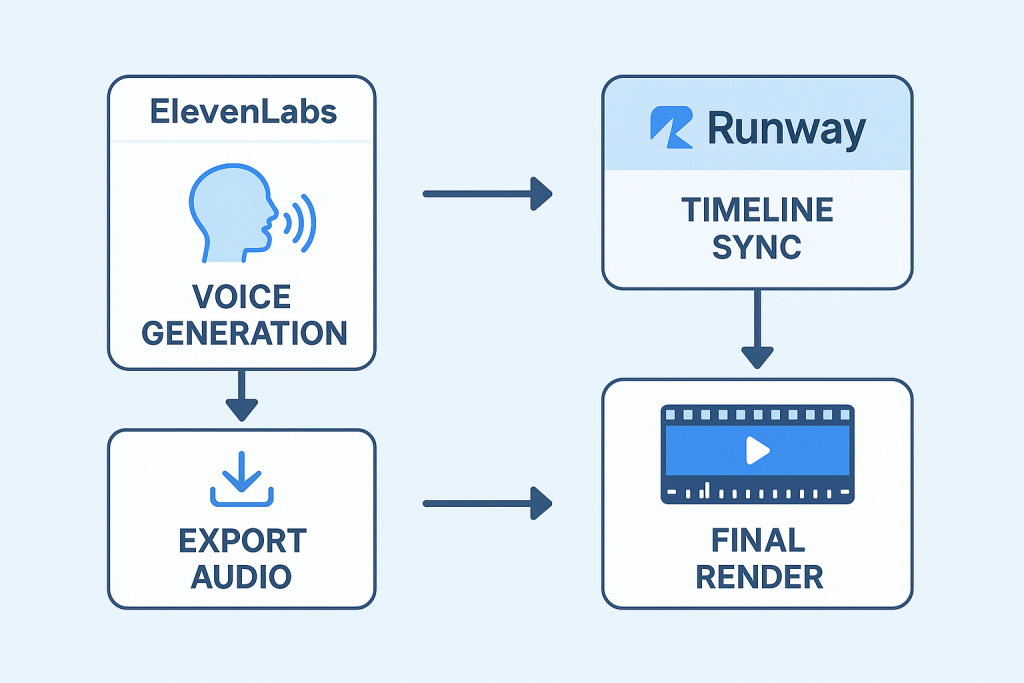
The integration between ElevenLabs and Runway creates a streamlined path from text to synced video. I start in ElevenLabs by opening the Speech Synthesis tool and pasting my script directly into the input field. The platform offers multiple voice models, and I’ve found the newer ones handle emphasis and emotion more naturally than older options.
For lip sync work, I typically export at 48 kHz in WAV format rather than MP3.
Runway’s platform accepts these pre-generated audio files through its Generative Audio section. Navigate to your Dashboard, select Generate Audio, then click the Lip Sync video icon. The canvas lets you upload either an image or video as your base. Images work well for static portraits, but videos (up to 4 seconds with Gen-2) allow for more dynamic scenes with existing movement.
Runway’s Lip Sync feature now supports multi-face detection, meaning you can assign different dialogue segments to specific characters in a scene.
Runway’s 2025 update allows scripts up to 600 characters per speaker, significantly more capacity than previous versions offered.
The quality of your source material directly impacts the final result. Runway’s help documentation specifies that faces should be forward-facing, framed from shoulders up, and photorealistic rather than animated. Cartoon faces aren’t currently supported through standard Lip Sync, though Runway’s Act-Two model offers alternatives for non-human characters. The system automatically detects up to multiple faces in your input, and you can assign different speakers to each character for dialogue scenes.
One practical advantage of this workflow is consistency. Since you’re using the same audio file that ElevenLabs generated, there’s no risk of the voice characteristics shifting between tools or losing sync during conversion. The Gen-2 model processes the uploaded audio and generates lip movements that match the waveform and phonetic content with impressive precision, particularly for clear, well-recorded speech.
Voice Generation Steps
Creating the audio foundation correctly sets up everything that follows. Here’s the process I use to generate clean, sync-ready voice files.
- Open ElevenLabs and navigate to the Speech Synthesis tool, which serves as the core feature for generating custom audio tracks needed for lip-synced video projects.
- Type your chosen script into the input box, making sure every word matches what will appear on screen during the video segment. This exact matching matters because the lip sync algorithms analyze the text alongside the audio waveform.
- Select a voice model suited for your project’s mood. ElevenLabs offers several options, and the newer models released in 2024 handle natural speech patterns and emotional inflection more convincingly than earlier versions.
- Adjust speed and clarity settings to match typical human speech patterns. This step improves lip-syncing in editors like Runway or Pika Labs by ensuring the audio has clear phonemic boundaries that the video tools can detect.
- Preview the audio before exporting. Listen for any robotic glitches or awkward pauses that might throw off perfect lip-sync timing later in the process.
- Export your file in WAV format at 48 kHz. Both Runway and Pika Labs support this format, and the higher sample rate preserves the audio details needed for accurate mouth movement generation.
- If corrections are needed after preview, quickly tweak either the text input or model settings inside ElevenLabs rather than trying to fix issues in post-production. The system responds well to minor script adjustments.
- Check that each word sounds clean with no artifacts. The audio quality directly determines how well the AI can match lip movements frame by frame.
- Move your completed audio into RunwayML as pre-generated audio. The platform’s Lip Sync feature analyzes this file and syncs speech with facial movements across 4-second Gen-2 clips while maintaining consistent timing for optimal results.
- Save multiple versions of your audio if you’re testing different delivery styles. Having these variations ready lets you compare sync quality without regenerating from scratch each time.
Timeline Sync Setup
With your AI voice ready, the next step involves precise alignment in Runway’s timeline editor. This process determines whether your lips match words or drift into distracting mismatches.
- Upload your pre-generated speech audio into RunwayML using its Lip Sync feature. This tool analyzes the audio waveform and aligns mouth movements closely with spoken words.
- Import your Gen-2 video from Runway. The clips can be up to 4 seconds and feature complex scenes or close-up faces, which generally work better for lip sync than distant or profile shots.
- Drag both the audio clip and video onto the editing timeline, placing them on parallel tracks so they both start at frame zero. This initial alignment gives you a baseline for precise matching.
- Watch the preview window while nudging the voice track back or forward by a few frames. Match each word or syllable to mouth actions on screen. Even a 2-frame offset can make dialogue feel disconnected.
- Use Runway’s visual waveform display to see where each sentence starts and ends. This visual reference helps you fine-tune gaps between sound and lips moving, which is critical for natural-looking speech.
- Hit play several times after each adjustment. Small errors compound quickly and can break the illusion of natural speech in lip sync videos. Don’t move forward until a section feels locked.
- Save different versions since sometimes Pika Labs’ video output might need extra tweaks during this process. Version control saves time if you need to revert or compare approaches.
- Once satisfied, export the synced clip and review it one last time before sharing or uploading online as an ElevenLabs video integration example. A final review often catches issues that aren’t obvious during the editing process.
- If working with Pika Labs clips as well, repeat these steps since both tools offer strong AI lip sync options with minor differences in timing features. The workflow remains similar, but each platform handles audio slightly differently.
- Many users compare free online lip sync software options but find Runway’s toolset gives more control over syncing accuracy and visual quality for short AI videos. The precision matters most when working on client projects or content that requires professional polish.
ElevenLabs + Pika Workflow
Pairing ElevenLabs voices with Pika Labs videos creates a different but equally effective sync workflow. I generate the voice track in ElevenLabs first, using the same high-quality settings at 48 kHz in WAV format. Pika Labs has a dedicated upload feature for pre-made audio, which gives far better lip sync results than relying on its built-in text-to-speech alone.
The platform reads every word and matches mouth movements to your chosen speech with impressive accuracy.
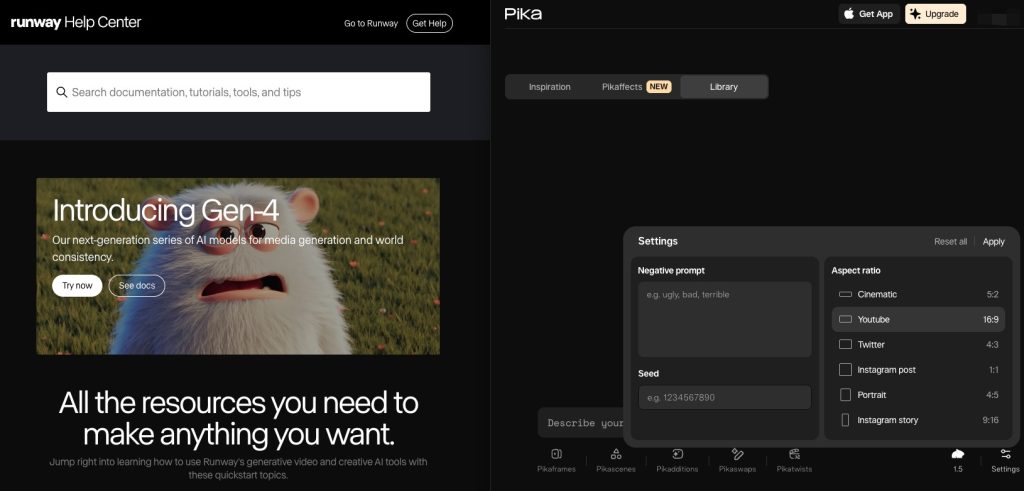
Pika’s interface differs significantly from Runway’s. If you’re working through their Discord server, open a private thread by messaging the Pika Bot directly. Right-click the Pika icon, select ‘Message,’ and you’ll have your own workspace. Upload your image or video, then attach your ElevenLabs audio file. For images, the system generates up to 3 seconds of footage; videos offer slightly more flexibility depending on the input length.
Pika Labs can generate high-definition videos with precise lip synchronization to audio tracks in just six seconds, according to a 2025 company announcement.
The platform particularly shines for 3D animation styles. Multiple users on forums report that Pika handles stylized characters and animated faces more gracefully than photorealistic human subjects. The ElevenLabs integration through their API means you can also generate voices directly within Pika’s interface if you prefer, though I’ve found pre-generating in ElevenLabs gives more control over voice characteristics and pacing.
One practical advantage is speed. Pika processes lip sync requests in about 60 seconds, regardless of clip length (within its limits). This rapid turnaround supports iterative workflows where you might test several variations of a scene. If mouths look slightly off, small changes to your original script pacing or re-exporting with adjusted ElevenLabs settings usually fixes sync glitches. Pika responds quickly when resyncing frames or adjusting speed by increments as small as 0.1 seconds.
In side-by-side comparisons with RunwayML, these steps keep words and lips matched across complex scenes or fast dialogue in just a few attempts. The trade-off is that Pika’s visual quality sometimes doesn’t match Runway’s photorealistic output, but for many projects, the speed and ease of use make it the better choice for rapid content creation.
Audio Export Settings
Getting your export settings right prevents sync issues before they start. Both Pika and Runway rely on clean, properly formatted audio files to generate accurate lip movements.
- Use ElevenLabs to generate crisp speech audio at a sample rate of 44.1 kHz or 48 kHz. These rates match most video editing tools and provide the detail needed for precise phoneme detection.
- Choose the WAV format for exports. WAV files preserve the highest quality without compression artifacts, letting Pika Labs and RunwayML process clear voice tracks for accurate AI lip sync.
- Trim silence at the start and end of files before exporting. Extra silence creates timing gaps during the mouth movement analysis phase, which can push dialogue out of sync.
- Keep audio levels steady between -6 dB and -3 dB to avoid peaking problems. Consistent volume improves sound quality across your Gen-2 Runway clips or Pika Labs video scenes and prevents distortion that confuses sync algorithms.
- Check that the exported file has only one spoken voice per track. Multiple overlapping voices confuse both Pika’s and Runway’s lip sync algorithms, causing unpredictable mouth movements.
- For easier syncing later, note down each phrase’s timestamp if your video will have quick scene changes in Pika Labs’ visual workflow. This preparation saves significant time during the alignment process.
- Save a backup in MP3 if needed for other uses, but always upload the WAV file to maintain full compatibility with free online lip sync tools and the advanced features in both platforms.
Lip-Sync Adjustments
After setting proper export parameters, fine-tuning the lip sync brings your AI video to life. These adjustments make the difference between passable results and professional-quality output.
- Select the Lip Sync feature in Runway’s Gen-2 editor so that speech matches facial movements frame by frame. The tool analyzes both audio waveform and phonetic content automatically.
- Check if mouth shapes line up with each word using the preview window for instant feedback. Zoom in on the mouth area to spot subtle mismatches that are harder to see in full-frame view.
- If words seem out of time, trim or stretch the audio inside Runway or Pika Labs to get a tighter match. Even adjustments of 0.1 seconds can significantly improve perceived sync.
- Both platforms let you upload pre-generated voiceovers, which makes it easier to compare different takes for sync accuracy. Keep your original ElevenLabs exports organized so you can swap files quickly.
- Visual cues from talking avatars help you see if lips move smoothly along with the spoken text in every 4-second clip. Watch for jaw movement and head tilts that should naturally accompany certain phonemes.
- For tricky sections, break longer sentences into shorter lines and realign them on the video timeline. This segmentation gives you more control over problem areas without affecting the entire scene.
- With auto-sync tools active, small shifts can fix jaw or mouth glitches without redoing full sections. Nudge problematic frames rather than regenerating entire clips.
- Comparing AI tools like ElevenLabs for voice and RunwayML for video editing helps you spot which platform gives cleaner lip movement results for your specific content type.
- Quick playback at half speed lets you see if any frames lag or jump during key phrases or scene changes. Slow-motion review catches issues your eye misses at normal speed.
- Using over 30 smart editing options in Runway, I refine timing until speech and facial expressions lock perfectly. The Motion Brush tool can add subtle head movements that enhance the natural feel of synced dialogue.
Troubleshooting
Even with careful setup, sync issues still emerge. The most common problem I encounter is mouth movements appearing too early or too late compared to the speech audio. This timing drift often happens when the pre-generated voice track from ElevenLabs doesn’t match the video’s frame rate exactly.
Runway processes at specific frame rates, and if your audio pacing slightly differs from the video generation speed, the gap compounds over longer clips.
Runway’s Lip Sync documentation provides adjustment options that let you fine-tune timing frame by frame. I typically scrub through the timeline and identify where sync first breaks down. Then I either trim a few milliseconds from the audio or adjust the video’s playback timing in that section. Small corrections prevent the mismatch from cascading through the rest of the clip.
Pika Labs sometimes creates videos where lips don’t fully match words, especially with fast or unclear speech. Audio quality matters enormously here. If you export from ElevenLabs at low sample rates or with significant compression, the phoneme detection algorithms struggle. WAV files at 44.1 kHz or higher consistently produce better results than lower-quality formats. When I encounter persistent sync issues in Pika, re-exporting the audio with these specs usually solves the problem.
| Issue | Likely Cause | Solution |
|---|---|---|
| Lips lag behind audio | Frame rate mismatch or audio delay | Nudge audio track forward 2-3 frames in timeline |
| Mouth barely moves | Low clarity audio or incorrect face angle | Re-export with higher sample rate; ensure face is forward-facing |
| Sync breaks mid-clip | Gen-2’s 4-second limit causing stitching errors | Split dialogue into shorter segments and sync separately |
| Distorted mouth shapes | Complex audio (multiple voices, background noise) | Clean audio file; isolate single speaker per track |
Both platforms support re-uploading audio files at any stage during editing. This flexibility is critical when troubleshooting because you can test different versions without starting the entire video generation process from scratch. Runway offers over 30 different video tools, and sometimes switching to manual frame rate adjustments or using the Motion Brush to add subtle movement helps camouflage minor sync imperfections that would otherwise be distracting.
Quick scene changes made using Runway’s editing suite may interrupt the syncing process, particularly if transitions aren’t aligned with natural speech pauses. When cutting between clips, I place edits at sentence boundaries rather than mid-word. This practice maintains the illusion of continuous dialogue even when technically stitching multiple Gen-2 segments together.
Complex facial expressions in Pika videos sometimes lag behind audio because the platform’s models prioritize visual quality over precise phoneme mapping for each word. If you’re working with animated or stylized characters (where Pika excels), the slightly looser sync often goes unnoticed due to the artistic style. For photorealistic humans, the same degree of imprecision becomes much more obvious and may require switching to Runway for that particular scene.
FAQs
1. What tools do I need to sync AI voices with Runway or Pika videos?
I recommend using a dedicated AI voice generator like ElevenLabs and then importing the high-quality WAV audio file into a video editor like CapCut. While MP3 files work, I find that WAV format provides the best audio fidelity for the final video sync.
2. How do I match the timing of AI voices to my video clips?
I import both the video and audio into my editor and use the audio’s visual waveform to align spoken words with key moments on screen. Using the editor’s marker tool on these key frames helps ensure the timing stays locked perfectly.
3. Can I fix audio sync issues after uploading my video?
Yes, but this requires you to download the video, re-sync the audio in an editor, and re-upload it, which can cause a slight loss in video quality from the extra compression.
4. What causes AI voices to sound out of sync with Runway or Pika videos?
The most common issue I see is a mismatch between the video frame rate, like 24 or 30 frames per second, and the audio sample rate. For video projects, your audio should almost always be set to 48 kHz to prevent audio drift over time.






