
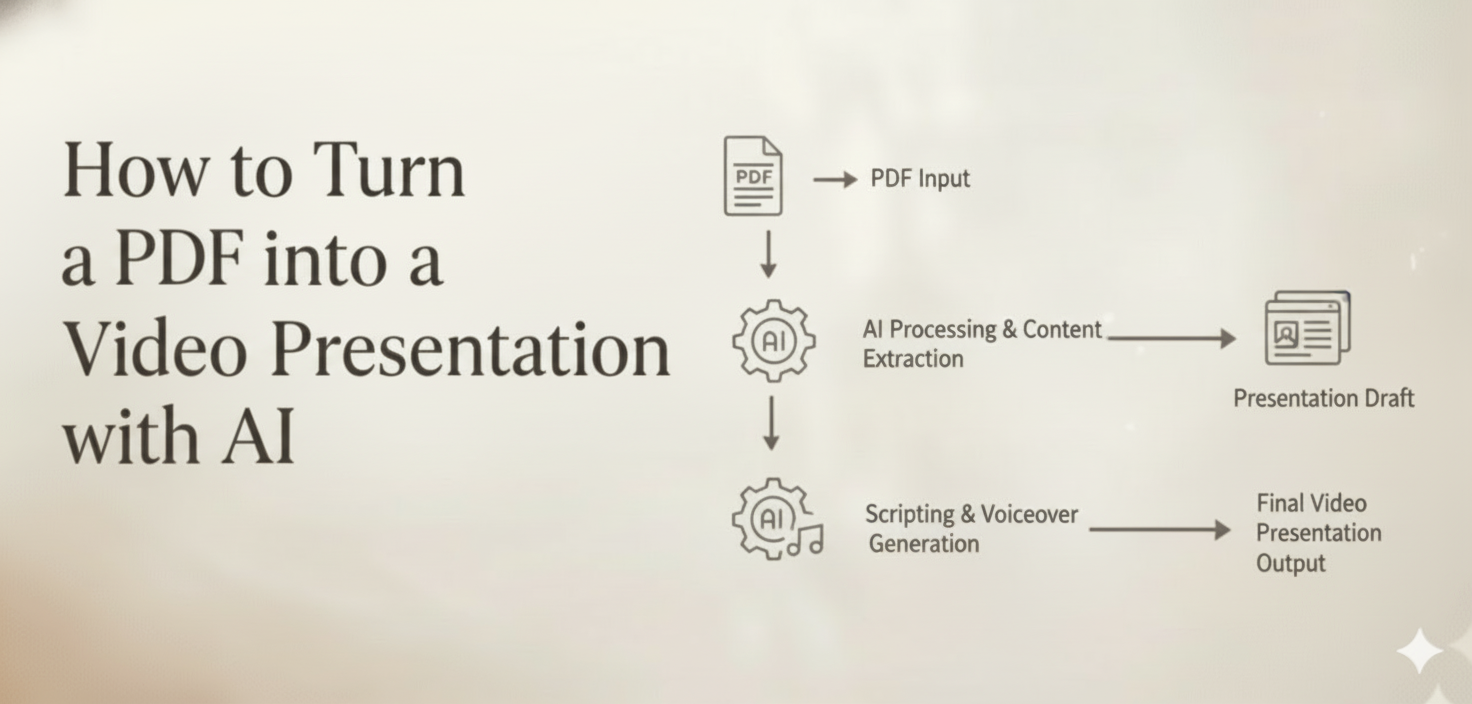
Meta Description: Learn how to turn a PDF into a video presentation with AI. Convert slides, docs, or reports into clear videos with narration, visuals, subtitles, and platform-ready exports.
You spent hours perfecting that PDF — the data is sharp, the insights are solid, the layout is clean. Then you send it out and… crickets. No replies, no shares, no engagement.
Here’s the uncomfortable truth: most people never read past the first page of a PDF. According to research, viewers retain 95% of a message when they watch it in video, compared to just 10% when reading text. Your brilliant content isn’t the problem. The format is.
The good news? You can now turn a PDF into a video presentation with AI — complete with narration, visuals, subtitles, and professional transitions — in minutes instead of days. No video editing skills required. No design team needed.
In this guide, you’ll learn exactly which PDFs convert best to video, how to extract a compelling script, how to design visuals and shots, how to add voiceover and subtitles, and how to tailor your video for sales, training, or education. Let’s turn your static documents into content people actually watch.
Why Convert a PDF to Video in the First Place?
Before diving into the how, let’s address the why. PDFs were designed for print — they’re linear, static, and demand active reading. Video, on the other hand, delivers information through multiple channels simultaneously: visuals, motion, voice, text, and music.
Converting PDF to video with AI gives you several immediate advantages:
- Higher engagement rates. Video content on LinkedIn gets 5x more engagement than text posts. A sales deck that sits in someone’s inbox becomes a video that gets watched and shared.
- Better information retention. Complex data, processes, and frameworks become easier to understand when shown visually with narration.
- Wider reach. A single PDF-turned-video can be published on YouTube, LinkedIn, TikTok, Instagram, your website, and internal training platforms.
- Faster production. What used to take a video production team days now takes an AI Director Agent minutes.
The question isn’t whether you should turn your PDFs into video. It’s which PDFs to start with.
Which PDFs Are Best Suited for Video Conversion?
Not every PDF is created equal when it comes to video potential. Some documents translate naturally into engaging visual narratives, while others need more restructuring. Here’s how to identify your best candidates.
High-Impact PDF Types for Video
Sales decks and pitch presentations. These already follow a persuasive narrative arc — problem, solution, proof, call to action. They convert to video almost effortlessly because the story structure is already built in.
Training manuals and onboarding documents. Step-by-step processes, standard operating procedures, and compliance training materials become significantly more effective as video. Employees can watch, rewatch, and absorb at their own pace.
Research reports and whitepapers. Dense data becomes accessible when key findings are visualized with charts, animations, and expert narration. A 30-page report can become a compelling 3-minute summary video.
Product guides and feature documentation. Instead of asking customers to read through feature lists, show them what your product does. Visual demonstrations beat bullet points every time.
Educational course materials. Lecture notes, lesson plans, and study guides transform into structured video lessons that students can access on any device.
PDFs That Need Extra Work
Documents that are purely text-heavy with no clear structure — such as legal contracts or raw data dumps — require more effort to convert. You’ll need to extract key messages and create a narrative before generating video. The good news is that AI can help with this extraction process too.
Quick assessment checklist: If your PDF has clear sections, a logical flow, key takeaways, and any visual elements (charts, diagrams, images), it’s a strong candidate for video conversion.
Step 1: Extract and Refine Your Script from the PDF
The script is the backbone of your video. Turning a PDF into a video isn’t about reading the document word-for-word on screen — it’s about distilling the core message into a conversational, visual-friendly narrative.
How to Pull the Right Content
Identify the core message. Every PDF has a central argument or purpose. Ask yourself: if someone watches only 60 seconds of this video, what’s the one thing they must understand?
Extract key sections. Pull out headings, subheadings, bullet points, statistics, and conclusions. These become the framework of your video script. Discard filler text, redundant explanations, and formatting artifacts.
Restructure for video flow. PDFs are organized for reading; video scripts need to be organized for watching. A strong video script follows this pattern:
- Hook (5–10 seconds): Why should the viewer care?
- Context (15–20 seconds): What’s the situation or problem?
- Core content (60–80% of runtime): Key points delivered in clear, digestible segments
- Conclusion and CTA (10–15 seconds): What should the viewer do next?
Let AI Do the Heavy Lifting
This is where an AI Director Agent like (1) changes the game. Instead of manually extracting and rewriting content, you can upload your PDF and let the AI analyze the document, identify key messages, and generate a video-ready script automatically.
CrePal’s PDF to Video feature reads your document, understands its structure, and creates a multi-scene script with narration text, scene descriptions, and visual suggestions — all from a single upload. You can then refine the script through natural conversation: “Make the introduction more engaging,” “Shorten section three,” or “Add a stronger call to action at the end.”
Step 2: Design Visuals and Plan Your Shots
With your script ready, it’s time to think about what the viewer will actually see. This is where converting a PDF to video with AI truly outshines manual methods — the AI can generate visuals that match your narrative automatically.
Visual Strategy by Content Type
Data and statistics → Animated charts and infographics. Instead of showing a static bar chart from your PDF, create animated visualizations where numbers build up, comparisons slide in, and trends reveal themselves over time.
Processes and workflows → Step-by-step motion sequences. Each step gets its own scene with clear visual transitions. Numbered steps, progress indicators, and directional animations guide the viewer through the flow.
Concepts and ideas → Illustrative scenes and metaphors. Abstract concepts from whitepapers and reports come alive through AI-generated imagery. A discussion about “market growth” becomes a visual of expanding landscapes; “security” becomes a shield protecting digital assets.
Product features → Screen recordings or product demos. Show your product in action. If your PDF describes features, your video should demonstrate them.
Shot Composition Principles
Even AI-generated videos benefit from thoughtful shot planning:
- Vary your visual pace. Alternate between text-on-screen moments, full visual scenes, and split-screen layouts to maintain viewer attention.
- Use consistent branding. Maintain your brand colors, fonts, and style throughout. CrePal’s AI Director Agent ensures character and style consistency across every scene automatically.
- Plan transitions intentionally. Scene changes should reflect content shifts. A new section deserves a clear visual break. Related points can flow with smooth transitions.
- Keep text on screen minimal. If something is being narrated, don’t put the full sentence on screen. Use keywords, numbers, or short phrases instead.
How CrePal Handles Visual Generation
CrePal’s Multi-Model Intelligence selects the best AI model for each scene. Need a photorealistic product shot? It might use Google Veo. Need stylized animated graphics? It routes to the optimal model for that style. You don’t need to know which model does what — the AI Director makes these decisions automatically, ensuring every scene looks its best.
Step 3: Add Voiceover, Subtitles, and Soundtrack
Audio transforms a slideshow into a video. The combination of professional narration, readable subtitles, and background music creates an immersive experience that a PDF simply can’t deliver.
Voiceover and Narration
Choose the right voice. Your narration voice should match your brand and audience. A corporate training video needs a clear, authoritative tone. A social media explainer works better with an energetic, conversational voice. AI voice generation now offers dozens of natural-sounding voices across languages and styles.
Pace your narration. Professional narration runs at approximately 130–150 words per minute. Too fast, and viewers can’t absorb the information. Too slow, and they lose interest. When converting from a PDF, this pacing helps determine your video’s final length — a 500-word script becomes roughly a 3.5-minute video.
Match voice to visuals. Narration should describe what’s on screen or complement it — never contradict it. If the visual shows a growth chart, the voice should be discussing growth at that moment.
Subtitles and On-Screen Text
Subtitles aren’t optional. 85% of social media videos are watched without sound. Every video you create from a PDF should include:
- Accurate, synced subtitles that match the narration timing precisely
- Readable formatting — clear fonts, appropriate size, contrast backgrounds
- Key term highlights — important numbers, names, or concepts emphasized visually
CrePal generates synchronized subtitles automatically as part of the video creation process. You can adjust style, positioning, and language through conversational editing.
Background Music and Sound Design
Music sets the emotional tone of your video. A training video might use calm, focused background music. A sales pitch video benefits from building, energetic tracks. An educational explainer works well with light, neutral accompaniment.
Through its integration with models like Suno, CrePal can generate or select background music that matches your video’s mood and pacing — no royalty headaches, no separate music licensing needed.
Step 4: Tailor Your Video for Sales, Training, or Education
The same PDF can become very different videos depending on the audience and purpose. Here’s how to adapt your approach for the three most common use cases.
Sales Videos: Persuade and Convert
Goal: Move prospects from interest to action.
Script approach: Lead with the prospect’s pain point, not your product. Use the PDF’s data as proof points. End with a clear, specific call to action — book a demo, start a trial, contact sales.
Visual approach: High-energy, polished visuals. Include customer logos, testimonial quotes, and results data. Keep it concise — sales videos perform best at 60–90 seconds.
Distribution: Embed in email campaigns, share on LinkedIn, include on landing pages, send as follow-ups after meetings.
Pro tip: Create multiple versions for different buyer personas. A CTO cares about technical capabilities; a CMO cares about brand impact. Same PDF source, different video angles. With CrePal, you can generate these variations by simply describing the audience shift in conversation.
Training Videos: Teach and Retain
Goal: Ensure employees understand and remember processes, policies, or skills.
Script approach: Break the PDF into modular sections. Each section becomes its own video or a clearly marked chapter within a longer video. Use simple language, repeat key concepts, and include knowledge-check moments (“Here’s what to remember…”).
Visual approach: Clear, uncluttered visuals. Step-by-step demonstrations. Use consistent icons and color coding to reinforce categories. Show examples of correct and incorrect procedures.
Distribution: Upload to your LMS (Learning Management System), share in internal communication channels, include in onboarding packages.
Pro tip: Add summary recaps at the end of each section. Training videos that reinforce key points see significantly higher retention rates.
Educational Videos: Explain and Engage
Goal: Help students or audiences understand complex topics.
Script approach: Start with a relatable question or scenario. Build understanding progressively — don’t assume prior knowledge. Use analogies and real-world examples to explain abstract concepts from the PDF.
Visual approach: Mix of diagrams, animations, and real-world imagery. Use visual metaphors to make abstract concepts concrete. Include pause moments for reflection or note-taking.
Distribution: Publish on YouTube, embed in course platforms, share in learning communities, post on educational social channels.
Pro tip: Break long educational PDFs into video series rather than one long video. A 5-part video series from a single whitepaper creates more engagement touchpoints and better SEO value than a single 20-minute video.
A Complete Workflow: PDF to Video with CrePal.ai
Here’s how the entire process comes together using CrePal’s AI Director Agent:
- Upload your PDF. Drop your document into CrePal. The AI reads and analyzes the content, structure, and key messages automatically.
- Describe your vision. Tell the AI Director what you want: “Turn this sales deck into a 90-second LinkedIn video with professional narration and animated data visualizations.” Or simply let the AI suggest the best approach based on your document.
- Review and refine through conversation. The AI generates a complete multi-scene video with script, visuals, narration, subtitles, and music. Want changes? Just say so: “Make the opening more dramatic,” “Switch to a warmer color palette,” or “Add our logo to every scene.” CrePal’s conversational editing means you never touch a timeline or editing software.
- Export and distribute. Download your video in the format and aspect ratio that fits your platform — landscape for YouTube and presentations, square for LinkedIn feeds, vertical for TikTok and Instagram Reels.
The entire process takes minutes. No video editing experience needed. No switching between multiple tools. One platform, one conversation, one professional video.
Tips for Getting the Best Results
After converting hundreds of PDFs to video, here are the practices that consistently produce the best outcomes:
Edit your PDF before uploading. Remove headers, footers, page numbers, and legal disclaimers that aren’t relevant to the video. The cleaner your input, the better your output.
Be specific in your prompt. “Turn this into a video” works, but “Create a 2-minute explainer video for marketing managers, focusing on the ROI data in section 3, with an energetic tone and blue brand colors” works much better.
Think in scenes, not pages. A 10-page PDF doesn’t need to become a 10-scene video. Some pages might be combined; others might be expanded. Let the AI Director restructure for visual storytelling.
Always preview with sound off. If your video communicates its message through visuals and subtitles alone, it’ll work everywhere — social feeds, trade show booths, waiting room screens, and conference presentations.
Create multiple formats from one source. One PDF can become a full-length presentation video, a 60-second highlight reel, a series of short clips, and a GIF preview — all from the same CrePal project.
Start Turning Your PDFs into Videos Today
Your PDFs contain valuable content that deserves to be seen, not buried in email attachments and forgotten download folders. By converting your documents into professional video presentations with AI, you multiply the reach, impact, and retention of every piece of content you’ve already created.
The technology has reached a point where the process is genuinely simple. You don’t need to learn video editing. You don’t need to hire a production team. You don’t need to storyboard, source stock footage, or sync audio manually.
With CrePal’s AI Director Agent, you describe what you want, and the AI handles the rest — from script extraction to visual generation, narration, subtitles, music, and final export.
Turn your first PDF into a video → Try CrePal.ai free
Frequently Asked Questions
Can AI accurately convert any PDF into a video?
AI works best with well-structured PDFs that have clear headings, logical flow, and defined key points — such as sales decks, training guides, reports, and educational materials. Purely text-heavy documents without structure may need some manual curation before conversion, but CrePal’s AI Director Agent can still extract core messages and suggest a video-friendly structure.
How long does it take to turn a PDF into a video with AI?
With CrePal.ai, the entire process — from PDF upload to finished video — typically takes just a few minutes. Traditional video production of the same content could take days or weeks. The conversational editing feature also means revisions happen in seconds rather than hours.
What video length works best for PDF-to-video conversions?
It depends on your use case. Sales videos perform best at 60–90 seconds. Training videos can run 3–10 minutes per module. Educational explainers work well at 2–5 minutes. CrePal’s AI Director helps you determine the right length based on your content and audience.
Do I need video editing experience to use CrePal’s PDF to Video feature?
No. CrePal is designed for creators of all skill levels. You interact with the AI Director through natural language conversation — describing what you want, requesting changes, and refining the output — without ever touching a traditional video editing timeline.
Can I customize the voiceover, subtitles, and music in my PDF video?
Yes. CrePal lets you choose narration voices, adjust subtitle styles and positioning, and select or generate background music that matches your video’s tone. All customization happens through simple conversational commands like “use a more professional voice” or “add upbeat background music.”






