
I kept seeing slick product clips on my feed with dramatic camera moves and thought, okay, did a whole studio make that… or was it Pika AI?? So this week I put Pika AI animation (specifically Pika 2.5) through my usual ecom/product-design grind: quick hero videos, variant demos, and concept animations that normally eat up half a day in After Effects. Short version: it’s genuinely useful for fast, good-looking shots, but you need to speak “camera prompt” fluently. Here’s my field notes while it was still messy on my desk.
Pika 2.5 Overview 2025
Pika 2.5 feels like the first release that treats camera direction as a first-class citizen. If you’re coming from product design or ecom, that matters because the difference between “meh mockup” and “scroll-stopper” is usually camera language, not just the model or texture.
Camera Prompt Features
I went in skeptical but the camera prompts are the star. You can nudge Pika with phrases like “slow parallax left-to-right,” “35mm lens, shallow depth of field,” or “orbit clockwise 120° around the bottle.” It understands push-ins, dolly-outs, tilt/roll, and even focal length vibes. The neat bit: temporal consistency is better than the 2.0 era, fewer jittery frames when the move is gentle.
A couple of lines that worked shockingly well:
- “Product on matte slate desk, soft window light, 50mm, gentle dolly-in, 4s.” Clean, ad-ready.
- “Top-down unboxing vibe, 24fps, smooth overhead slide, subtle bounce at end.” Felt human, not robotic.
What didn’t: extreme speed ramps with fancy language (“whiplash snap-zoom, rack focus, whip pan”) tended to smear textures. If you’re showcasing fine materials (leather grain, brushed aluminum), keep moving calm.
User-Friendly Interface
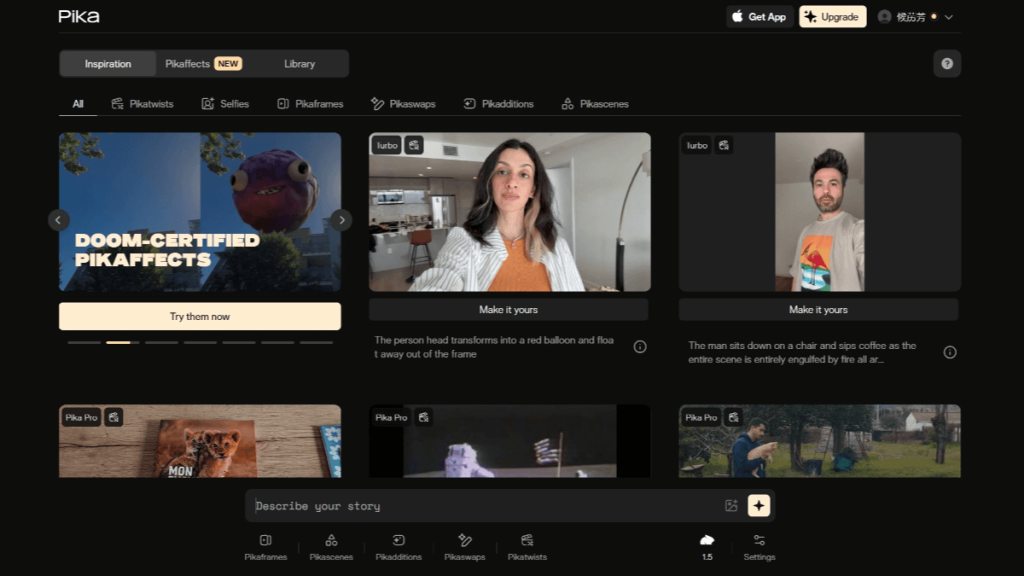
The interface is friendly enough that I almost skipped the docs (I know, I know). Timeline controls are minimal: prompt, duration, aspect, style presets, seed. The live preview scrubs well, and the updated style guide chips in decent defaults for lighting. My only gripe: parameter tooltips don’t always explain camera math: if you’re new to animation, the words are clear, but the results can feel mysterious. Still, for a “type and see” tool, Pika 2.5 is surprisingly learnable in a single coffee.
Animation Workflow
I treated this like a real deliverable: a 6–8 second product hero for a DTC landing page, plus a quick variant swap.
Writing Camera Prompts
I started with a text description of the scene, then layered the camera ask at the end. That order matters. Example I used for a skincare bottle:
“Minimal marble bathroom, daylight bounce, soft reflections, glass pump bottle with pale green serum, condensation, 50mm lens. Gentle clockwise orbit, 8s, steady pace, no zoom.”
Why this works:
- Scene first: materials, light, and mood anchor the model generation.
- Lens/focal note: helps Pika choose depth of field. 35–50mm was safest.
- One movement only: Pika behaves best with a single clear motion per shot.
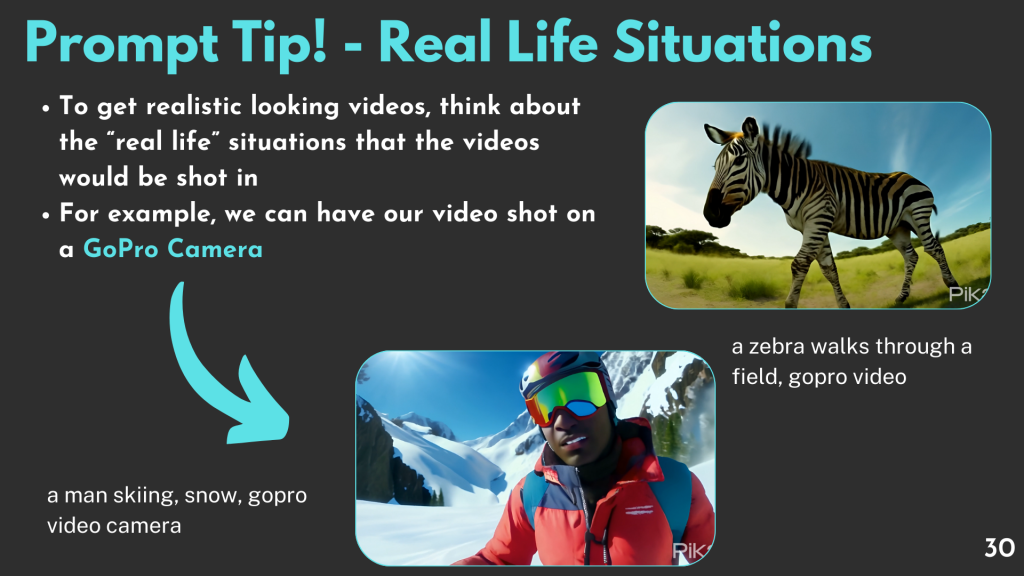
For ecommerce, I keep language concrete: “matte label,” “subsurface scattering on gel,” “shadow side camera at 30°.” Vague adjectives (“premium,” “sleek”) are less helpful than material words.
Scene Rendering Steps
My loop looked like this (based on Pika AI’s video creation workflow):
- Draft (2–3s) at lower quality just to test the move. If framing drifts, tweak the lens or movement speed.
- Lock lighting: I’d add “soft key from left, practical highlight on cap, floor bounce” and re-run. That killed the flicker.
- Final length: extend to 6–8s, same seed if possible. Consistency improves.
- Upscale/denoise pass: great for product edges but don’t over-smooth, a bit of texture reads as real.
- Export and trim the first/last half-second: that’s where tiny jitters live.
Field note: aspect ratios 9:16 and 1:1 look best for social ads. For website hero banners (16:9), ask for “wide table reflections” or it can feel empty. And yes, I did a variant pass by swapping “pale green serum” to “amber gel”, Pika kept the camera move identical, which is gold for A/B tests.
Advanced Techniques
Once the basic product orbit worked, I got braver. Some of this felt overhyped in early demos, but a couple techniques genuinely deliver.
Bullet Time Effects
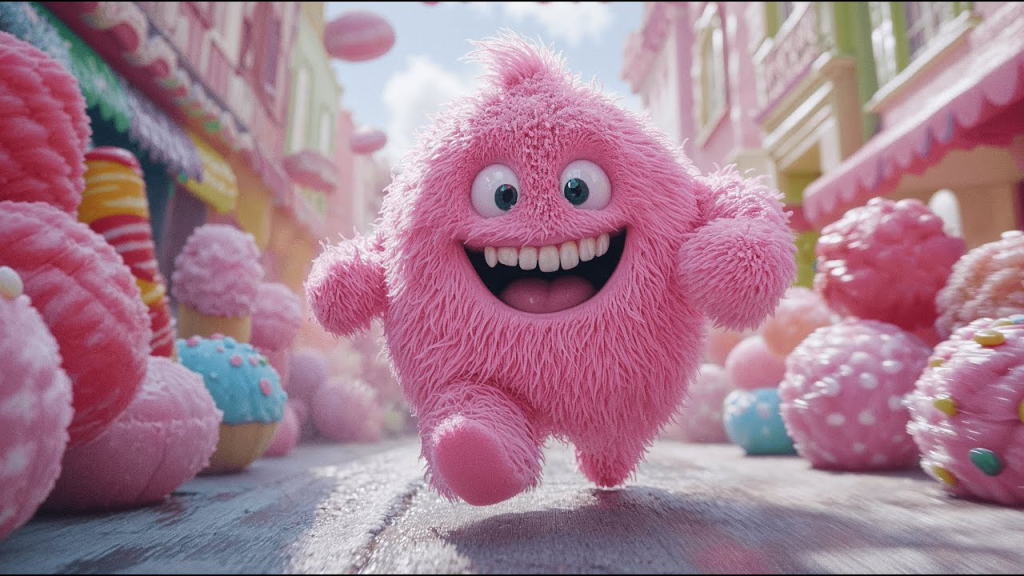
I asked for a “micro bullet time” by faking multiple cameras: “freeze mid-splash, 14 virtual cameras, arc sweep 45°, 2s.” It didn’t literally spawn 14 cameras, but it simulated a clean arc around a paused moment. For beverages or skincare droplets, this looked fancy without being kitsch. Caveat: motion-freeze is sensitive, keep the freeze short and anchor with “no motion blur.” If you want slow-mo instead, ask for “120fps look, crisp motion, short shutter.” Pika interprets that as sharper frames.
Pro tip for product designers: use bullet time to highlight a design change, e.g., “pause on new cap geometry, slow arc 30°, specular highlight crawl.” It reads like a CAD showcase without exporting from CAD.
Multi-Shot Transitions
I chained three shots for a mini narrative: hero orbit → top-down ingredients → lifestyle hand hold. Instead of asking Pika for one monster prompt, I rendered each shot separately and stitched them, but I kept the camera vocabulary consistent (same lens and pace). For transitions, I wrote matching end/start frames:
- Shot A end: “hold 0.5s, centered, gentle dolly-in ends.”
- Shot B start: “match lens, same lighting direction, quick dolly-in start.”
When I tried whip pans and snap zooms between shots, it looked fake-fast. The smoother approach wins: cut-on-action or match-move. For ecommerce ads, this feels “premium” and avoids motion sickness on mobile. Also, I sneaked in a typography plate by generating a clean surface shot and overlaying text in post, faster than fighting text prompts inside Pika.
Troubleshooting
Common Prompt Errors
- Too many moves in one sentence: “orbit + dolly + tilt + rack focus” equals mush. Pick one. If you must, break into two shots.
- Vague camera words: “dynamic shot” is meaningless. Say “slow clockwise orbit 120°, 8s” instead.
- Over-styled lighting: stacking “neon rim + golden hour + hard top light” causes flicker. Choose one lighting story.
- Texture drift on labels: add “label remains sharp, no warping” and shorten move. If it still drifts, reduce reflections.
- Speed mismatch with music: ask for exact duration (e.g., 6.4s) to hit beat markers. Pika respects the number more than the adjective.
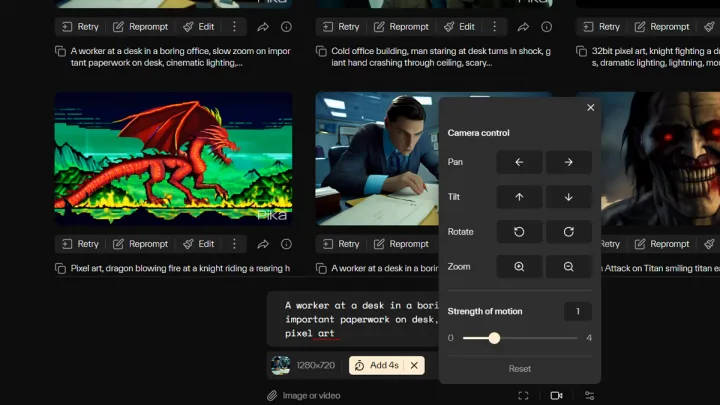
If your pika ai animation keeps warping fine print, switch to a calmer lens (50mm), reduce motion to 60–90° arcs, and anchor with “tripod-stable.” For product designers showcasing details, emphasize “macro, controlled focus, minimal parallax.” For busy ecommerce folks, the winning combo was: one clear move, clean light, and honest materials. Not gonna lie, I expected more gimmicks, but with the right camera prompts, Pika 2.5 pulled off real, shippable product clips in under an hour.






