
I’ll be honest — I used to spend hours editing videos for social media. Cutting clips, adding text overlays, syncing music, adjusting transitions. By the time I finished one 30-second video, I’d lost half my day.
Then I discovered text-to-video AI tools, and I was skeptical. Could an AI really turn a few sentences into a watchable video? Would it look cheap? Would people even engage with it?
Turns out, the answer is more complicated than I expected. Some tools are incredible. Others are basically useless. And figuring out which is which took me way more trial and error than I’d like to admit.
Here’s what I learned after testing these tools for real projects — not just playing around, but actually using them for client work and my own content.
Why Automate Text to Short Video Creation
The Growing Demand for AI-Generated Video Content
Video content isn’t optional anymore. It’s expected.
I manage social media for a few small businesses, and the pressure to post video is relentless. Instagram Reels, TikTok, YouTube Shorts, LinkedIn video posts — every platform is pushing video harder than ever. The problem? Most small business owners don’t have the budget for a videographer, and they definitely don’t have time to learn video editing.
That’s where text-to-video AI comes in.
These tools let you type what you want to say, and the AI generates a video for you. No filming, no editing software, no expensive equipment. Just words in, video out.
The demand is real because the alternative is brutal. I watched a client struggle for three weeks trying to create one promotional video using traditional editing software. She gave up halfway through and just posted a static image instead. Her engagement dropped by half compared to competitors posting video content.
Text-to-video AI doesn’t replace professional videography — let’s be clear about that. But for quick social media content, educational explainers, or marketing materials that need to exist today, it’s a lifesaver.
How Automation Saves Time and Boosts Engagement
Here’s the practical reality: I can now create a 30-second video in about 10 minutes.
Before AI tools, that same video took me two hours minimum. Filming b-roll, editing clips, adding captions, exporting, re-editing because something looked off, exporting again. It was exhausting.
With text-to-video AI, the workflow is completely different. I write a short script, pick a style, and the AI handles the heavy lifting. The video won’t win awards, but it’s good enough to post — and that matters more than people think.
“Good enough to post” is better than “perfect but never finished.”
I tested this with a client’s Instagram account. For one month, I posted AI-generated videos three times a week. The previous month, they posted static images because creating videos felt too hard. The engagement difference was noticeable — comments increased, shares went up, and their follower count actually grew instead of sitting flat.
The time savings alone changed how I work. Instead of blocking out entire afternoons for video creation, I batch-create videos during my morning coffee. Five videos in an hour, versus one video in two hours. The math is obvious.
Best Text-to-Short Video AI Tools
Top Platforms and Their Core Features
I’ve tested several platforms, and they each have different strengths. Here’s what I actually use and why.
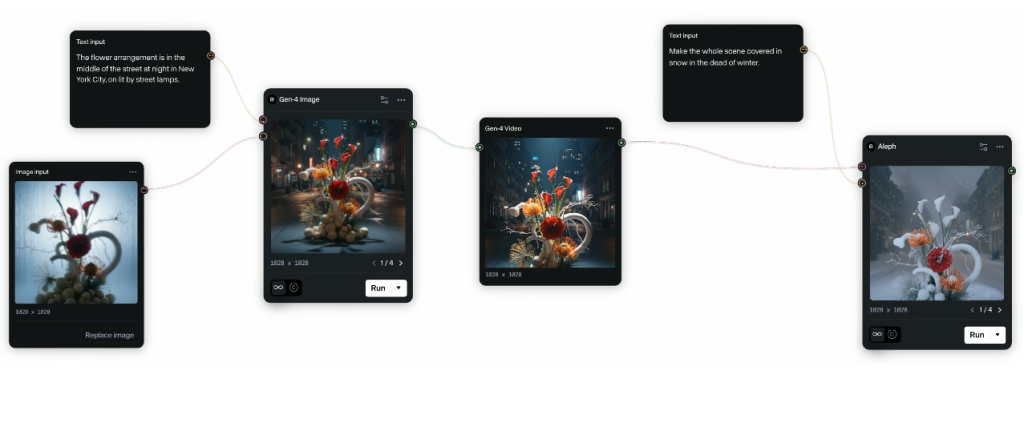
Runway is probably the most well-known. It’s powerful, handles complex prompts well, and the video quality is genuinely impressive. You can generate clips from text descriptions, and the AI understands context better than most tools I’ve tried. The downside? It’s not the fastest, and there’s definitely a learning curve.
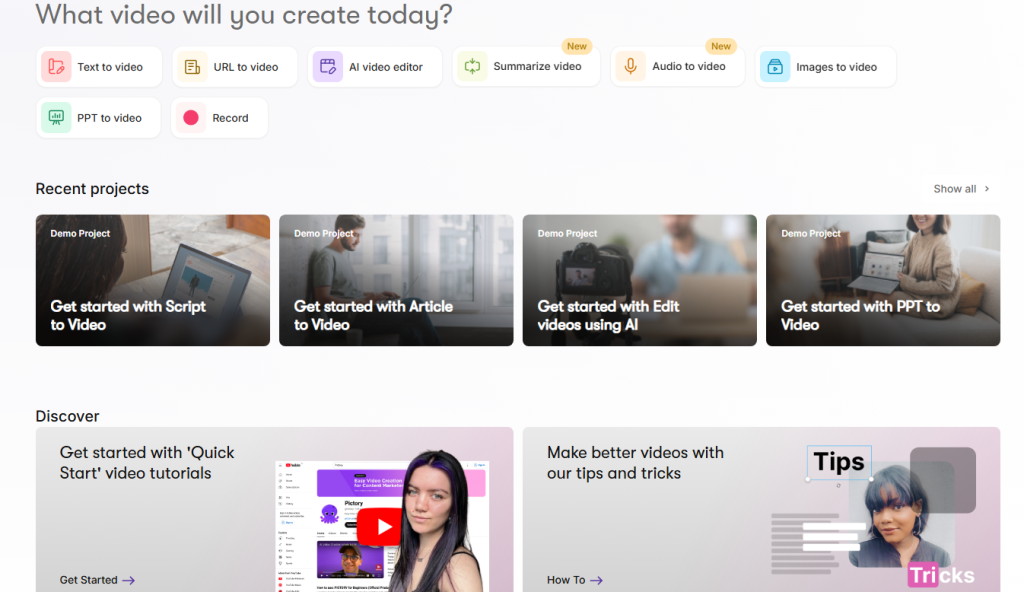
Pictory focuses on turning scripts or blog posts into videos. You paste your text, it breaks it down into scenes, finds stock footage or images to match, and adds captions automatically. It’s particularly good if you’re repurposing written content. I use this when I need to turn an article into a quick video summary.
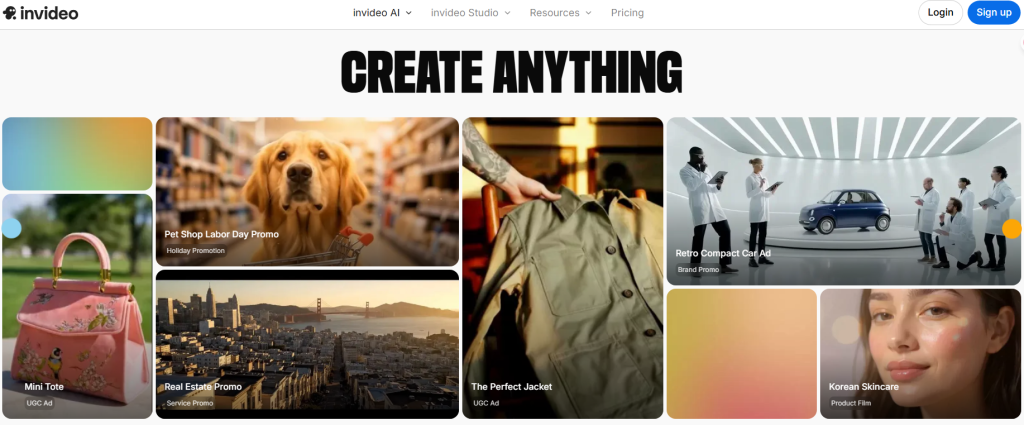
InVideo offers tons of templates, which makes it beginner-friendly. You pick a template, customize the text, swap out some visuals if needed, and export. It’s less “AI magic” and more “AI-assisted design tool,” but it works well for consistent branding across multiple videos.
Synthesia is different — it generates videos with AI avatars that speak your script. If you need a talking-head style video without actually filming yourself, this is the tool. I’ve used it for training videos and product explainers. The avatars look slightly uncanny, but they’re improving.
Each tool has a specific use case. None of them do everything perfectly, which is why I keep subscriptions to multiple platforms. It’s annoying, but necessary.
Comparison of Pricing, Speed, and Output Quality
Let’s talk money and performance, because that actually matters when you’re deciding what to pay for.
Runway offers a free tier with limited credits, then paid plans start around $12/month. The video quality is excellent, but generation can be slow during peak hours. If you need high-quality output and have patience, it’s worth it.
Pictory starts at around $19/month for basic plans. It’s faster than Runway for generating videos from scripts, and the automatic caption feature saves tons of time. The stock footage library is decent but not amazing — sometimes you’ll need to swap in better visuals.
InVideo has a free version with watermarks, and paid plans start around $15/month. It’s the fastest option I’ve used for template-based videos. You can crank out content quickly, but the trade-off is less customization and a somewhat “templated” look.
Synthesia is the most expensive, starting around $30/month for personal use. The avatar videos look professional enough for corporate training or B2B marketing, but I wouldn’t use them for consumer-facing social media content. They just don’t feel organic enough yet.
My honest take on value: If you’re creating content regularly, any of these tools pay for themselves in time saved. I spent more money on coffee last month than I did on my Pictory subscription, and it saved me probably 20 hours of work.
Speed-wise, InVideo wins for quick turnaround. Quality-wise, Runway produces the most impressive results. For everyday practical use, Pictory hits the sweet spot between quality and speed.
How to Create Short Videos from Text Using AI
Step-by-Step Workflow for Beginners
If you’ve never used these tools before, here’s the simplest workflow I’ve found.
Step 1: Write a simple script. Keep it short — 50 to 150 words max for a 30-second video. Be specific about what you want to show. Instead of “a beautiful beach,” write “a calm beach at sunset with gentle waves.”
Step 2: Pick your tool based on your goal. Need a talking-head video? Use Synthesia. Repurposing a blog post? Use Pictory. Want creative video from scratch? Try Runway or InVideo.
Step 3: Input your script and choose a style or template. Most tools offer preset styles — corporate, casual, energetic, minimal. Pick one that matches your brand or message.
Step 4: Let the AI generate, then review. This is important: the first result is rarely perfect. You’ll need to adjust text timing, swap out some visuals, or tweak transitions.
Step 5: Export and test. Before posting publicly, watch the video on your phone. Does it feel too fast? Too slow? Are the captions readable? Fix what feels off, then post.
The whole process takes 10-20 minutes once you’ve done it a few times. Your first attempt might take an hour as you figure out the interface, and that’s normal.
Advanced Customization Tips for Professionals
Once you’re comfortable with the basics, here’s how to make your AI-generated videos look less… AI-generated.
Use custom visuals instead of stock footage. Most tools let you upload your own images or video clips. Mixing in real photos from your business or product makes the final video feel less generic.
Adjust pacing manually. AI often rushes through text or lingers too long on certain scenes. Go into the timeline editor and manually adjust how long each scene displays. This small tweak makes a huge difference.
Add your own music. The default music libraries are fine, but they’re overused. Upload your own royalty-free tracks or use platform-specific music to make your video stand out.
Customize captions and text styling. Don’t accept the default fonts and colors. Match your brand’s style guide. This consistency makes your content look professional instead of rushed.
Layer multiple AI tools. Sometimes I generate the base video in Runway, export it, then import it into InVideo to add professional captions and transitions. Combining tools gives you more control than using just one.
Real-World Examples of Text to Short Video AI
Use Cases in Marketing, Education, and Social Media
Here are some actual projects where these tools proved useful.
Marketing: I created a product announcement video for a client launching a new skincare line. Wrote a 100-word script highlighting benefits, used Pictory to generate the video with product images, and added customer testimonial quotes as text overlays. Total time: 25 minutes. The video got more engagement than any static post they’d done before.
Education: A friend runs online courses and needed short lesson recap videos. She used Synthesia to create 2-minute summaries of each module with an AI avatar explaining key concepts. Students loved having quick video reviews they could watch on their phones between lessons.
Social Media: I use InVideo weekly for Instagram Reels promoting blog posts. I paste the article intro, let it generate a 15-second teaser, customize the text and colors to match my brand, and post. It drives traffic to the full articles consistently.
These aren’t fancy use cases. They’re practical, everyday content needs that AI tools handle well enough to matter.
Before-and-After Examples That Show the Difference
The difference isn’t always about quality — it’s about what actually gets done.
Before AI tools: Client needed five videos for a month-long campaign. Budget: $0 for videography. Result: We posted three static images instead because making videos felt impossible. Engagement: mediocre.
After AI tools: Same client, same budget. Created all five videos using Pictory in about two hours total. Engagement: noticeably higher, more shares, better reach.
Before AI tools: I wanted to create educational content but hated being on camera. Result: Stuck with text-only posts that got ignored.
After AI tools: Used Synthesia avatars for short explainer videos. They’re not perfect, but people watch them. Comments improved. Authority increased.
The “after” isn’t perfect. But perfect wasn’t happening anyway. AI tools turned “not doing it” into “actually posting content,” and that shift matters more than people realize.
Tips for Getting the Best AI Video Results
Writing Effective Prompts and Scripts
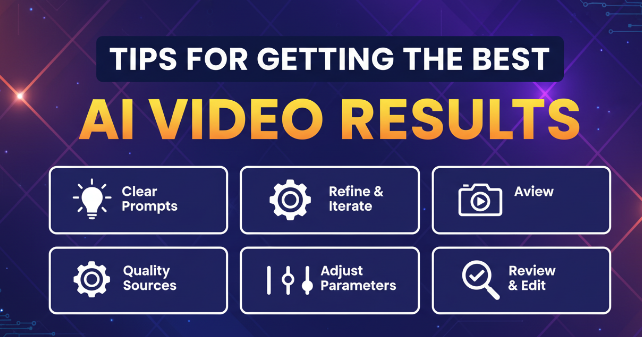
The quality of your output depends heavily on your input. Here’s what works.
Be specific, not vague. “A happy customer” becomes “a smiling woman in her 30s holding a coffee cup in a bright cafe.” More detail gives the AI better direction.
Keep sentences short. AI tools struggle with long, complex sentences. Write like you’re texting a friend, not drafting a legal document.
Include visual cues in your script. If you want the video to show something specific, mention it explicitly. “Show a close-up of the product” or “transition to a sunset beach scene.”
Write for voice, not reading. If the tool generates voiceovers, write how people actually talk. Contractions, casual phrasing, natural rhythm.
Common Mistakes to Avoid When Using AI Tools
I’ve made plenty of mistakes. Here’s what not to do.
Don’t expect perfection on the first try. You’ll need to regenerate, adjust, and tweak. Treat the first output as a draft, not the final product.
Don’t overload one video with too many ideas. Keep it focused. One clear message per video works better than cramming five points into 30 seconds.
Don’t ignore the preview before exporting. I once posted a video without watching it fully and there was a weird glitch at the 10-second mark. Embarrassing and avoidable.
Don’t use AI-generated content without adding your own touch. Swap in real photos, adjust the pacing, change the music. Raw AI output feels generic. Your personal edits make it yours.
Don’t rely on AI for everything. These tools are great for routine content, but if you’re launching something major or need emotional impact, consider hiring a real videographer. AI has limits.
Text-to-video AI tools aren’t magic, but they’re practical. They won’t replace professional video production, but they’ll help you actually create content instead of endlessly planning content you never finish.
I still use these tools weekly. They’ve become part of my workflow, not a replacement for it. And honestly? That’s exactly what they should be.
Previous posts:






