
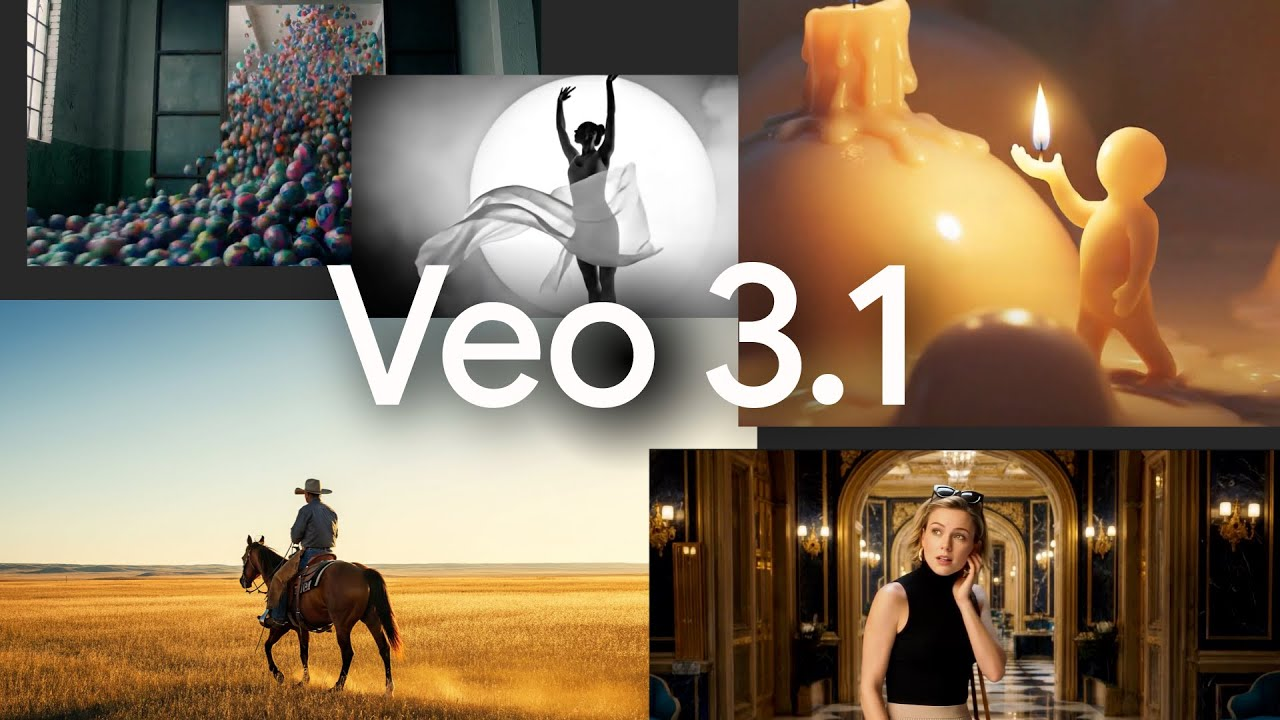
I didn’t plan to fall down the shorts rabbit hole this week. I just wanted a clean, repeatable AI video shorts workflow for my channel, something that didn’t make me babysit five tabs and 19 file exports. People kept mentioning Veo 3.1 and Gemini like they’re peanut butter and jelly for creators, so I tried it. I expected a demo-showcase vibe. What I got was… actually usable. Not perfect, but genuinely useful in a way that nudged me to rethink how I storyboard, prompt, and publish (especially for TikTok). Here’s what worked, what got on my nerves, and how I’d set it up if you just want decent vertical clips fast without sounding like a robot.
Veo 3.1 Features 2025
I’ve been testing Veo 3.1 for short-form specifically. If you’re trying to build a consistent AI video shorts workflow, two things matter more than anything: vertical control and audio that doesn’t feel like stock soup.
Vertical Video Support
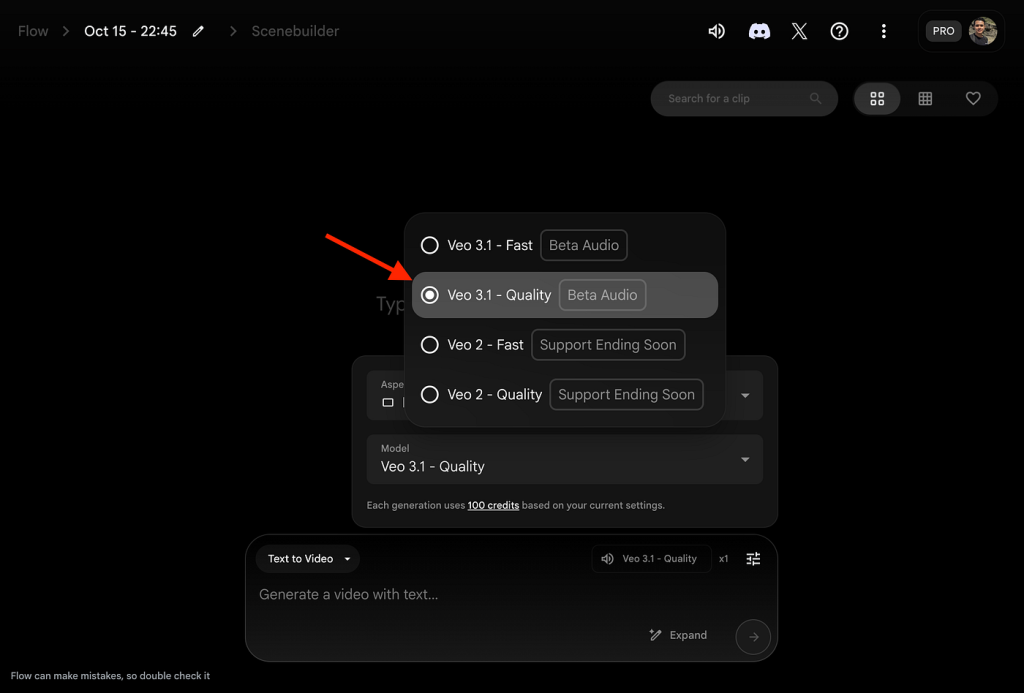
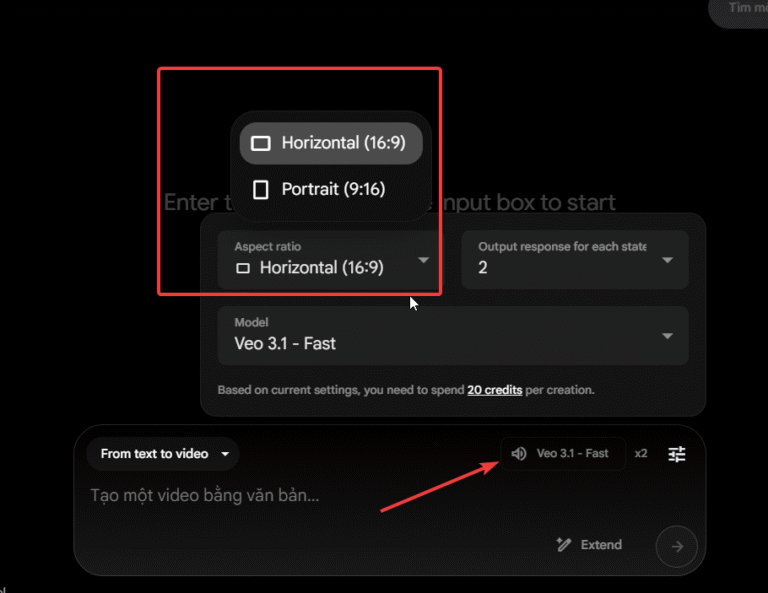
First impression: finally, proper vertical defaults. I set 9:16 as the project aspect, locked safe margins, and Veo stopped smushing titles into the edges. If you’re used to exporting a 16:9 and then slicing it… you’ll feel the relief immediately. I tried:
- Framing prompts like “tight mid-shot, eye-level, subject centered, room for captions top/bottom.” Veo actually respected the negative space for text overlays.
- Auto reframing on imported B-roll. It didn’t nail fast motion (it sometimes lags half a beat on whip pans), but for talking heads, it tracked faces well enough that I didn’t redo takes.
- Text-safe areas. I toggled guides for TikTok’s UI and it saved me from that classic “like button over my CTA” mistake.
Tiny gripe: background plate transitions sometimes add micro-shimmer at the edges. You won’t notice on a phone unless you stare, but I noticed.
Audio Enhancements
Audio used to be where AI shorts went to die. With 3.1, I tried three paths:
- Light VO cleanup: I recorded on my phone, tossed it in, tapped “dialogue focus.” It pulled down fan noise without turning my voice into a submarine.
- Beat sync for cuts: I imported a simple drum loop and asked Veo to “cut on snare, animate captions on kick.” It overcommitted at first (too many cuts), but after I dialed sensitivity to 30–40%, the timing felt punchy.
- Stock tracks: not gonna lie, still hit-or-miss. The discovery is better, but I kept returning to my own loop library. If you’re picky, bring your audio: use Veo for alignment and ducking. The auto-ducking is smart, VO stays crisp without me wrestling envelopes.
Shorts Creation Workflow
Here’s the loop I landed on after a few messy runs. It’s fast, keeps decisions small, and doesn’t require a PhD in prompt poetry.
Prompt Setup Guide
My goal: keep the prompt short but structured so I don’t fight the tool. I use three blocks, intent, look/feel, and edit rules. Example I actually used:
Intent (1–2 lines)
- “Make a 25–32s explainer about why creators should batch shorts. Casual, first-person, not hype-y.”
Look/Feel (2–4 lines)
- “9:16, neutral daylight look, soft shadow. Start on close-up hands on keyboard, cut to mid-shot. Subtle camera drift, not parallax carnival ride.”
Edit Rules (3–5 lines)
- “Hard cut at 0:05, 0:12, 0:19. On-screen captions: lowercase, bold key words only. Leave 200px safe area top/bottom. End with quick CTA on screen only (no spoken CTA).”
Two tips that helped me not waste time:
- Write prompts in constraints, not adjectives. “Hard cut at 0:12” beats “snappy edit.”
- Push style to the look/feel block, not inside intent. Keeps tone honest and avoids the AI handing you influencer-speak when you just want human.
When I feed VO: I paste a short transcript and say “respect timing, do not paraphrase.” If I’m generating VO: I sample voices, but I almost always revert to my own, AI voices are fine for B-roll explainers, not for on-camera personality (yet).
Clip Extension
This was surprisingly useful. I had a 17-second piece that felt rushed. Instead of re-recording, I used Clip Extension to add breathing room.
- I selected the mid-shot that felt cramped and asked, “Extend 3–5 seconds before the cut, preserve motion direction, no new ideas, just natural lead-in.” Veo added a small head turn and desk tap. Not perfect, but it gave me space to slide a stat without cramming.
- For B-roll, Clip Extension worked as a looping stabilizer. I told it: “Extend by 2 seconds, continue light sway, avoid repeating patterns.” It kept the grain consistent: I only caught a minor shadow repeat on the third loop, which I hid under a caption.
Caveat: don’t extend talking heads if your lips are visible. The uncanny stretch shows. Use it on cutaways, hands, objects, or abstract motion plates. Think of it like a tasteful breathing space tool, not a content generator.
Advanced Tools
When the basics feel right, these two switches make the workflow more reliable and less “I hope this exports fine.”
Gemini API Integration
I wired Gemini in mainly for script polishing and batch ideation. My mini-stack:
- Draft: bullet ideas in Notes.
- Gemini pass: “Turn into a 28s script with three beats and one concrete stat. Keep my voice, no marketing fluff.” It returns tight lines plus a timing estimate.
- Veo handoff: I paste the script and constraints, let Veo handle pacing and cuts.
Why I like this: Gemini gives me guardrails before I jump into visuals. Also, for batch days, I ask it for 10 variations on a hook (same topic, different openings). You get options without losing your tone. If you write SEO blogs, same logic applies, Gemini helps you carve the angle, then your video tool executes.
SynthID Watermarks
I’m pro-watermark for client work. With SynthID, I toggle the invisible watermark so the clip carries an AI-origin signature. It doesn’t affect look or sound in my tests. Two notes:
- It’s there to signal provenance, not to penalize. Most platforms don’t surface it: it’s for audits and trust.
- Pair it with human elements: your face, your VO, your handwriting on a sticky note. The watermark says “AI helped,” your presence says “this is still me.” That combo kept my clients comfy about disclosure.
Social Media Tips
TikTok Optimization
I stopped thinking of TikTok as “shorts, but louder.” The platform wants clarity fast. What worked for me last week:
- Hook in 0–2 seconds. I literally show the payoff first: a split-screen of messy timeline vs clean timeline, then I say, “Here’s the 20-second workflow.” People stayed.
- On-screen captions that don’t narrate every word. Bold the nouns: keep verbs light. It reads friendlier and doesn’t feel like karaoke.
- Visual reset every 5–7 seconds. Doesn’t have to be a new scene, could be a zoom bump, a text swap, or a quick hand gesture cut-in.
- Native posting > cross-posting. If you export from Veo, still run it through TikTok’s upload so it preserves bitrate and avoids that “ported” look. Also, test two thumbnails: face + object vs clean text. My face + prop won by 18% last week, which… mildly hurt my minimalist heart.
If you care about growth: post 3–4 times a week, not daily burnout. Batch two in one sitting using the same prompt skeleton. Consistency beats novelty when your energy is limited.
Frequently Asked Questions
1. Does Veo 3.1 have good native support for vertical (9:16) shorts like TikTok or YouTube Shorts?
Yes—it’s one of the biggest improvements in 3.1. You can set 9:16 as the default aspect ratio, enable text-safe guides for captions and platform UI, and Veo generally respects negative space for overlays. It also handles auto-reframing on imported footage reasonably well for talking heads and slower motion. The only minor issue I noticed was occasional edge shimmer on transitions, but it’s barely visible on mobile.
2. How usable is the audio in Veo 3.1 for short-form content?
Much better than earlier versions. Dialogue cleanup removes background noise (like fans) without over-processing your voice. Auto-ducking works intelligently when layering music, and beat-sync features can align cuts to kicks/snares (just lower the sensitivity to avoid over-cutting). I still prefer bringing my own voiceover and music tracks—AI-generated VO is improving but not quite “personality-ready” for on-camera style yet.
3. What’s the most reliable way to structure prompts in Veo 3.1 to get consistent results?
Split your prompt into three clear blocks:
- Intent (1–2 lines): what the video is about and the tone.
- Look/Feel (2–4 lines): aspect ratio, lighting, camera movement, shot progression.
- Edit Rules (3–5 lines): exact cut times, caption style, safe areas, and constraints. Use specific constraints (“hard cut at 0:12”) instead of vague adjectives (“snappy pacing”), and keep style instructions separate from the core message. This dramatically reduces weird AI flourishes and wasted generations.
4. Is Clip Extension actually useful, or just a gimmick?
It’s genuinely useful for adding breathing room without re-recording. It works best on cutaways, hands, objects, or abstract B-roll—extending a cramped shot by 3–5 seconds while preserving motion direction. Avoid it on visible lip-sync talking heads (uncanny artifacts show up). In my tests, it maintained consistent grain and lighting, with only minor repeating shadows on longer loops that were easy to hide under text.
5. How should I combine Gemini with Veo 3.1 for a faster shorts workflow?
Use Gemini first for script polishing and ideation: feed it bullet points and ask for tight 25–35 second scripts with specific beats and timing. Then paste the refined script directly into Veo with your visual/edit constraints. For batch days, have Gemini generate 8–10 hook variations on the same topic. This keeps your voice authentic while giving you options, and prevents you from burning generations on bad pacing or fluffy writing.






