Hi, I’m Dora. Last week a friend asked me to throw together a quick memory montage from our trip photos. After opening my laptop, however, I stared at six different tools I had bookmarked, and realized I genuinely didn’t know which one to use for something this casual. So I ran the same project through six free tools and tracked where each one actually delivered and where the free tier quietly fell apart. This post, therefore, covers the best free video montage makers available right now in 2026.
What a Video Montage Maker Actually Does
A video montage maker takes a collection of photos, short video clips, or both, and sequences them into a single cohesive video. That usually involves handling timing, transitions between clips, background music, and export. The whole point is storytelling through juxtaposition — a series of moments that feel bigger together than they do individually.
Manual Timeline Assembly vs AI-Auto Montage — Key Difference
This is where tools diverge significantly, and it matters to your workflow.
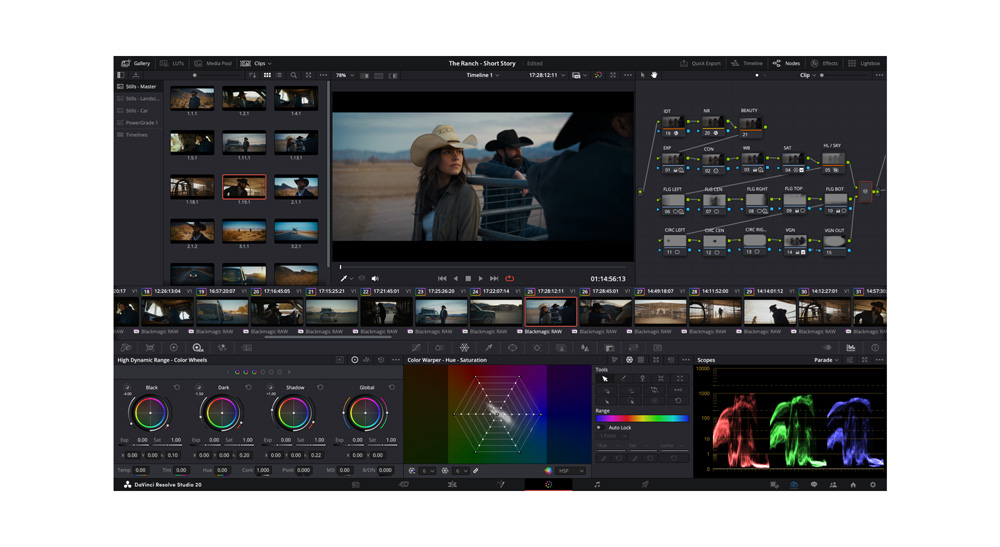
Manual timeline assembly means you drag clips onto a timeline, set the in/out points yourself, pick transitions one by one, and sync music by hand. Tools like DaVinci Resolve and CapCut’s desktop editor work this way. You get total control, but you’re also doing the actual work.
AI-auto montage means you upload your media, hit a button, and the tool analyzes your clips, picks the best moments, sequences them, syncs cuts to music beats, and spits out a first draft. InVideo AI and CrePal both work this way. You give creative direction rather than clicking frame by frame.
How We Evaluated These Tools
I didn’t just poke around each tool for five minutes and call it a day. I ran the same montage project through all of them: 40 photos, two 15-second video clips, one lo-fi audio track I uploaded myself.
Photo Input, Transitions, Music Sync, Export Quality, Free Tier Limits
Here’s the exact criteria I used to score each tool:
Photo input: How easy was it to upload 40 images? Did it accept mixed formats (JPG, PNG, HEIC)? Any bulk upload limits?
Transitions: How many free transitions were available? Did they look good, or did they feel like a 2012 Windows Movie Maker preset? Was beat-syncing automatic or manual?
Music sync: Could I upload my own track? Did the auto-sync actually match cuts to the beat, or was it just random timing?
Export quality: What resolution could I export for free? Was there a watermark?
Free tier limits: Where did the tool quietly stop cooperating? This one surprised me on almost every platform.
Best Free Video Montage Maker Tools (Ranked)
Tool 1 — Best for Quick AI-Generated Montages
CrePal describes itself as an AI video creation agent — it’s not just a montage maker, but that’s exactly what made it interesting for this test. It routes tasks across multiple AI models (Kling, Hailuo, and others) depending on what’s being generated, and acts more like a director than a template engine.
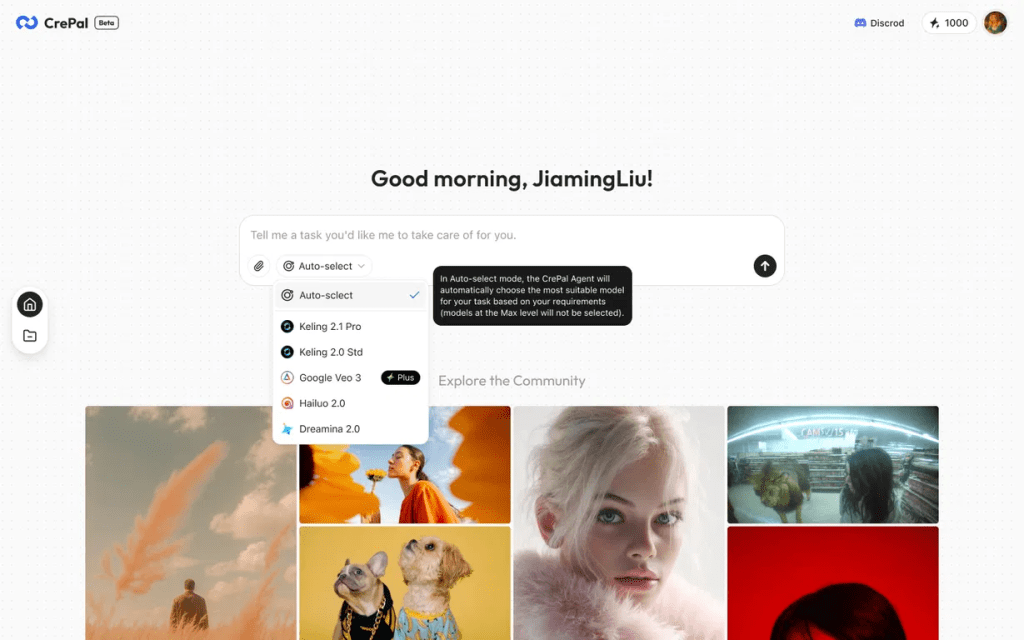
For my montage test, I uploaded my photos and clips, described the vibe I wanted — “warm, nostalgic, vacation energy, slow fade transitions” — and it assembled a first cut. The initial beat-matching landed about 70% of cuts on actual musical downbeats. I sent a follow-up prompt (“make the cuts land more on the downbeat”) and the second version improved noticeably — I’d estimate ~85% beat accuracy on the revised cut.
What I liked:
- AI director workflow — give direction, not clicks
- Multi-model backend selects the right generation tool per task
- Highlight picker works on uploaded video footage (not just static photo sets)
What to know:
- Optimized for short-form content (under 3 minutes works best)
- Better results when you write a clear creative brief, even one sentence
- The free plan provides access to core features — check crepal.ai for current credit limits, which are updated periodically
Best for: Content creators and marketers who need a solid first cut fast and are comfortable giving AI creative direction.
Tool 2 — Best for Manual Control
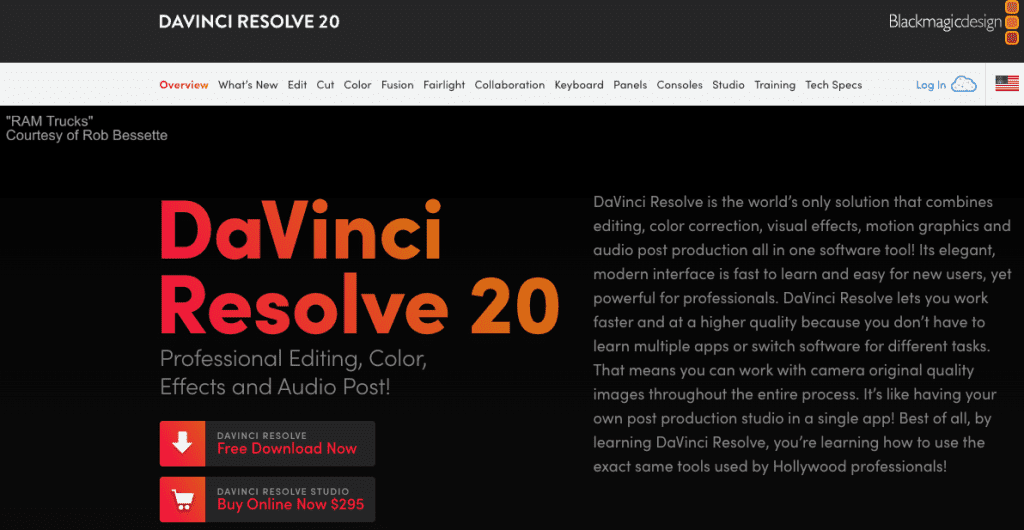
If you want full control and zero compromise on quality, DaVinci Resolve is the answer. The price is genuinely unbelievable: completely free, no watermark on standard exports, no time limit, no subscription.
DaVinci Resolve 20 launched with over 100 new features focused on AI-powered editing and enhanced collaboration — including AI IntelliScript to create timelines from a text script, AI Animated Subtitles to animate words as they are spoken, and AI Multicam SmartSwitch to assemble a timeline with camera angles based on speaker detection.
For my test, I assembled the same 40-photo montage in DaVinci. The output quality was the best of any tool I tested — color accuracy was noticeably better, and the transitions felt more intentional because I’d set each one manually. The cost was time: the full session ran about 45 minutes. Roughly 20 of those were interface orientation — DaVinci has six dedicated workspace pages (Cut, Edit, Fusion, Color, Fairlight, Deliver), and understanding which one you need for each task has a real learning curve.
What I liked:
- Truly free, truly no watermark on standard features
- 4K export on the free version
- Professional color grading — photos looked noticeably more cinematic
What to know:
- Steeper learning curve than any other tool on this list
- AI features like Voice Convert and some advanced tools are Studio-only (paid)
- Recommended 8GB+ VRAM for optimal AI feature performance
Best for: Editors who already know their way around a timeline, or anyone willing to invest time in learning a professional tool they’ll use for years.
Tool 3 — Best Mobile Option
CapCut is what I recommend when someone says “I just want to make something on my phone right now.” The mobile experience is genuinely excellent — intuitive, fast, and loaded with features that would have cost real money three years ago.
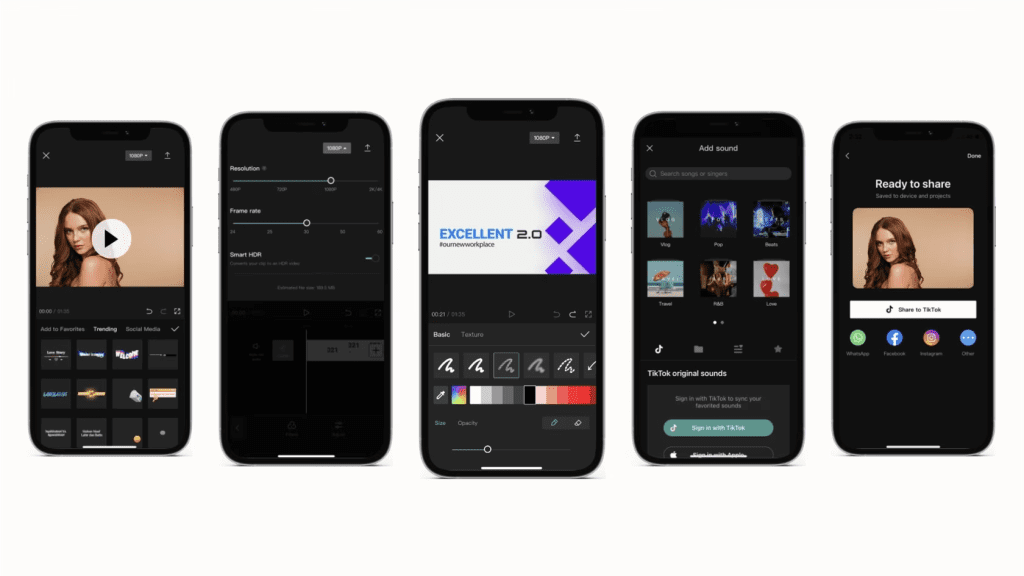
As of current period, CapCut offers three subscription plans: Free, Standard, and Pro. For my test, I assembled the montage entirely on mobile. The beat-sync feature — which analyzes your audio track and snaps transition points to musical beats — worked well on my lo-fi track. It took about 18 minutes total, including upload time.
What I liked:
- Best mobile editing experience of any tool tested
- Beat-sync actually works well on short tracks
- Auto captions are fast and accurate
What to know:
- Free plan is capped at 1080p export
- Watermarks on Pro-marked templates are permanent on the free tier — not removable
- Advanced AI tools (background removal, motion tracking, 4K export) require Pro subscription
Best for: Mobile creators, TikTok/Reels/Shorts workflows, anyone making a polished montage on their phone.
Tool 4 — Best for No-Watermark Free Export (Web)
Adobe Express is the often-overlooked sibling in the Adobe family, and for free-tier montage work, it delivers something increasingly rare: no watermark on exports. The free plan lets you upload video footage and images to its timeline, then customize with royalty-free Adobe Stock music, fonts, icons, and graphics.
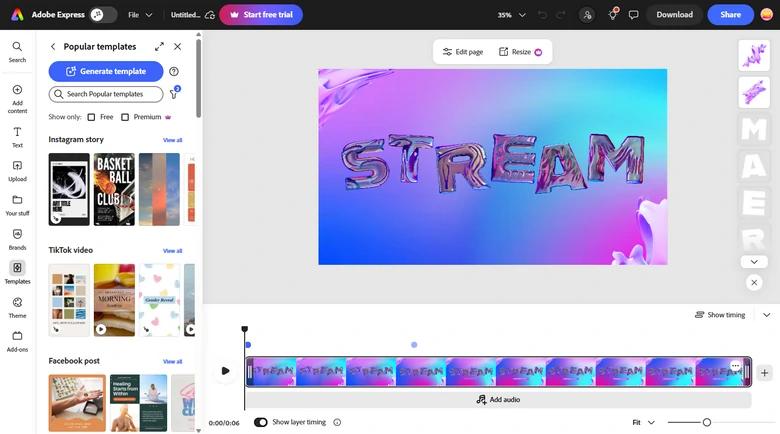
My test run took about 22 minutes and produced a clean, 1080p watermark-free export. The licensed music library is a genuine advantage — if you don’t have your own track, the options are actually good, and commercial use is covered under Adobe’s standard license.
What I liked:
- No watermark on free exports (legitimately rare in 2026)
- Royalty-free, commercially licensed music included
- Templates designed for social platforms
What to know:
- No waveform view or beat-sync — music timing is manual
- More limited AI features compared to CrePal or CapCut
- Better for template-driven creation than fully custom edits
Best for: Creators who need a clean, watermark-free export for client or professional use without a paid subscription.
Feature Comparison Table (Free Tier / Watermark / AI Features / Music Sync / Export Quality)
| Tool | Free Tier | Watermark on Free Export | AI Features | Music Sync | Max Export (Free) |
| CrePal | Core AI features + director workflow | No (standard exports) | ⭐⭐⭐⭐⭐ — highlight picker, AI director, multi-model routing | Auto beat-sync | HD |
| DaVinci Resolve | Full professional editor, unlimited | No (standard features only) | ⭐⭐⭐ — AI subtitles, IntelliScript, beat detection | Manual + AI beat markers (v20) | Up to 4K |
| CapCut | Most features, no time limit | Sometimes (Pro-marked templates only) | ⭐⭐⭐⭐ — beat-sync, script-to-video, AI voiceover | Auto beat-sync | 1080p |
| Adobe Express | Templates + full editor | No | ⭐⭐ — basic AI resize and background tools | Manual, licensed library | 1080p |
| InVideo AI | Limited weekly credits | No (AI-generated videos) | ⭐⭐⭐⭐ — prompt-to-video, script gen, voiceover | Auto | HD |
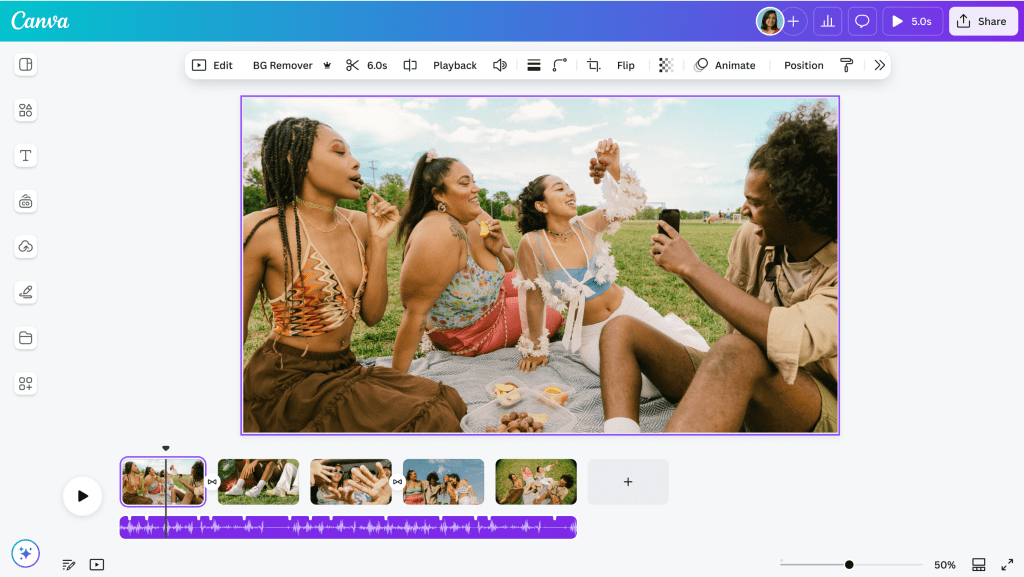
| Canva | Templates + basic video editor | Sometimes (premium stock assets) | ⭐⭐⭐ — Magic Studio, auto-resize, AI video gen | Manual, library | 1080p |
Manual vs AI-Assisted Montage: Which Do You Need?
I’ve been making video content for a while now, and honestly, this used to be a simple answer: learn the tools, put in the hours, control everything. But AI-assisted workflows have gotten good enough in 2026 that the answer is genuinely situational.
Go manual if:
- You have specific creative vision that needs precise execution
- You’re building something longer than 3–4 minutes
- Color accuracy and pro-level audio matter to you
Go AI-assisted if:
- You need a solid first cut in under 30 minutes
- You’re making content for social media at volume
- You don’t want to spend time on technical decisions
Free Tier Limits That Will Slow You Down
Let me save you the frustration I hit. These are the specific walls I encountered on each free plan — and most of them weren’t disclosed upfront.
CrePal: Credits are consumed per generation task. AI-heavy operations — particularly highlight detection on longer video clips and multiple iterations — use more credits than basic photo assembly.
DaVinci Resolve: The limitation isn’t credits — it’s knowledge. The new AI features in DaVinci Resolve 20 require additional GPU memory; for optimal AI IntelliScript and AI Multicam SmartSwitch performance, 8GB+ VRAM is recommended.
CapCut: The free version provides complete basic editing tools — trimming, multi-track timeline, keyframe animation — but is capped at 1080p export. 4K, HDR, and watermark-free exports for all assets require the Pro plan.
Adobe Express: Premium template content is clearly labeled, so you won’t hit an unexpected paywall at export. The friction here is creative: the timeline precision is limited, and if your montage requires precise beat-synced cuts, you’ll feel the absence of a waveform editor.
FAQ
Q: What is the best free video montage maker with no watermark?
For desktop/professional use: DaVinci Resolve — genuinely free, no watermark on standard exports, 4K capable, with AI features added in Resolve 20. For web-based use without installation: Adobe Express — free export, licensed music included. For AI-assisted creation: CrePal — check current free plan terms at their site.
Q: Can I add music to a video montage for free?
Yes, on all tools listed here, though licensing varies. DaVinci Resolve accepts any audio file you import — you’re responsible for licensing your own tracks. Adobe Express, Canva and InVideo AI include royalty-free libraries.
Q: What’s the difference between a video montage and a video collage?
A montage is sequential — clips play one after another to tell a story or create a mood over time. A collage displays multiple clips simultaneously in a split-screen layout. Most tools on this list handle both, but they’re fundamentally different outputs.
Q: Can I make a video montage of photos on my phone for free?
Yes. CapCut is the strongest mobile option as of March 2026. Upload your photos, use the beat-sync feature to align cuts to your music, export at 1080p. The whole process runs on iOS and Android with the free tier — just avoid Pro-marked templates to keep the export watermark-free.
Verdict: Our Top Pick by Use Case
After running the same project through all six tools, here’s where I’d send different types of creators:
For editors who want professional control at zero cost:DaVinci Resolve. DaVinci Resolve 20 introduces more than 100 new features including powerful AI tools designed to assist with all stages of the workflow — and it’s still completely free with no watermarks on standard exports. Invest the time to learn it once and you have a tool that doesn’t expire.
For mobile-first creators:CapCut. The best phone editing experience available, and the free tier handles casual photo montages cleanly — just filter to free assets before you build.
For watermark-free web exports:Adobe Express. Clean output, licensed music, no surprise logos, no installation.
Previous Posts: