
Hey, I’m Dora. That day, I opened Wan 2.6 because a friend sent me a 12‑second clip of a still photo speaking flawless Mandarin. I paused, squinted, and thought: is this actually lip‑synced or just cleverly animated mouth flaps? Curiosity won. I brewed coffee, pulled a few reference headshots, and spent the weekend running image‑to‑video lip sync tests.
Does Wan 2.6 Support Lip Sync?
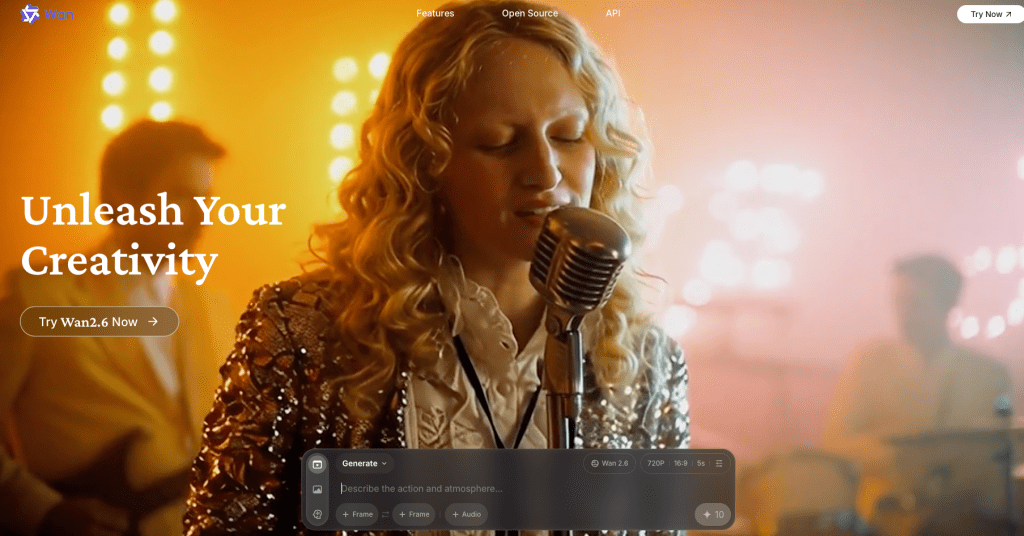
Short answer: yes, but with caveats.
Native Capabilities vs Add-on Workflows
In my tests recently, Wan 2.6’s native image‑to‑video with audio guidance produced believable lip motion on clean, frontal faces. It’s not frame‑perfect like a traditional VFX pipeline, but for short social clips (10–20s) it held sync well enough to pass the scroll test. Where it struggled: side angles, noisy backgrounds, and longer monologues where drift creeps in.
Add‑on workflows, pairing Wan 2.6 with a dedicated lip‑sync model (e.g., Wav2Lip or SadTalker), pushed realism further and reduced drift. The trade‑off is extra steps and a bit more render time.
What “Lip Sync” Means Here
I’m talking about viseme‑accurate mouth shapes that match phonemes in your audio, not just generic “talking mouth” movement. When I say “works,” I mean: plosives (p/b), fricatives (f/v), and round vowels (o/u) actually look right, and they line up closely with the sound. If you scrub the timeline, the lips should hit those moments within a frame or two.
Input Requirements for Lip Sync
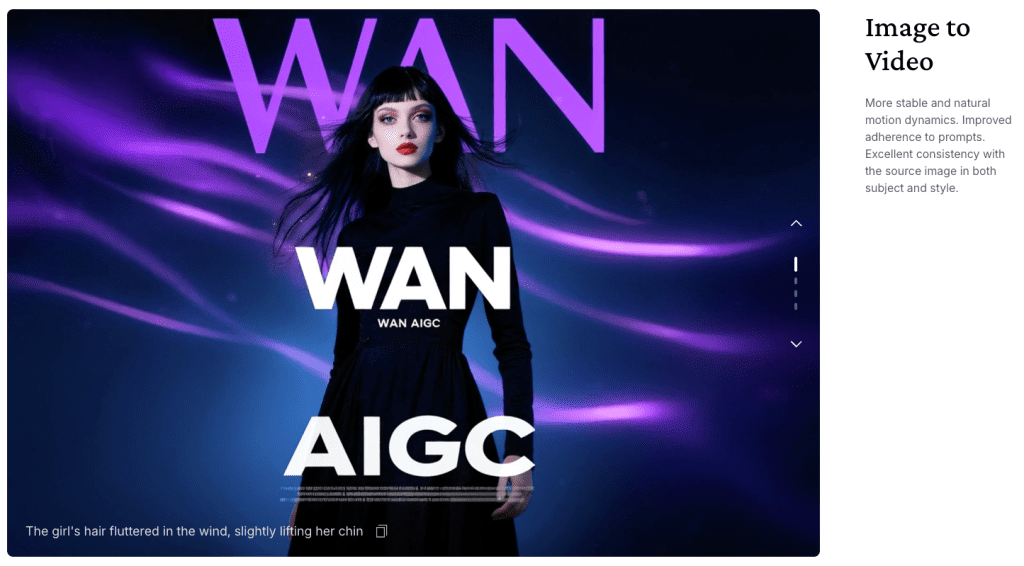
Getting convincing results starts with clean inputs. Small tweaks here make a big difference.
Best Image Types
- Use a sharp, frontal face with neutral expression. Slight smile is okay: open mouth is not.
- 1024×1024 or higher works best in Wan 2.6: PNG or high‑quality JPG is fine.
- Even lighting. Avoid harsh shadows and busy backgrounds. If your subject wears glasses, reduce glare.
- Hair over lips or heavy beards will confuse the model.
Audio Input Requirements
- Clear, dry audio. I had better results with WAV 16‑bit, 16 kHz mono than with compressed MP3s.
- Keep it tight: 8–20 seconds tends to stay in sync natively. Over ~30 seconds, drift is more likely.
- Remove long silences and background music. A simple high‑pass filter (around 80–100 Hz) helped reduce rumble.
- If you can, record at a stable loudness (around -16 LUFS for voice). Overly quiet tracks led to timid mouth motion.
Language Support
Wan 2.6 handled English and Mandarin well in my tests (I tried a Spanish snippet too, decent). Because it’s following the audio’s timing, it’s largely language‑agnostic, but fast syllables in languages like Japanese can trip timing. Clear enunciation wins. If you’re doing multilingual, consider generating language‑specific TTS first (I used a neutral EN TTS and a standard CN voice) and then syncing that audio.
Step-by-Step: Generate Lip-Synced Video
Method 1: Wan 2.6 Native
- Prep your still image. Crop to the face and clean up stray hairs near the mouth.
- Prep your audio. Export WAV, trimmed to 10–20s. No music bed.
- In Wan 2.6, choose Image → Video and enable Audio Guidance/Lip Sync (wording may vary by build).
- Settings that helped me:
- Motion strength: low‑to‑medium (too high = rubber lips).
- Face stabilization: on.
- Duration: match the audio length + 0.2s tail.
- FPS: 24 or 25 for smoother phoneme hits without bloating render time.
- Upload image + audio, generate a draft.
- Review the first 5 seconds. If plosives don’t pop, slightly raise motion strength or re‑export louder audio (without clipping).
What I saw: For short clips, the sync felt believable, especially on frontal photos. On a 32‑second read, I noticed slight lag by the last 5 seconds. Not a deal‑breaker for social, but you’ll spot it if you’re picky.
Method 2: Wan 2.6 + External Tool
When I wanted crisper visemes, I used a two‑step workflow:
- Generate a silent talking‑head base in Wan 2.6:
- Same image, but leave audio off.
- Keep motion strength moderate and enable face stabilization.
- Export 24 fps.
- Feed that video plus your WAV into a dedicated lip‑sync tool:
- Wav2Lip: strong on aligning mouth shapes: handles plosives well.
- SadTalker: good at head pose + lip sync: a bit more setup.
- Optional polish in an editor (I used Resolve):
- Add a 1–2 frame audio offset if needed.
- Light sharpen on the mouth region: add a subtle film grain to hide edges.
This chain took longer but fixed drift on 30–45s clips and looked less “floaty” around the lips.
Common Issues & Fixes
Mouth Movement Looks Unnatural
- Lower motion strength in Wan 2.6. Over‑driven mouths look rubbery.
- Re‑record or normalize audio. Quiet audio = timid visemes.
- Use a neutral‑expression image. Big smiles lock jaw shapes.
Audio-Video Sync Drift
- Keep clips under ~20s natively. For longer, use the external tool method.
- Trim silences and add a 0.2s tail to the video.
- In editing, nudge audio by ±1–2 frames. It’s a tiny fix that often solves it.
Face Distortion / Warping
- Crop tighter on the face and use even lighting.
- Avoid profile angles. Aim for straight‑on or slight 3/4.
- Turn on stabilization and reduce global motion. Let the lips do the work, not the whole head.
Use Cases for Lip Sync Videos
UGC Ads / Testimonials
I mocked up a product testimonial from a still headshot and a clean 15‑second VO. For user‑generated ad formats, Wan 2.6’s native sync was “good enough” and fast. The time savings vs. a full shoot is wild.
Educational / Explainer Content
Short course intros or FAQ answers work great. Keep them under 20s per segment, stack a few clips, and you’ve got a crisp micro‑lesson with a friendly face.
Multi-language Localization
Record once, then swap TTS in other languages and re‑sync. I did an English and Mandarin pair: both looked natural after small timing tweaks. This is where the
wan 2.6 image to video lip sync workflow really shines for creators who need scale.
If you try this, note the date: features evolve fast. As of Dec, native lip sync is solid for short clips: for broadcast‑level precision, add a specialist sync step. And if you hit a weird edge case, send me a note, I probably bumped into it at 2 a.m. with cold coffee too.
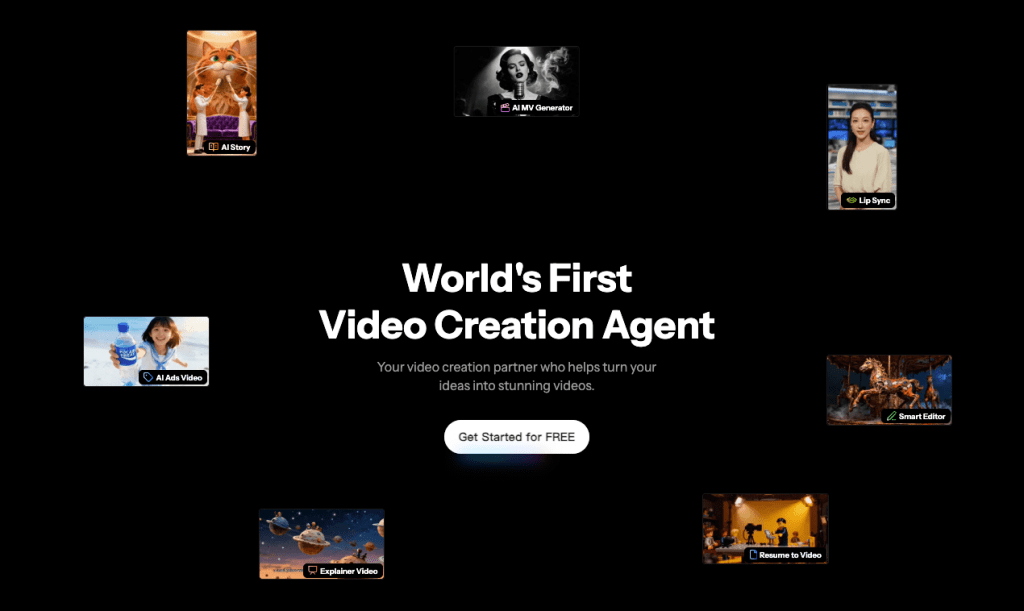
If setting up audio workflows and lip-sync chains feels like too many steps, Crepal can turn your script into a talking-head video in one shot—no multi-tool pipeline, no manual sync adjustments. Just upload your text or audio, and you’re done. Worth trying if you’re shipping testimonials or explainers on a deadline. It’s free to start.
Previous posts:






