Hi, this is Dora — and I want to tell you about the night I spent two hours exporting a video only to watch it upload as a tiny portrait window boxed inside a landscape frame. Black bars on both sides. The subject cropped at her chin. In a video I’d worked on for three days.
That was six months ago. Since then, I’ve tested vertical uploads obsessively — on Shorts, on the main feed, on mobile and desktop — and I finally have everything figured out. If you’re creating vertical content for YouTube in 2026, this is the guide I wish I’d had.
What “Vertical Video” Means on YouTube
Before we talk specs, it’s worth clarifying something: vertical video on YouTube isn’t one thing — it’s two very different things. Treating them the same is exactly where most creators go wrong.
Shorts vs Vertical Uploads in the Main Feed — Different Rules
YouTube Shorts is its own content format. Videos under 60 seconds (now up to 3 minutes with certain account settings), shot or exported in 9:16, get pushed into the Shorts shelf and Shorts feed. The algorithm treats them completely differently — more like TikTok than traditional YouTube.
Regular vertical uploads are standard YouTube videos that happen to have a vertical aspect ratio. They live in the main feed, get standard recommendations treatment, and have none of Shorts’ discovery boosts — but also none of its constraints. Think of a vertical interview, a portrait-mode vlog, or an AI-generated cinematic clip.
Both use 9:16 — but their rules, thumbnails, SEO, and behavior diverge in ways that matter a lot. We’ll cover that below.
YouTube Vertical Video Specs (2026)
Aspect Ratio (9:16), Resolution (1080×1920), Max File Size
The gold standard for vertical video in 2026 is still 1080×1920 pixels at a 9:16 aspect ratio. YouTube supports up to 4K vertical (2160×3840), but for most creators, 1080p is the sweet spot — fast to upload, high enough quality, and renders cleanly on every device.
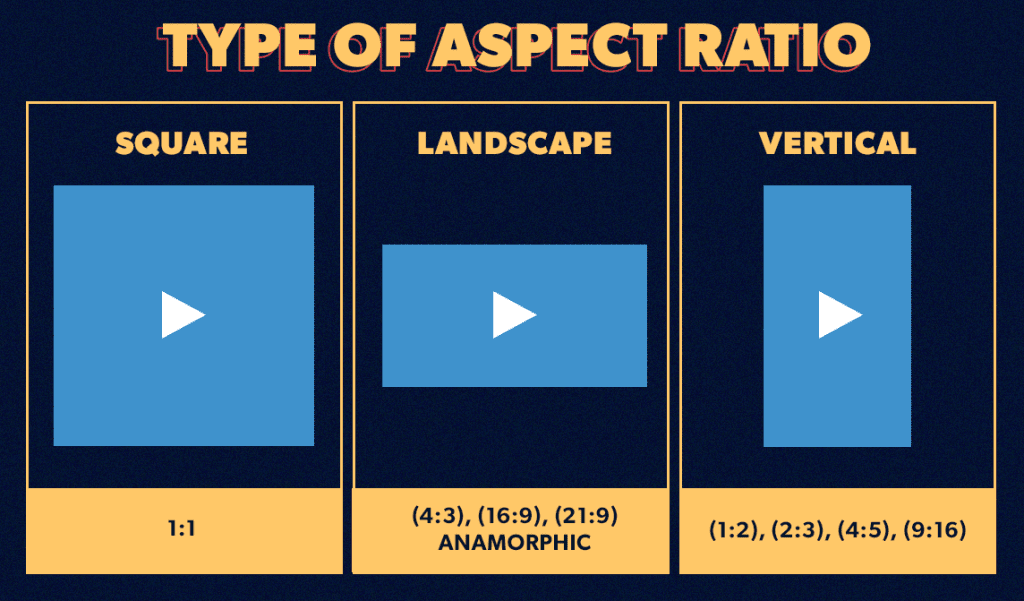
File size: YouTube accepts uploads up to 256 GB and up to 12 hours for regular video. For short, the limit is 15 minutes (though most people keep them under 60 seconds to maximize distribution).
Frame rate: Stick with 24, 30, or 60fps. I use 30fps for talking-head vertical and 60fps for anything with motion — the smoothness makes a real difference on mobile scrolling.
Supported Formats: MP4, MOV, Codec Requirements
According to YouTube’s official recommended encoding settings, the platform supports a range of formats — MP4, MOV, AVI, WMV, FLV, WebM — but in practice, MP4 with H.264 is still the most reliable codec in 2026. It encodes fast, uploads clean, and YouTube processes it without quirks.
If you’re exporting from DaVinci Resolve or going for smaller file sizes, H.265 (HEVC) works, but processing times on YouTube’s end can be longer. I’ve had some H.265 exports sit in “processing” for 30+ minutes before going HD — annoying if you’re on a deadline.
Audio: AAC at 320 kbps or stereo 48kHz. Don’t skip this — I once uploaded a vertical vlog with mono audio and got a note from a subscriber within an hour.
Duration Rules: Shorts vs Regular Vertical
| Format | Max Duration | Min Duration | Aspect Ratio |
| YouTube Shorts | 3 minutes | 1 second | 9:16 required |
| Regular vertical | 12 hours | No min | 9:16 recommended |
One important thing: if your vertical video is over 60 seconds, YouTube won’t classify it as a Short automatically. You’ll need to tag it during upload or it goes to the main feed.
How to Export Vertical Video Correctly
Export Settings by Tool (Premiere, CapCut, DaVinci, Mobile)
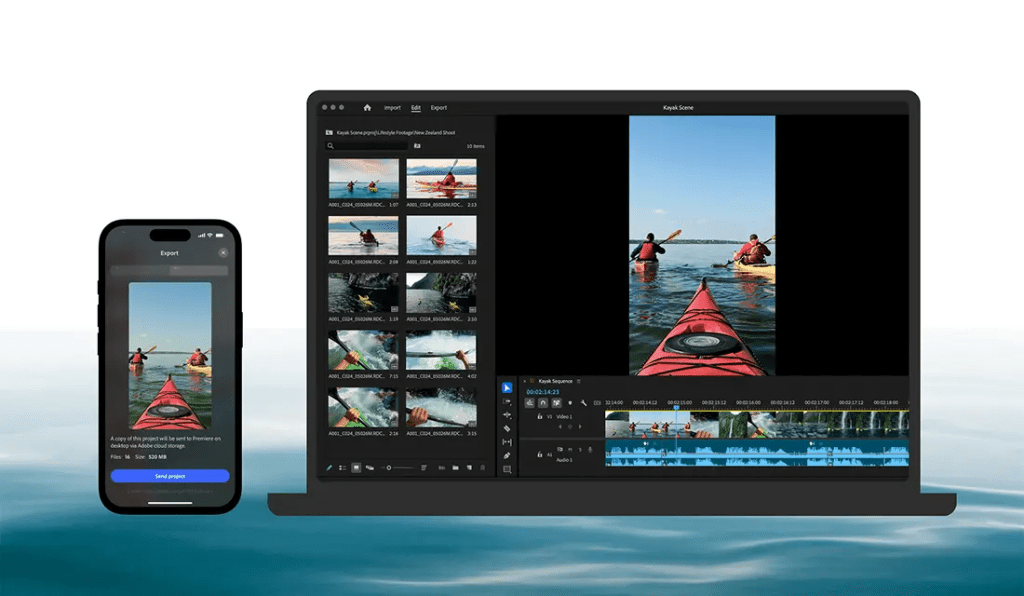
Premiere Pro: Create a new sequence → Custom → 1080×1920, 30fps. Export via Media Encoder: H.264, Match Source – High Bitrate preset. Change the frame size to 1080×1920 manually if the preset overrides it.
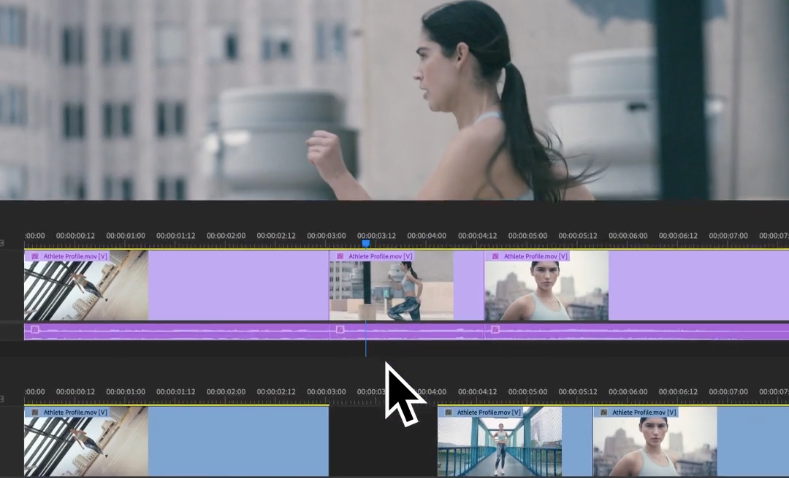
CapCut(desktop or mobile): Select the 9:16 canvas when creating your project. Export at 1080p, 30fps. CapCut auto-handles the codec. Dead simple — honestly, is my favorite tool for quick vertical edits.
DaVinci Resolve: Timeline Settings → set resolution to 1080×1920. Export via Deliver page: YouTube preset, then manually set resolution to 1080×1920. YouTube preset defaults to landscape, so this step trips people up.
Mobile (iPhone/Android): If you’re shooting natively in portrait, you’re already 9:16. Export at the highest quality your phone allows. Most 2024+ phones export at H.265 by default — worth converting to H.264 if you notice upload/processing delays.
What Happens If You Upload the Wrong Ratio
If you upload a 16:9 video to Shorts, YouTube will add black bars on the top and bottom (pillarboxing). If you upload a 9:16 video without tagging it as a Short, it displays in the main feed with black bars on the sides — which looks terrible on desktop and kills your CTR.
The algorithm also reads the specs. Wrong-ratio Shorts get deprioritized in the Shorts feed. I tested this back-to-back with identical content — the correct 9:16 version got 4x more initial impressions.
Shorts vs Main Feed Vertical: Algorithm and Thumbnail Differences
This is where the strategy really diverges.
YouTube Shorts: No custom thumbnail (YouTube auto-selects a frame). Discovery is driven by completion rate, swipe-away rate, and shares — not search. The Shorts algorithm is addictive-scroll-based, closer to TikTok’s For You logic.

Main Feed Vertical: You can upload a custom thumbnail — and you absolutely should. A strong thumbnail matters as much here as in a standard landscape video. SEO metadata (title, description, tags) is indexed the same way. These videos can rank in Google search, which Shorts generally don’t.
My rule: if the content is under 60 seconds and meant for discovery, Shorts. If it’s a tutorial, review, or AI-generated piece I want to rank long-term, main feed vertical with a custom thumbnail.
Common Vertical Video Mistakes and How to Fix Them
Black Bars on Sides / Subject Cropped at Top / Wrong Codec
Black bars on sides: Your video is 16:9 uploaded without Shorts tagging, or the canvas was never set to 9:16. Fix: re-export at 1080×1920.
Subject cropped at top: You filmed with “safe zone” headroom for landscape and didn’t adjust for vertical. On 9:16, the upper ~15% of the frame is where face/subject should sit. Leave breathing room above the head.
Wrong codec errors: If YouTube says “processing failed” or the video shows degraded quality, you’ve likely got an unsupported codec or a corrupted header. Re-export as H.264 MP4 and re-upload. 95% of the time, this fixes it.
Blurry thumbnail on Shorts: You can’t control the frame YouTube picks. If you care about this, keep your most visually punchy moment in the first 3 seconds — YouTube tends to pull from there.
How to Create Vertical AI Video Directly
If you’re creating vertical content at volume — which basically every creator needs to be — having a tool that exports at the right specs automatically isn’t a nice-to-have anymore. It’s a genuine workflow fix.
FAQ
Q: What are the correct dimensions for YouTube vertical video?
A: 1080×1920 pixels at 9:16 aspect ratio. This applies to both YouTube Shorts and regular vertical uploads in the main feed. For higher quality, 4K vertical (2160×3840) is supported but rarely necessary.
Q: What’s the difference between YouTube Shorts and a regular vertical video upload?
A: Shorts are short-form vertical videos (up to 3 minutes) that appear in the dedicated Shorts feed and shelf. Regular vertical uploads live in the main YouTube feed, support custom thumbnails, are indexed for search, and follow standard video distribution logic.
Q: Can I upload vertical video to the YouTube main feed (not Shorts)?
A: Yes, absolutely. Not every 9:16 video has to be short. Just upload normally without using the Shorts tag, add a custom thumbnail, and optimize your title and description for search. It’ll display vertically in the feed.
Q: What happens if I upload the wrong aspect ratio to YouTube?
A: YouTube will add black bars to fill the empty space — letterboxing or pillarboxing depending on the mismatch. It looks unprofessional, hurts click-through rates, and if it’s a Shorts upload, the algorithm will deprioritize it in the Shorts feed.
Previous Posts: