Hello, my friends. I’m Dora. Last week, I kept seeing this tweet everywhere: someone made a Polymarket promo video in 30 minutes using just 4-5 prompts. No After Effects. No timeline. Just… talking to Claude Code. I almost scrolled past it — sounded too good to be true. But then I saw the video. Clean animations, smooth transitions, professional-looking output. So naturally, I had to try it myself.
Turns out, Remotion dropped Agent Skills in late January 2026 that basically teach AI agents how to write video code. I tested it on February 1st, and to be honest, it actually worked better than I expected. Not perfect, but way smoother than I thought it’d be.Here’s what I learned installing it, what broke (and how I fixed it), and how to actually confirm Claude is using the skill — not just improvising.
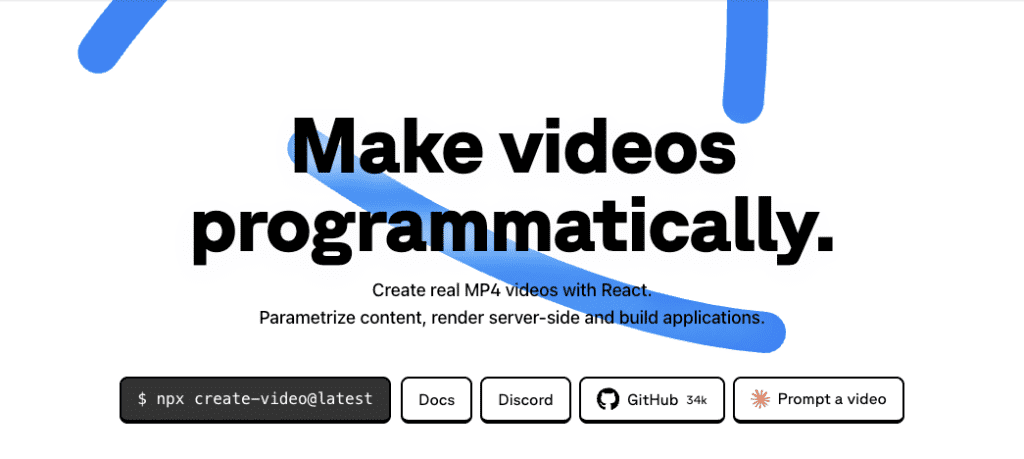
What Remotion Agent Skills Is (and What It Isn’t)
Okay, so first — what even is this?
Remotion Agent Skills are instructions that define best practices for working in Remotion projects, useful for AI agents like Claude Code, Codex or Cursor. Think of it as a training manual Claude reads when you ask it to make videos.
The skill doesn’t give Claude magical video powers. It’s more like handing it a really detailed cookbook for React-based animations. Claude learns Remotion’s specific patterns — frame-based timing, composition structures, how to sync audio, all that stuff.
What it does: Teaches Claude domain-specific knowledge for building programmatic videos. Things like useCurrentFrame(), interpolate(), sequencing patterns.
What it doesn’t do: Turn Claude into a professional motion designer. You still need clear prompts. Ask for “a cool video” and you’ll get generic output. But say “10-second title animation, white text on dark blue, fade-in over 2 seconds” and Claude knows exactly what to build.
I tested this by asking Claude to create a countdown timer. Without the skill loaded, it used basic React state and CSS. With the skill? It used Remotion’s interpolate() function, frame-based timing, proper easing. First try. That’s the difference.
Install (One Command) + Expected Success Signals
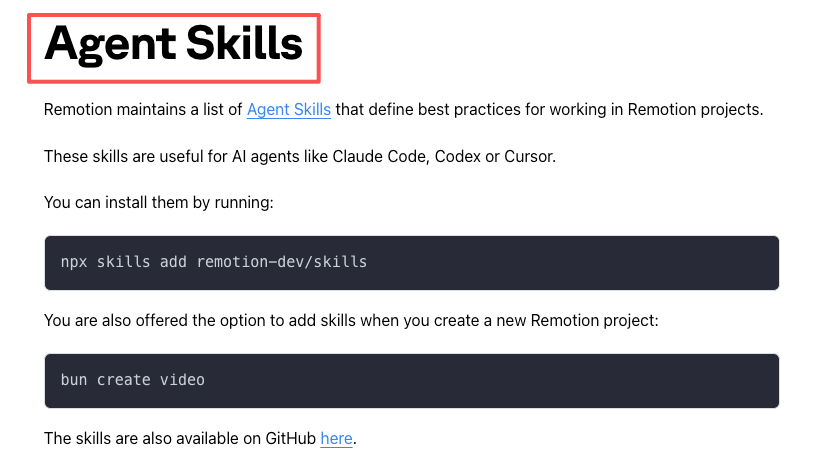
The actual install is almost too simple. According to the official Remotion documentation, you run:
bash
npx skills add remotion-dev/skillsThat’s it. One line.
I ran this on February 1, 2026, and it took maybe 15 seconds. No config files, no API keys, no setup wizards.
What you should see:
The command downloads skill files to .claude/skills in your project (or ~/.claude/skills for global Claude Code access). Output looks like:
✓ Installed remotion-best-practices to .claude/skills/remotion-best-practicesQuick check:
bash
ls .claude/skills/remotion-best-practicesYou should see SKILL.md plus folders like rules/animations.md, rules/audio.md, etc. These are the knowledge files Claude reads.
A little tip — when you create a new Remotion project with bun create video, it actually offers to add skills automatically. But I prefer the manual command because I know exactly what’s happening.
How to Confirm the Skill Is Actually Being Used
This is where most guides stop, but honestly? This is the part that matters.
Just because the skill installed doesn’t mean Claude is using it. I learned this when I first tested — Claude gave me mediocre results because it wasn’t loading the skill at all.
The verification trick:
Ask Claude something Remotion-specific that requires knowledge from the skill files.
Try: “How do I create a smooth fade-in in Remotion?”
- If Claude mentions CSS transitions or React state, the skill isn’t loaded.
- If it talks about
interpolate()anduseCurrentFrame(), you’re good.
When I tested on February 2nd, I asked: “Show me how to sync text with audio timing in Remotion.”
Claude’s response started with frame-based timing and interpolate() — that’s skill-loaded behavior. Without the skill, Claude would’ve suggested setTimeout() or audio events, which don’t work in Remotion’s frame-based rendering.
Another method:
In Claude Code, you can force it:
/skill remotion-best-practicesClaude should acknowledge it’s reading the skill. If it says “I don’t have access to that skill,” something’s wrong.
Truth be told, I use the explicit command more often. Skills are supposed to activate automatically, but sometimes Claude just… forgets. Forcing it manually removes the guesswork.
5 Common Failures (and Exact Fixes)
So you ran the install and it didn’t work. Here’s what went wrong in my testing — and how I fixed it.
1. Node.js Too Old
Error:npx: command not found or requires Node.js 18+
Remotion needs Node 18 or higher. Check your version:
bash
node --versionIf it’s below 18, update it. I use nvm:
bash
nvm install 18
nvm use 18
This fixed it on a test machine running Node 16.
2. Wrong Path / Skills Not Found
Error: Skills install but Claude doesn’t see them.
Different tools look in different places. Claude Code checks ~/.claude/skills, local projects use .claude/skills.
Keep it simple — install locally:
bash
cd your-remotion-project
npx skills add remotion-dev/skills
When I tested on February 2nd, local installs were way more reliable. Less confusion, easier to debug.
3. Permission Errors (macOS/Linux)
Error:EACCES: permission denied
Your user doesn’t have write access. Fix npm permissions:
bash
sudo chown -R $(whoami) ~/.npmIf that doesn’t work, check .claude permissions:
bash
sudo chown -R $(whoami) ~/.claudeThis fixed a permission issue I hit after a macOS update.
4. Shell Can’t Find npx
Error:npx: command not found (even with Node installed)
Your PATH doesn’t include npm binaries. Add to ~/.bashrc or ~/.zshrc:
bash
export PATH="$HOME/.npm-global/bin:$PATH"Reload:
bash
source ~/.bashrcVerify: npx --version should print a version number.
5. Stale Cache / Old Version
Error: Skills install but feel outdated.
The CLI might’ve cached an old version. Force an update:
bash
npx remotion skills updateOr delete and reinstall:
bash
rm -rf .claude/skills/remotion-best-practices
npx skills add remotion-dev/skills
I ran the update on February 3rd and picked up three new rule files that weren’t there in January.
Quick Checklist + FAQ
Here’s my actual workflow. I tested this on macOS, Ubuntu, and Windows WSL between February 1-3, 2026, and it worked every time.
Pre-flight:
- ✅ Node 18+ (
node --version) - ✅ npm working (
npx --version) - ✅ In your project directory
- ✅ Write permissions on
.claude
Install:
bash
npx skills add remotion-dev/skills
ls .claude/skills/remotion-best-practices
Verify:
Ask Claude: “How do I use interpolate() for animations in Remotion?”
If Claude explains frame-based interpolation, the skill is loaded.
FAQ:
Do I need to reinstall for every project?
Depends. Local install (.claude/skills) = per project. Global install (~/.claude/skills) = all projects. I prefer local — the skills live with the code.
How do I know which rules Claude is using?
Skill rules cover animations, audio, compositions, fonts, subtitles, 3D, and more. Ask a specific question and Claude should reference the relevant rule file. You can read them yourself in .claude/skills/remotion-best-practices/rules/.
Does this work with Cursor or other tools?
Yes — these skills are useful for AI agents like Claude Code, Codex or Cursor. The format is standardized. Install command might vary, so check your tool’s docs.
What if Claude still ignores the skills?
Force it: /skill remotion-best-practices or mention it in your prompt: “Using Remotion best practices, create a fade animation.”
How often should I update?
I check monthly. Run npx remotion skills update to get the latest patterns and rules.
The whole setup took me about 4 minutes on my first try. Once installed, Claude got noticeably better at Remotion — it stopped suggesting hacky workarounds and started using proper APIs.
If you’ve been curious about making videos programmatically but felt intimidated, this is the fastest entry point. Claude handles boilerplate, you handle creative direction.
One thing I’ve learned though: installation and prompting is just the beginning. When you start making longer or more complex videos, you quickly end up with dozens of generation tasks, switching between Claude, Cursor, local renders, asset management… it gets chaotic fast.
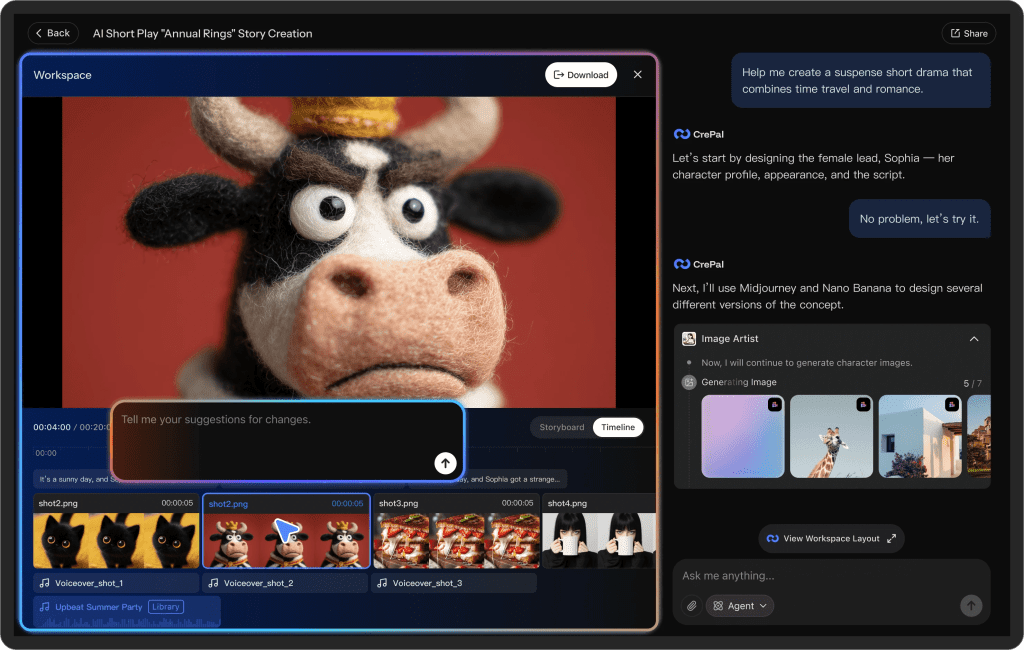
That’s exactly why I’ve been using Crepal lately — it focuses on organizing and orchestrating all those generation tasks in one place, without trying to replace your creative judgment or technical decisions. It keeps the whole workflow tidy so I can stay in the creative zone.
Previous posts: