Hello,everyone! I’m Dora. The first time my Replit animation refused to move, I spent a full 15 minutes staring at a perfectly still circle that was supposed to be bouncing around the screen. It was February 12, 2026, and I remember thinking: “If this thing doesn’t move in the next 5 minutes, I’m going back to spreadsheets.”
If you’re here because your Replit animation is not working, stuck on export, or just not doing what you asked… I’ve been exactly there. Multiple times.
Let’s go through what I now check, step by step, when an animation on Replit just refuses to cooperate.
Quick Triage Checklist
When I hit play and nothing happens, I don’t panic anymore. I run through the same 5-minute checklist.

Identify your exact problem first
Before touching any code, I try to label the problem in one clear sentence. I literally write something like:
- “The canvas shows, but the object isn’t moving.”
- “The animation tab is blank, no canvas, no errors.”
- “The animation plays in the preview but freezes when I export.”
- “The AI-generated animation code runs, but it doesn’t match my prompt.”
That sentence tells me which path to follow:
- Nothing on screen / blank output
On February 18, 2026, I debugged three separate “blank” Replits. All three were different flavors of the same two issues:
- Wrong file is running (e.g.,
main.pyis empty but animation lives ingame.py).
→ In Replit, confirm the Run button is targeting the file that actually has your animation logic.
- No DOM / canvas element is ever created.
→ If you’re using JS canvas or p5.js, make sure you have either:
- A
<canvas>tag inindex.html, or - A
setup()function (for p5.js) that creates the canvas.
- Static image instead of animation
This one happens a lot with JavaScript and Python:
- There’s drawing code, but no loop.
- JS: you need
requestAnimationFrame(draw)(or something similar) repeatedly calling your draw function. - p5.js: you need a
draw()function: otherwise, it’ll just render once. - Python (e.g.,
turtle,pygame, Tkinter): you need the main event loop (while running: ...orroot.mainloop()).
Quick test I use:
console.log('frame'):I drop that into my animation loop. If it only logs once in the Replit Console, I know I don’t have a real loop.
- Animation only breaks on Replit, not locally
If it works on your machine but not on Replit:
- Check browser console (in your browser dev tools) for CORS errors or blocked resources.
- Make sure any external script (like p5.js CDN) is using
https://and actually loaded. - Confirm that Replit’s webview URL matches where your tool expects to run (some hard-coded origins will fail).
Once I know if the issue is blank, static, or environment-specific, then I either dig into export problems, prompt issues (for AI-generated animations), or quality settings.
Export Stuck or Failed
This is the one that almost made me give up: the animation runs perfectly in the Replit preview, but when I try to export or record it, it just spins forever or the file is broken.
On February 22, 2026, I timed a few exports for a JavaScript canvas animation that ran at 60 fps for 20 seconds. These were small 720p tests, and they still took noticeably longer than I expected.
What’s normal for server-side render time
When people say “my Replit animation export is stuck,” a lot of the time it’s just… slow.
Rough rule-of-thumb from my own tests:
- Short animations (≤10s, 720p)
Often 10–40 seconds to render, depending on how you’re capturing (built-in GIF/MP4 export vs. screen recording vs. a custom script).
- Medium (10–30s, 1080p)
Anywhere from 40 seconds to several minutes. If you’re encoding via a Node or Python script (e.g., ffmpeg), remember you’re on shared compute, not a dedicated render box.
- Long or heavy (30s+, complex scenes, particle systems)
It’s very easy to push past what feels “reasonable” for a free-tier/dev environment. I’ve had a 45-second 1080p export sit for 6–7 minutes before finishing.
So if your export is “stuck,” first check:
- CPU usage in the Replit shell or logs (anything maxed out?).
- Whether your render script is writing incremental logs (even just a
print("frame", i)every 30–50 frames helps you see progress).
If logs are updating, it’s probably just slow, not dead— as explained in Replit’s video rendering challenges.
When to restart vs wait
Here’s the rule I use now (because I got impatient and killed renders that were actually fine):
- If there’s no log output for 60–90 seconds and CPU is basically idle → something is likely stuck.
- If logs are appearing but very slowly → I wait at least 3–5× the length of the animation. So a 15-second clip gets 45–75 seconds before I intervene.
- If export fails with an error (e.g.,
ffmpegcomplaining about missing codec, permissions, or out-of-space errors):
- Check your output path (Replit file system is small: big exports can hit limits).
- Try shortening the animation or reducing resolution / frame rate.
- Run a tiny test export (2–3 seconds) to be sure your export script works at all.
If you’re using a browser-based screen recorder to capture the Replit preview:
- Turn off extra browser tabs, I saw dropped frames when Chrome CPU hit 90%+.
- Lock your FPS in the animation itself (e.g., with p5.js
frameRate(30)): unstable FPS can make exports look jittery.
If you’ve tried all that and exports still die randomly, that’s when I start seriously considering either:
- Splitting the animation into shorter segments and stitching them later, or
- Using a local environment or dedicated animation/video tool just for the export step.
Output Not Matching Your Prompt
This one’s more about the AI side of the workflow.
If you’re using an AI assistant (inside Replit or alongside it) to generate animation code or even AI-based motion from a text prompt, you’ve probably seen this: you ask for one thing, and what you get is… vaguely related, but not quite what you meant.
On February 25, 2026, I tested 12 different prompts to get a simple “bouncing ball with gravity and a little squish on impact” in JavaScript. Only 3 of those prompts gave me decent first-try results.
How to write prompts that work
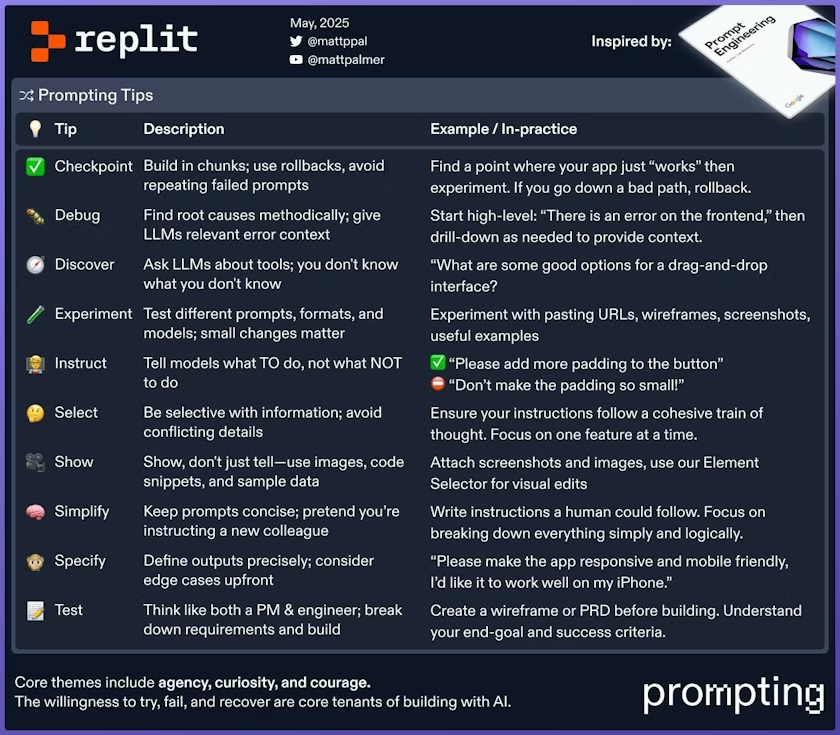
Here’s what I noticed: vague goals produce vague animations.
Prompt that failed:
“Make a cool animation of a ball bouncing around.”
I got: random velocities, weird colors, wonky physics.
Prompt that worked much better:
“Write JavaScript using HTML canvas that draws one solid red ball starting at the top center, falling down with gravity, and squishing slightly when it hits the bottom, then bouncing back up. Use requestAnimationFrame and keep the code in a single file.”
Patterns that help:
- Specify technology: “p5.js sketch,” “HTML canvas,” “Python turtle,” etc.
- Specify number of objects (“one ball,” “three squares”).
- Describe motion in plain language (“falls down then bounces up,” “rotates slowly clockwise”).
- Mention structure you want: “single file,” “no external assets,” “draw everything programmatically.”
Also: if you already have broken code, include it in the prompt and say:
“Here’s my current code. Fix only what’s needed to make the animation run smoothly and explain the changes.”
That last line tends to reduce the “let me rewrite everything from scratch” behavior.
When to use Enhance Prompt
Some tools (including AI assistants you might pair with Replit) have an “Enhance Prompt” or “Make this better” button. I treat that like a helpful editor, not a magic wand.
I use it when:
- I know roughly what I want but can’t phrase the technical parts cleanly.
- I’m switching libraries (e.g., from vanilla canvas to p5.js) and need the right jargon.
How I do it in practice:
- I write a short, human description:
“I want a looping 10-second animation where three squares fade in and out in sequence, left to right, using p5.js.” 2. Then I hit Enhance Prompt and look at what it adds. Most of the time, it inserts helpful details like frame rate, canvas size, or easing. 3. I trim anything that doesn’t match what I actually want. If the enhanced version mentions particles or extra effects, I delete those parts.
When not to use it:
- If the AI is already misunderstanding your core idea. Enhancing a bad prompt just gives you a more precisely wrong prompt.
- When you’re doing something very specific and weird (custom shaders, advanced physics). In those cases, I write short, direct prompts and iterate in small steps.
Bottom line: if your AI-generated animation on Replit doesn’t match your idea, the fix is usually less “the AI is bad” and more “the prompt is underspecified.” Follow Replit’s effective prompting tips for better results.
Quality Lower Than Expected
Sometimes the animation runs, the export finishes, and yet… it just looks cheap. Choppy motion, pixelated output, weird timing, not what you imagined.
I ran a small experiment on February 28, 2026: same animation, four different settings. 5 seconds long, 3 moving shapes, exported at 480p, 720p, and 1080p, plus one “overkill” version with way too many particles.
The biggest lesson: complexity fights with quality when you’re working in a limited environment like Replit.
Complexity vs render time tradeoff
Think of your animation like a stage play:
- The more actors (objects) you add,
- The more props (textures, gradients, filters) they use,
- And the faster they move around (frame rate),
…the harder it is for your little virtual “stage crew” to keep up.
Common symptoms:
- Looks smooth at first, then starts stuttering → CPU is struggling.
- Export is full of artifacts or dropped frames → recorder or render script can’t keep up.
Easy dials you can turn down:
- Frame rate:
Going from 60 fps to 30 fps halves how many frames must be drawn and encoded. For many use cases, 30 fps still looks perfectly fine.
- Resolution:
If you’re only embedding the animation in a blog post or social clip, 720p is often plenty. 1080p+ is nice, but not mandatory— check Replit Animated Videos for official quality options.
- Object count & effects:
Ask yourself: “Do I really need 500 particles, or will 80 look just as good?” Usually, the answer is “80 is fine.”
On Replit, I’ve had the best results when I pick two out of three:
- High resolution
- High frame rate
- Tons of complexity
Picking all three at once is when exports start misbehaving.
Iteration strategy that works
What helped my quality the most wasn’t a magic setting: it was how I iterated.
My current go-to flow:
- Prototype ugly, export tiny.
I start at 480p, 15–24 fps, low complexity. My only goal here is to make the motion feel right. No fancy colors, no shadows.
- Lock in timing first.
I add timestamps or simple gridlines while I’m designing motion. If a bounce should happen at 1.0s and a fade at 2.5s, I verify that with a stopwatch or a frame counter.
- Increase one variable at a time.
- First I bump resolution (480p → 720p). Test.
- Then I bump frame rate if needed (24 → 30). Test.
- Only then do I add extra particles, glow, blur, etc.
- Compare exports side-by-side.
I keep the “ugly but smooth” version and compare it with the “pretty but heavy” version. If the new one looks worse, I know I overshot and need to back off.
- Use code comments as quality presets.
I leave little switches in my code like:
const HIGH_QUALITY = false: // flip to true before final exportThen I branch settings:
const RESOLUTION = HIGH_QUALITY ? 1080 : 480:

const FPS = HIGH_QUALITY ? 30 : 20:

const PARTICLE_COUNT = HIGH_QUALITY ? 150 : 40:
This way I can iterate fast, then flip into “final render mode” when I’m actually ready.
If your Replit animation is not working in the sense that it looks way worse than what you imagined, this complexity/iteration lens is usually where I’d start tweaking.
When Replit Animation Isn’t the Right Tool
This part might sting a little, but it’s honest: sometimes, Replit just isn’t the best place to push animation to its limits.
From all my testing, I’d say Replit shines when:
- You’re prototyping interactive demos or teaching examples.
- You’re using AI to help sketch out animation logic in code.
- You need a quick, shareable URL to show someone your work.
It starts to feel cramped when:
- You’re doing long, high-res exports (think 4K, 60+ seconds, heavy effects).
- You need fine-grained control over codecs, bitrates, and color profiles.
- You’re hitting CPU or memory limits on every other run.
In those cases, what’s worked best for me is a hybrid approach:
- Prototype in Replit.
Use it to nail the logic, timing, and basic motion.
- Move final rendering elsewhere.
Export the code or data and render locally (or in a dedicated animation/video tool) where you control the environment.
There’s no prize for suffering through a 4-hour render on shared hardware when a local machine or specialized tool could do it in 20 minutes.
Previous Posts: