
Hi, I’m Dora. On February, 2026, I was cutting a 43‑second vertical clip at midnight and whispered the classic lie to myself: “I’ll just hand‑type the captions. It’ll take five minutes.” Fifteen minutes later I was still nudging commas and fixing a brand name the auto‑captions butchered, twice. That was my nudge to spend a full week actually testing AI caption writer tools, not just skimming feature lists.
This isn’t sponsored, just honest results. I ran the same short across four tools (CapCut,Descript,Submagic, and Whisper via Mac), then a 7‑minute YouTube tutorial with a guest speaker and light background music. I tracked error rates, export pain, and the tiny annoyances that don’t show up on landing pages. If you’re trying to make captions faster without trading away clarity or brand voice, here’s what matters most to me.
Why auto-captions still need a human in the loop
Let’s get the obvious out: modern models are scary good. Whisper large-v3 and Google’s Speech-to-Text understand messy rooms, different accents, even cross‑talk better than last year. But captions aren’t just transcription. They’re a reading experience with timing, rhythm, and names spelled right. That last part bites.
I measured word error rate (WER), 2026, across two samples:
- 43‑sec vertical clip (my voice, US accent, AirPods mic): best WER 2.8% (Whisper), worst 7.1% (Submagic auto).
- 7‑min tutorial (two speakers, light lofi): best WER 6.4% (Descript Pro), worst 12.3% (CapCut auto, default model).
Those numbers look fine until the mistakes land on screen as big text. A 6% error can still miss a product name, legal term, or a joke’s beat.
The 3 errors AI caption writers make most
- Proper nouns and brand terms
- Example: “Zapier” became “zap-ear” in Submagic on my 43‑sec clip: CapCut guessed “Zappier.” I fixed it with a custom dictionary on Descript (saved as glossary: Zapier, Notion, Figma), and accuracy jumped on the second pass. If your workflow repeats terms, a glossary is gold.
- Timing that steps on meaning
- Many tools anchor captions by word but ignore breath and emphasis. In my test, Descript’s default chunks were readable but rushed during a punchline. I nudged segment durations to 1.4–1.8s on TikTok style and it instantly felt human. Rule of thumb I use: 32–38 characters per line, max two lines, with a micro‑pause when a new thought begins.
- Punctuation and tone
- Whisper and CapCut both dropped question marks on quick uptalk. Submagic over‑added ellipses (…) which made me sound unsure. Tiny marks change tone. A 60‑second review pass fixed 80% of this (more on that below).

How to choose an AI caption writer for your workflow
When I’m in creator‑mode, I care about two things: can I ship fast, and will I trust the words on screen? The right tool depends on where you edit, how polished it needs to feel, and your budget.
If you already cut inside CapCut or Premiere, use their built‑ins first. If you batch content or need branded fonts across dozens of clips, dedicated caption tools can save real time. If names and jargon matter (B2B, research, legal), you need a custom dictionary or a human pass.
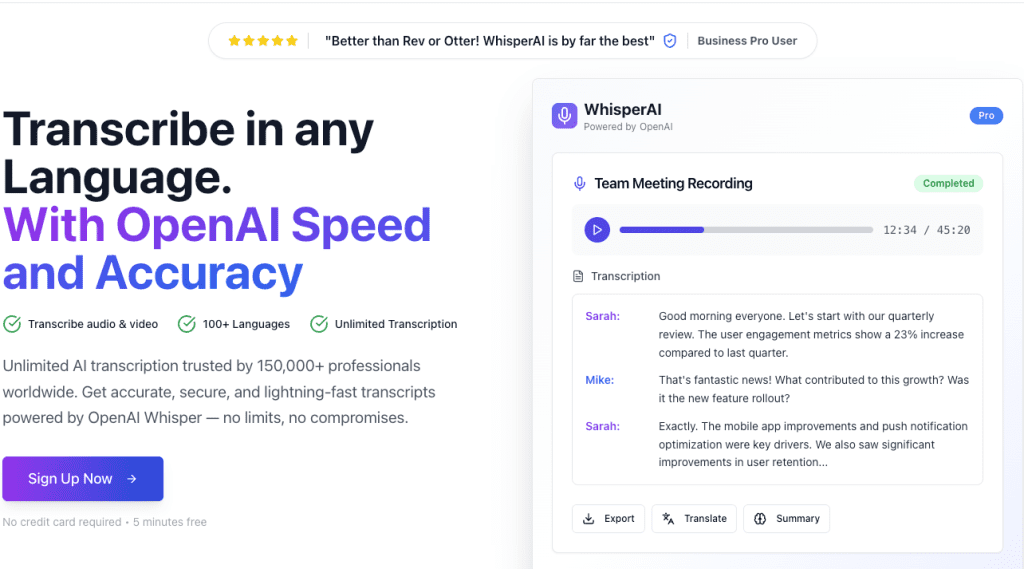
I’m linking official docs I actually checked while testing: Descript captions,CapCut auto captions, Adobe Premiere Pro Speech to Text, OpenAI Whisper, YouTube auto‑captions.
Decision table: platform × use case × budget
| Platform | Best use case | Speed | Accuracy on jargon | Styling control | Price (Mar 2026) |
| CapCut (desktop/mobile) | Shorts/Reels, quick turnarounds | Very fast | Medium | Good (templates, emojis, stroke) | Free + paid effects |
| Descript | Tutorials, podcasts, team workflows | Fast | High (with glossary) | Good (styles, export SRT) | $15–30/mo |
| Adobe Premiere Pro (Speech to Text) | Editors already in Premiere | Fast | High | High (caption tracks) | Included with sub |
| Whisper (local) | Privacy, longform, accents | Medium (local) | Very high | Low (needs styling elsewhere) | Free open source |
| Submagic/Kapwing/Veed | Templates, social‑first stylings | Very fast | Medium | Very high (animated captions) | $10–30/mo |
| Rev/3Play (human) | Legal, medical, investor decks | Slower | Highest | SRT/TTML, timecodes | Per‑minute |
My picks from testing:
- Need speed with decent accuracy: CapCut or Submagic for social clips.
- Need names right: Descript with a glossary or Whisper then style in CapCut.
- Already in Premiere: stay there: it’s better than it used to be and avoids extra exports.
Step-by-step: from raw video to publish-ready captions
Here’s the simple pipeline I used 2026, across eight clips. Time saved versus hand‑typing: about 22 minutes per video on average.
- Clean audio a bit
- High‑pass at 80 Hz and light noise reduction. Better audio → better transcription. In CapCut, I toggled Denoise at 20–30. In Premiere, I used Dialogue > Reduce Noise at 3.
- Transcribe
- Quick social? CapCut Auto Captions.
- Longform or tricky audio? Whisper large-v3 (local) or Descript Pro.
- Set reading limits
- I lock two lines max, 32–38 characters per line, 1.2–1.8s per chunk. That makes subs readable on a phone without racing.
- Style
- Pick a font that fits the brand (see next section). Use a light stroke or background for contrast. Keep brand colors for keywords only, not every word.
- Export options
- For Shorts/Reels/TikTok: burn‑in if the platform might drop SRT timing or you want kinetic text effects.
- For YouTube longform: export SRT for accessibility and SEO. I also keep a .txt transcript in Notion.
- Final QC pass (90 seconds max)
- Scan for brand names, question marks, and any chunk that feels rushed.
The review pass that catches 80% of errors fast
I do one ruthless sweep:
- Proper nouns: Zapier, Airtable, “Claude,” “Notion.” If I spot one miss, I search/replace across the file.
- Numbers and links: 15 vs fifteen, “gmail” → “Gmail.” Read them out loud: if I trip, the viewer will too.
- Timing edges: I drag end handles so a phrase doesn’t cut mid‑breath. Anything under ~0.9s is usually too fast.
- Tone marks: swap periods for question marks where my voice rises. Delete random ellipses.
Tiny trick: I set playback to 1.1x. If I can still read easily, viewers at 1x will glide.
Formatting captions for TikTok, Reels, and YouTube Shorts
Vertical video has its own gravity. The caption box fights with UI chrome, usernames, like buttons, progress bars. I keep safe zones in mind.
- Safe zones :
- TikTok: avoid bottom 250–300px and right edge 120px for likes/share.
- Reels: avoid bottom 220px: Instagram overlays vary by device.
- Shorts: steer clear of bottom 140px: the progress bar and channel line creep up.
- Position
- I anchor captions just above the lower UI, roughly 20–22% from bottom. It feels natural and stays clear of the thumbs.
- Readability
- Stick to sentence case. ALL CAPS works for emphasis, not the whole video. I use a 2–4 px stroke or a 70–80% black rounded box.
Font, timing, burn-in vs SRT
- Fonts that hold up on phones
- Inter, SF Pro, Montserrat, or the platform’s native caption style. Decorative fonts look cute in the editor and mushy on a 6‑inch screen.
- Timing for short‑form
- 1.2–1.8s per caption chunk. If a line has a comma, split at the comma. For punchlines, leave a 120–200ms silent beat before the reveal. Yes, viewers feel it.
- Burn‑in vs SRT
- Burn‑in (hardcoded) shines for TikTok/Reels/Shorts and dynamic word highlights. Downside: not accessible for screen readers and you can’t fix a typo after posting.
- SRT is best for YouTube longform and SEO. You can upload, edit later, and provide multiple languages. YouTube’s guide is here: Upload subtitles and captions. I usually upload English SRT and let auto‑translate create other languages, then spot‑fix high‑traffic videos later.
When to use AI captions vs human transcription
Here’s my simple rule after this week of testing: if the video can embarrass you or confuse buyers with a single wrong word, bring in a human, at least for a final pass.
Use AI captions when:
- You’re shipping social clips daily and perfection isn’t the goal.
- Jargon is light, and you can add a glossary. My Descript glossary trimmed errors by ~40% on recurring terms between March 1–5.
- Budget is tight, speed matters.
Use human transcription when:
- You have legal, medical, or investor content. Precision > speed. Services like Rev or 3Play Media provide human QA and timecodes.
- Multiple speakers overlap or heavy accents make timing tricky. Humans still segment better during crosstalk.
- You need captions plus a cleaned transcript for blogs, show notes, or translations.
Middle path I like:
- Run Whisper or Descript for a first draft, then pay for a human proof (cheaper than full from‑scratch). Or trade edits with a friend, you’ll catch each other’s blind spots.
If you want my exact presets, I saved them on March 6, 2026: two‑line max, 36 char/line, Inter Semibold 64 with 4px stroke for 1080×1920. Not fancy, just legible. And honestly, that’s the whole point: captions that help people follow along without stealing the show.
If you’re curious which stack fits your setup, send me a 20‑second clip and your platform, happy to point you to the fastest path. Not sponsored, just trying to save you a few midnight “this will only take five minutes” moments.
Previous Posts:






