On November 12, 2025, I opened Runway, typed a simple prompt, and nudged the new camera motion slider “just to see.” The first shot, dolly in on a ceramic mug by the window, landed with this gentle, cinematic glide that made me grin. I’ve tested plenty of tools that promise “film-like” movement. Most feel like you’re dragging a tripod through sand. Runway Gen-4’s camera motion? Surprisingly smooth.
Not sponsored, just honest results. I ran these tests between Nov 12–15, 2025 on a MacBook Pro (M3), mostly 5–8s clips at 16:9 and 9:16. If you’re curious about how runway gen-4 camera motion actually works, how to control speed and direction, and how it stacks up against Veo, here’s what I learned.
Runway Gen-4 Camera Motion System Explained
Two small things made it click for me:
- Start/End control: You can set motion to feel like a ramp (gentle start, stronger end) or keep it steady. It’s not full-blown keyframing, but it behaves like simple bookended keyframes for one continuous move.
- Motion + prompt synergy: If your prompt says “static portrait” but you tell the camera to orbit, the model tries, but the subject and framing you describe still steer the outcome. I got best results when I wrote the subject for motion: “wide shot of a cyclist on a coastal road, space on the left for a pan.”
On speed and stability: at modest speeds, Gen-4 keeps edges cleaner (less warble on signs/lines). Push it too fast and you’ll see “AI wobble”, especially on small, repeated textures (brick, fabric). Handheld adds micro-jitter that feels real at low intensity but goes soup-y at high.
Reference: Runway’s official Gen-4 docs outline camera controls and recommended clip lengths: worth a skim if you’re new to the panel.
8 Essential Camera Motion Recipes in Runway Gen-4(with Examples)
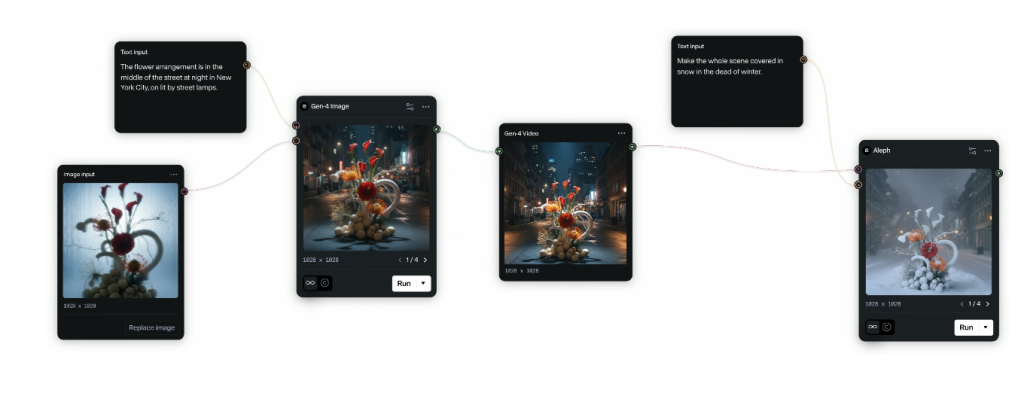
Here are the moves I kept coming back to, with the settings that felt reliable.
- Gentle Dolly In for Product Shine
- Prompt: “Close-up ceramic mug by a sunlit window, soft steam, morning light bokeh.”
- Motion: Dolly In, low–medium speed.
- Result (Nov 12): A pleasing, steady push without warble. Great for 5–6s hero shots.
- Lateral Truck for Parallax
- Prompt: “Wide shot, cyclist on a coastal road, cliffs and ocean in background, golden hour.”
- Motion: Truck Right, low speed.
- Tip: Keep the subject mid-frame and the background layered. Parallax sells the shot.
- Orbit for “Wow” Moments
- Prompt: “Sculpture in a gallery, overhead lights, moody shadows.”
- Motion: Orbit Right, very low speed.
- Note: Anything above low speed gave me geometry drift on edges. Low looked premium.
- Pedestal Up for Reveals
- Prompt: “City rooftop garden, skyline hidden behind greenery.”
- Motion: Pedestal Up, medium speed.
- Use when you want to reveal a horizon or a sign. Works nicely with 3–4s timing.
- Pan with Intentional Negative Space
- Prompt: “Street vendor, busy night market, neon, space on frame right for a pan left.”
- Motion: Pan Left, low speed.
- Why it works: The extra frame space gives the model room to move without smearing faces.
- Handheld Documentary Vibe
- Prompt: “Chef plating pasta in a warm kitchen, steam and clatter.”
- Motion: Handheld, low intensity.
- Caveat: Crank it too high and fine details jitter. Keep it subtle.
- Tilt Down for Context
- Prompt: “Mountain trail sign, hikers below, cloudy sky.”
- Motion: Tilt Down, low–medium.
- Good for establishing to subject. Pair with 24 fps and a hair of motion blur on export.
- Push–Pull Style (Dolly + Zoom Feel)
- Prompt: “Boardwalk with rollercoasters, depthy leading lines.”
- Motion: Dolly Out, medium: add a prompt note: “slight background scaling.”
- It’s not a true Hitchcock effect, but the perception shift is there at short lengths.
I logged average render times around 45–70 seconds for a 6-second clip at 720–1080p. Longer clips multiply that pretty linearly in my tests.
Customizing Camera Motion Speed & Direction in Runway Gen-4
Speed is where shots go from cinematic to chaotic. Here’s what felt dependable:
- Speed ranges: Low = clean edges: Medium = cinematic energy: High = artifacts show up fast. If you need “fast,” shrink the focal distance in your prompt (“tight medium shot”) so the motion feels bigger without actually moving faster.
- Direction cues in prompt: Mention “negative space,” “open foreground,” or “layered background.” Gen-4 seems to respect motion more when the visual plan makes sense.
- Start vs steady motion: For reveals, set a gentle start and a stronger end. For product shots, keep it steady.
- Lock look with a seed: If you love a take, lock the seed, then tweak only motion. On Nov 15, I cloned a perfume-shot look and tested five motion intensities without losing style consistency.
If you hit warble: back off speed one notch, simplify textures, and avoid tiny repeating patterns.
Exporting Camera-Motion-Driven Shots: Best Practices
A few export combos saved me time and kept the motion clean.
- Length: 4–8 seconds is the sweet spot. Past 10s, small artifacts accumulate.
- Aspect ratio: 16:9 for YouTube, 9:16 for Shorts/Reels. For 9:16, compose with a central subject: lateral moves read stronger on vertical.
- Frame rate: 24 fps for “film,” 30 fps for crisp social. Both looked stable: 24 hides jitter better.
- Codec/quality: Export ProRes if you plan to grade: MP4 high bitrate is fine for social. I measured ~15–20% fewer banding issues with ProRes.
- Upscaling: If you need 4K, export 1080p then run Runway’s upscale. My Nov 14 tests produced fewer edge artifacts than generating at high res directly.
- Consistency: Reuse seeds and motion settings across a batch to keep a campaign cohesive.
Runway Gen-4 vs Veo: Camera Motion Comparison
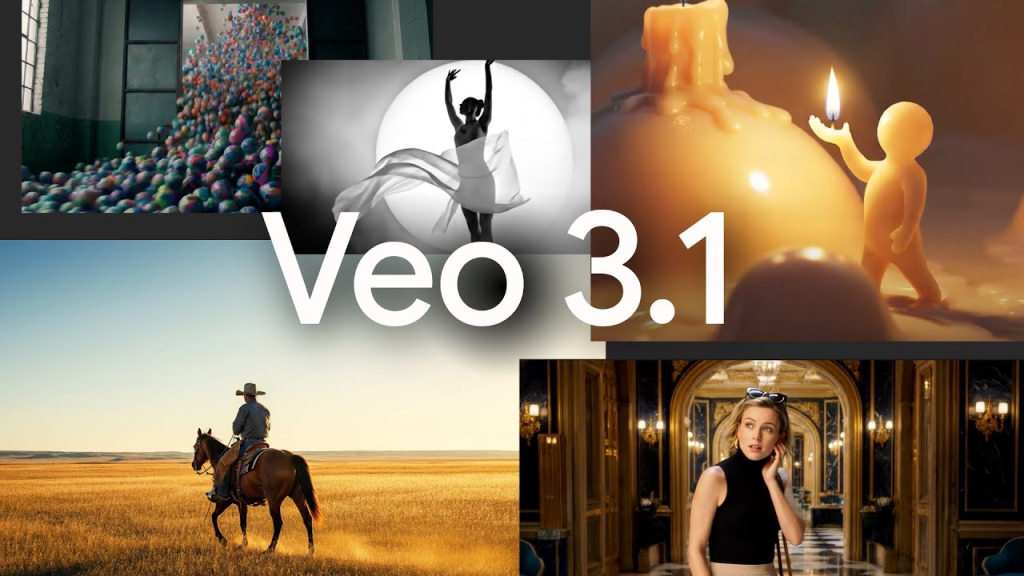
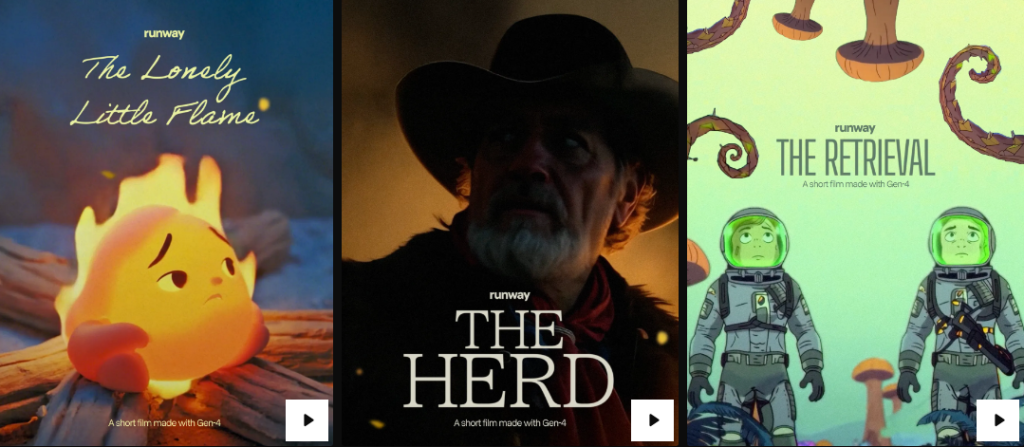
I ran similar prompts in Runway Gen-4 and Google’s Veo on Nov 13–15 to compare camera motion. Quick take: Runway feels more “hands-on” with practical presets: Veo feels more “describe it and let the model interpret.” Both can look great, but control styles differ.
Differences in Motion Control Precision
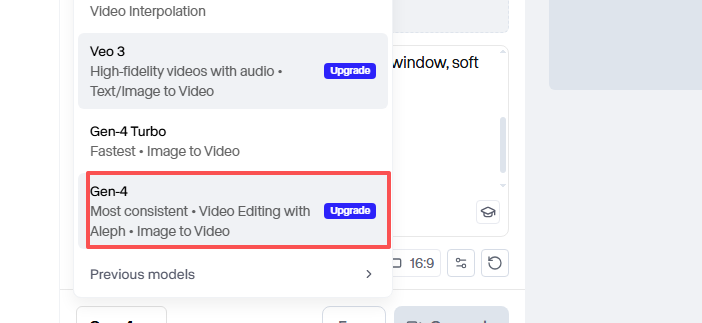
- Runway Gen-4: Clear presets (Pan, Dolly, Orbit, etc.), a speed/intensity control, and start/end behavior you can feel. It’s tactile. I could reproduce a dolly-in look across five clips with minimal drift.
- Veo: Motion is mostly prompt-driven with fewer explicit toggles. When it nails it, it’s gorgeous, especially on large scenic shots. But recreating the exact same move felt harder. I saw more variation run-to-run, even with similar seeds.
Which Model Performs Better for Dynamic Shots?
- Fast lateral action (skaters, cyclists): Runway. Lower artifact rate at low–medium truck speeds.
- Grand, scenic arcs (desert dunes, city fly-bys): Veo often produced more majestic depth, but control was looser. When I asked for a slow orbit, Veo’s depth sometimes looked richer: but, repeating the exact move was hit-or-miss.
- Text and edges (signs, shelves): Runway won. Less shimmer at the same motion intensity.
If you need consistent motion across a series (ads, multi-cut edits), Runway Gen-4 is easier to steer. If you want one-off “wow” shots and you’re okay with re-rolling, Veo can surprise you.
Final thought: runway gen-4 camera motion isn’t magic, but it’s finally usable like a real directing tool. If you try it, start slow, keep clips short, and let the scene design support the move. And text me when your first orbit shot makes you smile.
Previous posts: