
I’m Dora. A friend sent me a 4‑second clip with rich motion and said, “Wan 2.6 did this from a single image in ComfyUI.” I rolled my eyes, then opened a fresh workspace. Two hours later, I had my first wobbly clip…and a grin.
If you’ve been curious about “wan 2.6 comfyui image to video,” here’s exactly how I set it up, the workflow I built, what actually worked, and the errors I hit along the way.
Why Use ComfyUI for Wan 2.6?
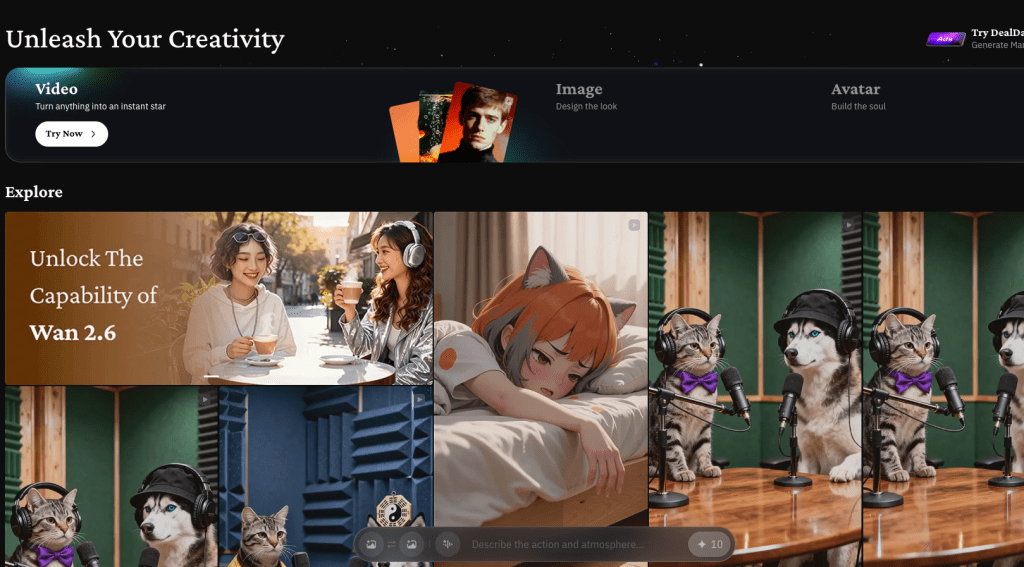
I like ComfyUI because it’s visual, modular, and debuggable. For Wan 2.6, that matters. If you’re still getting familiar with the model itself, here’s a quick overview of how Wan 2.6 image-to-video actually works before diving into the ComfyUI setup.
Image‑to‑video chains can get messy, conditioning, motion modules, frame assembly, and video encoding, and a node graph makes it obvious where things break.
A few practical perks:
- You can swap encoders (H.264/HEVC/VP9) without rewriting scripts.
- It’s easy to A/B test motion strength, seed, and frame count.
- If a node fails, you get a clear error instead of a silent crash.
If your goal is fast iteration and you like seeing the whole pipeline, ComfyUI is a sweet spot.
Environment Setup
Hardware Requirements
I tested on Windows 11 (build 23H2) and Ubuntu 22.04 with an RTX 4090 (24 GB VRAM), CUDA 12.1, Python 3.10.13. On a 4070 (12 GB), Wan 2.6 still ran, but I had to cut frames and resolution. If you’ve got 12 GB VRAM, expect 576–720p at 16–24 frames comfortably. CPU isn’t the bottleneck: VRAM is.
ComfyUI Installation
- Clone ComfyUI from the official GitHub (search “ComfyUI GitHub”, it’s the one by comfyanonymous).
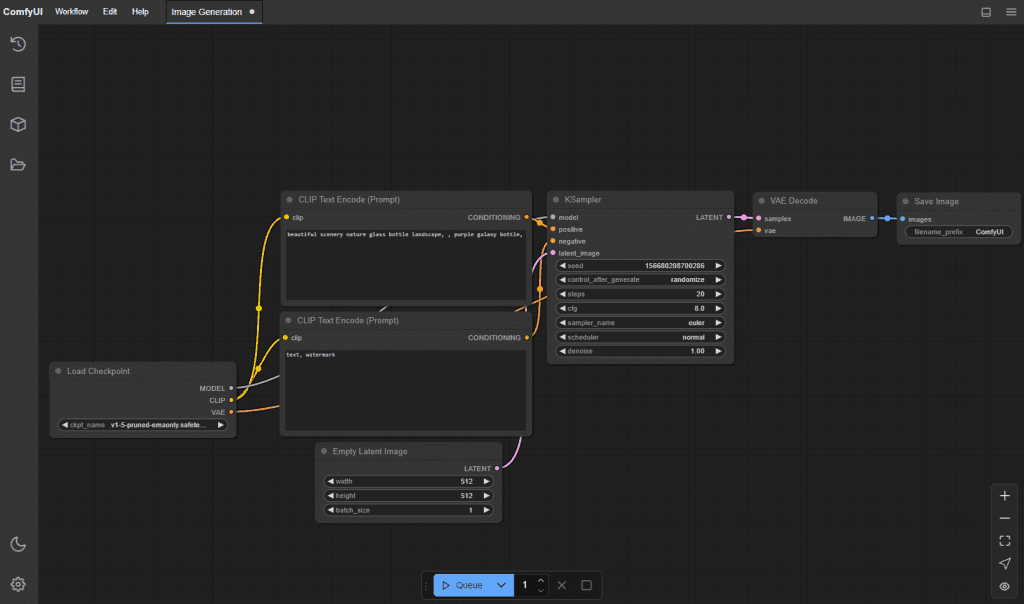
- Create a fresh venv and install requirements:
pip install -r requirements.txt. - Install ComfyUI-Manager (optional but helpful) to add nodes from inside the UI.
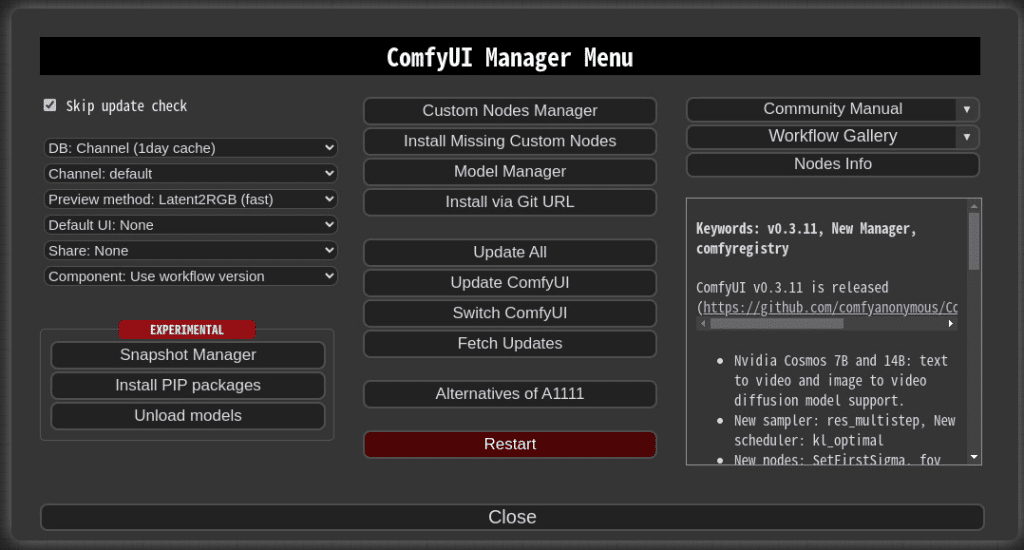
I pinned torch to a CUDA build that matches my drivers to avoid surprise downgrades.
Required Nodes: Where to Download
This is what I installed:
- ComfyUI-VideoHelperSuite (for frame assembly, frame rates, ffmpeg helpers)
- KJNodes (lots of glue nodes, samplers, math)
- Wan-specific nodes: look for a repo named along the lines of “ComfyUI-Wan” or a motion/video node pack that lists Wan 2.6 compatibility in its README. Install via Manager or clone to custom_nodes.
Always read the node repo README for exact model paths: they change.
Model Files: Placement & Path
Most repos expect models here:
- ComfyUI/models/checkpoints
- ComfyUI/models/clip
- ComfyUI/models/vae
- ComfyUI/models/transformers or a model-specific folder (often created by the custom node)
For Wan 2.6, you’ll typically need:
- The base model weights (the big file).
- Any motion/motion_prior weights used for image‑to‑video.
- Optional: a VAE if the graph expects an external one.
Paths are case‑sensitive on Linux. If the node can’t find Wan 2.6, check the exact filename and folder suggested by the node’s README.
Building the Workflow
Node-by-Node Walkthrough
Here’s the shape of what worked for me:
- Load Image: I dropped in a 1024×576 PNG. Bigger images cost VRAM.
- Preprocess: Simple resize/crop node to match target aspect.
- Text/Style Conditioning: If your Wan node supports prompts, feed a short style guide (e.g., “cinematic, soft camera drift”). Keep it tight.
- Wan 2.6 Image‑to‑Video Node: The heart. Connect image + conditioning.
- Sampler/Infer Steps: Use a conservative step count first: motion models don’t always benefit from high steps.
- Frames to Video: Assemble with VideoHelperSuite, set FPS and codec.
- Save: Write MP4 (H.264) for broad compatibility.
Key Parameters Explained
- Frames: 16–24 is a nice first pass. 32+ looks great but eats VRAM and time.
- FPS: 12–24. Lower FPS with good motion looks surprisingly natural.
- Motion Strength: Too high = weird warping: too low = static. I liked 0.6–0.8.
- Seed: Fix it for repeatability, then randomize once you’re close.
- Guidance/CFG: Nudges how strongly your prompt/style influences motion. I stayed in the 4–7 range.
- If you’re experimenting with styles, this collection of Wan 2.6 image-to-video prompts can give you some quick starting points.
Connecting Nodes: Common Mistakes
- Aspect mismatch: If your input is 4:3 and you output 16:9 without a smart crop, you’ll get stretchy ghosts.
- Missing VAE: Some graphs expect an external VAE. If colors look off, check that.
- Frame dtype: Feeding uint8 frames where float is expected (or vice versa) throws cryptic errors. Use the helper nodes to convert.
Running Your First Generation
Sample Workflow JSON
This is a tiny starter skeleton I used. You’ll need to rename nodes to match your local installs.
{
  "nodes": [
    {"type": "LoadImage", "id": "img1", "path": "input/hero.png"},
    {"type": "ImageResize", "id": "rs1", "width": 1024, "height": 576},
    {"type": "Prompt", "id": "p1", "text": "cinematic, gentle parallax, natural light"},
    {"type": "Wan26_I2V", "id": "wan1", "frames": 20, "fps": 16, "motion_strength": 0.7, "seed": 12345},
    {"type": "FramesToVideo", "id": "vid1", "codec": "h264", "bitrate": "8M", "audio": false},
    {"type": "SaveVideo", "id": "save1", "path": "outputs/wan_test.mp4"}
  ],
  "links": [
    ["img1", "image", "rs1", "image"],
    ["rs1", "image", "wan1", "image"],
    ["p1", "cond", "wan1", "cond"],
    ["wan1", "frames", "vid1", "frames"],
    ["vid1", "video", "save1", "video"]
  ]
}
Treat this as scaffolding, your actual node names and sockets may differ based on the Wan node repo you use.
Expected Output & Timing
On my 4090, 20 frames at 1024×576 with motion_strength 0.7 took ~22–30 seconds per clip. On a 4070, closer to 55–70 seconds. The motion looks like a tasteful camera drift with some learned depth. Sharp edges sometimes wobble: faces usually hold up at modest motion.
Tip: export at 16 FPS to save compute, then retime to 24 FPS in your editor if needed.
Troubleshooting Common Errors
- CUDA/Torch mismatch: If you see “Torch not compiled with CUDA,” reinstall torch with the correct CUDA wheel. Check nvidia-smi and match versions.
- Module not found (Wan node): Make sure the custom node folder is under ComfyUI/custom_nodes and you restarted ComfyUI. Some repos require a separate pip install listed in their README.
- Out of memory: Drop frames from 24 to 16, reduce resolution to 768p, or lower precision if the node supports it (fp16). Close other VRAM-hungry apps.
- ffmpeg missing: VideoHelperSuite needs ffmpeg on PATH. Install from ffmpeg.org or your package manager.
- Model not found: Verify the exact filename and path. Paths are case-sensitive on Linux and can’t include weird unicode on Windows.
- Smearing/warping: Lower motion_strength, try a different seed, or preprocess with a subtle sharpen before motion.
Minor gripe: some Wan 2.6 node forks label parameters differently. Keep the README open while you wire things up.
Advanced: Batch Processing
I queued 30 product images to test throughput. A few tips:
- Use a Batch or Iterator node to feed a folder of images into your Wan 2.6 node.
- Fix seed for consistent motion style across outputs: vary seed if you want micro‑differences.
- Set a naming template in SaveVideo like
{basename}_{seed}.mp4so you don’t overwrite clips. - If VRAM spikes, stagger batches or drop frames to 16.
For teams: keep a “golden” ComfyUI graph in version control. When someone tweaks motion_strength or FPS, save a new JSON with a date stamp so you can reproduce results.
If you monetize content, this matters: a clean, repeatable pipeline means you can turn product shots, hero images, or research diagrams into short loops for social or decks without babysitting the render.
Final thought: Wan 2.6 in ComfyUI isn’t magic, but it’s reliable once set up. Some shots still bend in odd ways, and that’s okay. When it hits, it adds that subtle, living‑breathing feel. And that’s why I keep it pinned on my taskbar. If all this feels like too much setup, Crepal skips the nodes and models—just describe your video, and it handles the rest. Free to try, no ComfyUI wrestling required.
Previous posts: