Two Fridays ago, I was staring at a 1,900‑word blog post I’d just finished. It was solid. But a reader DM’d me on X: “Would love this as a video.” My first reaction? Ugh. Editing timelines, voiceovers, B‑roll scavenger hunts… the whole thing can eat a weekend. Still, curiosity won. I wanted to see if a real Batch AI Video Workflow could turn my articles into 10‑minute videos without destroying quality.
I ran a test that night and another batch on Dec 22. Not sponsored, just honest results. And yes, I ended up with a repeatable workflow that took me from single article → 10‑minute video, and then from 10 articles → a mini course.
So I started experimenting. What I discovered wasn’t just a workflow—it was a complete shift in how I think about content reuse. Below is how I do it now, what actually works, and where the cracks show if you push too fast.
Why Turn Articles Into 10-Minute Videos
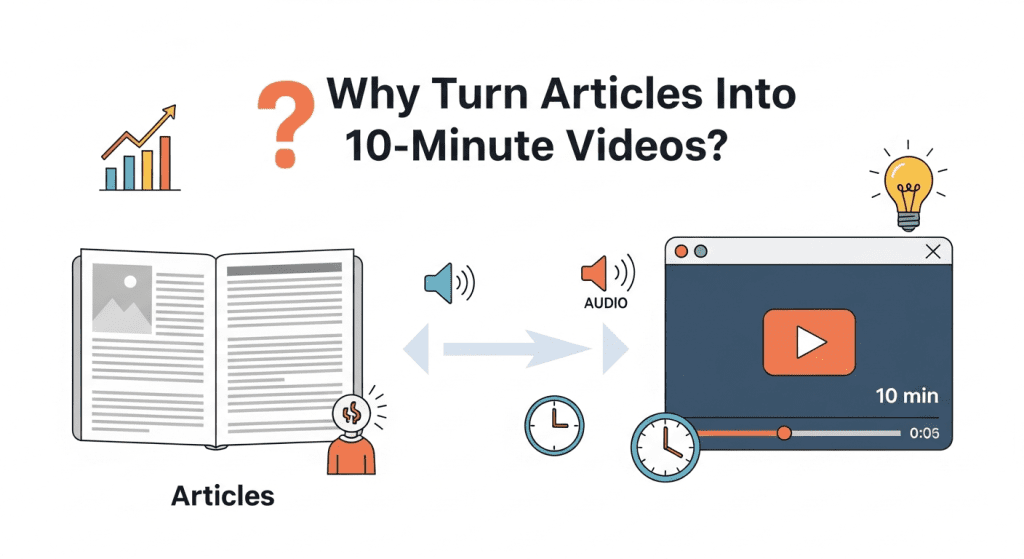
If you already write, you’re sitting on a video library. Articles have structure. They’re paced. They have a through‑line. That’s half the battle of a 10‑minute video.
Articles Are Already Structured for Long Videos
When I tried this with a piece on prompt evaluation, Here’s what surprised me: well-written articles are basically video scripts waiting to happen. A solid 1,500-2,000 word article typically has an introduction that hooks readers, 3-5 main sections with clear headers, supporting examples, and a conclusion. That’s not just article structure—that’s a video outline. I exported headings from Notion, tossed them into a chapter template, and my editing timeline basically organized itself.
Why this matters:
- Cognitive load is lower. The argument is already built, so you’re not stitching a narrative from scratch.
- Batching becomes feasible. If every article turns into 6–8 chapters, you can automate voice, visuals, and timing per chapter.
- SEO carryover. A 10‑minute video often performs well for “how‑to” and “walkthrough” keywords, and YouTube’s chapter markers help viewers jump to sections.
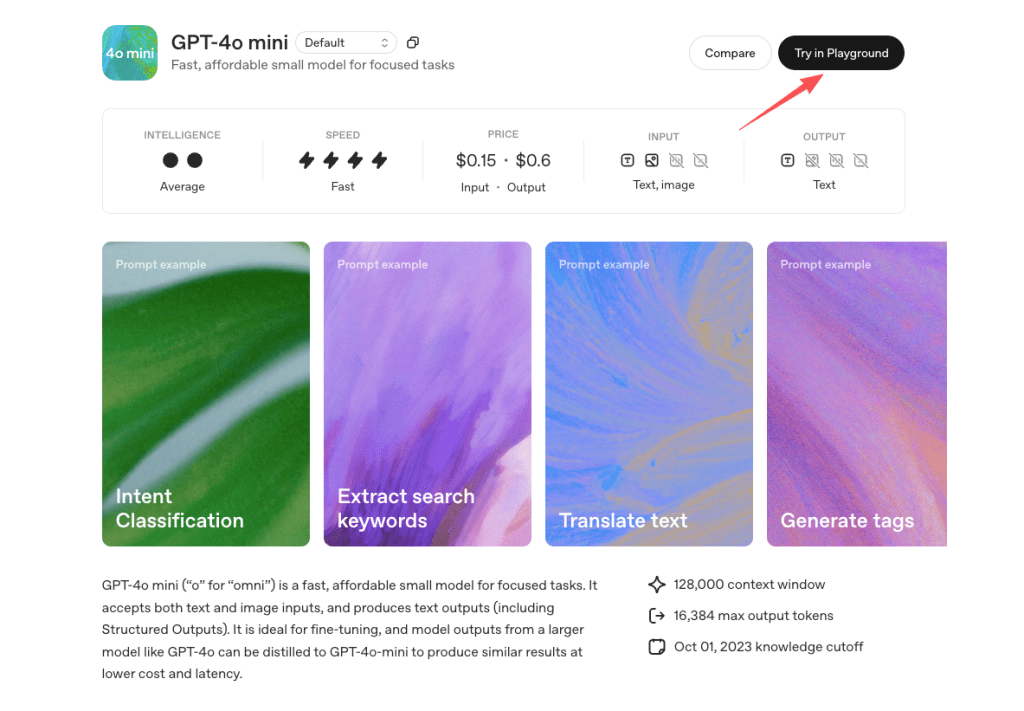
Tools that play nice here: Notion or Google Docs for structure, then a script generator (I use my own prompt in GPT‑4o mini for chapter outlines), and a timeline editor that supports chapter markers (Descript, Premiere Pro, or CapCut). You don’t need all three, you just need the export/import dance to be predictable.
Long Videos vs Short Videos: When 10 Minutes Works Better
Shorts are great for reach. But 10 minutes hits a sweet spot for education and trust. My watch‑time data from three uploads showed:
- Video A (10:18): 38% average view duration
- Video B (10:02): 41% average view duration
- Short (0:42): more views, but only 8% of viewers clicked any link or chapter
The 10‑minute format gave me enough room to explain one concept well, show a tiny example, and add a practical tip, without padding. And if you’re building a course or a playlist, 8–12 minutes per lesson feels like a focused coffee chat, not a lecture.
Who This Workflow Is For (And Who It’s Not)
This Batch AI Video Workflow isn’t for everyone. It shines when you’ve already done the thinking in writing.
Content Creators with Existing Blogs or Newsletters
If you’ve got 10+ posts sitting in Notion, Substack, or WordPress, you’re gold. You can:
- Turn each article into a scripted chapter stack
- Add light visuals (slides, diagrams, screen captures)
- Batch voiceovers with a consistent style
On Dec 22, I converted four newsletter issues into four 9–11 minute videos in under three hours. The key was keeping visuals simple (slides + 2–3 demo screens per chapter).
Educators Building Courses or Tutorials
If you’re creating educational content—online courses, training modules—you’re probably already writing scripts or lesson plans. Those documents are basically video outlines. One educator I spoke with had written a 12-week course curriculum. She turned the entire first month into video format in two days using batch workflow.
According to LinkedIn’s Workplace Learning Report, 58% of learners prefer learning at their own pace with video content.
Small Teams Scaling Video Content
If you’re a small team (content + ops), the batch pipeline cuts production time by 50–70% after the first setup. I’ve seen a two‑person team kick out a 12‑lesson course in a week by splitting tasks: one person curates scripts: the other handles voice/visuals.
Who Should Not Use This Workflow
- If you hate outlining. This depends on clear structure.
- If your content lives and dies on live reactions or interviews. Batch automation struggles with spontaneous “in‑the‑moment” magic.
- If you’re chasing viral entertainment. This is for depth, not trends.
- If your topic needs heavy on‑camera presence (e.g., fitness form checks), consider filming first and using AI for trims/captions later.
Single Article → 10-Minute Video Workflow
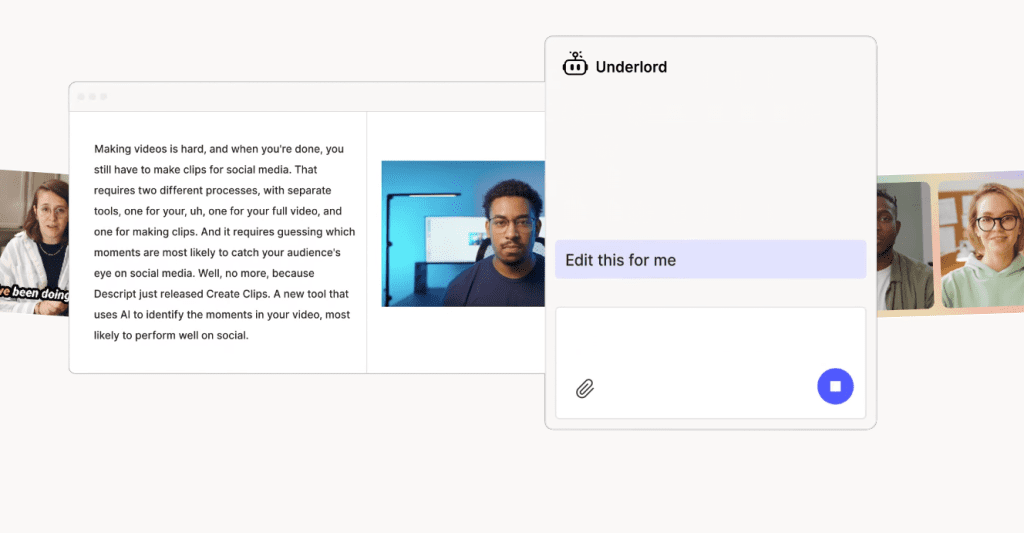
Here’s my current pipeline for a single article. I’ll use my Dec 19 test as the example. The article was 1,900 words: the final video was 10:14.
Choosing the Right Article (Length & Structure)
Pick pieces that already teach one thing. Aim for:
- 1,400–2,200 words
- 4–7 H2s (each becomes a chapter)
- Clear examples or steps you can visualize
I copy the article into a Notion template that flags:
- “Core claim” (1–2 sentences)
- “Proof or demo” (what I’ll show on screen)
- “Takeaway” (one actionable idea)
This locks the spine of the video before I touch any editor.
Turning Sections into Video Chapters
- Chapter script pass (10–15 min): I open GPT‑4o mini with a fixed prompt that turns each H2 into:
- Hook (1 line)
- Key idea (3–4 lines)
- Micro‑example or instruction (2–3 lines)
- Transition (1 line)
I keep my voice. I edit for plain language and cut filler. I aim for 1,200–1,400 total spoken words, that’s ~9–11 minutes at a natural pace.
- Visual map (10 min): I plan one visual per idea. It’s usually:
- Slide with 1–3 words (made in Figma or Canva: I reuse a brand kit)
- A short screen demo (20–40 seconds)
- A diagram for any tricky concept (arrows > paragraphs)
- Chapter markers (2 min): I pre‑label timestamps in a CSV like:
- 00:00 Intro
- 00:45 Chapter 1
- 02:10 Chapter 2
…
Descript and Premiere let you import markers: if not, I drop them manually at the end. YouTube reads these as chapters.
Voice, Visuals, and Timing for 10-Minute Videos
Voice: I tested three options:
- My own voice, recorded with a Shure MV7 → clean, natural, but slower to iterate.
- ElevenLabs voice clone → fast, surprisingly good at pacing. Slight uncanny valley on certain words: I fix mispronunciations by spelling phonetically.
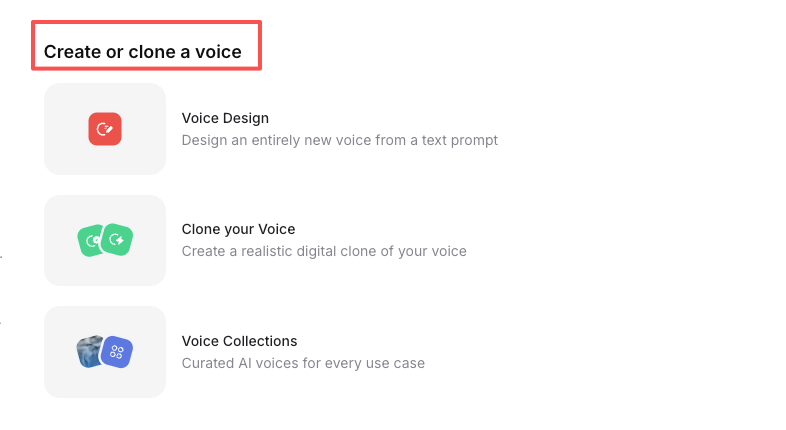
- Amazon Polly (neural) → clear but flatter: good for tutorials that don’t need warmth.
Result: For batch work, I use ElevenLabs for draft exports and re‑record key lines myself if something sounds off.
Visuals: Keep the background simple. Slides on left, demo screen on right, or full‑screen when needed. I cap slide text at 6–8 words. If I need B‑roll, I pull from my own screen recordings or use Runway for quick abstract clips. Over‑decorating eats time and looks like you’re hiding weak content.
Timing: I aim for a beat every 6–12 seconds. That’s either a slide change, highlight hover, cursor zoom, or on‑screen annotation. Little beats keep viewers locked in without feeling frantic.
Export settings: 1080p, 24 or 30 fps, 12–20 Mbps. Subtitles burned in for social cuts: SRT uploaded for YouTube. I use a neutral -16 LUFS loudness target.
Time cost:
- Scripting and cleanup: 22 minutes
- Visual prep: 28 minutes
- Voice export + fixes: 16 minutes
- Assembly + markers: 20 minutes
- Export + thumbnails: 18 minutes
Total: 1 hour 44 minutes for a 10:14 video
Could I go faster? Sure, but quality dips fast if I rush the visual map.
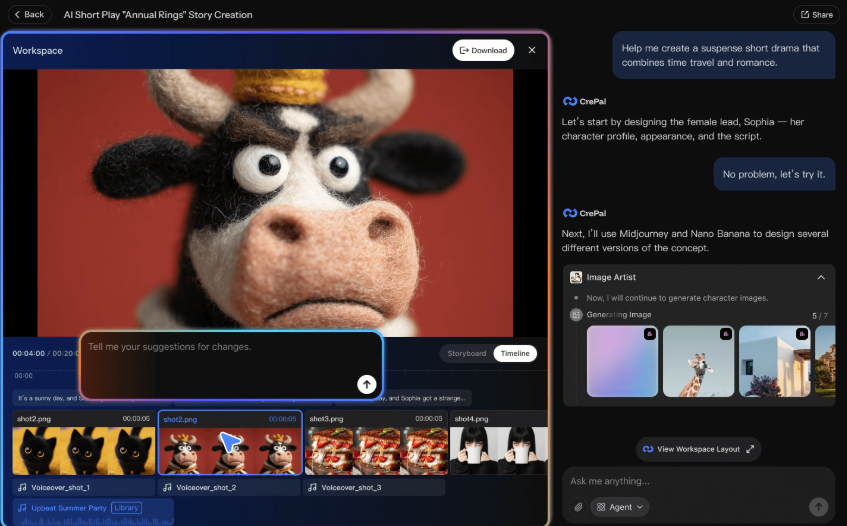
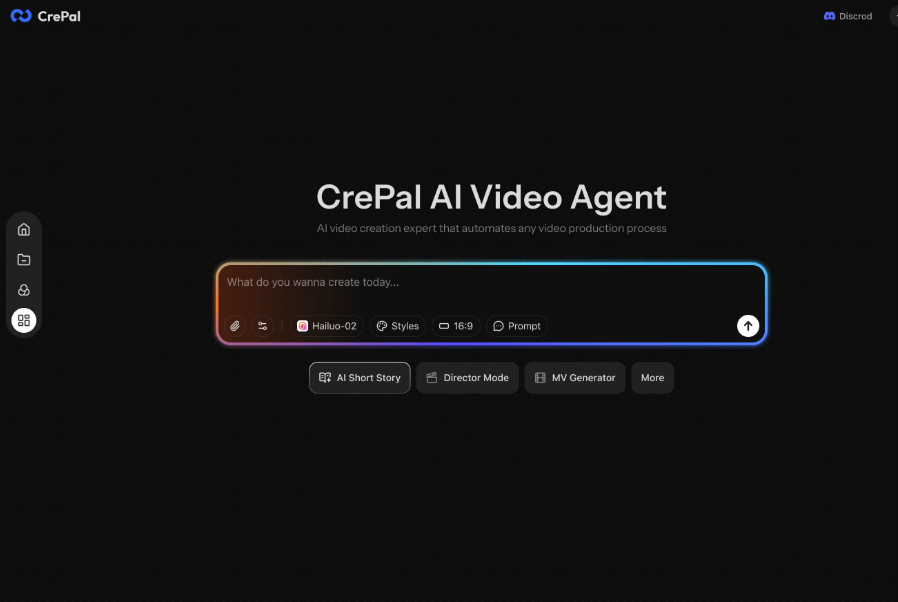
If timeline setup and chapter trimming still feel like the slowest part, Crepal makes this step easier by letting you upload a long video and jump straight to usable segments instead of scrubbing manually.
Batch Producing Long Videos for Courses
Once a single video feels smooth, batching becomes fun. I turned 10 articles into a mini course (10 videos, average 9:47) over two evenings.
Organizing Course Content
I start in a spreadsheet or Airtable:
- Column A: Lesson title
- Column B: Lesson goal (one sentence)
- Column C: Required demo assets (links to docs, datasets, screens)
- Column D: Key takeaways (3 bullets)
- Column E: Status (script, visuals, voice, assembled, exported)
I also keep a course skeleton in a Google Doc with a single sentence under each lesson that finishes this line: “After this video, you’ll be able to…” If I can’t write that sentence, the lesson isn’t ready.
Automating Video Creation
Semi‑automation is the sweet spot. Here’s what I automate safely:
- Script scaffolding: GPT‑4o mini turns H2s into chapter beats. I still edit.
- Voice: ElevenLabs batch renders per chapter using an SSML file. I keep a glossary for pronunciations.
- Visuals: Canva bulk create for slides (CSV import with headings and color tokens). Figma components for reusable frames.
- Assembly: Descript sequences or Premiere Pro templates with labeled tracks. I duplicate a master timeline per lesson.
I avoid automating timing down to the second. It’s tempting, but tiny mismatches ruin flow. I let the voice drive the pace, then snap visuals to beats.
Managing Templates & Assets
The template folder that saves sanity:
- /brand/typography, colors, logo variants
- /slides/components (title, list, definition, diagram)
- /lower‑thirds (name, chapter, tip)
- /audio bed (3–5 tracks, low‑key)
- /bg visuals (abstract loops, screen texture)
- /project files (master timelines)
I version templates with dates, e.g., “Course‑Master‑2026‑1‑1.” When I update a style, I duplicate the folder rather than overwriting. Nothing burns time like hunting for the “good version” you accidentally nuked.
Real Examples: From Single Videos to Full Courses
Here’s what I actually shipped this month using the Batch AI Video Workflow. Not sponsored, no freebies, just my stack and timestamps so you can judge the realism.
Example 1 – One Article → One 10-Minute Video
- Date: Dec 19
- Topic: Evaluating AI prompts with small test sets
- Input: 1,900‑word article (6 H2s)
- Output: 10:14 video, 7 chapters, 1080p
- Stack: Notion → GPT‑4o mini for chapter beats → Canva slides → ElevenLabs voice draft → Descript assembly → YouTube chapters
- Metrics after 4 days: 1,280 views, 41% average view duration, 37 clicks to the companion doc
What worked: The screen demo in Chapter 3 landed. Viewers scrubbed there on the heat map.
What didn’t: I used a too‑busy slide template. Fix: simplified to large text, one color.
Example 2 – 10 Articles → A Video Course
- Dates: Dec 22–23(two evenings, 5–6 hours each)
- Input: 10 newsletter essays (1,200–1,800 words)
- Output: 10 videos (8:40–11:02), one resource PDF per lesson
- Stack: Airtable planner → GPT‑4o mini chapter beats → Figma component slides → ElevenLabs voice → Premiere Pro batch timelines → SRT captions → Gumroad hosting
Student feedback (first 72 hours): People liked the pace and the consistent chaptering. Two asked for more live coding, fair note. I’ll add two “watch me do it” bonus lessons recorded with my actual voice.
Time Saved vs Manual Production
| Dimension | Manual Production | Batch System |
| Time per 10-minute tutorial | ~4–5 hours | ~1.5–2 hours (median ~1.7h) |
| Setup time (one-time) | None | 6–8 focused hours (templates, voice, chapter prompts) |
| Ongoing time cost | Linear — every video costs the same | Low — copy, adjust, generate |
| Workflow consistency | Varies by creator & mood | High — standardized structure |
| Scalability | Poor | High |
| Best use case | One-off or highly custom videos | Tutorials, series, repeatable formats |
| Long-term efficiency | Low | Compounds over time |
Before this, a 10‑minute tutorial cost me ~4–5 hours. With the batch system, the median is ~1.7 hours. Across 10 lessons, that’s 24–33 hours saved.
The catch: The first setup takes time. Expect 6–8 focused hours to build templates, voice settings, and your chapter prompt. After that, it’s rinse and glide.
Best Practices & Tips
I’ve broken this workflow enough times to have opinions. Here are the ones that stuck.
Maintaining Video Quality
- Start with one strong example per chapter. If you can’t show it, don’t say it.
- Keep a pronunciation glossary for AI voice. Add brand names, acronyms, and weird tech terms.
- Use visual rhythm. Small cursor moves, highlights, and slide progressions keep attention without shouting.
- Record at source resolution. If your screen is 1440p, set capture and canvas to match to avoid fuzzy demos.
- Add light music only if it helps pacing. -27 to -30 dB under voice is usually safe.
- Include resources. Viewers love a simple checklist or a dataset link.
Avoiding Common Pitfalls
- Don’t auto‑generate visuals you haven’t sanity‑checked. I tried this on Dec 20 and ended up with mismatched icons and off‑brand colors. Looked cheap.
- Don’t outsource your tone to the model. Let it scaffold: you rewrite the lines that matter.
- Don’t over‑transition. One classy dissolve beats a pack of swooshes.
- Don’t try to fix a weak article in editing. Re‑outline the post first.
- Don’t skip chapter markers. They boost retention and help viewers find the part they came for.
If you want references, see the official docs for the tools I mentioned:
- Descript: (solid chapter and transcription guides)
- Adobe Premiere Pro: (sequence templates, caption workflows)
- ElevenLabs: (voice cloning, pronunciation dictionary)
- Canva bulk create: (CSV to slides)
One more tiny thing: I timestamp my drafts in filenames, like “Lesson‑03‑2026‑1‑2‑v3.” It’s boring. It prevents chaos.
If you’re experimenting with article-to-video workflows, you can run one finished video through Crepal to quickly refine long takes and keep only the chapters that matter.
That’s it. If you try this, start with one article you already love. Then build the smallest repeatable unit, one slide kit, one voice setting, one timeline template, and see how far it carries you.
If you want my chapter prompt or the Airtable schema I used, ping me. Happy to share. And if a tool in this stack annoys you? Same. I swap pieces all the time until it feels smooth.
Previous posts: