
Hey, I’m Dora. I was working on a brand video last Tuesday — client sent over their custom font files, I loaded them the “normal” way I’d use in any React app, previewed in Studio, everything looked perfect. Hit render, downloaded the MP4, and… all the text was in Arial.
Three hours later, I finally figured out why. Remotion’s rendering process doesn’t work like regular browser rendering. Fonts that load fine in preview can completely disappear during the actual render if you don’t load them correctly.
I documented the workflows that actually survive rendering — both for local custom fonts and Google Fonts.

Why Fonts Break (SSR, Bundling, Caching)
Before diving into solutions, here’s why fonts break in Remotion when they work fine in regular React apps.
The rendering process:
Remotion Studio uses your browser’s normal rendering — fonts load from cache, CDN, local files like any webpage.
But when rendering video, Remotion uses headless Chrome (Puppeteer-based). This headless browser:
- Starts with zero cache
- Loads each frame independently
- Has strict timing requirements
- Can’t rely on external network requests completing in time
Three failure modes:
- Race conditions: Google Font CSS
@importmight not finish downloading before frames render. You get Arial in the final video. - Missing bundled files: Relative paths like
../fonts/custom.woff2might not get included in the build. Font file just isn’t there. - SSR/hydration issues: Fonts loaded with client-side-only APIs (like
useEffectwithoutdelayRender) won’t be available during frame generation.
I hit all three on different projects in February. First time, I thought it was a Remotion bug. Nope — just misunderstanding headless rendering.
While, the moment the font changed to Arial, actually half of the problem had been solved. The real effort was spent on clarifying why it failed, which approaches were false, and which ones were reliable.
What we did in Crepal was to systematically document these “issues that only surface during the rendering stage”, so that they won’t steal three hours of your time again next time.

Local Font Loading That Survives Rendering
For custom fonts, use the @remotion/fonts package.
Step 1: Install
bash
npm install @remotion/fontsStep 2: Put fonts in public/
Critical — fonts must be in public/:
public/
└── fonts/
    ├── CustomFont-Regular.woff2
    ├── CustomFont-Bold.woff2
    └── CustomFont-Italic.woff2
Step 3: Load fonts
According to the font loading guide:
javascript
import { loadFont } from '@remotion/fonts';
import { staticFile } from 'remotion';

loadFont({
  family: 'CustomFont',
  url: staticFile('fonts/CustomFont-Regular.woff2'),
  weight: '400',
});

loadFont({
  family: 'CustomFont',
  url: staticFile('fonts/CustomFont-Bold.woff2'),
  weight: '700',
});
Use staticFile() — not relative imports.
Step 4: Use the font
javascript
<div style={{ fontFamily: 'CustomFont', fontWeight: 700 }}>
  Text in your custom font
</div>
Why this works:
loadFont() uses delayRender() internally. Remotion won’t render frames until fonts are loaded.
I tested this Feb 6th with a client’s branded typeface. Three weights, 2-minute video — every frame had the correct font.
Font Fallback Strategy (Multi-Language Subtitles)
If you’re rendering videos with multi-language subtitles (e.g., English + Japanese + Arabic), you need a fallback strategy. No single font supports every Unicode range.
The problem:
Your custom English font might not have Japanese characters. If you specify fontFamily: 'CustomFont' and try to render Japanese text, you’ll get those ugly � replacement characters or blank boxes.
Solution: Font stacking with Unicode ranges
javascript
// Load English font
loadFont({
  family: 'CustomFont',
  url: staticFile('fonts/CustomFont-Regular.woff2'),
  weight: '400',
  unicodeRange: 'U+0000-00FF, U+0131, U+0152-0153', // Latin characters
});

// Load Japanese font for CJK characters
loadFont({
  family: 'NotoSansCJK',
  url: staticFile('fonts/NotoSansCJKjp-Regular.otf'),
  weight: '400',
  unicodeRange: 'U+3000-9FFF, U+FF00-FFEF', // Japanese/CJK range
});

// Load Arabic font
loadFont({
  family: 'NotoSansArabic',
  url: staticFile('fonts/NotoSansArabic-Regular.ttf'),
  weight: '400',
  unicodeRange: 'U+0600-06FF, U+0750-077F', // Arabic range
});
Then use font stacking in CSS:
javascript
<div style={{
  fontFamily: '"CustomFont", "NotoSansCJK", "NotoSansArabic", sans-serif',
}}>
  {subtitleText}
</div>
The browser will use:
- CustomFont for Latin characters
- NotoSansCJK for Japanese/Chinese/Korean
- NotoSansArabic for Arabic text
- System sans-serif as final fallback
Unicode range reference:
- Latin (English, Spanish, French):
U+0000-00FF, U+0100-024F - Cyrillic (Russian):
U+0400-04FF - CJK (Chinese, Japanese, Korean):
U+3000-9FFF, U+FF00-FFEF - Arabic:
U+0600-06FF - Hebrew:
U+0590-05FF - Thai:
U+0E00-0E7F
I tested this with English + Japanese subtitles on February 7th. English used a custom brand font, Japanese used Noto Sans CJK. Rendered perfectly — no character replacement issues.
Tip: Use Noto fonts for fallback coverage. They’re designed specifically for comprehensive language support.
Google Fonts with Remotion Packages (Safe Workflow)
For Google Fonts, use the @remotion/google-fonts package.
Why not CSS imports?
You can import CSS:
css
@import url('https://fonts.googleapis.com/css2?family=Roboto');According to the fonts docs, from v2.2+, Remotion waits for fonts automatically.
But issues exist:
- Network dependency (slow CDN = slow renders)
- No type safety
- Harder to manage variants
Better: Use @remotion/google-fonts
Install:
bash
npm install @remotion/google-fontsLoad and use:
javascript
import { loadFont } from '@remotion/google-fonts/Montserrat';

const { fontFamily } = loadFont();

<div style={{ fontFamily }}>Text in Montserrat</div>
Load specific weights:
javascript
loadFont('normal', { weights: ['400', '700'] });
loadFont('italic', { weights: ['400', '700'] });
Type-safe — autocomplete for weights and styles.
Why better:
- Type safety with autocomplete
- Optimized loading (only variants you use)
- Subset support (latin, cyrillic, etc.)
- Fonts bundled (no CDN calls during render)
I switched from CSS to @remotion/google-fonts on Feb 6th. Render time dropped ~15% — fonts bundled instead of fetched.
Multiple fonts:
javascript
import { loadFont as loadMontserrat } from '@remotion/google-fonts/Montserrat';
import { loadFont as loadRoboto } from '@remotion/google-fonts/Roboto';

const m = loadMontserrat();
const r = loadRoboto();

<h1 style={{ fontFamily: m.fontFamily }}>Heading</h1>
<p style={{ fontFamily: r.fontFamily }}>Body</p>
Subset optimization:
javascript
loadFont('normal', {
  weights: ['400', '700'],
  subsets: ['latin'], // Skip cyrillic, greek, etc.
});
Reduces file size, faster loading.
FAQ
Why does my font work in Studio but not in the final render?
Remotion Studio uses your browser’s normal rendering, which has cached fonts and access to your local system fonts. Renders use a fresh headless Chrome instance with no cache. Use @remotion/fonts or @remotion/google-fonts with loadFont() to ensure fonts are explicitly loaded before rendering starts.
Can I use system fonts (like Arial, Helvetica)?
Yes, but be careful. System fonts available on macOS might not be available in the headless Chrome instance (especially on Linux render servers). Stick to web-safe fonts or bundle your own for consistency.
What font formats does Remotion support?
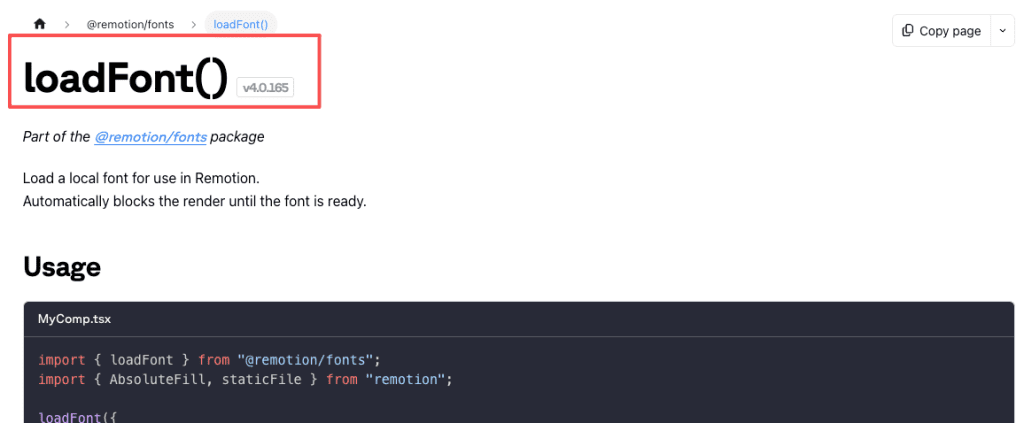
WOFF2, WOFF, TTF, OTF. According to the loadFont() API docs, WOFF2 is recommended — smallest file size, best compression.
How do I handle font licensing for commercial projects?
Check the font’s license. Google Fonts are all open-source (SIL, Apache, etc.) — free for commercial use. Custom fonts might have licensing restrictions on video usage. When in doubt, contact the font creator.
Can I use variable fonts (fonts with adjustable weight/width)?
Yes. Load the variable font file, then use CSS properties like font-variation-settings:
javascript
loadFont({
  family: 'InterVariable',
  url: staticFile('fonts/Inter-Variable.woff2'),
});

// Use with variation
<div style={{
  fontFamily: 'InterVariable',
  fontVariationSettings: '"wght" 650', // Custom weight
}}>
  Text
</div>
Variable fonts reduce the number of font files you need (one file for all weights).
Why is my render slow with lots of fonts?
Each loadFont() call adds to initial load time. Only load the fonts and weights you actually use. For multi-language projects, use Unicode ranges to avoid loading entire font families unnecessarily.
What happens if a font fails to load?
The browser falls back to the next font in your fontFamily stack. Always specify fallbacks:
javascript
fontFamily: '"CustomFont", "Helvetica Neue", Arial, sans-serif'If all fail, the browser uses the system default.
The biggest lesson from testing fonts in February: never trust preview-only results. Always do a 10-second test render before committing to a full render.
For local fonts, @remotion/fonts with staticFile() is bulletproof. For Google Fonts, @remotion/google-fonts gives you type safety and faster renders. Both methods use delayRender() internally, so fonts are guaranteed to load before frame generation starts.
One more tip: if you’re switching between local development and cloud rendering (like Remotion Lambda), keep all fonts in public/ and use staticFile() consistently. This avoids path issues across different environments.
Previous posts: