Editor’s & Video Systems Note:
Transparency & Ground Truth Disclosure: This review evaluates InVideo’s current script-to-video pipeline, conversational Agent Two workflows, and browser-based timeline editor (invideo Editor) from the perspective of a creator or small team building commercial and narrative drafts. It focuses specifically on what happens after an initial script is turned into a draft—examining script control, shot-level revisions, media sourcing, credit consumption, and export boundaries. Pricing, credit allocations, model tiers, and licensing terms reflect official InVideo documentation as of November 2026. Licensing summaries are provided for general orientation only, do not constitute legal advice, and must be verified against InVideo’s current Terms of Service before commercial release.
Source Verification & Ground Truth:
InVideo Agent Two & Script-to-Video Documentation: Verified against official product guides (InVideo Script-to-Video Docs and InVideo AI Filmmaking Overview). Confirmed workflows show conversational script breakdown via Agent Two, character/location locking (“production bible” memory), and routing across third-party generative models (such as Seedance, Kling, Veo, and Runway Aleph).
invideo Editor & Timeline Architecture: Verified against official product announcements (Introducing invideo Editor) and support centers (InVideo Help Center). Confirmed features include browser-based multitrack timeline editing, multiplayer seats, and optional external agent connections via MCP/CLI.
Pricing, Credits & Commercial Licensing: Verified via InVideo Pricing and InVideo Commercial Use Policy. Confirmed tier structures (Starter, Plus, Max), per-generation credit billing, iStock monthly allowances, watermark behavior on stock previews, and third-party rights disclaimers.
CrePal Video Workspace: Documented at CrePal Features and our pre-production guides (Photo-to-Video AI Storyboarding and InVideo Alternatives).
Turning a written script into a rough video cut used to take days of manual stock searching, voiceover recording, and timeline assembly. Platforms like InVideo promise to compress that entire cycle into a few minutes.
By late 2026, InVideo has evolved from a simple template maker into a two-part production suite: Agent Two (a conversational AI assistant that plans scenes, locks character sheets, and generates shots) paired with invideo Editor (a browser-based multitrack timeline where humans and AI agents refine the cut).
For creators, performance marketers, and small production teams, the real question is not whether InVideo can generate a first draft. The real question is what happens after that first draft appears on screen. When a client asks to change one line of dialogue, swap a product shot, or export clean footage for external finishing, how much control do you actually have?
This InVideo review examines the exact workflow from script input to timeline revision, highlighting where the platform saves hours and where credit, asset, and export limits require careful planning.
What Can InVideo Produce From a Script?
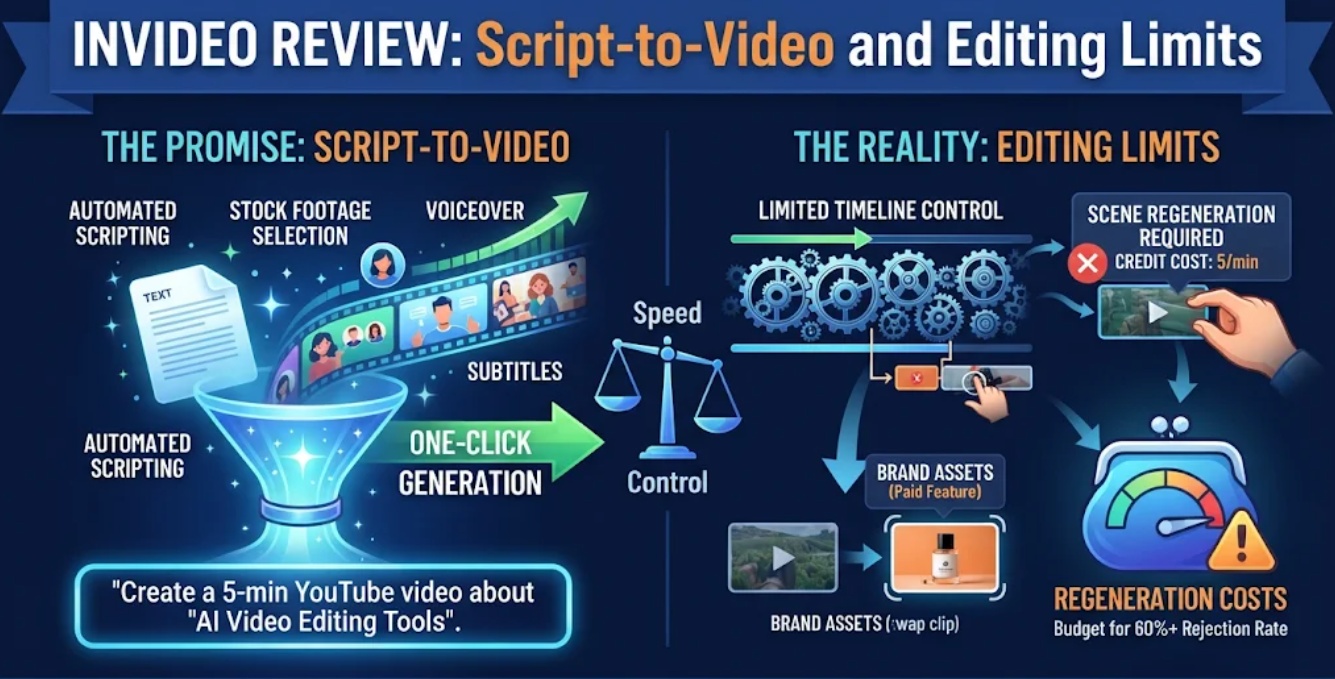
When you paste a script into InVideo using the Use my script workflow, the platform does not simply spit out a single uneditable MP4 file. Instead, it builds an editable project draft composed of separate visual, audio, and text layers.
Depending on your prompt preferences and subscription tier, InVideo can assemble:
- Stock-Driven Explainers and Ads: The system parses your script line by line, pulls matching clips from licensed libraries (such as Storyblocks, Shutterstock, Pexels, Pixabay, and iStock), adds background music, and generates a synthetic voiceover.
- AI-Generated Narrative and Brand Scenes: Using Agent Two, the platform routes individual shot prompts to integrated video and image models—including Seedance 2.0/2.5, Kling 3.0, Veo 3.1, Runway Aleph 2, and Nano Banana Pro.
- Hybrid Cuts: Teams can upload their own raw camera footage or product recordings and instruct the agent to generate matching AI B-roll shots that blend into the same sequence.
The output is a working rough cut. It gives you pacing, structure, and temporary audio immediately, though it still requires human review before going live.
How the Script-to-Video Workflow Is Organized
InVideo separates initial AI planning from hands-on timeline refinement. Understanding this two-step flow helps teams avoid burning credits on blind re-generations.
Project Context and Scene Planning
When working in Agent Two’s conversational mode, the system does not generate every frame in one giant pass. First, it breaks your script into a structured scene list and saves visual rules into project memory.
For narrative or recurring brand projects, you can generate and approve character sheets, locations, and color palettes before rendering video shots. Once a character look or visual style is locked in project memory, the agent references those rules when generating subsequent scenes. It also builds storyboard panels and timed shot lists so you can approve the visual plan before spending higher video generation credits.
Draft Review and Revision Points
Once the initial draft renders, revisions happen in two ways:
- Conversational Directing: You can highlight review comments and tell Agent Two to rewrite a specific beat, change a character’s voice accent, swap background music, or generate three alternate versions of a weak scene side by side.
- Direct Timeline Editing: You can open the project directly in invideo Editor. Here, you have standard multitrack controls to trim clip handles, adjust audio volume and EQ, change typography styles, and apply color LUTs without re-prompting the AI.
Where Does InVideo Give Editors Control?
Many early AI video tools locked creators inside rigid prompt boxes where fixing one bad hand meant regenerating the entire video. InVideo solves much of that frustration by combining agent commands with traditional NLE (non-linear editing) tools.
- Granular Line and Media Swaps: If one sentence in your voiceover sounds flat, you can edit that single line of text and re-render only that audio segment. Similarly, if a stock clip feels generic, you can swap just that slot with another library asset or uploaded file.
- Targeted Shot Extensions and Coverage: Within invideo Editor, features like Agentic Extend and scene coverage tools let editors lengthen a clip that cuts too early or generate reverse angles and close-ups that match the existing shot’s lighting and geometry.
- Built-In Audio Cleanup: Rather than forcing you into a separate audio app for basic fixes, the editor includes track-level EQ, audio ducking for background music, and tools to tame harsh vocal “s” sounds.
- External Agent Connectivity: For technical teams, InVideo also exposes MCP (Model Context Protocol) and CLI integrations, allowing editors to drive timeline cuts or batch CSV workflows from external assistants like Claude or Cursor.
Where Do Asset, Credit, and Editing Limits Matter?
Before committing a production budget to InVideo, teams need to understand four practical constraints that surface during real-world revisions:
- Credit Consumption Across Models and Stock
InVideo operates on a per-seat monthly credit system (such as 400 credits/month on Starter, 2,000 on Plus, and 5,000 on Max). While manual timeline editing does not drain credits, every generative action and paid stock placement costs credits. High-end video models consume significantly more credits per second than fast draft models—for example, a 5-second Seedance 2.5 1080p clip uses roughly 96 credits compared to ~24.5 credits in Draft mode. Furthermore, Starter plans restrict access to certain frontier models and Ultra agent modes. If a team iterates carelessly at 1080p, a monthly credit pool can vanish in a single afternoon.
- Paid Stock Marks and Monthly Caps
Searching and previewing stock footage is free, and previews display an InVideo stock watermark on the timeline until licensed. Placing standard stock clips deducts a small credit fee, while premium iStock assets draw from a strict monthly allowance (such as 100 to 500 iStock licenses depending on the plan) that resets monthly without rolling over.
- Generative Consistency Still Needs Human Eyes
Even with locked character sheets and scene memory, third-party diffusion models can still introduce subtle visual drift—such as warped background text, shifting product labels, or unnatural hand physics during fast motion. InVideo cannot guarantee deterministic pixel accuracy for complex physical products or live software UI interactions.
- Browser Performance on Heavy Timelines
Because invideo Editor runs in the browser, multi-layer 4K projects with heavy generative clips, custom LUTs, and multiple audio stems depend heavily on local browser memory and network stability compared to native desktop editors.
Who Is InVideo a Good Fit For?
InVideo delivers the strongest return for teams that value speed from script to rough cut and want both AI generation and timeline trimming under one roof:
- Content Marketers and YouTube Creators: Teams turning blog posts, scripts, or educational outlines into narrated explainers with stock B-roll, dynamic captions, and clean voiceovers.
- Performance Ad Teams: Growth marketers who need to test multiple hooks, swap opening scenes, resize aspect ratios for Reels and Shorts, and localize voiceovers without hiring external agencies.
- Small Creative Studios: Multi-seat teams (supporting up to 5–20 seats depending on tier) that want collaborative browser drafts before sending locked picture cuts to finishing tools.
When a Different Workflow May Fit Better
InVideo is not the optimal choice for every video production pipeline:
- Precision SaaS UI Demos: If your video must demonstrate exact software clicks, cursor paths, and real product menus without hallucinated buttons, dedicated screen-capture demo tools are far safer than generative video models.
- Complex Multi-Engine Pre-Visualization: If your workflow centers on locking high-precision keyframe storyboards first, testing prompts across independent models, and organizing structured director shot cards before touching a timeline, a dedicated pre-production workspace like CrePal’s AI Director framework fits cleaner. For deeper guidance on locking visual frames before animation, see our photo-to-video AI storyboarding guide.
- Feature-Grade Finishing: Studios requiring complex 3D VFX compositing, heavy multi-channel surround mixing, or raw camera RAW color pipelines will still treat InVideo as an assembly step before exporting to Premiere Pro or DaVinci Resolve.
If you are weighing other platforms across pricing, template libraries, or avatar capabilities, explore our full breakdown of InVideo alternatives.
FAQ
Can InVideo Agent reuse a project’s character references in later scenes?
Yes. InVideo’s AI filmmaking workflow allows you to generate, refine, and lock character sheets, outfits, voices, and locations into project memory so the agent references those visual rules across subsequent scenes. However, because underlying video models still rely on generative synthesis, editors should inspect every new shot for subtle facial or wardrobe drift.
Can a team upload its own product footage to an InVideo project?
Yes. You can upload your own raw camera footage, product recordings, logos, and brand assets directly into a project. Under InVideo’s terms, you retain ownership of the files you upload, and Agent Two can analyze your footage to generate matching AI cutaway shots.
Which InVideo outputs include a watermark on the current plan?
InVideo places a visible stock watermark on unpaid or unplaced stock media previews inside the timeline editor. Once you place the clip using an active paid plan’s credits or iStock allowance and export the video, the stock watermark is removed. Free or trial exports may carry platform branding depending on current plan limits.
Can InVideo export separate scenes for an external editor?
Yes. InVideo supports exporting finished cuts as well as handing off project edits to external desktop suites such as Premiere Pro, DaVinci Resolve, and Final Cut Pro for final color grading and sound mixing. Check your specific subscription tier for available resolution caps (such as 1080p vs. 4K) and project export formats.
What commercial-use terms cover stock and AI-generated assets in InVideo?
Under InVideo’s published commercial-use policy, paid users may use, modify, and distribute AI-generated media commercially worldwide without royalties, subject to applicable laws and third-party rights. Licensed stock clips remain governed by their respective third-party provider licenses (such as iStock or Storyblocks) and do not grant exclusive ownership. Creators remain responsible for securing rights to real people’s likenesses, cloned voices, and third-party trademarks. Note: This summary is not legal advice; always verify InVideo’s current Terms of Service before commercial release.
Conclusion
InVideo has grown into a capable bridge between rough script ideation and hands-on timeline editing. By pairing Agent Two’s scene memory and multi-model routing with invideo Editor’s multitrack timeline, creators can draft videos quickly and revise specific beats without starting over from scratch.
Still, teams get the best results when they respect its boundaries: draft in lower-cost modes before rendering high-credit 1080p shots, track monthly iStock limits, and verify every AI-generated product detail by eye before publishing.