Editor’s & Production Systems Note:
Transparency & Ground Truth Disclosure: This review evaluates FlexClip’s template-driven browser video editor and built-in AI editing utilities for small marketing teams (typically 2 to 5 people) producing promotional videos. We trace a single hypothetical product promo brief across template assembly, AI assistance, and manual timeline adjustments to define where FlexClip fits and when a script-first AI Director workflow like CrePal is more effective. All features, export tiers, collaboration capabilities, and licensing terms reflect FlexClip’s publicly documented specifications as of November 2026. Commercial rights and stock licensing summaries are provided for general orientation only, do not constitute legal advice, and must be verified against FlexClip’s latest Terms of Service prior to commercial distribution.
Source Verification & Ground Truth:
FlexClip Marketing & Video Editor Documentation: Verified against FlexClip’s official product pages (FlexClip Marketing Video Maker and FlexClip Online Video Editor). Official specifications confirm browser-based timeline editing, customizable marketing templates, stock media integration, brand kit storage, cloud project sharing, and integrated AI tools (AI Text-to-Video, AI Auto Subtitle, AI Voiceover, AI Background Remover).
CrePal Video Workspace: Documented at CrePal Features and our pre-production guides (Photo-to-Video AI Storyboarding and Best AI Video Tools for Product Launches). Features confirm scene-by-scene script breakdowns, reference image pinning, and multi-engine video draft orchestration.
Small marketing teams rarely have a dedicated motion designer sitting around waiting for the next product launch. Usually, a team of two to five marketers has to write the copy, gather product photos, build a 30-second promo video, and get stakeholder sign-off before Friday afternoon.
Browser-based editors like FlexClip are designed specifically for that pace. Instead of staring at a blank timeline, marketers pick a pre-built promotional template, drop in their product visuals, swap the headline text, and export a clean video.
However, speed at the beginning of a project does not always mean ease when revisions arrive. What happens when your product demo needs custom pacing, when you want AI to generate missing B-roll, or when a manager asks for a completely different visual hook?
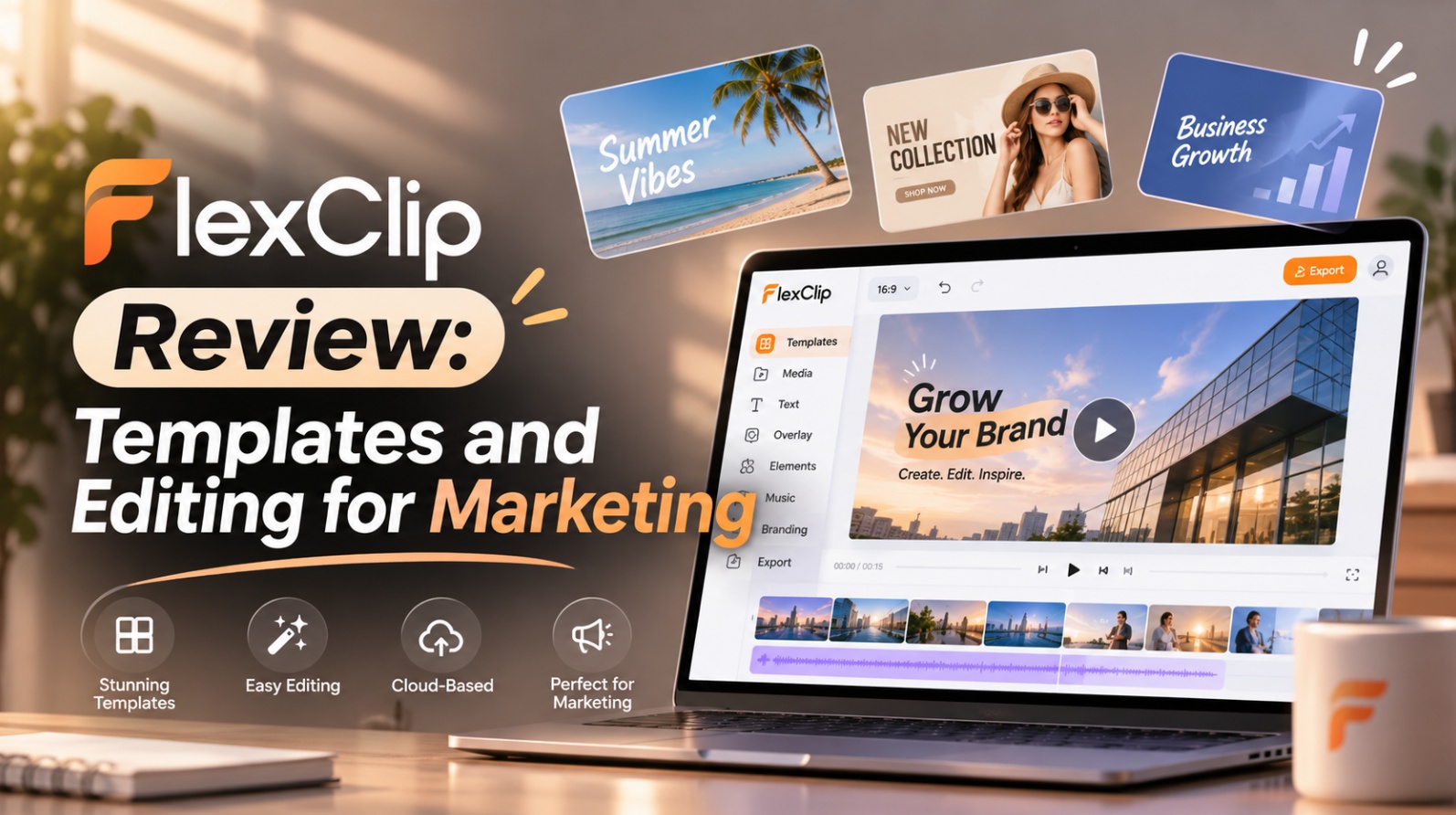
This FlexClip review walks through how a small marketing team builds a promo video from a template, where its built-in AI tools actually save time, and where layout and credit boundaries determine whether FlexClip—or a script-first workflow—is the right choice.
What Kind of Marketing Video Fits FlexClip?
FlexClip is built around structured visual communication rather than complex narrative filmmaking. It excels when your marketing message relies on clean typography, fast-paced product slides, and clear calls to action.
Across FlexClip’s marketing video hub, the platform focuses on practical commercial formats:
- Social Media Promo Ads: Square and vertical templates built for Instagram Reels, TikTok, YouTube Shorts, and LinkedIn feeds with bold kinetic text overlays.
- Product Feature Highlights: Split-screen and frame-in-frame layouts that pair short product clips with bullet-point benefits and pricing badges.
- Event and Sale Announcements: High-contrast countdowns, seasonal discount promos, and newsletter video headers that need to be assembled in under an hour.
If your promo video works like a moving digital flyer—combining existing product footage, clean headlines, background music, and an end card—FlexClip fits naturally.
How a Team Builds a Promo From a Template
To see how template assembly works in practice, consider a standard promo brief: a four-person consumer tech team needs a 20-second social video introducing a new wireless desk charger, complete with three feature callouts and a discount code at the end.
+-------------------------------------------------------------+
|               FLEXCLIP TEMPLATE PROMO WORKFLOW              |
|                                                             |
|  [ Select Aspect-Ratio Marketing Template (16:9 / 9:16) ]   |
|         │                                                   |
|         ▼                                                   |
|  [ Replace Placeholder Media & Input Brand Kit Assets ]     |
|         │                                                   |
|         ▼                                                   |
|  [ Apply AI Subtitles, Voiceover & Timeline Pacing Edits ]  |
|         │                                                   |
|         ▼                                                   |
|  [ Share Cloud Review Link & Export Finished MP4 ]          |
+-------------------------------------------------------------+
Bring in Product Assets and Copy
The workflow begins in FlexClip’s template library rather than a blank canvas.
A marketer filters templates by industry or aspect ratio (such as 9:16 for vertical social ads) and opens a multi-scene promo layout in the browser editor. Instead of designing animations from scratch, the marketer replaces the template’s placeholder video slots with recorded clips and studio photos of the wireless charger.
Next, they update the pre-animated title cards with the charger’s launch copy. Because FlexClip supports Brand Kit storage on eligible plans, the team applies their saved company fonts, hex color codes, and transparent logo watermark across the scenes so the template matches their visual identity.
Refine Pacing and Brand Elements
Once the raw assets are inside the template, the team moves to FlexClip’s timeline mode to fine-tune the cut:
- Scene Timing: Marketers drag clip edges on the timeline to shorten slow intro slides or hold longer on the final discount code screen.
- Transitions and Overlays: Built-in transition presets, animated stickers, and lower-third callout boxes help emphasize key specs like charging wattage without manual keyframing.
- Audio Balancing: The team selects a royalty-free music track from FlexClip’s audio library and lowers the music volume under spoken segments so the message stays clear.
Where Do AI Tools Help the Edit?
Modern marketing teams rarely have every single visual asset ready before editing begins. FlexClip integrates several AI utilities directly inside the editor to fill those production gaps without forcing users into separate apps:
- AI Auto Subtitle: Automatically transcribes spoken voiceovers or founder talking-head clips into timed on-screen captions, which marketers can restyle to match their brand colors for sound-off social feeds.
- AI Text-to-Speech Voiceover: Converts written promo scripts into natural-sounding narration across multiple languages and vocal tones, eliminating the need to book voice talent for quick ad tests.
- AI Background Remover: Strips cluttered backgrounds away from product photos in one click, allowing marketers to place clean product cutouts over branded gradient slides.
- AI Text-to-Video and Image Generation: When a team lacks a lifestyle establishing shot—such as a modern sunlit home office desk—marketers can prompt FlexClip’s AI generators to create supplementary B-roll clips directly inside the project.
These tools act as practical post-production helpers inside a template workflow, saving marketers from bouncing between five different browser tabs.
What Control and Asset Limits Should Marketers Expect?
While FlexClip streamlines template assembly, small teams should plan around four practical constraints before standardizing their workflow on the platform:
1. Template Structure vs. Custom Motion
Templates speed up layout creation, but heavy structural changes can feel restrictive. If a stakeholder asks to rebuild complex custom motion paths, multi-layer 3D camera moves, or intricate keyframe curves, browser-based template editors offer far less granular control than dedicated motion design suites.
2. AI Credit Consumption for Generative Media
Standard timeline trimming, text edits, and template customization work within your active plan, while generative AI tasks—such as AI video generation, AI image synthesis, and AI voiceovers—consume dedicated AI credits. Teams generating multiple AI B-roll variations at high resolution can deplete monthly credit allowances quickly if they do not draft carefully.
3. Free Plan Export Caps and Watermarks
FlexClip’s free tier is useful for testing layouts, but it restricts export resolution (capped at 720p HD), limits video length, restricts stock media usage per project, and applies a FlexClip watermark. Commercial marketing teams require a paid subscription (such as Plus or Business) to export clean 1080p or 4K videos without branding marks.
4. Generative Consistency Across Shots
Like other browser editors that integrate AI generators, FlexClip’s text-to-video tool generates standalone clips rather than maintaining persistent 3D character or product geometry across an entire multi-scene commercial. Real product footage should always anchor your core product shots.
Who Should Choose FlexClip?
FlexClip delivers the highest value when speed, repeatable branding, and low learning curves matter more than bespoke visual effects:
- 2–5 Person Growth and Social Teams: Marketers who produce weekly product promos, seasonal sales clips, and paid social variants without dedicated video editors.
- E-Commerce Store Owners: Teams turning existing product photography and short phone clips into clean, captioned storefront videos and ad creatives.
- Internal Communications and HR: Teams building quick event recaps, company updates, and onboarding slides using pre-animated text layouts.
When a Script-First Workflow Makes More Sense
Template editors work best when you already have your core footage and want to package it inside a proven layout. However, some marketing projects start with an empty page and require custom visual storytelling from scratch.
If your campaign demands a bespoke multi-scene narrative—where you must lock down custom character references, direct specific camera movements shot by shot, and test visual storyboards before building a timeline—starting with a template layout can feel backward.
In those scenarios, a script-first AI Director workspace like CrePal’s video production platform provides a cleaner foundation. Within CrePal, teams break a commercial script into structured scene cards, pin approved product images as visual anchors, and orchestrate multi-shot drafts before conforming the cut. For deeper guidance on preparing visual frames before animation, read our photo-to-video AI storyboarding guide, or compare broader campaign options in our best AI video tools for product launches breakdown.
FAQ
Can FlexClip restore an earlier version of a marketing video after changes?
FlexClip automatically saves cloud project progress as you edit in the browser, and teams can duplicate projects before making major structural changes to preserve earlier drafts. However, because browser editors do not always expose deep multi-branch version trees like enterprise NLEs, duplicating a project card prior to stakeholder revisions is the safest backup habit.
Are FlexClip stock assets cleared for paid social ads?
Yes, stock photos, video clips, and music tracks accessed through paid FlexClip plans are licensed for commercial marketing projects, including social media ads and promotional videos, subject to FlexClip’s standard license rules (such as prohibitions on reselling standalone raw stock files). Note: Licensing terms can change and do not constitute legal advice; always verify FlexClip’s current Terms of Service before running paid ad campaigns.
What export quality is available on FlexClip’s current free plan?
FlexClip’s free plan limits exports to 720p resolution, caps project duration and stock asset counts, and embeds a FlexClip watermark on the exported file. Upgrading to a paid tier unlocks Full HD (1080p) or 4K exports, removes watermarks, and expands cloud storage and AI credit limits.
Can FlexClip teammates review the same video project?
Yes. FlexClip supports cloud project sharing and team collaboration workspaces on eligible plans, allowing teammates or stakeholders to view shared preview links, leave feedback, and access shared Brand Kit assets without transferring heavy local video files.
How are FlexClip AI credits used for generated media?
FlexClip allocates monthly AI credits based on your subscription tier, deducting credits whenever you run generative actions such as AI Text-to-Video, AI Image Generation, AI Voiceover synthesis, or Auto Subtitles. Standard manual timeline trimming, text edits, and template adjustments do not consume AI credits.
Conclusion
For small marketing teams under pressure to ship clean promotional videos fast, FlexClip removes the blank-canvas paralysis of traditional editing software. By combining ready-made marketing templates, Brand Kit controls, and practical AI helpers like auto-subtitles and background removal, a two-to-five-person team can turn raw product assets into a polished social promo in a single afternoon.
To get the best results, use FlexClip when your core product footage already exists and you need fast, repeatable packaging—and switch to a script-first pre-visualization workflow when your campaign requires custom multi-scene storytelling from the ground up.