I was putting together a product mockup thumbnail late at night — the kind with a headline, a badge, some small print — and I kept hitting that same wall I’ve hit a dozen times with AI image tools: the text in the image looked like someone sneezed on a keyboard. I’d tried three different generators that week. All garbage on text.
Then I saw people talking about GPT Image 2 in a Discord I’m in. I figured it was just another incremental update. I was wrong. After two days of testing it across real creative tasks, I have actual opinions — and a few frustrations to share.
Here’s what you actually need to know if you’re a creator considering whether this changes anything for your workflow.
What GPT Image 2 Is
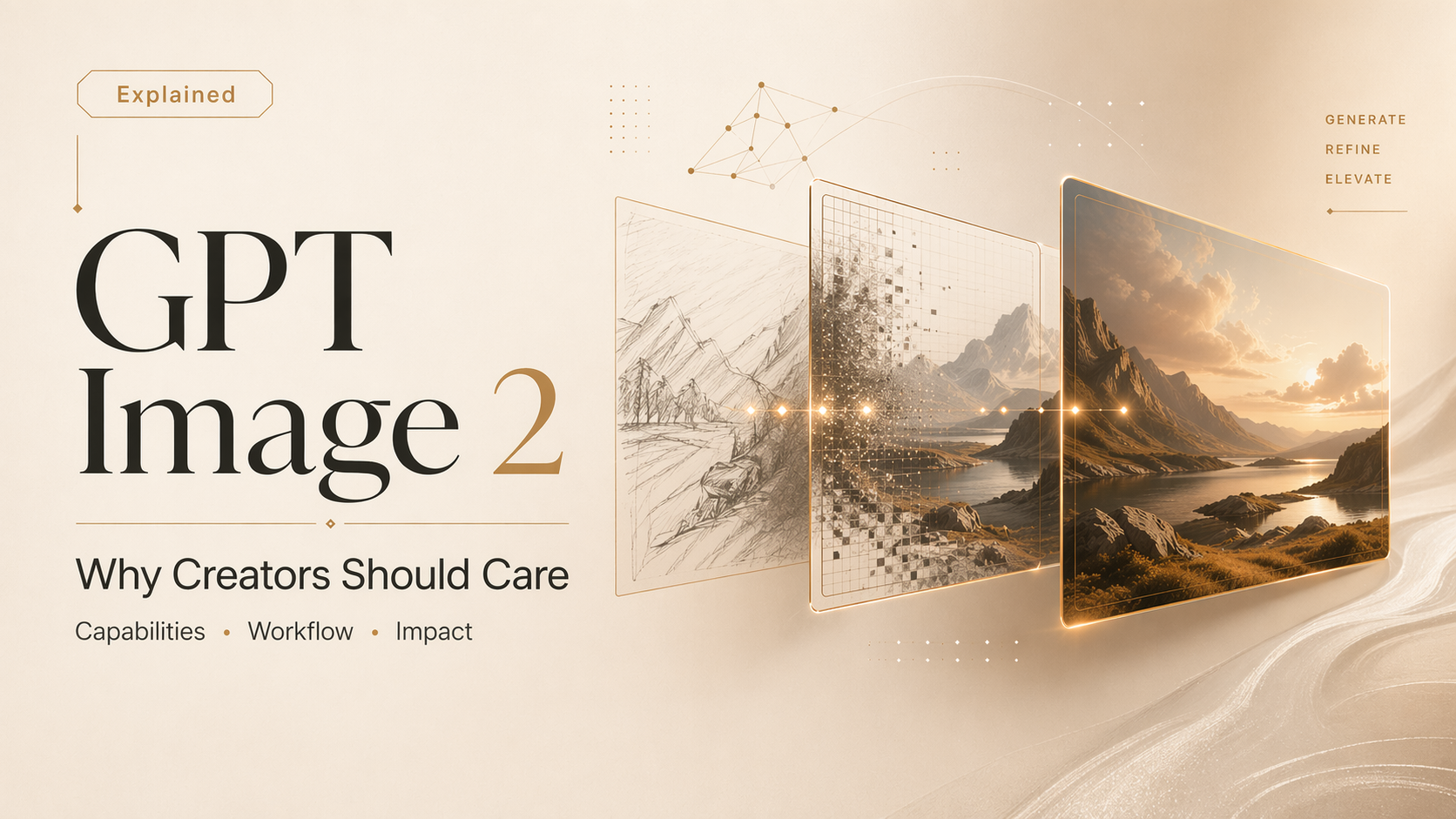
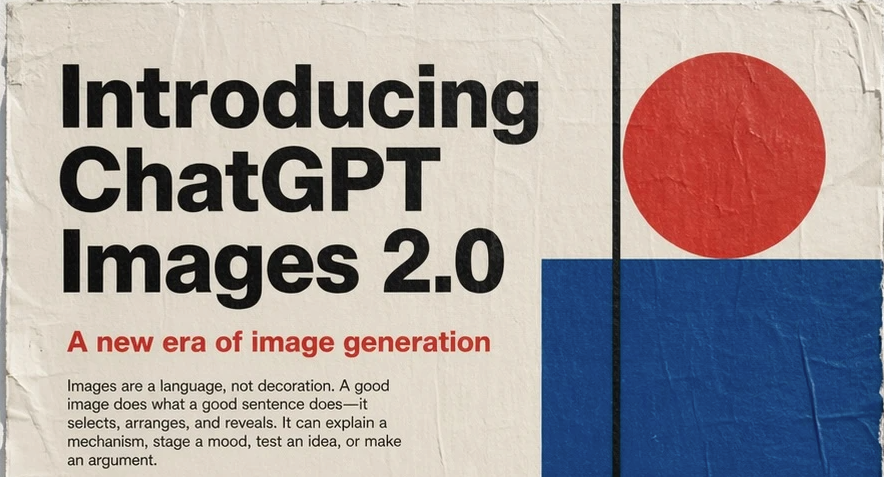
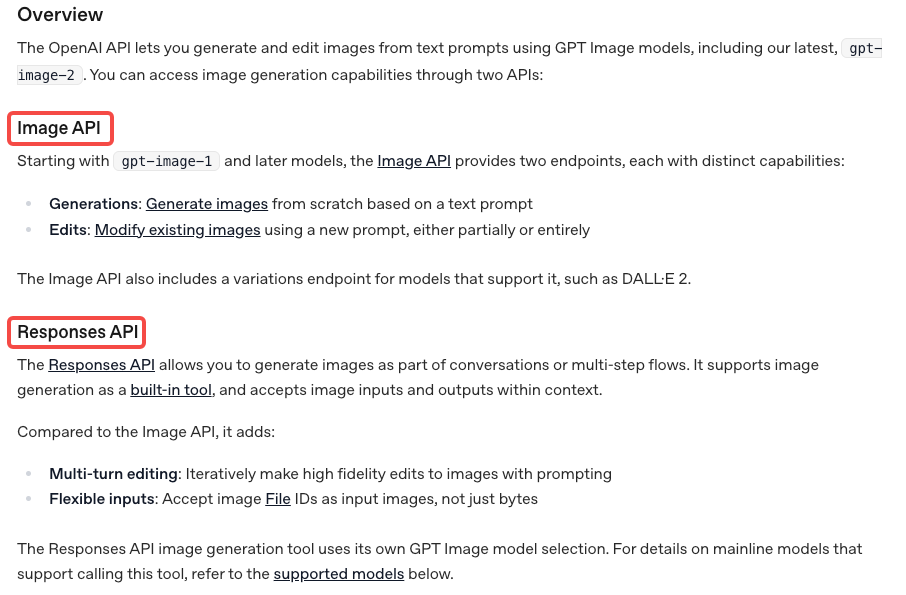
GPT Image 2 is OpenAI’s image generation model — the underlying engine, not a product you open in a browser. It’s what powers image creation when you use ChatGPT to generate visuals, and it’s also available directly through the API for developers who want to build it into their own tools. OpenAI’s official ChatGPT Images 2.0 announcement describes it as bringing unprecedented specificity and fidelity — better instruction-following, small text, UI elements, and dense compositions, all at up to 2K resolution.
The name can get confusing fast, so let me clear it up.
GPT Image 2 vs ChatGPT Images 2.0
These two things sound almost identical but they’re not the same.
GPT Image 2 is the model itself — think of it as the engine under the hood. It lives at the API level and is what developers access when they call gpt-image-2.
ChatGPT Images 2.0 is the product experience inside ChatGPT — the actual interface where you type a prompt and see a result appear. It runs on GPT Image 2, but it adds things like conversation history, UI controls, and integration with ChatGPT’s context window.
For most creators, the distinction matters because the two paths give you different levels of control. ChatGPT is faster and friendlier. The API is more flexible but requires either coding or using a third-party tool built on top of it.
How to Access It in ChatGPT and the API
In ChatGPT: If you’re on ChatGPT Plus, Pro, or Team, image generation is already part of your plan. You just ask for an image in the chat. It now defaults to GPT Image 2 capabilities. Free users have access too, with limits.
Via the API: You’ll need an OpenAI API key and credits. The image generation endpoint accepts your prompt, along with parameters for size, quality, and output format. OpenAI’s image generation API documentation covers the full spec — I’d recommend reading the section on response formats if you’re piping the output into another tool, because you can get back either a URL or base64-encoded data, and that choice matters depending on your setup.
One thing I noticed: the API now supports transparent backgrounds as an output option, which is genuinely useful for creators building assets meant to sit on different backgrounds.
What It Does Well for Creators
Text-Heavy Visuals and Layouts
This is where GPT Image 2 actually surprised me.
I’ve tested a lot of image generators on text rendering. Most of them fail in the same ways — letters that look like they’re melting, words that are almost right but with random characters swapped in, or font sizing that’s completely inconsistent. I stopped expecting anything useful.
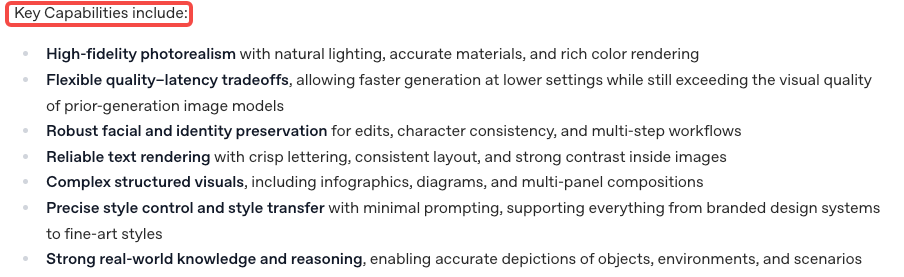
GPT Image 2 handles text inside images better than anything I’ve used before. Not perfectly — I’ll get to that — but well enough that it changed my actual workflow. I made a slide-style graphic with a headline, a sub-headline, and a small “Available now” badge, and it came back legible on the first try. That doesn’t happen. I genuinely had to look twice.
TechCrunch tested the same thing and found that a menu request that used to produce garbled outputs now comes back restaurant-ready. That tracks exactly with what I saw in my own tests.
For creators making thumbnails, social graphics, product mockups, or anything with text baked in, this is a meaningful improvement.
Multi-Image Consistency and Edits
The other thing I kept testing was consistency across variations. This matters a lot if you’re generating a series of assets — say, different ad sizes, or multiple frames of a concept — and you need them to feel like they belong together.
GPT Image 2 handles this noticeably better than earlier models. When I gave it a reference prompt and asked for three variations of the same scene with slightly different compositions, they actually looked like variations of the same thing rather than three separate images that happened to have similar prompts.
The edit workflow is also improved. You can take a generated image, mask a region, and ask it to change just that part. I tested this by generating a product shot and then asking it to swap out the background. The result kept the product consistent and updated the background cleanly. It’s not always perfect — sometimes the edges of the masked area have a slightly different texture — but for quick iteration, it’s genuinely faster than regenerating from scratch.
Limits, Risks, and Trade-offs
I want to be direct here because I’ve seen some coverage that makes this sound like a magic fix. It’s not.
Complex text still fails sometimes. If you’re asking for a realistic-looking document, a long paragraph of text in an image, or very small print, you’ll still get errors. The improvement is real but it’s not total. I got garbled output on roughly 1 in 4 prompts that involved more than two lines of text.
Generation time can be slower. On higher quality settings, the wait is noticeable. Not unbearable, but if you’re iterating fast — the way I tend to work — it adds up. I’ve seen this vary a lot depending on server load, so your experience might differ.
Style control isn’t always consistent. I spent a while trying to lock in a specific visual style across multiple generations and found it more unpredictable than I expected. Some prompts stuck; others drifted. For creators who need tight brand consistency, you’ll want to treat each output as a starting point rather than a finished asset.
Content policy is stricter than some alternatives. OpenAI’s usage policies are more conservative than some other models. Certain creative directions — even ones that aren’t obviously problematic — will get declined. Whether that’s a dealbreaker depends on what you’re making.
Who Should Use It and Who Should Skip It
Use it if:
- You make social graphics, thumbnails, or ad creatives that need readable text in the image
- You want a fast way to iterate on visual concepts without opening design software
- You’re already in the ChatGPT ecosystem and don’t want to add another tool to your stack
- You need multi-image consistency without elaborate prompt engineering
Skip it (or treat it as one tool among several) if:
- You need hyper-specific style replication — something like perfectly matching an existing brand’s illustration style across many assets
- You’re doing heavy document-style text generation
- You need very fast iteration loops and can’t absorb the occasional latency spike
- You’re building something that pushes against content policy limits
The honest version: GPT Image 2 is the best general-purpose AI image tool I’ve tested for creator workflows as of April 2026. But “best general-purpose” still means there are specific things it doesn’t do well. It’s not a Photoshop replacement and it’s not going to match a human designer on precision work.
FAQ
Q: Is GPT Image 2 free? In ChatGPT, free users have access with limits. Plus, Pro, and Team users get broader access. API usage is billed per image based on quality settings and size — check OpenAI’s API pricing page for the latest numbers.
Q: What’s the difference between GPT Image 2 and DALL·E 3? GPT Image 2 is the current generation model. DALL·E 3 was the previous flagship. GPT Image 2 is meaningfully better at text rendering and instruction-following. If you’ve been frustrated with DALL·E 3 on those fronts, it’s worth retesting.
Q: Can I use GPT Image 2 outputs commercially? OpenAI’s current policy allows commercial use of generated images, subject to their terms of service. Check their terms for specifics — these things do get updated.
Q: Does it work with existing images, or only text prompts? Both. You can start from a text prompt, or you can provide an input image and ask for edits, variations, or inpainting (changing a specific region). The edit workflow is one of the more practically useful things about it.
Conclusion
Two days of testing left me with a clear picture. GPT Image 2 is not a revolution. But the text rendering improvement alone makes it relevant for a type of creative work that AI image generators have basically been useless for until now.
I’ll keep it in my regular rotation — especially on projects where I need a quick mockup with legible text, or when I’m iterating on ad variations and need consistency between outputs. For the stuff where I need tight artistic control or very specific styles, I’ll still reach for other tools.
If you’ve been burned by AI image generators on text-heavy visuals before, this one is worth another try. Just go in with calibrated expectations.
Previous Posts: