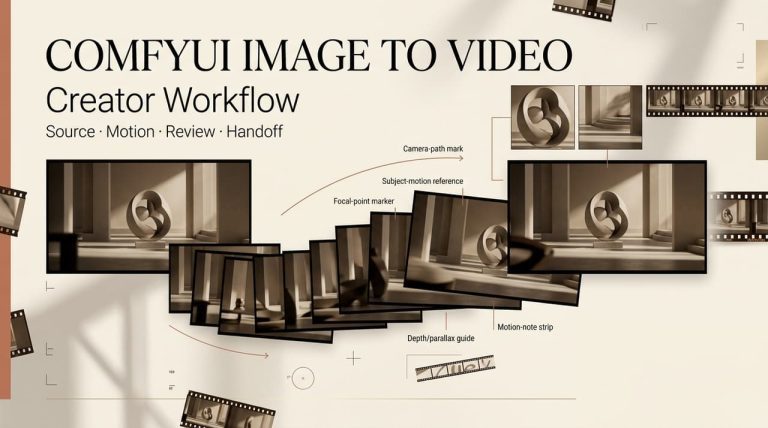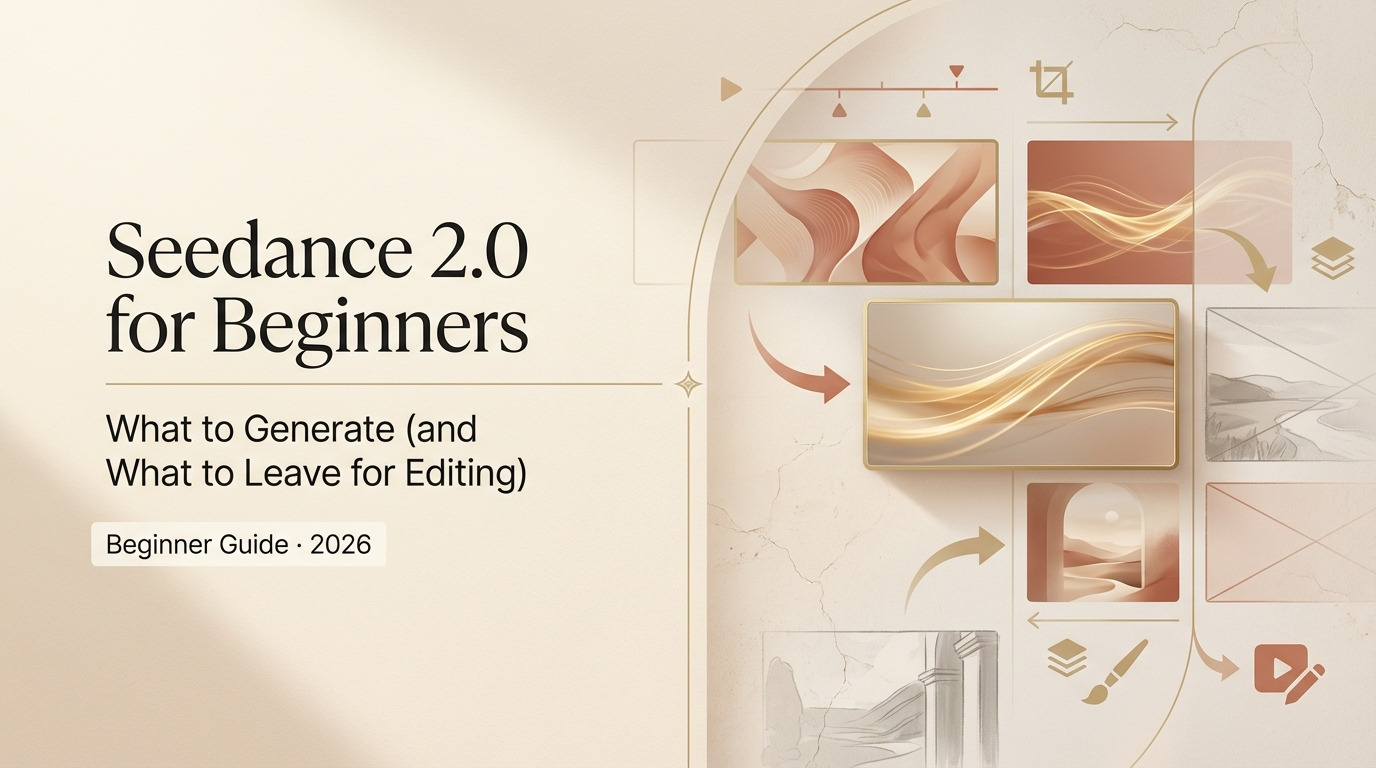
Hey, I’m Dora. I kept seeing short clips that felt smoother, more cinematic, and, honestly, a little unfair. Curious, I opened Seedance 2.0and decided to stop scrolling and actually test it. I wanted to know whether it would save me hours in rough-cutting and motion planning, or whether it would be another promising tab I’d close by day two.
This piece is my field notes from that first deep dive. I’ll share the mistakes I made, what genuinely surprised me, and a tidy 10-minute test you can run to see if Seedance 2.0 will earn a place in your workflow.
The beginner mistake:trying to make one perfect “all-in-one” video
I remember trying to get Seedance 2.0 to make a single, final-ready video from one long, glorious prompt. I typed something like: “Create a 60-second promo about workflow automation with upbeat tempo, three transitions, captions, and exact shot list.” Foolish? A bit. Predictable? Definitely.
What happened: the result looked like a collage stitched by a sleep-deprived intern. Motion felt inconsistent, captions overlapped visuals, and the pacing bounced around. I spent more time fixing it than I would have editing a basic timeline myself. Lesson: starting with an all-in-one ambition made the tool do too many heavy assumptions at once, and it failed at several.
Why “one prompt = one final video” fails
Seedance 2.0 is powerful at generating intent and motion ideas, but it assumes a lot about context that you haven’t spelled out (and sometimes you don’t want to spell it out). The model tries to predict timing, rhythm, and micro-edits, and those predictions often don’t match your voice or target platform.
A few concrete reasons this approach breaks down:
- Ambiguity of timing: “upbeat tempo” means different things for TikTok vs. Instagram Reels vs. a LinkedIn preview.
- Visual constraints: the model may create suggested shots that don’t match your assets (framing, orientation, or quality).
- Overloaded prompts lead to feature collisions: captions, transitions, and motion cues compete rather than cooperate.
So I started treating Seedance like an assistant, not the whole editor. That small mental shift saved me headaches and produced better, faster outputs.
What Seedance 2.0 is best at (motion, shots, vibe)
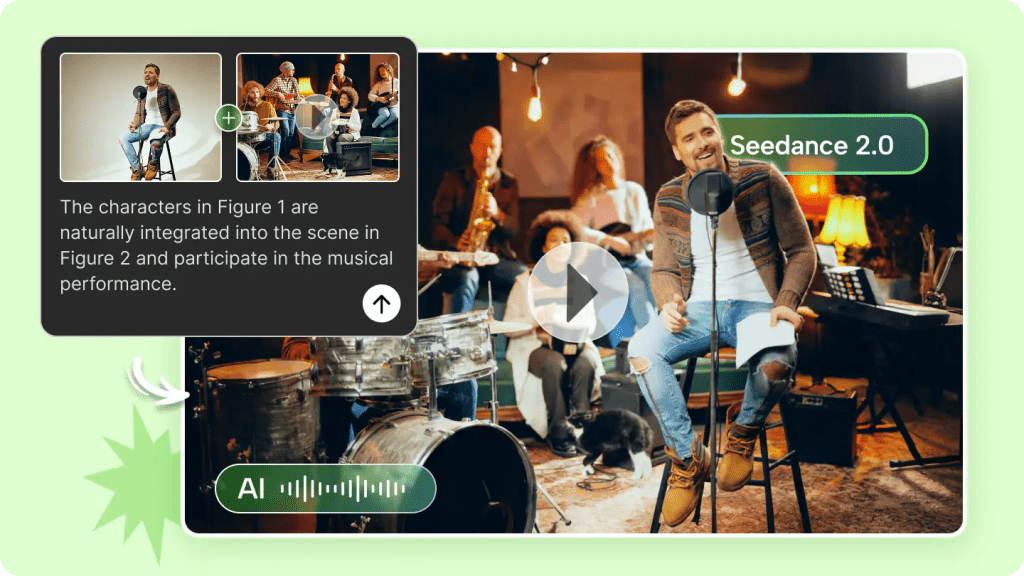
Seedance 2.0 shines when you use it to sketch motion, define shot intention, and set a vibe. On June 19, I ran three short tests (each 30–90 seconds) where I only asked for motion and shot types: one for a product reveal, one for a creator talking head, and one for a quick feature demo.
What surprised me: the model suggested camera moves that actually improved the framing. For the product reveal it proposed a slow parallax with an offset reveal at 0:12, which looked classy with my static photo turned into a multi-layered scene. For the talking head it suggested subtle push-ins at beat changes that made the clip feel more dynamic.
Where it helps most:
- Generating shot lists: it can produce a short, practical shot list (e.g., close-up of hands, 3/4 product reveal, over-the-shoulder demo) that you can film or assemble from existing clips.
- Motion templates: subtle camera movements and transitions you can replicate in your editor of choice.
- Vibe setting: mood descriptors plus suggested color grading or motion speed that give you a consistent visual language.
Practical tip: ask Seedance to output a short shot list with exact timings (e.g., 0:00–0:08, close-up, slight left pan). Then use that as your blueprint rather than asking it to render everything.
What you should NOT force inside the model (timing, captions, pacing)
I learned the hard way that timing, captions, and pacing are better handled in a dedicated pass. When I tried to have Seedance 2.0 auto-generate exact caption placements and pacing for a 45-second clip, the captions often either covered important visuals or felt off-beat.
Why: captions need human checks for readability (font size, color contrast) and for platform conventions (TikTok vs. YouTube). Pacing matters to your voice: do you want rapid-fire cuts to feel urgent, or longer holds to feel thoughtful? The model can suggest, but it won’t reliably nail the rhythm you’ll perform.
A simple split: generate vs edit
I settled on a three-pass workflow that fit my cadence and gave me control:
- Ideation & shot list (Seedance): motion, shot intention, and vibe.
- Assemble (human): arrange clips, sync audio, rough-cut.
- Final timing & captions (human + Seedance as assistant): refine pacing, add captions with clear rules, and finalize audio levels.
This split keeps Seedance where it’s strong (creative motion and shot ideas) and keeps human judgment where nuance matters.
Seedance 2.0 can both generate new motion-based scenes and edit existing footage. My field note: use generation for concepting (what could this feel like?) and use editing mode for practical tasks (tighten a dialogue clip, stabilize a shaky shot, or suggest cut points). The model’s generated scenes are great when you lack footage but can feel synthetic: its editing suggestions are more useful when you have real clips and a clear goal.
Your first 10-minute test project
Minimal prompt + 3 must-have shots
If you want a quick, revealing test of Seedance 2.0, set aside 10 minutes and try this. I ran this exact test at 10:15 AM on June 20 and it told me everything I needed to know.
What you need: two short clips (5–12 seconds each) and one still image. Keep them simple: a talking-head clip, a product close-up, and a product hero shot.
Prompt (minimal and deliberate):
“Create a 30-second social clip (9:16) with three shots. Shot A: talking head, gentle push-in at 0:03: Shot B: product close-up, subtle left-to-right parallax 0:08–0:14: Shot C: hero still with reveal 0:15–0:30. Keep vibe warm, tempo medium, and suggest two caption styles (bold bottom and subtle inline).”
Why this works: it forces Seedance to focus on motion and shot placement only, no caption nitty-gritty, no exact beat map. Results to watch for:
- Did it keep the talking head readable when it applied motion?
- Are suggested camera moves achievable in your editor?
- Does the hero reveal respect the still image’s framing?
My reaction: the motion ideas were useful immediately. I used the suggested parallax on the product close-up and it elevated a static image into something cinematic. Captions were suggested, but I left actual caption placement to my final pass.
Have you ever had this feeling too?
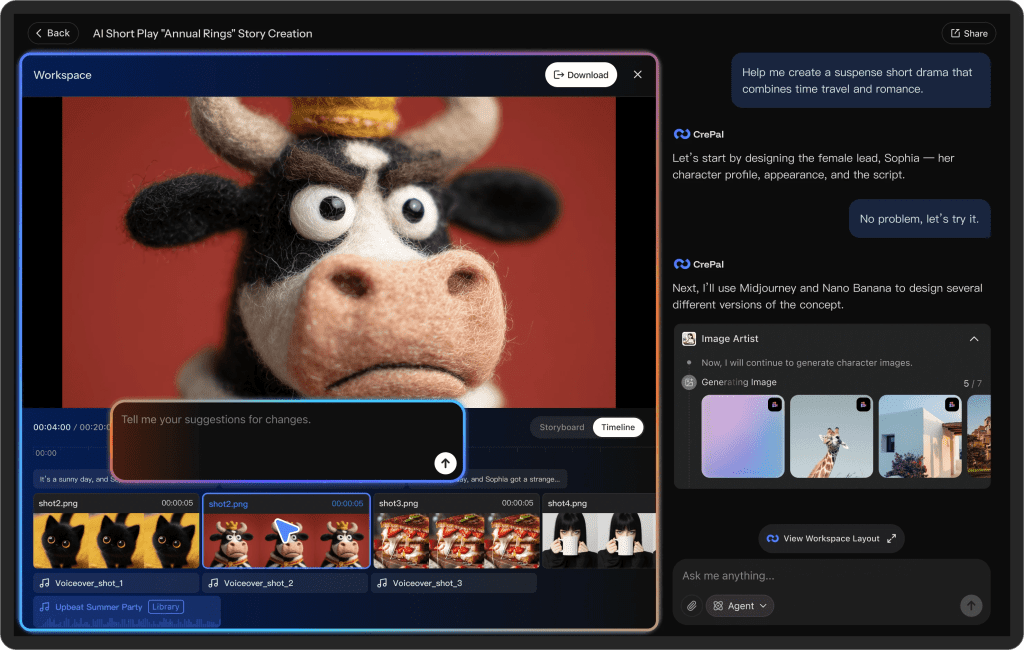
After you complete the first Seedance test, the time-consuming part is not actually the generation process, but rather: which shots are worth keeping? Which version is “usable”? The shot list, test conclusions, and materials are scattered across different tools, making it extremely difficult to review and reuse them.
At Crepal, we centrally manage the generated materials, test versions and notes. You can clearly record each attempt and mark the reusable shot ideas.
Tweaks: If the suggested motion clips feel too slow or too fast, rerun with a tempo hint: add “tempo = brisk” or “tempo = reflective.” I found a single-word tweak often fixed the feel.
Quality checks before exporting
Consistency, readability, and audio checks
Before I export anything from a Seedance-assisted project, I do three quick checks, each under two minutes.
- Consistency: Scan the entire timeline for visual language. Are color temperature and motion treatments consistent? If Seedance suggested a warm vibe but one clip got a cold grade, correct it. Tiny mismatches make a project feel amateur.
- Readability (captions & overlays): Check captions against backgrounds. I toggle captions on and off and move a 2–3 second scrub to verify they don’t hide faces or key product details. If a caption overlaps, either move it or add a subtle drop shadow for contrast.
- Audio: Listen through on headphones. Seedance‘s motion suggestions sometimes imply beat changes that need audio support. Make sure background music levels don’t drown the talking head, and trim any clip whose natural audio creates a sudden jarring cut.
A few micro-rules I follow:
- If captions cover a face in >1 frame, fix them. People notice faces more than they notice text.
- Keep motion speed consistent across similar shot types (e.g., all close-ups share similar push speed).
- Use audio ducking for voiceover-heavy sections, automated ducking is fine, but verify by ear.
Last note: export a short test render at full quality before final upload. I once uploaded directly from a preview and discovered a compression artifact that only showed up in the exported file. A 20-second full-quality test render takes less time than a re-upload later.
Previous posts: