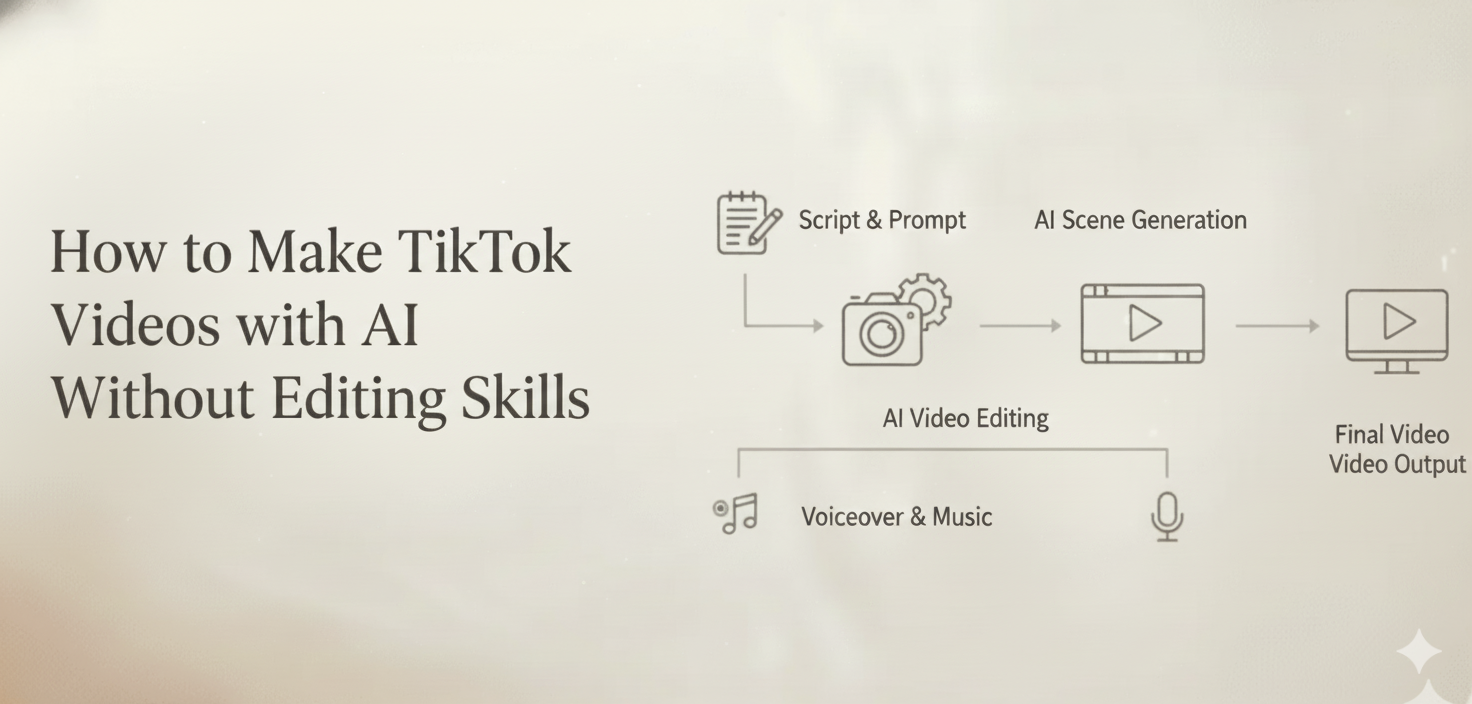
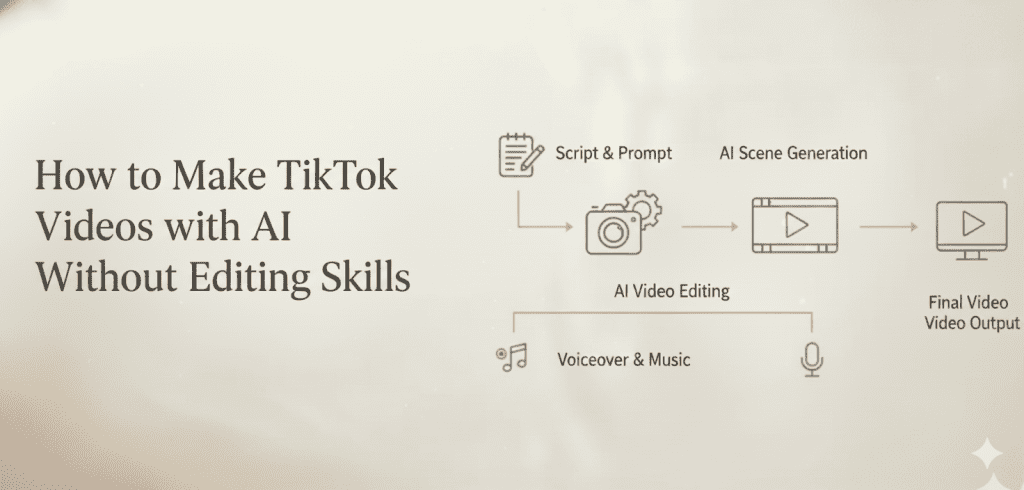
Meta : No editing background? Learn how to make TikTok videos with AI using prompts, templates, scene planning, voiceover, and chat-based editing instead of a timeline editor.
You have a killer idea for a TikTok video. Maybe it is a 30-second product demo, a storytime clip, or a trending concept you want to jump on before the moment passes. Then reality hits. You open a video editor, stare at layers of timelines, keyframes, and export settings, and close the tab five minutes later.
You are not alone. Millions of aspiring creators never post their first video—not because they lack ideas, but because the production workflow feels like it was designed for professionals with years of experience.
Here is the good news: in 2025, you can make TikTok videos with AI from start to finish without touching a traditional editing tool. This guide walks you through the entire process—from raw idea to published post—using AI-powered workflows that replace every intimidating step with a simple conversation.
Why Beginners Get Stuck Before They Even Start
Most TikTok advice skips the real problem. Creators do not struggle with “what to post.” They struggle with how to produce it.
The Traditional Workflow Is a 7-Step Obstacle Course
To create one polished TikTok video the old-fashioned way, you typically need to:
- Write a script — Decide on a hook, body, and CTA.
- Storyboard scenes — Plan what each shot looks like.
- Record or source footage — Film yourself, use stock clips, or generate visuals.
- Edit on a timeline — Cut, trim, arrange, add transitions.
- Add text overlays and captions — Sync them to speech or music beats.
- Find and sync music — Pick a trending sound or royalty-free track.
- Export in the right format — 9:16, under 10 minutes, proper resolution.
Each step requires a different skill set, a different tool, and a different chunk of your time. For a solo creator or a two-person marketing team, this pipeline can turn a 30-second clip into a full afternoon of work.
Where Most People Give Up
Based on common creator frustrations, the three biggest drop-off points are:
- Scriptwriting paralysis — Staring at a blank page, unsure how to structure a short-form hook.
- Timeline confusion — Video editors like Premiere Pro or DaVinci Resolve have steep learning curves that feel like overkill for a TikTok.
- Format and export anxiety — Wrong aspect ratio, blurry output, file too large. Small technical errors waste hours of rework.
The solution is not to “learn editing.” The solution is to remove the need for it entirely.
From Idea to Post: The Complete AI-Powered TikTok Workflow
When you make TikTok videos with AI, the entire production chain collapses into a single conversational flow. Here is what that looks like step by step.
Step 1: Describe Your Idea in One Sentence
Instead of writing a full script, you start with a prompt. Think of it as telling a creative partner what you want:
“Create a 30-second TikTok showing three reasons remote workers love standing desks. Energetic tone, fast cuts, text overlays on each reason.”
That single sentence contains your topic, format, tone, pacing, and visual style. An AI Director Agent like (1) takes this prompt and expands it into a complete production plan—script, scene breakdown, visual direction, and soundtrack selection—automatically.
You do not need to know what B-roll is. You do not need to pick fonts. The AI handles the creative decisions you would normally agonize over.
Step 2: Let the AI Plan Your Scenes
Once you submit your prompt, the AI breaks your video into individual scenes. For a 30-second TikTok, that might look like:
| Scene | Duration | Visual | Text Overlay | Audio |
| Hook | 3 sec | Person looking frustrated at a low desk | “Still sitting all day?” | Upbeat music intro |
| Reason 1 | 7 sec | Standing desk setup with monitor | “More energy after lunch” | Music continues |
| Reason 2 | 7 sec | Person stretching while working | “Fewer back problems” | Music continues |
| Reason 3 | 7 sec | Split screen: sitting vs. standing posture | “Better focus in meetings” | Music continues |
| CTA | 6 sec | Product shot or logo | “Try it for a week” | Music fade out |
This scene-by-scene planning is something that traditionally requires storyboarding experience. With AI, it happens in seconds.
Step 3: AI Generates Visuals, Voice, and Music
Here is where multi-model intelligence becomes your unfair advantage. Rather than jumping between five different apps, CrePal.ai orchestrates multiple AI models behind the scenes:
- Video generation models (like Google Veo or Pika Labs) create the visual scenes.
- Voice AI generates natural-sounding narration or voiceover.
- Music AI (like Suno) produces a royalty-free soundtrack that matches your video’s energy.
- Caption AI adds perfectly timed text overlays.
You do not choose which model to use. The AI Director Agent selects the optimal model for each element based on your creative brief. The result is a cohesive, multi-scene video with consistent style—not a patchwork of mismatched clips.
Step 4: Review and Refine Through Conversation
Your first draft is ready. Watch it. If something is not right, you do not need to drag clips on a timeline. You just talk to the AI:
- “Make the hook more dramatic.”
- “Swap the music for something more chill.”
- “Change the text in scene 3 to say ‘Deeper focus all day.'”
- “Speed up the transitions between scenes.”
This is chat-based editing, and it fundamentally changes who can create video content. More on this in the next section.
Step 5: Export and Post
Once you are happy with the result, export in TikTok-ready format. The AI already knows you need 9:16 vertical video, so there is no fumbling with export settings. Download, upload to TikTok, add your hashtags, and publish.
Total time from idea to post: minutes, not hours.
Chat-Based Editing: Why It Replaces the Timeline for TikTok Creators
Traditional video editing is built around a timeline—a horizontal strip where you drag clips, trim edges, add layers, and adjust every frame manually. It is powerful for filmmakers. It is overkill for TikTok.
What Chat-Based Editing Actually Means
Chat-based editing replaces the timeline with a conversation. Instead of learning where buttons are, you describe what you want changed in plain language.
| Traditional Timeline Editing | Chat-Based Editing with AI |
| Drag clip to trim 2 seconds | “Shorten the intro by 2 seconds” |
| Search music library, preview, sync to beat | “Add upbeat lo-fi music” |
| Create text layer, choose font, position, animate | “Add a bold caption that says ‘Watch this'” |
| Adjust color grading across all clips | “Make the whole video warmer and more vibrant” |
| Re-render and re-export | Changes applied instantly |
Why This Matters for TikTok Specifically
TikTok rewards speed and volume. The algorithm favors creators who post consistently. If each video takes three hours to edit, you burn out before you build an audience.
Chat-based editing with an AI Director Agent means you can:
- Produce multiple video variations from one idea to A/B test hooks.
- Iterate in real time based on what is trending today, not what you planned last week.
- Focus your energy on creative strategy instead of technical execution.
When you make TikTok videos with AI using conversational editing, you stop being a one-person production studio and start being a creative director of your own content.
How to Get the Perfect 9:16 Vertical Format Every Time
TikTok is a vertical-first platform. Every video must be in 9:16 aspect ratio (1080 × 1920 pixels) to fill the screen and maximize engagement. Getting this wrong is one of the most common technical mistakes new creators make.
The Problem with Manual Formatting
If you shoot horizontal video and try to crop it to vertical, you lose critical visual information. If you forget to set your project to 9:16 before editing, you have to redo the entire project. Stock footage is almost always horizontal, making it a poor fit for TikTok without heavy editing.
How AI Solves Vertical Video
When you use an AI video creation platform like CrePal.ai, the 9:16 format is built into the generation process. You do not convert or crop after the fact. The AI:
- Generates scenes natively in vertical — Every frame is composed for a phone screen.
- Places text overlays in the safe zone — No captions cut off by the TikTok UI.
- Frames subjects vertically — Characters and products are centered for vertical viewing.
Pro tip: When writing your prompt, specify “TikTok vertical format” or “9:16 portrait” to ensure the AI optimizes every frame for mobile viewing. With CrePal, this is often automatic, but being explicit never hurts.
5 Common Mistakes Beginners Make When Creating TikTok Videos with AI (And How to Avoid Them)
Even with AI handling the heavy lifting, there are pitfalls that can weaken your results. Here are the five most common ones.
Mistake 1: Writing Vague Prompts
The problem: “Make a cool TikTok video” gives the AI almost nothing to work with.
The fix: Be specific about topic, tone, length, audience, and visual style. Compare:
- “Make a fitness video”
- “Create a 25-second TikTok showing a morning stretch routine for office workers. Calm tone, soft lighting, with step-by-step text overlays and lo-fi background music.”
The more detail you provide in your prompt, the closer the first draft gets to your vision—which means fewer rounds of revision.
Mistake 2: Ignoring the Hook
The problem: TikTok users decide whether to keep watching within the first 1-2 seconds. If your video starts slowly, they scroll past.
The fix: Tell the AI to prioritize the hook. Use phrases like:
- “Start with a bold question on screen”
- “Open with a surprising visual that grabs attention”
- “Use a pattern interrupt in the first second”
Your hook is not just the first scene—it is your entire video’s survival mechanism on TikTok.
Mistake 3: Making Videos Too Long
The problem: Beginners often try to pack too much information into one video. A 90-second explainer might work on YouTube, but TikTok engagement drops sharply after 30-45 seconds for most content types.
The fix: Aim for 15-35 seconds for most TikTok content. In your prompt, specify the target duration. If you have more to say, plan a series instead of one long video.
Mistake 4: Forgetting Captions and Text Overlays
The problem: A large percentage of TikTok users watch without sound. If your video relies entirely on voiceover or dialogue with no on-screen text, you lose a massive portion of your audience.
The fix: Always include text overlays for key points. When you make TikTok videos with AI, add instructions like “include bold text overlays summarizing each point” in your prompt. CrePal.ai automatically generates synced captions, but reinforcing key messages with styled text overlays adds an extra layer of engagement.
Mistake 5: Not Iterating on What Works
The problem: Posting one video, getting low views, and giving up.
The fix: Use AI to create multiple variations of your best-performing concepts. Change the hook, swap the music, try a different visual style. Because AI-powered creation is fast, you can test three versions in the time it used to take to make one. Let the data tell you what resonates, then double down.
Start Making TikTok Videos with AI Today
The gap between “having a great idea” and “posting a great TikTok” used to be filled with software learning curves, hours of editing, and technical frustration. That gap no longer needs to exist.
When you make TikTok videos with AI using an AI Director Agent like, you replace the entire traditional workflow with a conversation. Describe your idea. Let the AI plan scenes, generate visuals, add music and captions, and produce a polished vertical video. Edit by chatting. Export and post.
No timeline. No editing skills. No excuses left not to create.
Get started with CrePal.ai for free → (1)
Frequently Asked Questions
Can I really make TikTok videos with AI if I have zero editing experience?
Yes. AI video creation platforms like CrePal.ai are designed for exactly this use case. You describe what you want in plain language, and the AI Director Agent handles scripting, scene planning, visual generation, music, captions, and formatting. No editing software required.
What makes CrePal.ai different from other AI video tools for TikTok?
Most AI tools generate short isolated clips that still need manual assembly. CrePal.ai is an AI Director Agent that orchestrates multiple models—Google Veo, Pika Labs, Runway, Suno, and more—to produce complete multi-scene videos with consistent characters, style, and pacing, all from a single prompt.
How long does it take to create a TikTok video with AI?
A typical 15-30 second TikTok can be generated in minutes. Prompt input takes about 30 seconds. AI generation takes a few minutes depending on complexity. Chat-based revisions add another minute or two. Compare that to the hours a traditional editing workflow demands.
Will my AI-generated TikToks look generic or robotic?
Not if you write specific, detailed prompts. The quality of AI video output scales directly with prompt quality. Include details about tone, pacing, visual style, text overlays, and target audience. CrePal’s multi-model intelligence also ensures the best available AI model is selected for each element of your video.
Is it free to make TikTok videos with AI on CrePal.ai?
CrePal.ai offers a free plan that lets you generate videos and explore core features. For higher volume creation, access to premium AI models, and additional credits, paid plans (Plus, Pro, and Max) are available.