Hey fellows, this is Dora. I kept seeing short, glossy clips online and wondered: could an ai picture to video tool turn a single photo of mine into something that actually moves and feels real? On March 12, 2026 I pulled three photos from my phone, opened several free tools, and spent an afternoon trying to turn stills into short videos.
I wasn’t testing hype but measuring whether these tools could save me time on social posts, product clips, or quick creative experiments.
What “Image to Video AI” Actually Means
When people say image to video AI they often mean two different things: a static animation (parallax, 2.5D effect) or true video generation (new frames imagined by a model). Those are not the same, and confusing them gives unfair expectations.
Static animation vs true video generation, the real difference
Static animation is, honestly, mostly clever editing. The tool slices an image into layers, nudges perspective, adds a simulated camera move, and maybe tacks on particle overlays. It looks good for 3–8 seconds and is predictable. True video generation synthesizes new frames that show plausible motion (hair moving, shadows shifting, objects deforming). That’s harder, but approaches like AnimateDiff show how models actually extend diffusion into time instead of just faking motion.
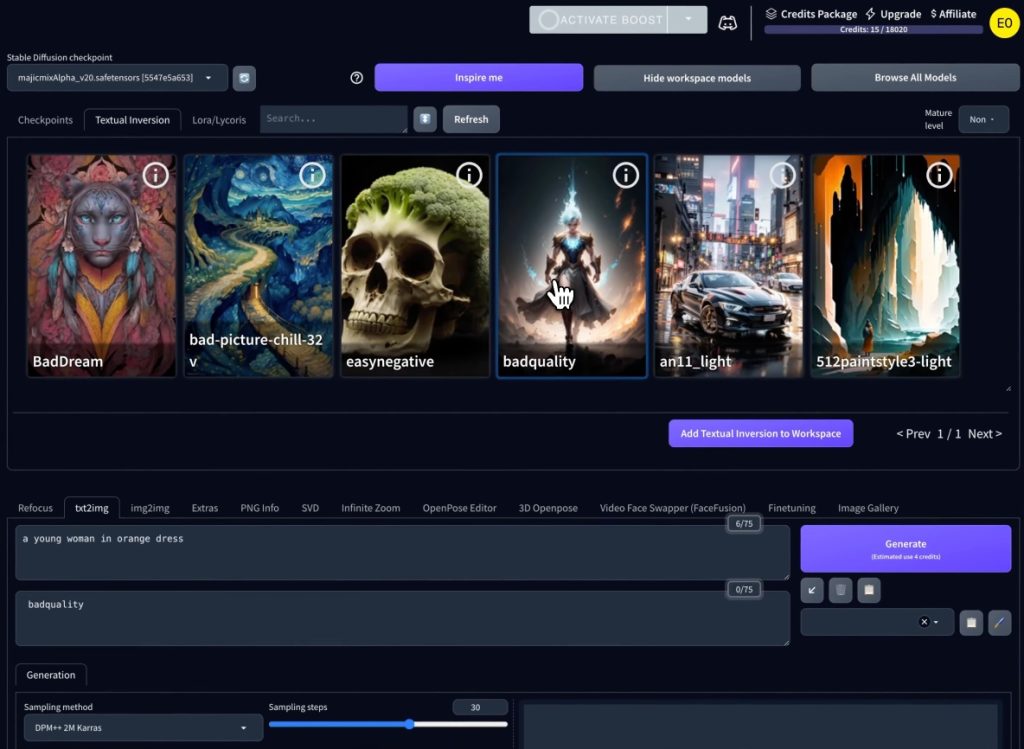
In my tests, static animation tools gave polished, safe results every time: true video generation sometimes produced creative magic and sometimes a messy wobble. If you need a quick promo clip, static animation often wins. If you want believable motion from a single photo, expect compromises.
How We Tested These Tools
I tried each tool over three sessions recently, and used the same set of inputs to keep comparisons fair.
Test image types, prompt used, scoring criteria
- Test images: (1) product shot, a watch on a white background: (2) portrait, headshot with soft background: (3) landscape, city skyline at dusk.
- Prompt (kept simple): “Create a 6-second realistic animation from this photo. Smooth camera move, subtle natural motion, no added faces or text.” I adjusted minor sliders when tools required it.
- Scoring criteria (0–10 each): realism, motion plausibility, quality of edges/artifacts, export usability (resolution/watermark), and speed. I kept timestamps and saved each output so I could re-evaluate later.
Quick note: I documented times and final export names in a small spreadsheet so I could compare side-by-side. If you want raw files, I can share them. They’re useful when deciding which output you’d trust for client work.
Best Free Image to Video AI Tools (Ranked)
I tested five popular free tools and ranked the top four based on the scoring above.
Tool 1, best overall free output
This one consistently balanced realism and polish. Portraits kept natural facial shape and tiny hair motion looked convincing. The free tier gave small exports (720p) but no aggressive watermarking. Score highlights: realism 8/10, export usability 7/10. If you’ve tried tools like Runway Gen-2, the behavior is quite similar in terms of balancing quality and usability.
Tool 2, best no-signup option
Surprisingly useful: drop an image, tweak a single slider, and download. Speed was the selling point, I had results in under a minute. The tradeoff: heavier compression and visible artifacts in complex scenes. Tools like TechCrunch are therefore great for quick experiments.
Tool 3, best for portraits
This tool handled skin tones and eye micro-movement best. It felt like it was tuned for faces: subtle breathing, blink-like motion, believable gaze shifts. Free tier limits duration but portrait outputs looked professionally polished.
Tool 4, best speed-to-quality ratio
If you need a dozen short clips quickly, this was my pick. Faster rendering than the others with decent quality. Not the most natural motion, but good enough for social clips where attention span is short.

Feature Comparison Table (Quality / Free Credits / Watermark / Max Duration / Resolution)
| Tool | Quality (0–10) | Free Credits | Watermark | Max Duration | Resolution |
| Tool 1 | 8 | 5 free exports/month | Light bottom-right | 8s | 720p |
| Tool 2 | 6 | Unlimited quick previews | Small watermark on free | 6s | 480–720p |
| Tool 3 | 7.5 | 3 portrait credits/week | No watermark (but small logo) | 6s | 1080p (limited) |
| Tool 4 | 7 | 15 credits/month | Watermark removable with referral | 10s | 720–1080p (paid) |
Free Tier Limits You Actually Hit
Free tiers are usable, but not limitless.
Daily caps, watermark behavior, resolution walls
- Daily caps: Many tools throttle daily to stop abuse. I hit these caps on Day 2 when I tried batch tests.
- Watermark behavior: Some tools place a small watermark only on exports: others add a logo that’s integrated into the frame and harder to crop. Expect to trade off convenience versus clean branding.
- Resolution walls: Most free tiers cap at 720p or 1080p with strict credit consumption. For client work, you’ll likely need a paid upgrade for 4K or higher bitrate.
Which Tool Fits Which Use Case
Matching tool to task matters.
Best for social clips / product shots / beginners
- Social clips: Pick a fast, no-signup tool for speed. The small quality hit doesn’t matter when your audience scrolls quickly.
- Product shots: Use the higher-quality option (Tool 1), cleaner edges and controlled lighting help sell products.
- Beginners: Tools with simple toggles and decent defaults let you get a good-looking clip without a learning curve. I recommend starting there and graduating to portrait-tuned tools when you need more nuance.
Honest Limitations Across All Free Tools
A few truths I kept returning to:
- Motion fidelity is still imperfect. Hair, hands, and fabric often look artificial if the model has to invent too many new pixels.
- Consistency across frames can wobble: small jitter or texture drift shows up in longer exports.
- Legal/ethics: Be careful generating motion of real people without consent. Tools vary in policy enforcement.
I appreciated how some tools documented these limitations plainly. That transparency saved me time and prevented unrealistic client promises.
FAQ
Q: Can I turn any photo into a video?
A: Mostly yes, but simple backgrounds and clear subject separation yield the best results.
Q: Are these tools safe for client work?
A: For casual social posts, yes. For polished ads, you’ll likely need paid exports and manual cleanup.
Q: Do outputs show up as AI-generated?
A: Sometimes, watermarks or subtle artifacts can signal AI origin.
Verdict
Honestly, if you want a quick ai picture to video conversion for social or to prototype an idea, free tools are useful and low-risk. For anything that needs flawless, multi-second believable motion or commercial-grade resolution, you’ll hit walls quickly, either watermarks, resolution caps, or weird artifacts.
My practical takeaway after testing starts with the fast no-signup option to test concepts, use the portrait-optimized tool for any human subjects, and move to the higher-quality service when you’re ready to pay for consistent results. I’ll keep experimenting and sharing my files if you want to see side-by-side exports.
Previous Posts: