How’s it going? This is Dora. A few months back, an indie musician friend dropped a finished track in our group chat and asked if I could “quickly” turn it into a lyric video for YouTube. I said yes, assuming it’d take an hour. Four hours later, I was deep in a timeline editor at 1 AM, manually nudging text boxes frame by frame, wondering why I’d agreed to this.
That weekend pushed me into properly testing every AI lyric video maker I could find. The tools have gotten genuinely good — but there’s a real gap between what looks impressive in a demo and what actually works for a full 3-minute song. Here’s everything I learned.
What Makes a Good Lyric Video (Quick Framework)
Before picking a tool, it helps to know what you’re actually aiming for. A lyric video that performs well — on YouTube, Reels, or TikTok — usually nails three things and skips everything else.
Text Timing, Visual Style, Motion Pacing
Text timing is non-negotiable. Each lyric line needs to appear exactly when it’s sung, not a quarter-second early or half a second late. Drift accumulates fast — if your sync is off by 200ms per line across a 3-minute song, the back half of your video looks completely broken.
Visual style is what stops the scroll. A solid-color background with white text works technically but rarely gets watched. In 2026, the bar is particle effects, mood-matched video backdrops, or kinetic typography that moves with the beat. Audiences have seen enough simple lyric videos to tune them out.
Motion pacing ties it together. Text that pops in static and disappears reads as unfinished. Subtle scale, fade, or slide animations — timed to the rhythm — signal production value without requiring an editor.
AI vs Traditional Lyric Video Makers — Key Difference
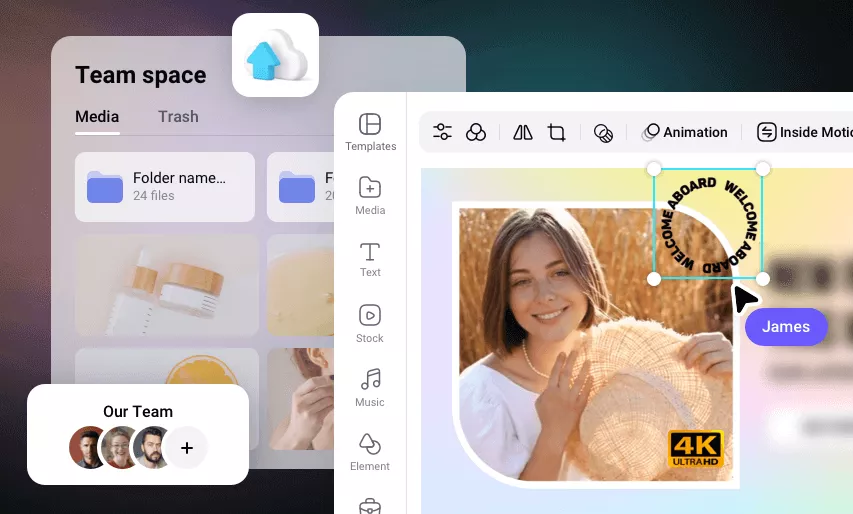
Traditional lyric video creation means a timeline editor — Final Cut, Premiere, After Effects, or a simpler tool like CapCut with manual keyframes. You place each word, set its in/out points, add animation, and repeat for every line. For a 3-minute song with dense lyrics, that’s hours of work.
Where AI Helps vs Where Manual Sync Is Still Needed
AI tools in 2026 have genuinely solved the hardest part: auto-transcription and initial sync. Upload an MP3, and most platforms will extract the lyrics and place them on a timeline synchronized to the audio in under two minutes. That alone cuts the majority of manual work.
What AI hasn’t fully solved yet is precision on fast or complex passages. Rapid-fire rap sections, overlapping harmonies, lyrics sung in unusual rhythm — these still slip. Every tool I tested required at least some manual adjustment on dense lyric sections. Plan for 10–20 minutes of fine-tuning even with the best auto-sync tools.
Best Free AI Lyric Video Maker Tools
Tool 1 — Best for Auto-Sync with Audio
NeuralFrames is the tool I reach for first when audio reactivity matters. Its Autopilot mode analyzes your song’s BPM, key, mood, and lyrics automatically — no manual transcription, no prompt engineering. It then generates a complete storyboard with synced captions and matched visual backgrounds, and renders a 4K master in under 10 minutes.
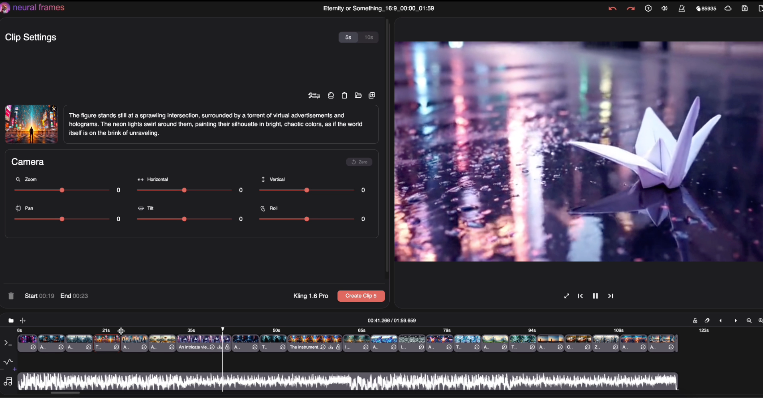
The visual quality is the standout feature. NeuralFrames taps text-to-video models (Kling, Seedance, Runway are all accessible within one subscription) to generate backgrounds that shift with the song’s energy. A synthwave chorus gets neon-soaked cityscapes; an acoustic ballad gets film-grain warmth. It’s the closest thing I’ve found to an AI that actually understands what a song “looks like.”
The free tier lets you render a 20-second test clip — genuinely useful to check sync and visual style before committing. Paid plans start at $19/month (Neural Navigator: 1,000 rendering credits) up to $39/month for the Knight plan with audio-reactive effects. You retain full commercial rights to all output.
Tool 2 — Best Visual Style Range
Capify handles about 90% of the sync work automatically, then hands you a frame-level timeline for the remaining adjustments. That hybrid approach is genuinely useful — you get the speed of AI sync without losing the precision to fix the moments where auto-detection stumbles.
The text animation library is where it earns its spot on this list. Motion-graphic styles that feel broadcast-ready, deep font customization, brand color support, and the ability to drop in your own logo. If you’re creating lyric content for a label release or a client project where aesthetic consistency matters, Capify’s output looks like it came from a post-production studio rather than a browser tab.
Pricing: preview drafts for free with watermark. A mid-tier plan provides five watermark-free HD exports per month, with a la carte extras available. Exact monthly pricing — needs verification from capify.ai directly as public sources don’t consistently list it.
Tool 3 — Best No-Watermark Free Output
LyricEdits is built specifically for music — not a general video tool with a lyric mode bolted on. The pitch is simple: start with an AI-generated video, then customize everything in a real-time editor. Fonts, colors, background footage, character animations, pacing — all editable without requiring video editing experience.
What earns it this slot: you can see your video before paying anything. No surprise watermarks, no locked previews. When you’re satisfied with the result and ready to export, you pay. That’s a meaningfully different model from tools that watermark first and ask for payment to remove it.
Step-by-Step: How to Make a Lyric Video with AI
Step 1 — Prepare Audio File and Lyrics Text
Export your final master as a WAV or high-quality MP3 (320kbps). Most AI tools accept both; WAV gives auto-transcription slightly better accuracy on consonants and subtle syllables. If your track isn’t finalized yet, don’t make the lyric video — sync to a rough mix almost guarantees you’ll redo it.
For lyrics: have a clean, line-broken text document ready. Format it the way you want it to appear on the screen — short lines, logical breath breaks. Don’t paste the full verse as one block and expect the AI to break it intelligently.
# Good format — short lines with clear breath breaks
Verse 1:
I was running through the city
In the middle of the rain
Every streetlight felt like static
Every window felt the same

# Avoid — run-on blocks that confuse auto-segmentation
I was running through the city in the middle of the rain every streetlight felt like static every window felt the same
Step 2 — Choose Visual Style and Background
Before generating anything, spend 3 minutes deciding on a visual direction. Pick one of three paths:
- AI-generated backgrounds (NeuralFrames, Capify): mood-matched, generative, no additional assets needed
- Stock footage backgrounds: most tools include a library — search by mood keyword, not literal subject
- Your own footage: upload an existing performance clip, B-roll, or abstract footage as the base layer
Trying to mix all three in one video usually ends up looking inconsistent. Pick a lane and stay in it.
Step 3 — Sync Lyrics to Audio (Auto vs Manual)
Upload audio, paste lyrics (or let the tool transcribe), and let auto-sync run. Then do a single full-playthrough review before touching anything. Note every line that feels early, late, or misread.
Most tools give you a timeline to shift individual word or line timing. Prioritize fixing: the opening line (sets first impression), the chorus (most-replayed section), and any rapid lyric section where words run together.
Step 4 — Export for YouTube / Instagram / TikTok
| Platform | Recommended Resolution | Aspect Ratio | Max File Size | Format |
| YouTube | 1080p or 4K | 16:09 | 256GB | MP4 (H.264/H.265) |
| Instagram Reels | 1080 × 1920 | 9:16 | 1GB | MP4 |
| TikTok | 1080 × 1920 | 9:16 | 287.6MB | MP4 |
| YouTube Shorts | 1080 × 1920 | 9:16 | 256GB | MP4 |
Most AI tools now auto-export at multiple ratios simultaneously. Use this — don’t crop a 16:9 master to 9:16 after the fact; text positioning breaks. For platform export specs, YouTube’s official upload encoding settings are the proper reference and are updated regularly.
Common Problems and Fixes
Lyrics Out of Sync / Text Hard to Read / Wrong Aspect Ratio
Problem: Lyrics running ahead of the vocal. Most common cause is the tool syncing to the start of the audio waveform instead of the onset of the sung note. Fix: add 100–150ms of lead time to affected lines in the timeline editor.
Problem: Text hard to read over bright backgrounds. Don’t change the font color — add a subtle dark gradient bar behind the text layer, or enable the “text shadow” or “text stroke” option most tools provide. The minimum contrast ratio for legibility is 4.5:1, a standard defined in WCAG accessibility guidelines for text contrast — which applies just as practically to lyric video readability as to web design.
Problem: Exported video has the wrong aspect ratio. Always set your aspect ratio before placing any text or visual elements. Changing it after repositions nothing automatically — you’ll manually re-center everything.
Problem: Auto-transcription got the lyrics wrong. Don’t correct the transcript and re-sync from scratch. Instead, paste your correct lyrics as a manual override (all tools support this) and let the AI re-sync against your text rather than its own transcription.
Free Tier Limits to Expect
No free tier is genuinely unlimited. Here’s what to realistically expect:
| Tool | Free Tier | Watermark on Free | Export Quality | Time Limit |
| NeuralFrames | 20-second test render | Yes (on test) | 4K on paid | 20 sec free |
| Capify | Draft preview only | Yes | HD on paid | Preview only |
| LyricEdits | Full preview before payment | No preview watermark | Depends on plan | Pay to export |
| Animaker | Limited exports | Yes | Full HD on paid | Per-video cap |
| FlexClip | 1 watermarked export/month | Yes | 480p free | No time limit |
The honest summary: if you need a clean, shareable, no-watermark lyric video for free, LyricEdits is currently the most transparent model — preview fully, pay only when you’re happy. Every other tool watermarks the output until you subscribe.
FAQ
Q: Can AI sync lyrics to music automatically?
Yes — and this is genuinely the most useful thing these tools do. NeuralFrames, Capify, and LyricEdits all extract lyrics from your audio and sync them to the waveform automatically. Accuracy is high for clear studio vocals at moderate tempo. Expect 85–95% accuracy on a typical pop or indie track; fast rap or overlapping vocal sections need manual correction. Auto-transcription works in multiple languages, though English and Spanish consistently get the best results across all platforms tested.
Q: Can I upload a lyric video to YouTube without copyright issues?
This depends entirely on who owns the music, not on the video tool you used. If you own the song — you wrote it, recorded it, and own the master — you can upload freely and monetize. As YouTube’s official Content ID documentation explains, a Content ID claim is not the same as a copyright strike — it often just redirects ad revenue to the rights holder — but it can block monetization for your channel. For covers or licensed tracks, check the copyright holder’s YouTube policy before uploading.
Q: Do free AI lyric video makers add a watermark?
Most do. The standard model is: free tier = watermarked output, paid tier = clean export. LyricEdits is the exception — it shows a full unwatermarked preview and only charges at export. NeuralFrames watermarks the 20-second free test render. Animaker and FlexClip watermark all free exports. If a watermark-free output is non-negotiable, budget for a paid plan or use LyricEdits and pay per export.
Verdict
For most creators making lyric videos in 2026, the workflow is simpler than it looks: NeuralFrames for audio-reactive, cinematic output if you want the visual quality to do the work, or LyricEdits if you want to see the full result before spending anything.
Capify sits in the middle — strong for creators who want precise timeline control and professional typography without building from scratch, especially for client or label projects where visual consistency matters.
The tools have genuinely caught up to the task. What used to take four hours of manual timeline work — the thing that had me up until 1 AM — now takes 20–30 minutes including the fine-tuning pass. The sync problem is largely solved. The visual quality ceiling is high. The main remaining variable is whether you have a clear idea of what you want the video to look like — AI handles execution well, but it still needs creative direction.
Previous Posts: