Hey fellows! It’s Dora . A few months back I had a video ready to publish but absolutely no voice to put on it. My mic had died the night before a deadline, my backup recorder was at a friend’s place, and I had maybe four hours to ship. That was the moment I stopped treating AI voiceovers as a “nice to try someday” thing and started actually testing it for real production work.
I’ve since run tests across six tools, clocked dozens of generations, compared audio outputs blind with a colleague, and checked every free tier against its real-world limits. Here’s what I found — and what I wish someone had told me before I burned through credits on the wrong plan.
What to Look for in a Voiceover Tool for Video
Before you pick a tool, it helps to know what actually matters in a voiceover workflow. The feature lists all look similar. The differences that matter in practice are narrower than you’d think.
AI Voice Quality vs. Human Recording vs. Hybrid
These aren’t really three equal options — they’re three different workflows with different trade-offs:
AI voice generation is fast, infinitely repeatable, costs cents per minute at scale, and has no ego. The downside: even the best AI voice now lacks the micro-variations of human speech that keep listeners engaged over long-form content. For YouTube tutorials, explainers, or product demos, it works great. For emotionally driven storytelling, it still struggles.
Human recording remains unbeatable for connection — your audience hears you, and that builds trust in a way no synthesis model currently matches. The trade-off is time: setup, takes, editing, re-recording when the script changes. For creators doing regular content, this cost adds up fast.
Hybrid — where you record yourself but use AI to fix errors, fill gaps, or regenerate lines you flubbed — is often the smartest path for established creators. Tools like Descript’s Overdub are built specifically for this use case.
Sync Accuracy, Language Support, Commercial License
Three things that get glossed over until they cause real problems:
Sync accuracy matters the moment your voiceover needs to land on a specific visual cue — a product appearing on screen, a graph animating in, a CTA button showing up. Tools with a built-in timeline (Murf, Descript) handle this natively. Tools that output raw audio files leave sync as your problem to solve in your editor.
Language support varies wildly in quality, not just count. ElevenLabs supports 29 languages with genuinely multilingual voice models. Many competitors list 40+ languages but deliver noticeably degraded quality outside English. If you’re producing for a non-English market, test that specific language before committing to a plan.
Commercial license is the one everyone forgets to check. ElevenLabs’ free plan audio cannot be used for commercial purposes — you need at minimum the Starter plan at $5/month for any monetized or client-facing use. Murf, by contrast, includes commercial rights across all paid plans. Missing this detail has burned more than a few creators who published content only to discover their free-tier exports weren’t licensed for YouTube monetization.
Best Voiceover Tools for Video (Ranked)
Tool 1 — Best AI Voice Quality for YouTube
ElevenLabs holds the top position this year for AI voice quality — the highest voice realism, most accessible voice cloning, and strongest financial backing at an entry price of $5/month. For YouTube creators, where voice naturalness directly affects watch time, this is the call.
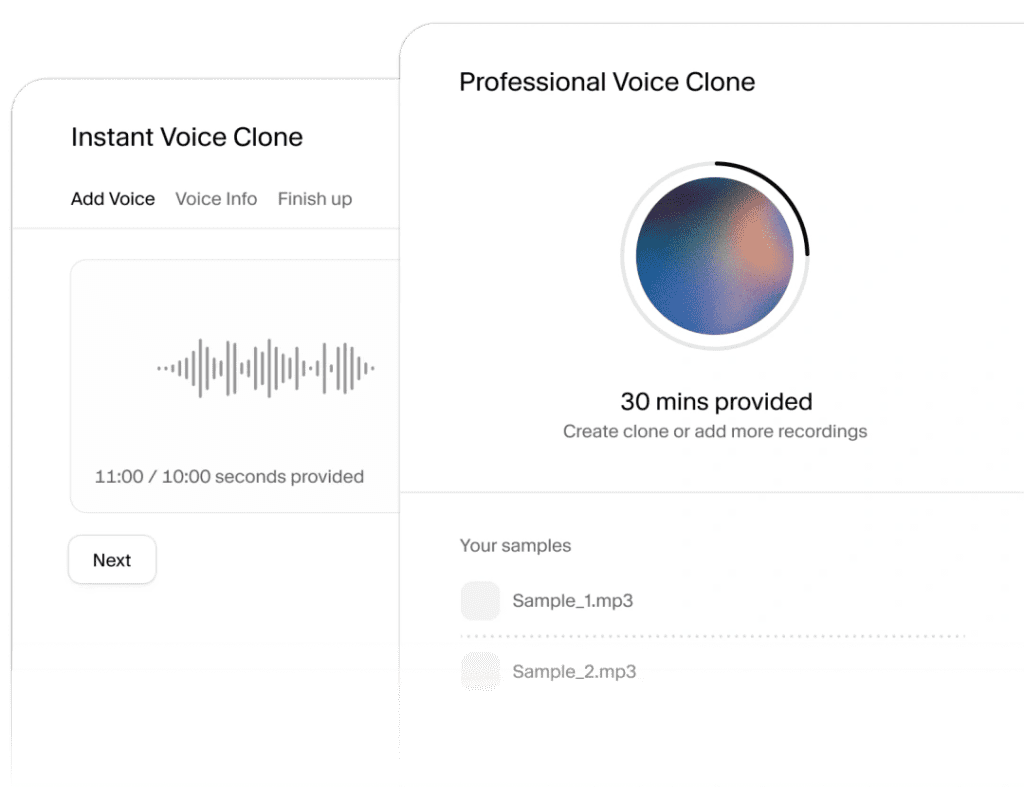
What genuinely sets it apart is the Instant Voice Cloning feature: upload 60 seconds of your own voice, and it generates a usable clone on the Starter tier.
Pricing: Free (10k chars/month, no commercial rights) / Starter $5/mo / Creator $22/mo Best for: YouTubers, audiobook creators, anyone where voice realism is the priority Watch out for: Free tier has no commercial license — don’t publish monetized content on it
Tool 2 — Best for Adding Voiceover to Existing Video
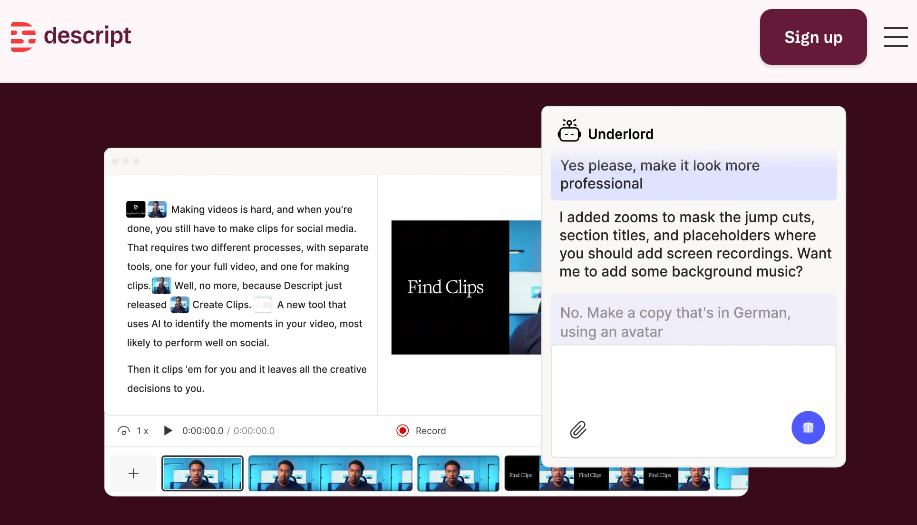
Descript’s text-based editing paradigm fundamentally changes how you work with video — edit the transcript, and the video. For podcasters, YouTubers, and course creators producing talking-head or interview content, it’s one of the most time-saving tools available in 2026.
The real magic for voiceover workflows is Overdub: train it on ~10 minutes of your voice, and from then on you can fix mispronounced words or add missing lines by typing — no re-recording. Combined with Studio Sound (one-click noise removal and audio enhancement), this makes it the go-to for creators who already record themselves but want to stop wasting time in re-recording sessions.
Pricing: Free (watermarked) / Hobbyist $12/mo annual / Creator $24/mo annual Best for: Creators who record themselves and want AI-assisted correction and sync Watch out for: Voice quality on Overdub doesn’t match ElevenLabs for standalone TTS
Tool 3 — Best Free No-Watermark Option
Murf is the one I recommend to creators who need a clean output without paying immediately. The platform powers 10M+ developers and creators worldwide, with commercial rights included on all paid plans and 99.38% pronunciation accuracy with human-like delivery. Its Gen2 speech model, noticeably improved naturalness on longer scripts compared to the previous version.
The standout feature for video creators specifically is the built-in video sync: paste your script, pick a voice, adjust timing markers, and export a video with the voiceover already synced to your slides or clips — all without leaving the browser.
Pricing: Free tier available / Pro from $19/month Best for: Creators who need video-sync and collaboration without leaving one tool Watch out for: Voice variety smaller than ElevenLabs; emotional nuance lags behind
Tool 4 —Best for Marketing Video Voiceover
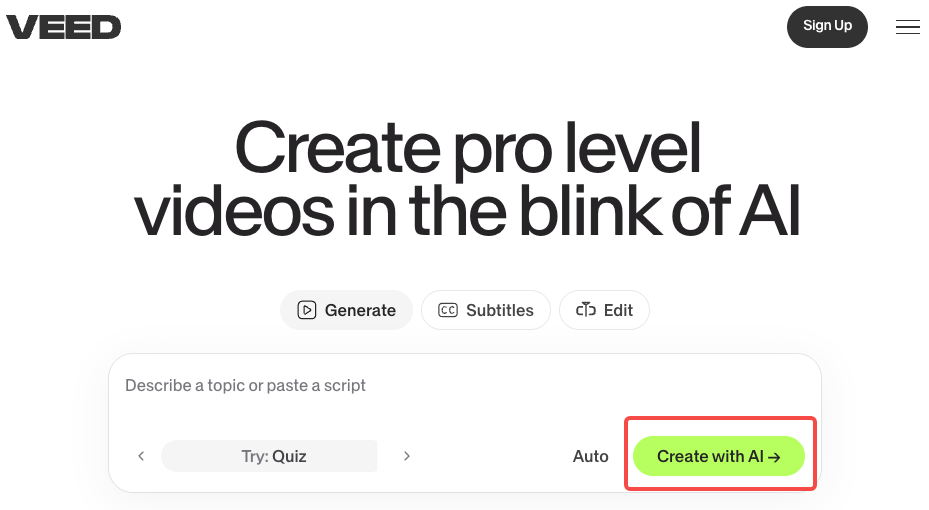
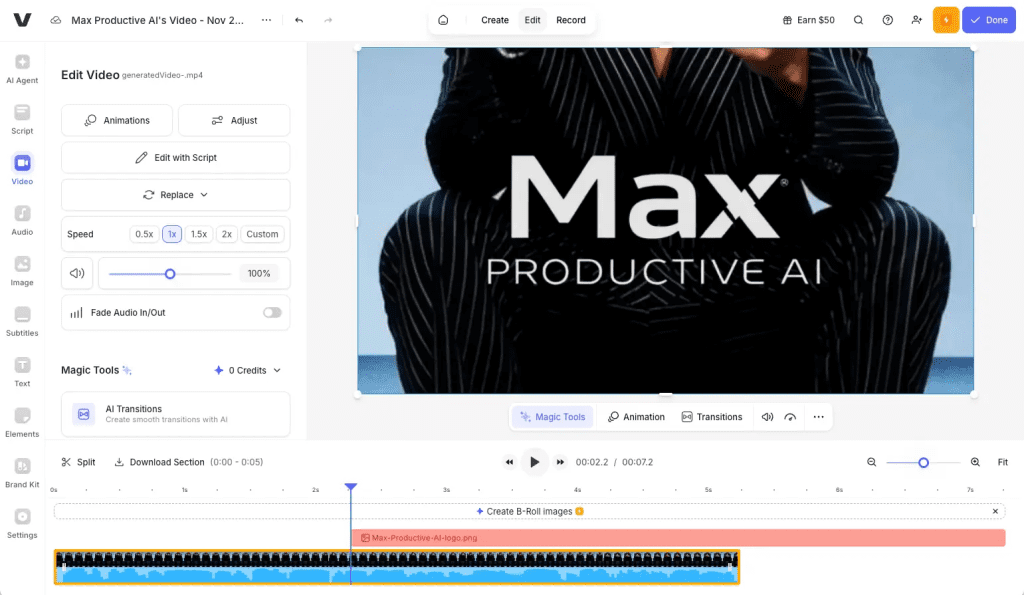
VEED sits in a category of its own: a full video editor with voiceover generation built directly into the timeline. You don’t export audio and then import it — you generate the voice, see it on the timeline, adjust the clip, and export the finished video. For marketing teams producing product demos, ads, or social content at speed, this all-in-one flow is genuinely faster than juggling separate tools. The AI voice quality is good, not exceptional. What VEED wins on is workflow consolidation — subtitles, voiceover, b-roll, branding elements, and export all live in one browser tab.
Pricing: Free (watermarked) / Basic $18/mo / Pro $30/mo Best for: Marketing teams needing speed and one-tool workflow over maximum voice quality Watch out for: AI voice quality plateau — at high volume, ElevenLabs will sound noticeably better
Feature Comparison Table
| Tool | AI vs Human | Free Tier | Languages | Watermark (Free) | Auto-Sync | Commercial License |
| ElevenLabs | AI (+ cloning) | 10k chars/mo | 29 | No watermark | ❌ Manual | Paid only |
| Descript | Hybrid (Overdub) | 1hr transcription | 30+ (dubbing) | ✅ Watermark | ✅ Built-in | Hobbyist+ |
| Murf AI | AI | Limited | 20+ | No watermark | ✅ Built-in | Paid plans |
| VEED.IO | AI | Limited exports | 50+ | ✅ Watermark | ✅ Built-in | Paid plans |
How to Add Voiceover to a Video (Step-by-Step)
Method 1 — Record and Add Manually
The classic workflow still works, and for creators who want maximum authenticity, it’s the right call.
- Write your script and time it against your video: — aim for one word per second as a baseline pace
- Record in a quiet space; a closet full of clothes is a legitimate acoustic treatment
- Edit audio in Audacity or Adobe Audition: normalize to -14 LUFS for YouTube, -16 LUFS for podcasts
- Import audio into your video editor and sync manually using waveform peaks
Quick FFmpeg command to normalize your recorded voiceover before import:
ffmpeg -i raw_voiceover.wav \
  -af "loudnorm=I=-14:TP=-1.5:LRA=11" \
  -ar 48000 \
  voiceover_normalized.wav
Method 2 — Use AI Voice Generation
- Paste your script into ElevenLabs, Murf, or your preferred tool
- Pick a voice and preview at least 3–4 options — they sound different on your specific script
- Adjust speed: most AI voices default slightly fast; pull back to 0.9× for spoken-word content
- Export as WAV (not MP3) to preserve quality before your editing encode
- Import into your video editor and sync to visuals manually
Here’s a basic Python snippet using the ElevenLabs API to generate and save voiceover audio:
import requests

API_KEY = "your_elevenlabs_api_key"
VOICE_ID = "your_chosen_voice_id"

def generate_voiceover(script_text, output_file="voiceover.mp3"):
    url = f"https://api.elevenlabs.io/v1/text-to-speech/{VOICE_ID}"
    headers = {
        "xi-api-key": API_KEY,
        "Content-Type": "application/json"
    }
    payload = {
        "text": script_text,
        "model_id": "eleven_multilingual_v2",
        "voice_settings": {
            "stability": 0.5,
            "similarity_boost": 0.75,
            "style": 0.3,
            "use_speaker_boost": True
        }
    }
    response = requests.post(url, headers=headers, json=payload)
    with open(output_file, "wb") as f:
        f.write(response.content)
    print(f"Saved: {output_file}")

generate_voiceover("Your script text here.")
Method 3 — Use a Video Editor with Built-in Voiceover
Murf and VEED handle this end-to-end. The workflow:
- Upload your video or slide deck into the editor
- Paste script into the voiceover panel
- Select voice and generate
- Use timeline markers to align voiceover segments with visual beats
- Export as a finished video — no separate audio files, no import/export loop
This is the fastest path for anyone who doesn’t need to touch audio engineering.
Free Tier Reality Check
Credit Limits, Character Caps, Watermark Behavior Per Tool
| Tool | Free Monthly Limit | Commercial Rights | Watermark | Real-World Equivalent |
| ElevenLabs | 10,000 chars | ❌ No | ❌ No watermark | ~8–10 min of audio |
| Descript | 1hr transcription, 5 AI speech min | ❌ No (watermark) | ✅ Yes | Enough to test, not publish |
| Murf AI | ~10 min audio | ❌ No | ❌ No watermark | 1–2 short videos |
| VEED.IO | Watermarked exports | ❌ No | ✅ Yes | Testing only |
The honest summary: no free tier is production-ready for commercial content. They’re all testing environments. If you’re publishing to a monetized YouTube channel or doing client work, the $5/month Starter is the actual minimum.
Common Mistakes When Adding Voiceover
Exporting at the wrong loudness level. YouTube normalizes to -14 LUFS. If your voiceover comes in at -6 LUFS (hot), YouTube will turn it down and it’ll sound compressed and harsh. Target -14 LUFS on export.
Picking a voice on one sentence. AI voices sound very different across different script styles. Always preview with a full paragraph of your actual content before committing.
Ignoring breathing sounds. AI voices don’t breathe, which is subtly uncanny on longer narrations. Adding 200–300ms of ambient room tone between paragraphs makes the pace feel more natural.
FAQ
Q: What is the best free AI voiceover tool for YouTube?
ElevenLabs gives the best voice quality on its free tier (10,000 chars/month, no audio watermark), but the free plan has no commercial license — you can’t use it in monetized videos. For testing voice quality, it’s unmatched. For actual YouTube publishing, you need at minimum the $5/month Starter plan. If you genuinely need free with publishable output, Murf’s free tier includes a small monthly allowance without a watermark.
Q: Can I use AI voiceover audio in commercial videos?
It depends entirely on the tool and plan. ElevenLabs requires a Starter plan ($5/month) or above for commercial use. Murf includes commercial rights on paid plans. Descript requires Hobbyist or above. Always check the specific plan’s license page — the free tier almost universally restricts commercial use, and the consequences of getting this wrong on a monetized channel are real.
Q: Do free voiceover tools have a character or word limit?
Yes, every major tool has limits on the free tier. ElevenLabs caps at 10,000 characters/month. Descript’s free plan gives 5 AI speech minutes. Murf’s free tier offers approximately 10 minutes of audio. These limits exist across all tools — they’re testing environments, not production plans.
Verdict: Best Tool by Use Case
| Use Case | Recommended Tool |
| YouTube channel, voice quality priority | ElevenLabs (Creator $22/mo) |
| Record yourself + AI error correction | Descript (Hobbyist $12/mo annual) |
| Marketing videos, team workflow | Murf AI (Pro $19/mo) |
| All-in-one video + voiceover, speed | VEED.IO (Basic $18/mo) |
| Testing before committing any budget | ElevenLabs free → Murf free |
My honest take: if voice quality is your main concern — and for YouTube it really should be — ElevenLabs at $22/month is the clearest recommendation in 2026. If you’re already recording yourself and just want AI to handle corrections and script additions, Descript pays for itself in re-recording time saved within the first month. Start with the free tiers, test your actual script content, and choose based on what you hear, not what the feature page says.
Previous Posts: