Hey there, I’m Dora. I spent last Tuesday night manually keyframing a 6-second logo reveal in After Effects for the third time that week. Different client, same tedious drag — scale the logo, ease in, ease out, add a whoosh, render, wait.
Six seconds. Forty-five minutes.
That’s when I finally went hunting for AI intro generators that could actually replace this step. Not the general-purpose tools like Runway or Kling — I mean tools specifically built to spit out short, branded, logo-forward intro clips. The kind you slap at the front of a YouTube video or a client demo and never think about again.
I tested seven tools over two days. Four of them either couldn’t handle a simple logo animation or generated something that looked like a PowerPoint transition from 2009. Three are actually worth your time. Here’s the honest breakdown.
What Is an AI Video Intro Generator
Let me clear something up, because I see this confusion everywhere.
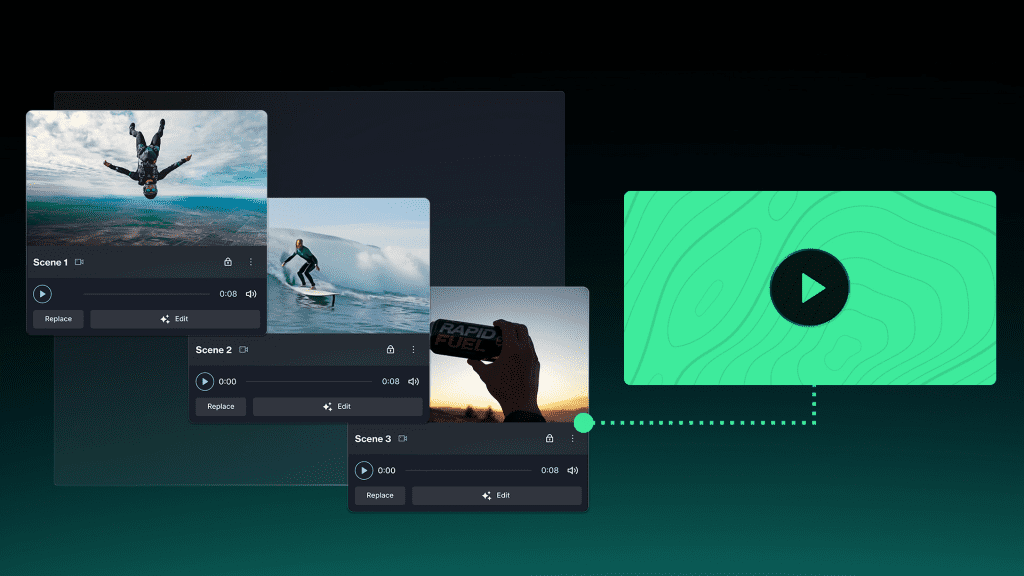
An AI video intro generator is not the same thing as a general AI video generator. Those tools create cinematic clips from text prompts. An intro generator does something narrower: it takes your logo, brand name, maybe a tagline, and produces a short animated opening sequence — logo reveals, motion graphics, text animations with background music.
The difference matters because intro requirements are specific. An intro needs to be short — YouTube’s Creator Academy recommends branded bumpers stay under 5 seconds. It needs to be brand-consistent across dozens of videos. And it needs to be platform-formatted — 16:9 for YouTube, 9:16 for Reels/TikTok.
General AI video tools don’t optimize for any of that. They’re designed for one-off creative clips, not repeatable branded assets. I’ve seen people waste an hour trying to get Runway to generate a consistent 5-second logo animation — it’s just not what those tools are built for.
Quick reality check: if you’re hoping for a full cinematic 3D opening sequence with particle effects — that’s still After Effects territory. What AI intro tools do well is the 80% case: clean, professional, fast intros for creators and small teams who don’t have a motion designer on speed dial.
Best AI Tools for Video Intros
I tested each tool by uploading the same logo (a simple wordmark PNG, transparent background), requesting a 5-second intro with music, and timing upload-to-export.
Canva — Best for YouTube Creators
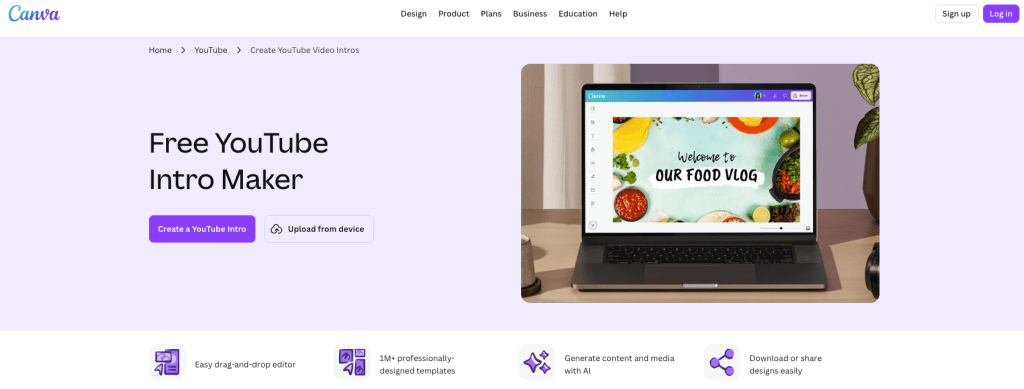
Canva’s intro maker gives you hundreds of pre-designed intro templates across every niche — gaming, travel, news, business. Pick one, swap in your logo and brand colors, adjust the text, export. The whole process took me under 4 minutes.
The AI part: Magic Studio tools generate background images, auto-animate text, and Beat Sync matches music to visual transitions. It’s not generating from scratch — it’s augmenting templates with AI assists. For intros specifically, that’s actually a better approach.
Output quality: Clean, polished, predictable. Templates are designed by actual motion designers, so timing and transitions feel professional. No weird AI artifacts, no uncanny motion. Downside: your intro might look similar to other creators using the same template — but swapping colors, fonts, and layout goes a long way toward making it yours.
Pricing: Free tier — no watermark on exports, unlimited downloads. Canva Pro ($14.99/month) unlocks premium templates and full Magic Studio. For intro-making specifically, the free tier is surprisingly complete.
InVideo AI — Best Free AI-Generated Intros
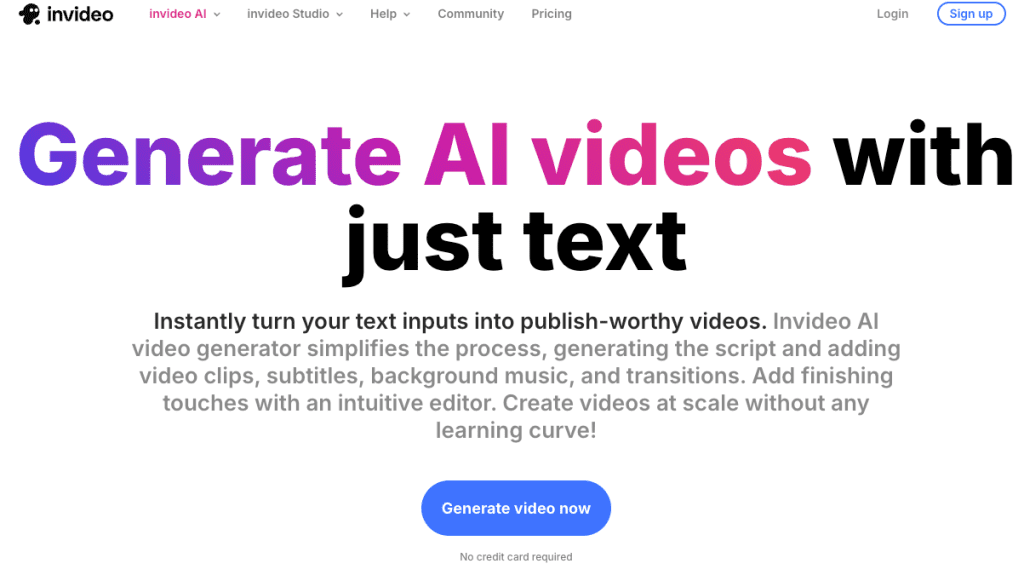
This one surprised me. You type a prompt like: “5-second YouTube intro for a tech review channel called ‘ByteSize Reviews.’ Dark theme, glitch effect, electronic music.”InVideo AI generates the complete intro — visuals, text animation, music, transitions.
You edit through the “Magic Box” — type commands like “make it faster” or “change the music” and the AI adjusts. The 5-second intro I generated looked like something a freelance editor would charge $50–100 for.
Where it fell short: Logo integration was basic — it placed my PNG on a background rather than doing an animated reveal. Also, credits get consumed on every attempt, including bad ones.
Pricing: Free plan gives 10 AI videos/week with watermarks. Plus ($28/month) removes watermarks.
Animaker — Best for Branded and Animated Content
If your brand uses animation or cartoon-style visuals, Animaker is where to look. Their Character Builder creates custom animated characters with lip-sync, and AI auto-animates text and logo elements.
I created a custom animated mascot that waved during the intro — it looked professional enough to use. The 100M+ stock asset library means you won’t run out of visual elements.
Where it breaks down: Render times. A 5-second animated intro took ~3 minutes on the free tier. The interface also has a learning curve — 20 minutes before I figured out the timeline editor.
Pricing: Free with watermarks. Paid plans from $20/month (Basic) to $49/month (Pro) for full HD.
How to Generate a Video Intro Step-by-Step
Step 1: Prepare assets first. Have your logo as transparent PNG (minimum 1000px wide), brand hex colors, and a reference intro you like for style direction. I skipped this the first time and wasted 20 minutes.
Step 2: Write a specific prompt. Vague prompts get vague results.
❌ “Make a cool YouTube intro”
✅ “5-second cooking channel intro, ‘Salt & Smoke.’ Rustic feel, subtle smoke particle effect, acoustic guitar music. End on a clean logo hold for 1 second.”
Step 3: Generate and don’t panic. The first output will be ~70% there. Check pacing and music first. Ignore small details.
Step 4: Iterate with targeted edits. “Make the logo appear 1 second earlier.” “Switch to a darker background.” Specific feedback, specific results.
Step 5: Export at matching resolution. If your videos are 1080p, your intro should be 1080p. A quality mismatch between intro and content looks amateur.
Customization: Logo, Text, Music
Logo integration is the biggest differentiator. Canva gives full manual control. InVideo places logos automatically from prompts — faster but less precise. Here’s something that tripped me up: transparent PNGs render differently across tools. InVideo sometimes adds a white background behind transparent logos on dark scenes. Test before committing to a style.
Text: Keep intro text to 3–5 words maximum. “ByteSize Reviews” works. “ByteSize Reviews: Your Weekly Tech Deep Dive” doesn’t — too much for 5 seconds.
Music is where AI tools actually shine. InVideo’s mood-matching is the best of the three. Canva’s Beat Sync auto-aligns transitions to the beat. One legal note: confirm your tool’s music library is royalty-free for commercial use if you’re monetizing.
Output Quality and Render Speed
Tested on MacBook Air M2, 16 GB RAM, Chrome:
| Tool | Render Time (5s intro) | Max Resolution | Quality |
| Canva | ~15 seconds | 1080p (4K on Pro) | 8月10日 |
| InVideo AI | ~45 seconds | 1080p (4K on Max) | 7月10日 |
| Animaker | ~2–3 minutes | 4K (paid plans) | 7.5/10 |
Honest limitation: none of these produce intros that look like high-end After Effects work. What they produce is the solid professional middle ground that 95% of creators actually need.
Intro Length and Format Guide
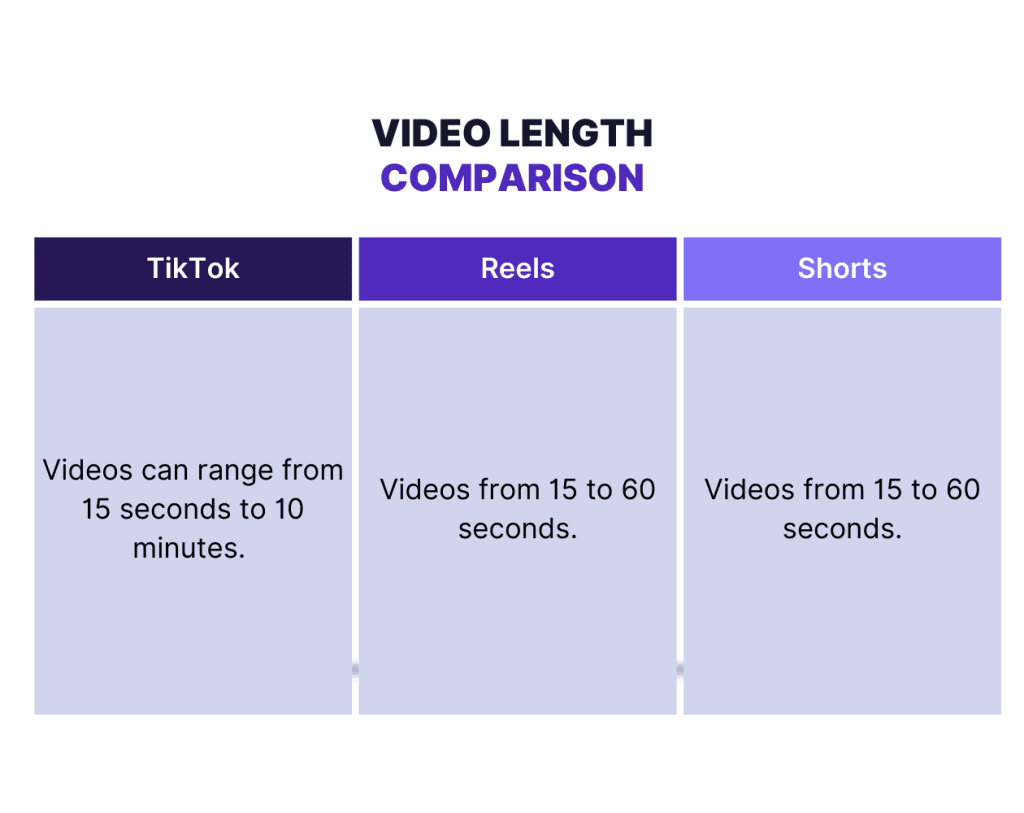
The data is clear: keep it under 5 seconds for most content. The most effective YouTube structure in 2026 isn’t “intro first” — it’s hook → 3–5 second brand sting → content.
| Platform | Intro Length | Aspect Ratio |
| YouTube (long-form) | 3–5 seconds | 16:09 |
| YouTube Shorts | 1–2 seconds or skip | 9:16 |
| TikTok / Reels | 1–2 seconds or skip | 9:16 |
| LinkedIn / Corporate | 5–8 seconds | 16:09 |
Short-form content barely tolerates intros. The YouTube Shorts algorithm rewards completion rate — every second of non-content works against you. I made this mistake early on: I put a 4-second branded intro on a Reel and watched the retention graph nosedive in the first two seconds. Lesson learned.
Corporate and training videos get more leeway. If you’re producing internal content or B2B demos, a 5–8 second intro with your company logo and a subtitle (like “Q1 2026 Product Update”) is totally fine. The audience is captive and expects some branding.
Pro tip: Always export intros as a separate file. Don’t bake it into your project. When you update branding, you replace one file instead of re-editing every video.
Conclusion
Quick decision framework:
Need a reliable intro, fast, minimal learning curve? Canva. Describe your intro in words and let AI build it? InVideo AI. Animation-heavy brand with characters? Animaker.
Don’t overthink this. A clean 3–5 second brand sting beats a 15-second production number that viewers skip every time. Make it short, make it yours, spend the saved time on actual content.
What are you using for intros right now? Drop it in the comments — I read everything.
FAQ
Q: Can I use these tools for free? A: Yes — Canva exports without watermark on the free tier. InVideo and Animaker free tiers include watermarks. All three are enough to evaluate quality before paying.
Q: What file format should I export? A: MP4 with H.264 codec. Universal standard that works in Premiere Pro, DaVinci Resolve, Final Cut, and CapCut.
Q: Do I need separate intros per platform? A: Ideally two versions — 16:9 for YouTube/LinkedIn and 9:16 for TikTok/Reels/Shorts. Canva’s resize tool makes this easy.
Q: How often should I update my intro? A: When your branding changes or it feels stale — typically every 6–12 months. Consistency builds recognition. Don’t change it every week.
Q: Can AI generate 3D intros with particle effects? A: Not yet at After Effects quality. Current AI tools excel at 2D motion graphics, text animations, and logo reveals. Full 3D animation still requires specialized rendering software.
Previous Posts: