I run AI tools until they break. Then I write about it. Still, I’m Leo. A client sent me a product portrait last month and asked for “that animated photo effect.” I put it through an image-to-video model. Two hours later she came back confused — the background was rippling like liquid, the subject’s face had shifted by the third second, and the overall effect looked more like a horror film transition than a polished social asset. What she actually wanted was a constrained AI image animator: a tool that adds subtle, realistic motion to a portrait without generating new visual content around it.
Wrong tool category. Completely fixable — once you know the difference.
This article is specifically about the decision that should happen before you open any tool: which type are you actually dealing with, and which one fits your job? I covered individual tool recommendations in earlier posts on photo-to-video workflows and animate picture AI. This one is the layer that comes first.
What an AI Image Animator Does
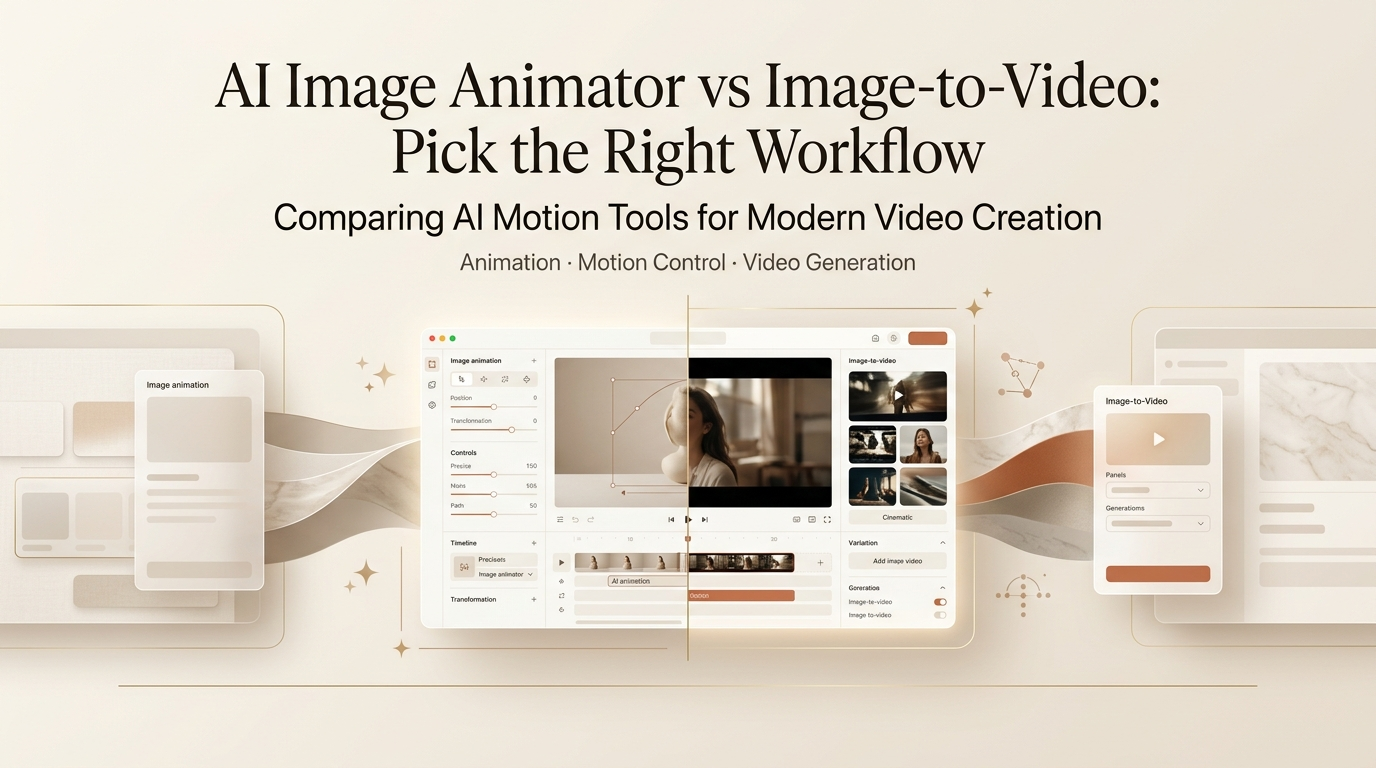
An AI image animator takes a static image and applies motion to specific elements — most commonly a face or portrait. The motion is constrained and often template-driven. You’re not generating new visual content; you’re nudging existing pixels to simulate life within the frame.
The clearest use case is talking portraits. Upload a still, feed in an audio clip or text, and the tool synthesizes facial movement synchronized to speech. D-ID built its core product around exactly this — animated speaking avatars from a single photo input. HeyGen handles similar territory, adding voice cloning and more refined lip-sync on top.
Beyond talking portraits, some animators produce “living photo” effects — subtle loops of hair movement, a slow blink, fabric shifting in a breeze. The defining characteristic across all of these is motion constraint: the tool is working within what already exists in the image, not hallucinating new content around it.
Output is typically short, designed to loop cleanly, and the background either stays static or receives minimal treatment. If your job is making a face talk, an eye move, or a portrait breathe quietly — this is your category.
What Image-to-Video AI Does
Image-to-video AI uses your still as a reference point — often the first frame — and generates video content that extends from it using a video diffusion model. You’re not applying motion to what’s there; you’re generating motion that the model infers from the composition, combined with any text prompt you’ve provided.
Tools like Runway, Kling AI, and Luma Dream Machine all operate this way. Upload a photo of a coastline and prompt “slow camera push forward, waves breaking in foreground” — the model generates a clip that approximates that description, using your image as a visual anchor. It’s creating new content, not moving pixels that already exist.
This is fundamentally more open-ended and more unpredictable. It can produce cinematic environmental motion, camera moves, character action. It can also produce your subject morphing into something unrecognizable by second three — which is the failure mode that catches people off guard the first time they use it expecting animator-style results.
Core Differences
Motion Control
An ai animate image tool gives you constrained, targeted motion. You control what moves — usually a face, occasionally a specific element — and the range is deliberately limited. Output is predictable because the motion envelope is small.
Image-to-video tools give you generative motion driven by diffusion. You direct it with a text prompt or motion vectors, but the model is making probabilistic decisions about what moves and how. More creative range, far more variance. Running the same image through the same prompt five times gives you five different results. That’s a feature if you’re looking for creative options; it’s a problem if you need reliability.
Input Flexibility
Animators work best with clean, frontal compositions — especially for portrait work. Anything past roughly 30 degrees off-center, heavily backlit, or partially obscured will produce worse sync and more visible distortion. The constraint that makes animators predictable also makes them sensitive to input quality.
Image-to-video tools are more forgiving about composition but have their own sensitivities: complex scenes with fine architectural detail, text, or many small subjects tend to drift more between frames. Stability AI’s documentation on video diffusion research covers some of these tradeoffs — motion coherence versus scene complexity is an active problem across every provider building in this space.
Output Style
Animator output is portrait-centric, short, often loop-ready, and tight in its motion range. It’s built for social assets, avatar presentations, digital signage — anywhere you need a face to look alive but the visual frame to stay grounded.
Image-to-video output is built for generative storytelling — cinematic clips, environmental motion, product scenes with camera movement. The clips aren’t designed to loop and are longer in intent. The two outputs look superficially similar in a thumbnail but serve completely different use cases.
Which Tools Belong to Which Camp
AI image animator camp: D-ID and HeyGen are the clearest examples in the talking portrait and animate image ai space. If your primary task is making a still photo speak, blink expressively, or loop with a living-photo effect, start here.
Image-to-video camp: Runway, Kling AI, Luma Dream Machine, and Stability AI’s Stable Video Diffusion all sit in generative territory. These are your tools when you need a clip that moves through an environment, follows camera direction, or generates open-ended action from a reference image.
One nuance worth knowing: some image-to-video tools now offer “motion brush” or masking features that let you direct motion to specific areas of the frame, which starts to approximate the animator’s constraint model. It’s a useful feature overlay, but it’s sitting on top of a diffusion architecture — the underlying variance behavior doesn’t change. You’re steering a generative model, not running a constrained animator.
Decision Guide
When to Use an Animator
Pick an image animator as tool when:
- You need a portrait to speak in sync with an audio track
- You want a subtle living-photo loop for a social post or presentation
- The source image is the final visual — you’re adding motion to it, not extending beyond it
- Output needs to be short, predictable, and loop-clean
- Frame-to-frame consistency of the face is non-negotiable
The tradeoff: limited motion range, low ceiling for cinematic output, works poorly on non-portrait or off-angle subjects.
When to Use Image-to-Video AI
Pick an image-to-video tool when:
- You want camera movement, environmental motion, or action that goes beyond what’s in the source image
- The still is a reference frame, not the final deliverable
- You’re prepared to iterate through multiple outputs
- Visual range matters more than output predictability
The tradeoff: less predictable output, subject consistency is harder to control, and complex scenes need more prompt work to prevent unwanted drift between frames.
Common Quality Issues
Both categories have characteristic failure modes. Knowing them in advance saves a batch of wasted credits.
Animator issues:
- Off-angle distortion. Animators are calibrated on frontal faces. Past about 30 degrees off-center, you’ll see warping at the jaw, eyes, and hairline. The fix is using a more frontal source image; there’s rarely a setting that compensates for input angle.
- Expression range limits. Current models synthesize a limited set of micro-expressions convincingly. Longer clips and extreme emotions push outside that range faster. Keep clips short if expressions matter.
- Audio sync drift. On clips longer than 20–30 seconds, lip-sync can shift by a few frames. Always preview the complete clip before delivery, not just the first five seconds.
Image-to-video issues:
- Subject morphing. The most common complaint. A face or recognizable object shifts subtly between frames. Managing this requires prompt engineering, and in tools that expose it, increasing the image conditioning weight.
- Background artifact. Fine architectural detail, text, and complex patterns degrade or shift as the clip progresses. If background accuracy matters, simplify or inpaint the background before generation.
- Prompt drift. The model follows your text prompt heavily in the early frames and drifts as the clip extends. For anything longer than 3–4 seconds, break the intended motion into shorter generation segments and cut between them.
For the subject-morphing issue specifically when running a photo animator ai workflow through an image-to-video tool by mistake — that’s the scenario to avoid entirely. The fix isn’t parameter-tuning; it’s using the right tool category for the job.
FAQ
What is the difference between an AI image animator and image-to-video AI?
An AI image animator applies constrained, targeted motion to a still image — typically a face — and works within the existing visual content. Image-to-video AI uses the still as a reference frame and generates new video content extending from it via a diffusion model. The outputs can look similar in a short preview clip, but they come from different architectures with different motion ranges, different failure modes, and different ideal use cases.
Is one better than the other for portraits?
For talking portraits — making a face speak in sync to audio — a dedicated animator is almost always the better choice. Image-to-video models can animate faces, but they’re not calibrated for lip-sync and will produce worse audio alignment than a purpose-built animator. For a portrait where you want cinematic or environmental motion rather than speech, image-to-video gives you more range. Short version: speech sync needs an animator; everything else, test both.
Can I use both in the same workflow?
Yes, and this combination comes up in real production fairly often. A common pattern: use an ai animation generator from image tool to create a short talking-portrait clip, then cut to generative B-roll or environmental footage produced by an image-to-video model. The speaking segment stays under the animator’s control — frame-consistent, sync-accurate. The generative motion lives in the cutaway. You get the reliability of the animator where it matters and the visual range of the diffusion model where you have flexibility to iterate.
Why do AI animations sometimes look unnatural?
Two main causes, depending on the tool type. For animators: the model synthesizes motion from a constrained training distribution, and input images outside that distribution — off-angle, partially obscured, unusual lighting — produce visible artifacts. For image-to-video tools: the diffusion process generates frames probabilistically, and subjects with fine detail (hair, teeth, fingers, text in-frame) are the hardest to keep consistent across time. Neither category has fully solved frame-to-frame coherence — it’s an active research area across every major lab building video generation models.
Next thing I’m testing is whether motion-brush features in the current generation of image-to-video tools can realistically replace a dedicated animator for portrait work — or whether it’s still a case of getting the right tool for the right job rather than one tool doing both. I have a hunch the answer is “still two tools,” but I’ll run it properly and report back. If you’ve got experience with this specific combo, the comments are the right place.
Previous Posts