Hey there, I’m Dora.
A client asked me for visual scene references before we locked a shot list. Not a full storyboard with poses and dialogue — just “can you show me what these locations might feel like.” Three years ago that meant either rough sketches in Keynote or paying a freelance illustrator for a day. This time I spent two hours in an ai scene generator and showed up to the next call with twelve options.
That workflow shift is what this article is about. Not a tool ranking, not a feature matrix — a practical look at what scene generation AI actually does, where it fits in a real production process, and which tools I’d reach for depending on the job.
Not sponsored. I tested these on actual projects and paid for my own subscriptions.
Quick answer: For cinematic quality, Midjourney. For commercial-safe outputs with reference image input, Adobe Firefly. For natural language prompts without much setup, DALL-E 3. For getting a generated scene into motion, Runway. Each has a different sweet spot — the right choice depends on what you’re building.
What an AI Scene Generator Does
A scene generator takes a text description — and sometimes a reference image — and outputs a full visual environment: a location, a mood, a lighting setup, a composition. That’s different from a character generator or a product visualizer. The emphasis is on the world around your subject, not the subject itself.
Practically, this means you’re generating things like: a rain-soaked city street at dusk, a sun-bleached desert interior with harsh window light, a cozy kitchen at golden hour, a clean minimal studio with a gradient backdrop. Environments that set the visual tone for a video, ad, or social post.
The output is a still image — usually multiple variations — that you use as reference material, background asset, or storyboard panel. What you do with it after generation is a separate step, and I’ll get to that.
Use Cases
Storyboards
Pre-visualization used to require either strong drawing skills, a hired illustrator, or a lot of patience with stock photo collages. An ai scene maker compresses that step significantly.
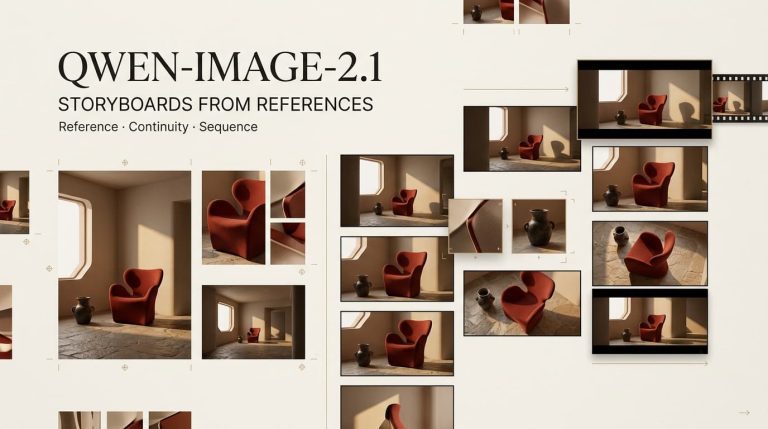
For shot planning, I generate a scene-per-shot with the environmental brief — time of day, location type, lighting mood, approximate camera angle. The output gives the director (or client) something concrete to react to before a single camera rolls. You’re not locking compositions in stone; you’re creating a shared visual language fast.
One thing that helps: generate 4–6 variations per scene and treat them as options, not answers. The point isn’t to find the perfect image — it’s to surface what aesthetic direction everyone actually wants, which often only becomes clear when there’s something on screen to disagree with.
Known caveat: AI scene generators don’t maintain visual consistency between shots automatically. Each generation is independent. If you need matching color grading and identical lighting quality across a 12-panel storyboard, you’ll need to be very deliberate about repeating prompt language, or do some post-processing to harmonize the outputs.
Ad Scenes
For ad production — particularly social ads and e-commerce content — scene generation is useful in two ways.
First, as a mockup environment. If you have a product shot and need to place it in a lifestyle setting, generating the background scene separately and compositing is faster than booking a location or finding the right stock photo. Tools like Adobe Firefly, specifically, are built for this — the outputs are commercially licensed by default, which matters the moment you’re putting them in a paid campaign.
Second, for rapid concept iteration. “Show the client three different mood directions for this campaign” used to take a design day. Generating three distinct scene directions — warm and domestic, clean and aspirational, dark and editorial — takes 20 minutes. The client picks a direction. You build from there. That’s a real workflow acceleration as a graphic design creator or ad producer.
Social Backgrounds
For content creators specifically: talking-head videos and short-form reels don’t always have interesting backgrounds by default. AI-generated scene backgrounds — blurred to a consistent depth-of-field look — give you a custom branded backdrop without booking a studio.
This works especially well for consistent series content where you want the same visual environment across multiple videos. Generate the scene once, set it as your virtual background or physically print/display it, and keep it for the run of the series. Cheaper than renting a location repeatedly. More distinctive than a plain wall.
Prompt Workflow
The most common mistake I see is prompts that try to do too much at once. “A cinematic scene of a woman walking through a neon-lit Tokyo street at night in the rain with reflections on the pavement and a moody blue color grade, wide angle lens” isn’t wrong — but you’re fighting for attention across too many elements, and generators often drop or half-render the ones at the end.
The structure that works better:
Environment → Lighting → Time/Weather → Camera perspective → Style reference
Example: “Empty narrow alley, wet pavement, single overhead sodium lamp, night, fog, looking down the alley from street level, cinematic, anamorphic lens flare”
That’s six distinct signals, each clear. The generator has less to ignore.
A few specific patterns that consistently produce better scene output:
- Name a lighting source, not just a quality. “Harsh side light from a single window” beats “dramatic lighting.”
- Specify camera height and angle. “Eye-level, slight upward tilt” reads differently than “wide establishing shot.”
- Name a film or photographer reference if you have one. Models respond to this kind of style shorthand even without explicit training on those names — the associations are baked in from their training data.
- For ai tools for content creators who want cleaner, less stylized output: add “clean composition, real photograph, natural light” to pull the generation away from the painterly or overly processed look that generators default to.
Best Tools
Midjourney — Still the benchmark for cinematic scene quality. Midjourney handles lighting complexity and atmospheric depth better than most alternatives right now. Requires Discord. The –ar parameter for aspect ratio and –style raw for less stylized output are worth knowing.
Adobe Firefly — Adobe Firefly is the choice when the output is going into a commercial project. Everything generated is commercially licensed by Adobe. The ai image generator with image input functionality lets you use a structure reference or style reference to guide the generation — useful when you need the output to match an existing visual system.
DALL-E 3 — The most accessible entry point. DALL-E 3 through ChatGPT handles natural conversational prompts well — you can describe a scene in plain sentences without learning prompt syntax. Quality ceiling is lower than Midjourney for complex cinematic work, but for quick mockups and social backgrounds it’s fast and good enough.
Stable Diffusion — Stability AI’s platform and the wider Stable Diffusion ecosystem (AUTOMATIC1111, ComfyUI) give you the most control, especially with ControlNet for reference image–guided generation. Steeper learning curve, but if you need precise compositional control or want to use a sketch or rough as a structural guide, this is the tool category for it.
Runway — Technically a video generator, but Runway is where a generated scene becomes motion. Drop your scene image in, describe the camera movement, and you get a 4–10 second video. This is the scene-to-video bridge: generate the environment in Midjourney or Firefly, then bring it to life in Runway. I’ll cover that more in the FAQ below.
FAQ
What is the best AI scene generator for storyboards?
Midjourney produces the most cinematic, high-quality scene output — best for storyboards where you need to communicate visual tone to a director or client. If you need commercial licensing built in, Adobe Firefly is the alternative. For speed and low setup, DALL-E 3 is the fastest path to rough storyboard panels that are good enough to work from.
How do I write prompts for cinematic AI scenes?
Use the structure: environment → lighting source → time/weather → camera angle → style reference. Name specific lighting sources rather than vague qualities (“single overhead lamp” not “dramatic”). Add a film or visual reference if you have one. Keep each prompt element distinct — generators handle clear, separate signals better than long descriptive sentences. For stylized output, name a visual genre; for realistic output, add “natural light, real photograph, clean composition.”
Can AI scene generators use reference images?
Yes, but the implementation varies by tool. Adobe Firefly has a built-in structure reference and style reference input — you can upload an image to guide composition or color treatment. Stable Diffusion with ControlNet offers the most precise reference-based generation, letting you use a sketch or existing image as a compositional skeleton. Midjourney supports image prompts via URL and a –iw parameter to control how heavily it weights the reference. DALL-E 3 accepts image inputs through ChatGPT’s vision interface.
How do I turn an AI-generated scene into a video?
Generate the scene as a still image first, then bring it into a video generator. Runway’s image-to-video mode is the most straightforward path: upload your scene, describe the camera movement and any action in the frame, and generate a 4–10 second clip. Kling and Pika follow a similar workflow. The key prompt addition for scene-to-video is motion language — specify whether the camera is pushing in, pulling back, panning, or holding still, and what in the scene is or isn’t moving. Starting from a high-quality scene image gives the video generator more visual information to work with, which tends to improve output consistency.

AI scene generators have made pre-visualization genuinely fast — not “faster than hiring someone” fast, but “I can do this myself in an afternoon” fast. The ceiling on cinematic quality keeps moving up. The floor for good-enough-for-a-client-presentation is already pretty low.
The main gap that still requires your attention: consistency across a sequence. Generators don’t remember what the last shot looked like. That’s not a tool problem you can fix — it’s a workflow one you build around with careful prompt reuse and post-processing.
What are you using scene generation for right now? Drop it in the comments — I’m particularly curious how people are handling the consistency problem across multi-shot storyboards.
Previous Posts