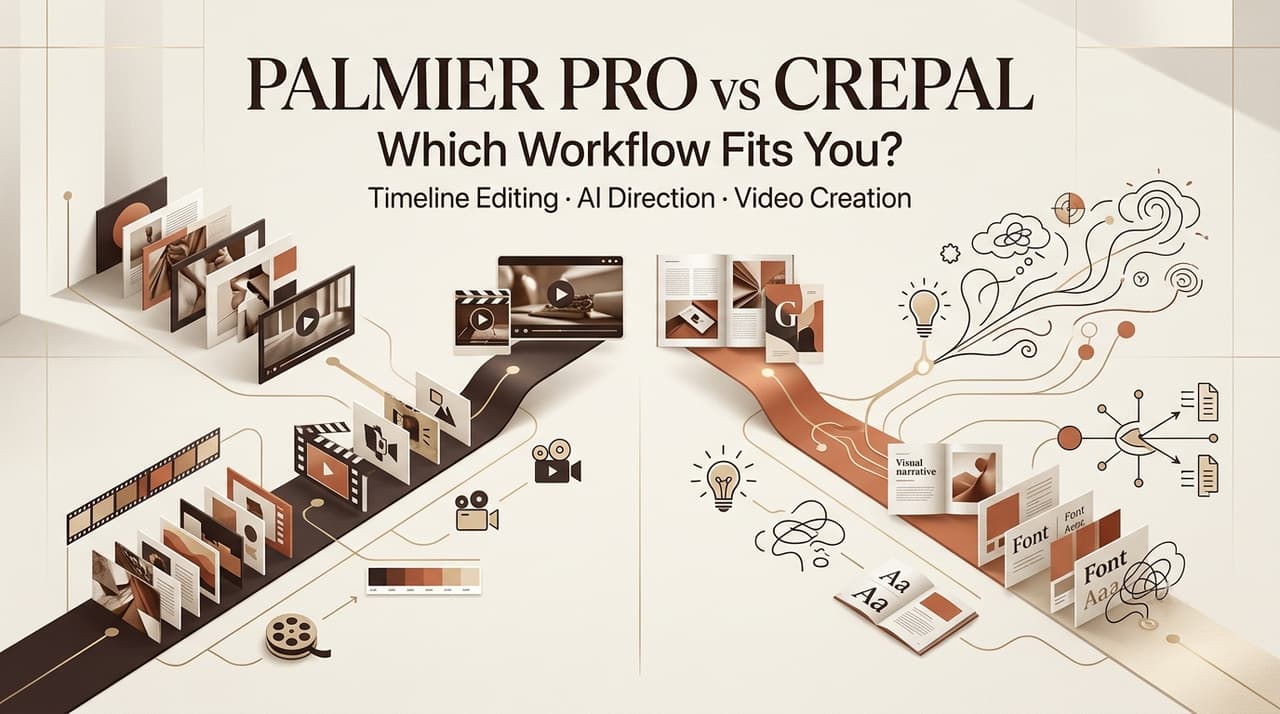
Leo here. Last month a client dropped a brief on me at 9pm and wanted a 30-second ad concept by the next morning. I did what I always do with new tools — opened two tabs and made them race. That little race is basically what the whole Palmier Pro vs CrePal question comes down to: do you want to start from a timeline you control, or hand over a brief and let an agent plan the whole thing? I’ve now run both through real client work, so here’s the honest breakdown — where each one saved me, and where each one made me mutter at my screen.
Palmier Pro vs CrePal: The Short Answer
If you’re skimming on your phone, here’s the 30-second version.
Palmier Pro is a real AI video editor — a macOS timeline tool where AI generation lives on the track itself. You’re still the editor; the AI just stops you bouncing between apps. CrePal is the opposite entry point: a web-based AI Director that takes a prompt, PDF, or audio file and plans script, storyboard, and scenes for you, then lets you fix things by chat.
Neither replaces the other. One starts from the cut, one starts from the concept. Pick based on which end of the job you actually want to own.
How the Two Workflows Begin
The biggest difference isn’t a feature — it’s where the work starts. Get this right and the rest of the decision mostly makes itself.
Palmier Pro starts from the timeline
Open Palmier Pro and you get a layout anyone who’s touched Premiere or DaVinci will recognize: media browser, preview, multi-track timeline. The team’s stated north star is Premiere Pro. The twist is that generation happens on the track — pick a model, write a prompt, and the clip lands directly in your project instead of in a downloads folder full of final_v3_actually_final.mp4. It’s open-source on GitHub and free to use as a plain editor, which tells you the team takes the “real editor” claim seriously. This is video timeline AI in the literal sense — the timeline is the workspace, not an afterthought.
CrePal starts from a brief or creative goal
CrePal flips it. You describe what you want — or upload a PDF, a script, an MP3 — and its AI Director workflow writes the script, plans the storyboard, picks models, and assembles a multi-scene draft. There’s an AI Story Mode that runs the whole thing automatically and a Director Mode for finer control through chat. You’re not cutting clips; you’re briefing and reviewing. For people who think “I have an idea” rather than “I have footage,” that’s a much shorter on-ramp.
Core Differences at a Glance
| Dimension | Palmier Pro | CrePal |
| Starting input | Your footage / timeline (or generate clips on it) | Text, PDF, MP3, or footage → brief |
| Script & planning | You (or your agent) plan it | Auto script + storyboard |
| Generation models | On-timeline: Seedance 2.0, Kling V3, Veo 3.1, Nano Banana Pro, Grok Imagine | Orchestrates 20+ models, auto-selected (Veo, Kling, Seedance, Runway, Pika, Suno) |
| Revision method | Manual timeline edits + chat/agent | Conversational chat-to-edit |
| Timeline control | Full multi-track NLE | Scene-based; no traditional timeline (verify depth) |
| Real footage | Import + mix with AI on one timeline | Footage upload + highlight detection (mixing precision: verify) |
| Ad variants | Manual duplicate/re-edit | Batch/multiple versions per features page (verify) |
| Platform | macOS 26 (Tahoe), Apple Silicon only | Web-based, any browser |
| Export & team handoff | MP4 + NLE XML to Premiere/DaVinci | Export with subtitles, voiceover, up to 4K (team/collab specifics: verify) |
I’ve marked the CrePal cells I couldn’t fully confirm against first-party docs — don’t treat those as settled until you’ve tested them yourself.
Test Results: Creating an Ad from a Brief
Back to that 9pm brief. As an ad video creator, the path each tool takes is genuinely different.
With CrePal, I pasted the brief and it expanded it into a script and storyboard, then started generating scenes. The thing that made me pause: the first storyboard read closer to what the client wanted than the rough script I’d half-written myself. That’s the real pitch — you get to a watchable draft before you’ve made a single editing decision.
With Palmier Pro, there’s no “give me a brief” button in the same sense. You’re driving. I generated shots clip by clip, or had an agent generate a rough first cut, then arranged it. Slower to a first draft, but every frame was a deliberate choice from the start. So: CrePal got me to a draft faster; Palmier got me to my draft with less untangling later. Which one wins depends on whether your client revises the concept or the cut.
Test Results: Combining Real and AI Footage
This is where a multi-model video workflow stops being a buzzword and starts mattering. Most real ads aren’t pure generation — they’re a product shot, some B-roll, and a couple of AI inserts.
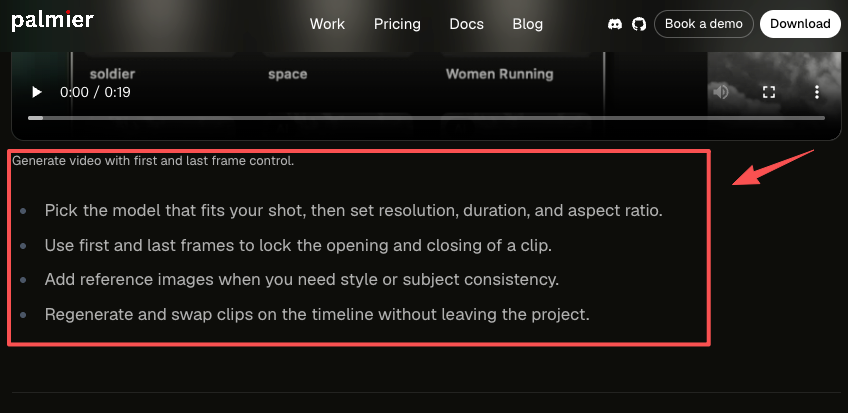
Palmier Pro handled this the way an editor expects: import your own clips, drop generated ones on the same tracks, and trim them together. Replacing a weak AI shot is just regenerating that clip in place, with first- and last-frame control and reference images so the swap matches the shot around it. The prompt history stays attached to the clip, which saved me from the usual “wait, which prompt made the good one” amnesia.
CrePal leans harder on generation and orchestration — it coordinates multiple models across scenes and keeps character and style consistent. Mixing in precise real footage at a frame level is the part I’d test against your own material before trusting it on a paid job. Strong at building a cohesive AI sequence; less obviously built for surgical clip-by-clip swaps.
Revisions and Team Collaboration
How you change things — and hand them off — is where small teams quietly lose hours.
Timeline edits vs conversational revisions
CrePal’s chat-to-edit is great for “shorter intro, warmer palette, swap the music.” You talk, it adjusts. Palmier’s revisions are partly manual (you nudge the timeline) and partly agent-driven through its built-in chat or an external agent. Honestly, I like having both — but if you don’t already think in tracks and trims, conversational edits have a gentler learning curve.
Producing variants and handing off to teams
For variants, CrePal’s design points toward batch and platform-specific versions, which is handy for testing ad cuts. Palmier’s edge is the handoff: it exports an XML for Premiere Pro and DaVinci, so a junior can finish in the NLE your studio already runs. If your pipeline ends in a “real” editor, that export path is worth a lot.
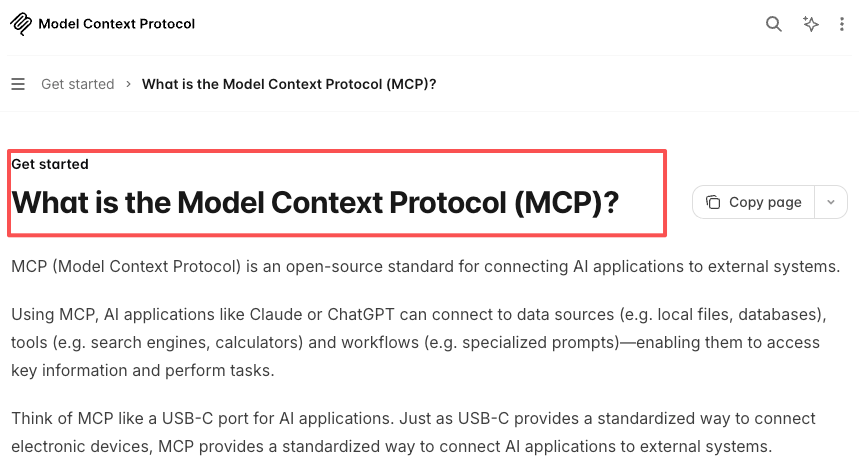
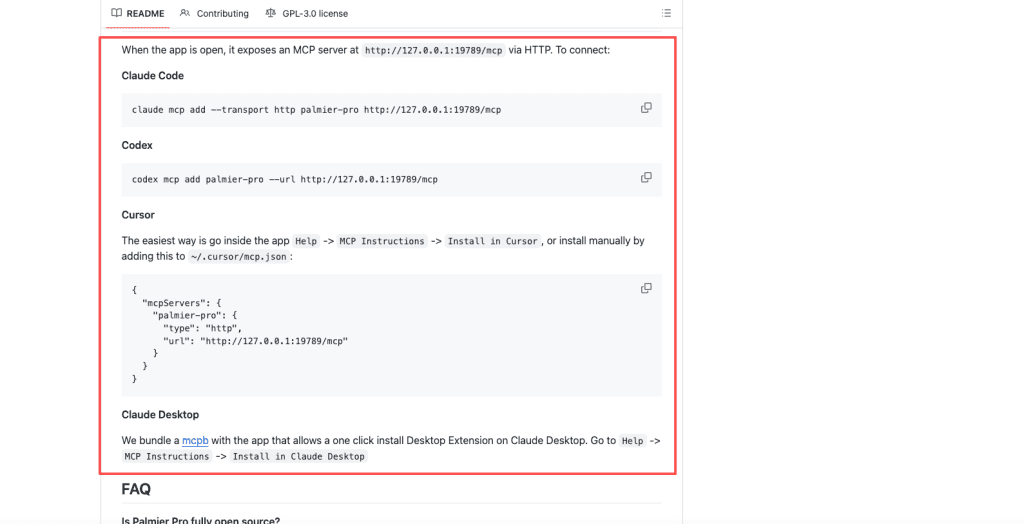
The collaboration angle for Palmier is also unusual: because it speaks the Model Context Protocol, an agent like Claude or Cursor can read and edit the timeline directly. That’s powerful, but it’s a different kind of “teamwork” than seat-based collaboration — it’s you plus an agent, not you plus five coworkers in the same doc.
Limits and Hidden Workflow Costs
Good is good, and the rough edges are rough, so let me spell them out.
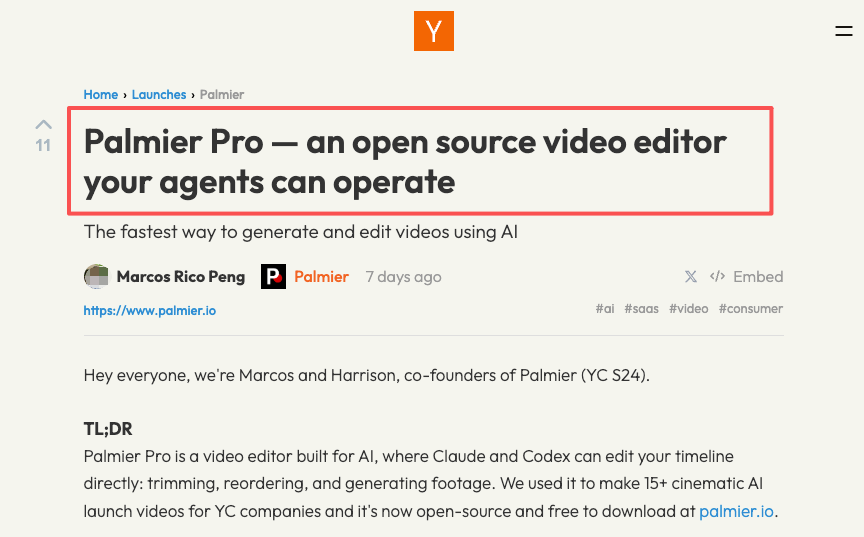
Palmier Pro’s founders are refreshingly blunt about what’s missing — in their own launch post they note there are no transitions, effects, color grading, masking, or motion graphics yet. It’s a cutting engine, not a finishing suite. And it’s macOS 26 / Apple Silicon only — no Windows, no Linux, no browser. If your team isn’t all on recent Macs, that’s a hard stop.
CrePal’s hidden cost is credits and model variance. AI generation burns credits, and quality can wobble between runs — that’s true of every generation platform, not a CrePal-specific flaw. Pricing and credit math change often, so check the current pricing page before you commit instead of trusting any number in a blog post (including older ones). Palmier follows a free-editor-plus-paid-generation model; its launch tier pricing was roughly entry-level subscription territory as of mid-2026, but verify that too.
Decision Guide
Choose Palmier Pro when timeline control matters
If you think in tracks, mix real and generated footage constantly, and need to hand a cut to Premiere or DaVinci, Palmier fits. It’s the better call for editors who want AI to remove grunt work without taking the wheel.
Choose CrePal when the brief should drive production
If you start from ideas, scripts, PDFs, or audio and want a watchable multi-scene draft fast — especially for social and ad-style content — CrePal’s director-first flow gets you moving with less editing knowledge required.
Consider a hybrid approach when…
…you want concept speed and frame control. Draft the concept in CrePal, export, and finish in Palmier (or your NLE). More on whether that’s clean below.
FAQ
Can Palmier Pro and CrePal work in one pipeline?
Yes, and many ad video creators are already doing it successfully. A common hybrid workflow is to start with CrePal’s AI Director to generate the initial concept, script, and storyboard from a brief, then export the scenes and bring them into Palmier Pro as a video timeline AI tool for precise cutting and mixing with real footage. This lets you leverage CrePal’s planning strength and Palmier Pro’s multi-model video workflow capabilities in one continuous process, rather than treating them as competing tools.
Does either workflow replace a professional video editor?
Neither fully replaces a professional video editor, but they serve different stages. CrePal’s AI Director excels at early concepting and rapid variant production, while Palmier Pro functions more as an AI video editor on the timeline, giving you frame-level control and the ability to mix generated clips with real footage. Most experienced ad video creators still use both in sequence and hand off to a human editor for final polish, color grading, and motion graphics.
What should teams test before switching workflows?
Run your worst recent project through each — the one with the messy revision history. Specifically: measure credit burn on the exact models you’d actually use (not the cheapest demo model), test the export into your existing editor end to end, and confirm hardware fit (Palmier needs a recent Apple Silicon Mac; CrePal just needs a browser). If a tool stumbles on your hardest real job, it’ll stumble on the easy ones too.
What commercial and licensing considerations matter most when choosing between them?
Two layers. First, the tool’s own terms — Palmier’s editor is open source under GPLv3 and the team states they don’t train models on your content; CrePal removes watermarks on paid plans and markets commercial use. Second, and easy to forget: the underlying generation models carry their own usage and commercial-licensing terms, and both platforms route through third-party models. Before you ship a paid client deliverable, verify licensing at the model level, not just the platform level.
Conclusion
So where does the Palmier Pro vs CrePal call land for me? It’s less “which is better” and more “which end of the job do you want to babysit.” I reach for CrePal when a client hands me a vague idea and a tight deadline, and for Palmier when I’ve already got footage and need an editor that won’t make me courier files between five apps. Try this: take one real project this week, run it through both, and watch where you get stuck — that tells you more than any spec table. If you do, drop your own findings somewhere I’ll see them. I’m still testing batch revisions the night before a deadline, and I want to know if it holds up for you too.
Previous posts: