Editor’s Note: All tools, features, and pricing limits listed below were independently verified and re-tested in May 2026 to ensure accuracy regarding watermark policies, pricing, and commercial usage rights.
You have a useful PDF, but your audience does not want to read 40 pages on a phone. The bigger problem is that content teams often spend hours extracting key points, rewriting them into scripts, making slides, recording voiceover, and editing clips. CrePal changes this workflow by turning a static document into an AI-directed video draft, especially through its PDF to AI video workflow. In this guide, you will learn how to convert PDF to video, choose the right AI workflow, and turn reports, guides, and training documents into editable videos.
CrePal is an AI Director Agent for end-to-end video creation. Unlike single-purpose AI video tools that only generate short clips, CrePal acts as an orchestrator. It can help plan the script, structure scenes, add voiceover, generate visuals, and keep the final video editable through conversation. The result is a faster path from document to publish-ready content, with less manual switching between writing, design, voice, and editing tools.
Image description: Screenshot of CrePal’s PDF to AI video interface showing a PDF upload area, script generation, and editable video draft workflow.
What PDF-to-Video AI Does
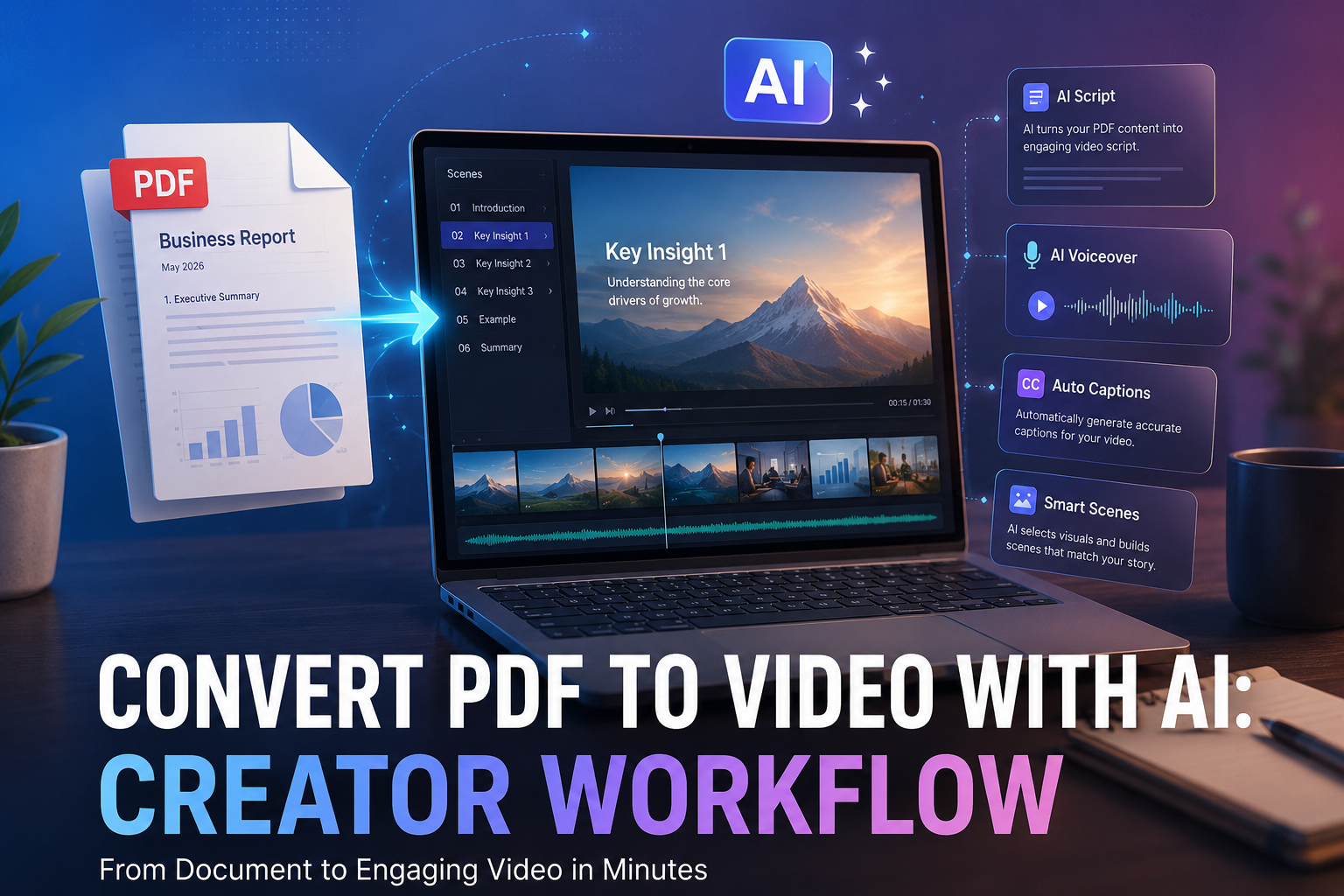
PDF-to-video AI converts written documents into video assets. It does not simply “record” a PDF page. A good workflow reads the document, extracts the message, turns it into a script, creates scenes, adds voiceover, and prepares captions.
This matters because most PDFs are built for reading, not watching. A policy report, course handout, investor memo, product manual, or onboarding guide may contain useful information. But it usually lacks pacing, visual hierarchy, narration, and story flow.
CrePal’s advantage is that it treats the PDF as source material, not as the final format. You can upload or reference a document, then use CrePal’s AI Director Agent to turn the content into a structured video concept. That makes it useful for teams creating explainers, internal training, product walkthroughs, and social clips from long-form materials. You can also explore CrePal’s broader AI video generator workflow when a PDF is only one part of the source material.
Image description: Screenshot of a CrePal AI video creation page showing prompt input, scene planning, and generated video preview options.
At a practical level, pdf to video ai usually handles four jobs:
| Stage | What AI Does | Human Review Needed |
| Content extraction | Finds key points, sections, and takeaways | Check accuracy and missing context |
| Scriptwriting | Rewrites PDF text into narration | Adjust tone and audience level |
| Scene planning | Breaks the script into visual scenes | Remove weak or repetitive scenes |
| Voice and captions | Adds narration and subtitles | Check pronunciation and timing |
The best results come when the PDF already has a clear structure. Headings, bullet points, charts, summaries, and defined sections help the AI understand what matters.
Best Use Cases
PDF-to-video AI is strongest when the goal is explanation. It works best for documents that need to be understood quickly by viewers who may not read the full file.
Content creators can turn PDF guides, checklists, and research notes into short educational videos. A creator might turn a 10-page trend report into a three-part TikTok or YouTube Shorts series.
Marketing teams can turn product brochures, white papers, and comparison sheets into video explainers. This is useful for landing pages, sales enablement, and paid social testing.
Educators can turn lecture notes, handouts, and reading summaries into ai training videos. A dense PDF can become a narrated lesson with captions and visual examples.
Small businesses can turn service manuals, menus, policy pages, and customer guides into simple branded videos. This helps explain products without hiring an editor.
Agencies can convert client decks, research PDFs, and campaign briefs into first-draft videos. This speeds up concept development and makes review easier.
CrePal fits these use cases because it is designed for full video creation, not just asset generation. You can use it to move from document to narrative. Then you can revise the output through conversation, instead of rebuilding the project manually.
Step-by-Step Workflow
The easiest way to turn pdf into video is to think like a producer, not a file converter. Your goal is not to show every page. Your goal is to create a clear video from the document’s best ideas.
Step 1: Prepare the PDF
Start with a clean PDF. Remove duplicate pages, old comments, legal clutter, and irrelevant appendix content. If the document is long, decide whether you want a full explainer, a short summary, or a training module.
A good prompt might be:
“Convert this PDF into a 90-second educational video for new employees. Keep the tone clear, practical, and friendly. Focus on the five most important actions.”
This gives the AI a purpose. It also prevents the video from becoming a flat summary.
Step 2: Upload or Reference the PDF in CrePal
CrePal is the primary workflow choice here because it can connect the document-to-video process with scene planning and final video generation. Instead of writing a script in one tool, generating visuals in another, and editing elsewhere, CrePal keeps the workflow closer to one creative pipeline.
Image description: Screenshot of CrePal’s mini-apps page showing PDF to AI video and other creator workflow tools.
For a content team, this matters. One PDF may need multiple outputs: a full training video, a short social cut, and a visual summary for sales. CrePal can help create those drafts faster from the same source material.
Step 3: Generate the Script and Scene Outline
Once the PDF is processed, ask the AI to create a script first. Do not jump straight into final video generation. A script gives you control over accuracy, tone, length, and structure.
For educational video from pdf projects, the script should avoid long sentences. It should also explain ideas in spoken language, not written report language.
A useful structure is:
- Hook: why the viewer should care
- Context: what the PDF explains
- Main points: three to five key ideas
- Example: one realistic use case
- Close: what the viewer should do next
Step 4: Turn the Script into Scenes
After the script is approved, break it into scenes. Each scene should have one job. For example, a training video might include an intro, problem scene, process breakdown, checklist, and final reminder.
CrePal can help convert the script into scene-by-scene direction. This is where an AI Director Agent becomes more useful than a basic document to video ai tool. It can help decide what each moment should show, not just what the narrator should say.
Step 5: Add Voiceover, Captions, and Brand Style
Voiceover makes the video feel complete. Captions make it usable on social platforms and in workplace training. For brand consistency, keep the same tone, font style, and pacing across videos.
If the PDF includes technical terms, review pronunciation. This is especially important for product names, legal terms, industry acronyms, and names of people or organizations.
Step 6: Edit the Draft
AI-generated drafts still need human review. The goal is not zero editing. The goal is less repetitive editing.
Check these four things before publishing:
- Is the message accurate?
- Does each scene match the narration?
- Are captions readable on mobile?
- Is the video short enough for the channel?
A two-minute training video may work internally. A social teaser may need to be 30 seconds or less.
The data in this section reflects hands-on testing conducted in May 2026. Platform policies, pricing, and free-tier limits may change over time, so always verify final licensing terms on the official website before commercial use.
| Tool | Best Fit | Strength | Limitation |
| CrePal | Full PDF-to-video creator workflow | Strongest fit for script, scenes, voiceover, and editable drafts | Best results still need script review |
| Mage | Image and video generation experiments | Useful for visual asset testing | Less focused on PDF-to-video workflows |
| Venice | Private AI chat and image generation | Good for private brainstorming and document interpretation | Not primarily a full video production workflow |
| BasedLabs | AI image and video tools | Good for quick image/video experiments | Workflow may require more manual assembly |
| PixelBunny | AI image and video editing | Useful for visual edits and asset cleanup | Less structured for long PDF-based videos |
Image description: Screenshot of Mage’s AI image and video generation interface showing model options and prompt controls.
CrePal should be the first choice when the deliverable is a complete video, not just a visual asset. Mage, Venice, BasedLabs, and PixelBunny can support parts of the creative process. But CrePal is more directly aligned with the full convert pdf to video workflow.
Script, Scenes and Voiceover
A strong PDF-to-video workflow depends on three creative layers: script, scenes, and voiceover. If one layer is weak, the final video will feel slow or confusing.
Script: Rewrite for Listening
PDF text is usually too dense for narration. A sentence that works on a page may feel heavy when spoken aloud.
For example, a PDF might say:
“The implementation framework consists of four sequential phases designed to improve operational alignment.”
For video, rewrite it as:
“The process has four steps. Each step helps the team work more clearly.”
That is easier to hear, easier to caption, and easier to remember.
Image description: Screenshot of Venice AI showing document chat or prompt-based text analysis for summarizing source material.
Scenes: Show One Idea at a Time
Each scene should explain one idea. Avoid putting too much text on screen. If the narration says one thing and the visuals show five things, the viewer will lose focus.
For ai training videos, useful scene types include:
- Checklist scenes
- Process diagrams
- Before-and-after examples
- Simple animated definitions
- Key takeaway slides
- Talking avatar explanations
CrePal can help map these scene types to the script. You can then ask for revisions, such as “make this more suitable for onboarding” or “turn this into a short LinkedIn version.”
Voiceover: Match the Audience
Voiceover should fit the viewer. A compliance training video needs a calm and clear tone. A creator tutorial can sound more energetic. A product explainer should be confident but not too sales-heavy.
For better results, tell the AI:
- Who the viewer is
- What they already know
- What action they should take
- How formal the tone should be
This small brief can improve the final video more than a long technical prompt.
Image description: Screenshot of BasedLabs showing AI video generation tools and visual creation options for creator workflows.
For longer PDFs, consider making a video series instead of one long video. A 30-page guide may become five short modules. This is often better for training, retention, and repurposing.
How to Get Started with CrePal
Step 1: Describe your video goal in plain language. Tell CrePal what the PDF is, who the audience is, and how long the video should be.
Step 2: Let the AI Director Agent create a first draft. CrePal can help turn the document into a script, scene plan, voiceover direction, captions, and video structure.
Step 3: Edit through conversation. Ask CrePal to simplify the language, shorten the video, change the visual style, or create a social version.
Image description: Screenshot of PixelBunny showing AI image and video editing tools for refining visual assets.
This is the main value of CrePal: it helps you move from file to finished direction. You are not just converting a document. You are turning knowledge into video.
If your team already creates training, explainers, or product education content, you can also connect this workflow with AI video automation ideas. That makes PDF-to-video useful beyond one-off projects.
FAQ
How do I convert a PDF into a video with AI?
Start by cleaning the PDF and defining the video goal. Then use a tool like CrePal to extract the main points, create a script, break the script into scenes, add voiceover, generate visuals, and export an editable draft.
The best prompt includes the target audience, desired length, tone, and format. For example, ask for a 90-second onboarding video, a three-minute lesson, or a 30-second social summary.
Can AI turn a PDF into a script and voiceover?
Yes. AI can turn a PDF into a script and voiceover, especially when the document has clear headings and organized sections. CrePal is useful because it can connect scriptwriting with video direction, instead of stopping at a text summary.
You should still review the script before generating the final video. AI may simplify too much, miss context, or include details that do not belong in the final cut.
What types of PDFs work best for video generation?
The best PDFs have clear structure. Training manuals, product guides, course notes, white papers, reports, checklists, and slide-style PDFs usually work well.
Scanned PDFs, image-heavy documents, legal contracts, and files with poor formatting may need cleanup first. If the PDF has charts or tables, explain which data points matter most.
How much editing is still needed after PDF-to-video generation?
Most teams should expect light to moderate editing. You may need to adjust the script, remove weak scenes, correct captions, check voiceover pronunciation, and align visuals with brand style.
The benefit is speed. Instead of starting from a blank timeline, you begin with a structured draft.
Is CrePal better than using separate tools?
For full PDF-to-video workflows, CrePal is usually more efficient than switching between separate writing, image, voice, and editing tools. It works like an AI Director Agent, helping coordinate the creative process from document to video.
Other tools such as Mage, Venice, BasedLabs, and PixelBunny can support specific steps. But CrePal is better suited when the goal is a complete video workflow.
Conclusion
Converting a PDF into a video is not about copying pages into motion. It is about turning static information into a clear, watchable story. CrePal makes that process easier by helping creators move from document to script, scenes, voiceover, captions, and editable video drafts.
For content teams, educators, agencies, and small businesses, this workflow can save hours of repetitive production work. Start with one useful PDF, turn it into a short video draft, and refine it through conversation. That is the fastest way to make your documents easier to watch, share, and remember.
Try CrePal’s PDF to AI video workflow and turn your next document into a video your audience will actually finish.