Editor’s & Audio Systems Review Note:
Transparency & Practical Framework Disclosure: This guide details a creator-facing production framework for building a dialogue track for two story characters before generating video shots. It is an evidence-led workflow based on public technical documentation, not a blanket guarantee of autonomous lip-sync or perfect voice cloning. Qwen3-TTS is a text-to-speech engine; it does not generate video frames, assemble final video edits, or natively sync audio to visual tracks. CrePal is referenced strictly as an illustrative AI Director workspace where creators can organize scripts, audio stems, and shot cards into an editable video draft. This article does not constitute legal or licensing advice.
Source Verification & Ground Truth:
Qwen3-TTS Technical Architecture: Verified against Qwen’s official open-source repository (QwenLM/Qwen3-TTS on GitHub) and technical release documentation (Qwen3-TTS Official Technical Blog). Official disclosures confirm three distinct voice generation pathways: CustomVoice (using predefined speaker anchors), VoiceDesign (prompt-based zero-shot voice synthesis based on natural language descriptors), and Voice Cloning / Base (prompt-audio-conditioned few-shot synthesis). The model supports batch generation across multiple speakers and natural language instruction prompts for emotional delivery.
CrePal Video Workspace: Documented at CrePal Features as a video-first AI Director framework that coordinates scene-by-scene script breakdowns, character consistency staging, and audio-visual handoffs.
Compliance & Legal Notice: Voice generation must adhere to open-source licenses, data privacy standards, and platform synthetic media disclosure rules. Never generate voice tracks using unconsented voice samples of living individuals. All commercial deployment rights must be verified against current model licenses before publishing.
When producing an AI narrative short or dialogue-heavy story video, creators often make the mistake of generating video clips first and worrying about voice tracks later.
You spend hours rendering character close-ups, only to discover that the generated dialogue feels generic, robotic, or impossible to pace against your visual cuts. In a dramatic scene between two characters, if both voices share the same flat tone or sound like generic corporate narrators, the narrative illusion falls apart immediately.
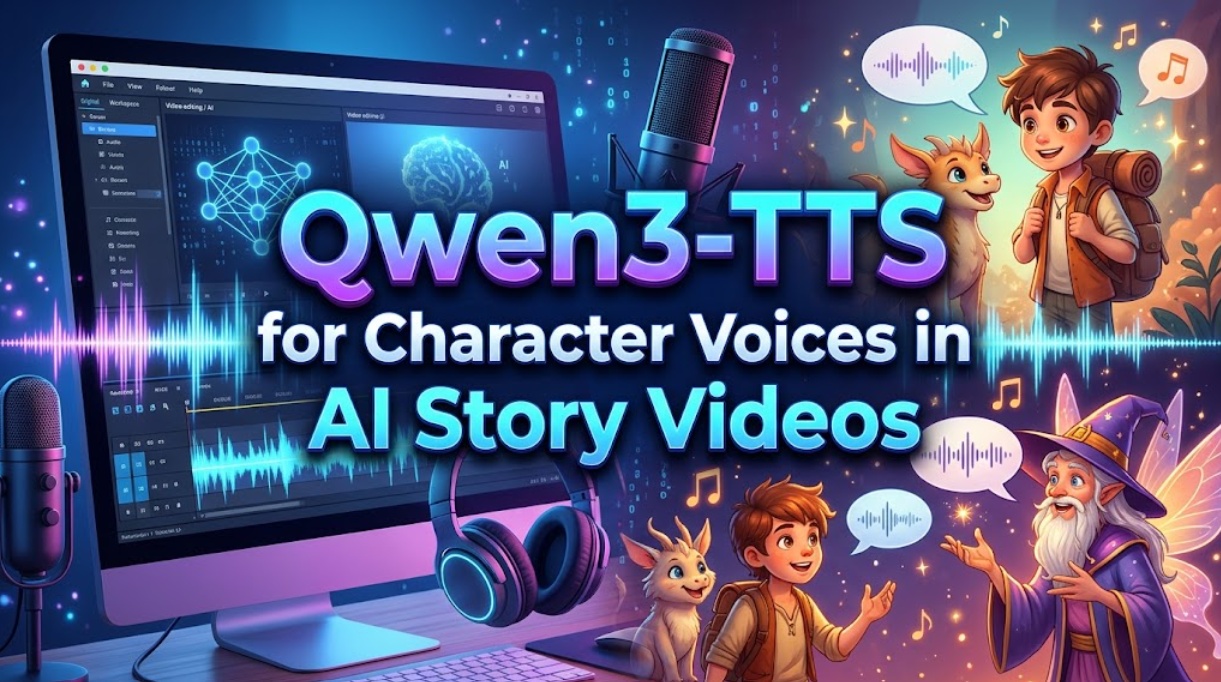
Using Qwen3-TTS character voices gives creators a practical way to solve this dialogue bottleneck.
Developed by the Qwen team, Qwen3-TTS provides dedicated tools to separate speaker profiles, shape emotional delivery through text instructions, and process multi-line scripts in batches.
However, generating raw audio files is only half the battle. To produce a cohesive story video, you must turn that dialogue track into exact scene lengths, reaction pauses, and visual editing cues before generating your final shots.
Here is how to design, test, and integrate Qwen3-TTS character voices into your narrative video pipeline.
Define the Voice Goal for a Two-Character Story
Before touching prompt parameters or voice synthesis models, you need a clear acoustic blueprint for your scene. A dramatic exchange between two characters requires distinct audio contrast so viewers can follow the dialogue even during off-screen reaction cuts.
Assign a Distinct Voice Profile to Each Character
To prevent character voices from blending together, establish contrasting vocal traits across pitch, timbre, speaking pace, and age.
For example, in a detective mystery scene between an experienced investigator and a young witness:
- Character A (Detective): Low pitch, gravelly vocal texture, deliberate cadence, and steady pacing.
- Character B (Witness): Higher pitch, slightly breathy timbre, rapid speech tempo, and irregular pauses.
Qwen3-TTS enables this separation through its VoiceDesign and CustomVoice mechanisms. You can define acoustic qualities using natural language instructions or pin the character to a specific reference speaker ID to establish an identifiable vocal signature.
Match Emotion and Delivery to Each Story Beat
Dialogue rarely stays flat across a conversation. A scene typically moves from a calm opening to high tension and finally to a resolution.
Qwen3-TTS allows creators to attach natural-language instruction prompts directly to text lines. Instead of relying on punctuation alone, you can add performance instructions such as:
- Line 1 (Whisper):
"Speak in a hushed, tense whisper, checking for eavesdroppers." - Line 2 (Defensive):
"Deliver with rising vocal irritation and a sharp, clipped tempo." - Line 3 (Exhaustion):
"Speak with a slow exhale, lowering your pitch in resignation."
Testing these emotional shifts during early voice design ensures your characters sound like they are reacting to each other rather than reading off a script card.
Build and Test the Dialogue Track
Once you define your character profiles, generate and audit the dialogue lines in a controlled test batch before committing to video production.
Keep Speaker Settings Consistent Across Lines
The primary technical failure in AI character voice generation is voice drift. If a character speaks four lines across a scene, Line 1 and Line 4 must sound like the exact same person.
To preserve voice identity in Qwen3-TTS:
- Pin Your Base Anchor: When using VoiceDesign or reference audio, lock the exact prompt text, reference audio seed, and temperature settings for every line spoken by that character.
- Separate Batch Calls: Generate all of Character A’s dialogue lines using Character A’s locked profile, then generate Character B’s lines using Character B’s locked profile.
- Avoid Random Seed Rerolls: Once a satisfying voice timbre is approved, record the exact generation seed to ensure you can re-record future pickup lines without altering the character’s vocal identity.
Review Identity, Pronunciation, and Emotional Changes
Listen to your generated lines sequentially. Check the audio track against three critical quality criteria:
- Vocal Identity Stability: Does Character A maintain their distinctive raspy low tone across all four lines, or does their pitch drift upward when the emotion intensifies?
- Pronunciation and Cadence: Are proper nouns, names, and technical terms pronounced cleanly without slurring or robotic glitches?
- Emotional Believability: Does the emotional instruction sound natural, or does extreme anger introduce harsh digital clipping?
Any line that fails these checks should be re-rendered with adjusted prompt weightings before moving into the edit.
Turn Dialogue Timing Into Video Direction
Audio is the master clock of dramatic pacing. Once your dialogue track is approved, use the recorded timings to plan your video shots.
Place Pauses and Reaction Beats Before Shot Generation
Real conversations are defined by silences as much as spoken words. If you string AI dialogue lines together back-to-back without pauses, the conversation feels unnatural and rushed.
Assemble your dialogue lines on a basic audio timeline:
- The Interruption: Overlap Character B’s line by 0.3 seconds over Character A’s final word to convey urgent conflict.
- The Hesitation: Insert a 1.5-second silence between an accusation and a response.
- The Reaction Beat: That 1.5-second gap is not empty space—it; it dictates a specific visual shot: a silent close-up of Character B swallowing or looking away before answering.
By pacing your audio first, you calculate the exact duration required for every reaction shot before rendering expensive video frames.
Use Approved Audio to Guide Shot Length and Editing
Knowing the exact duration of each line eliminates guesswork when generating video footage:
- If Character A speaks for 3.8 seconds, you generate a 4.5-second character shot, leaving 0.7 seconds of natural head-and-tail head room for your cut.
- If a dramatic pause lasts 2.0 seconds, you generate an insert shot of clenched fists or shifting eyes to fill that exact window.
When managing narrative projects where dialogue stems, script beats, and character references must stay synchronized across cuts, creative teams coordinate their assets inside the versatile CrePal workspace. Within CrePal, creators organize scene-by-scene script beats, attach approved dialogue audio tracks to individual shot cards, align camera motion prompts, and review unified video drafts before final export to editing software.
Limits Creators Should Verify
While Qwen3-TTS offers flexible speech synthesis, creators must understand its operational boundaries:
Voice Design, Custom Voice, and Voice Cloning Are Different
Qwen3-TTS provides three distinct paths, and each comes with trade-offs:
- CustomVoice: Relies on pre-built speaker profiles. It is the most stable and reproducible across long scripts, but offers limited acoustic uniqueness.
- VoiceDesign: Synthesizes new voices using text descriptions. It provides great creative flexibility, but requires careful prompt documentation to prevent vocal drift across different production sessions.
- Voice Cloning / Base: Clones a voice from a short reference audio sample. It delivers hyper-specific vocal character, but requires high-quality, dry reference recordings free of background reverb or music.
Consistency and Timing Still Need Human Review
No generative speech model replaces a sound editor:
- No Automated Micro-Timing: Qwen3-TTS outputs audio clips based on text inputs; it does not automatically calculate dramatic breathing room between dialogue turns.
- Subtle Pitch Shift Under Extreme Emotion: When prompting intense emotions (like crying or screaming), the model can occasionally introduce small pitch shifts that slightly alter perceived age.
- No Built-In Video Lip-Syncing: Qwen3-TTS generates audio only. Synchronizing these voices to animated video characters requires running the approved audio files through an external lip-syncing or video animation pipeline.
FAQ
Can a Qwen3-TTS voice profile be reused across episodes?
Yes, provided you document your configuration. When using predefined speaker IDs in CustomVoice, profiles can be called consistently across future sessions. For VoiceDesign or cloned voices, you must save the exact prompt text, temperature parameters, reference audio files, and generation seeds in your project documentation to reproduce the character’s vocal identity in later episodes.
Can Qwen3-TTS generate both characters in one batch?
Yes. Qwen3-TTS supports batch processing where a single script payload includes multiple speaker tags, line texts, and emotional instructions. However, to maintain strict audio hygiene and make timeline editing easier, many sound designers prefer exporting each character’s dialogue onto dedicated audio stems.
Does Qwen3-TTS return timestamps for dialogue syncing?
Depending on your access method (such as custom inference scripts using forced-alignment libraries), word-level timestamps can be extracted from model token outputs. However, the standard baseline generation returns clean audio files (like WAV or MP3) without automatic subtitle or timecode metadata embedded.
Which audio formats can Qwen3-TTS export for video editors?
Standard Python inference pipelines and API implementations export uncompressed 24 kHz or 48 kHz WAV files, as well as compressed MP3 files. For professional video editing in DaVinci Resolve or Premiere Pro, creators should always export uncompressed 48 kHz WAV files to match standard broadcast video sample rates.
Can Qwen3-TTS audio be used in monetized story videos?
Commercial usage rights depend on the specific license terms of the Qwen3-TTS model weights and your deployment environment. Always review the official QwenLM/Qwen3-TTS GitHub repository and model terms before publishing commercial or monetized content. Furthermore, you must hold the rights to any voice sample used for voice cloning and adhere to synthetic speech disclosure regulations on platforms like YouTube and TikTok.
Conclusion
Creating convincing character voices for AI story videos is no longer about accepting whatever voice a single prompt spits out.
By leveraging Qwen3-TTS character voices, creators can deliberately design contrasting vocal identities, dial in dramatic emotion line by line, and build a cohesive dialogue track before touching a video generator.
Treating audio as the foundational master clock of your scene—using dialogue length and conversational pauses to dictate camera framing and cut points—ensures your AI story videos cut together with cinematic weight, emotional believability, and rhythm.