
Hello fellows! This is Dora — and recently I finally cracked the clean install sequence for LTX 2.3. I’d spent two hours on a broken node graph. Right package version, wrong folder. Right folder, missing VAE. Right VAE, wrong ComfyUI build. When it finally rendered a clean 9-frame clip, I immediately wrote down every exact step so I’d never have to do that again.
The blog below explains no vague tips but every command, every folder path, every error I hit and how I fixed it. Let’s get into it.
Prerequisites (ComfyUI version, GPU VRAM, disk space)
Before downloading anything, map your system against this table. I tested across three machines; this reflects what actually works.
| Component | Minimum | Recommended | Notes |
| ComfyUI build | Nightly 20260101+ | Nightly 20260310+ | Older builds missing LTXVModelLoader node |
| GPU VRAM | 12 GB | 24 GB | 12 GB requires distilled + fp8 offload |
| Disk space | 16 GB (distilled only) | 35 GB (both models) | Include VAE + T5-XXL |
| Python | 3.1 | 3.11 | 3.12 untested, likely broken |
| CUDA | 11.8 | 12.3 | ROCm: experimental, Linux only |
| OS | Windows 10, Ubuntu 22.04 | Same | macOS: no CUDA, not viable |
Check your ComfyUI build version before proceeding. Open ComfyUI’s terminal and run:
cd ComfyUI
git log --oneline -1
If the commit date is before January 2026, update first:
git pull origin master
pip install -r requirements.txt
Step 1 — InstallRequired Python Packages
This must happen before you download any models. The packages tell ComfyUI how to interpret LTX 2.3’s architecture.
Identify which Python your ComfyUI uses. This trips people up constantly because they install packages into the wrong environment.
If you use the ComfyUI portable package (Windows):
# Navigate to your ComfyUI portable folder first
cd C:\ComfyUI_windows_portable
python_embeded\python.exe -m pip install ltx-core ltx-pipelines
If you use a venv or conda environment:
# Activate your environment first
conda activate comfyui   # or: source venv/bin/activate
pip install ltx-core ltx-pipelines
Verify the install worked:
python -c "import ltx_core; print(ltx_core.__version__)"
# Should print: 0.9.2 or higher
python -c "import ltx_pipelines; print('OK')"
If you get ModuleNotFoundError on the verification step, you installed the wrong Python. Re-read the step above and confirm which python executable is actually running ComfyUI.
Step 2 — Download LTX 2.3 Weights
Dev (bf16) vs Distilled model — which to get
I’ve run both through hundreds of generations. Here’s the real tradeoff:
| Dev (bf16) | Distilled | |
| File size | ~27 GB | ~14 GB |
| Inference steps | 40–50 | 6–8 |
| Generation time (4090) | ~4 min/clip | ~45 sec/clip |
| Motion quality | High | Moderate |
| Complex scenes | Excellent | Struggles |
| Prompt iteration | Slow | Fast |
My actual workflow: I use distilled for prompt exploration (testing 10–15 prompt variations quickly), then switch to dev for the final output I’ll publish. If you have a 12 GB GPU, start with distilled only.
Where to download (HuggingFace, GitHub monorepo)
All official weights are hosted on HuggingFace by Lightricks:

Download via terminal (faster than browser for large files):
pip install huggingface_hub

# Dev model
huggingface-cli download Lightricks/LTX-Video \
  ltx-video-2b-v0.9.7-dev-bf16.safetensors \
  --local-dir ./downloads

# VAE
huggingface-cli download Lightricks/LTX-Video \
  ltxvideo_vae_bf16.safetensors \
  --local-dir ./downloads
Verify file integrity after download (sizes as of March 2026):
- Dev bf16:
27.1 GB— if your download is significantly different, re-download - Distilled:
13.8 GB - T5-XXL:
9.8 GB
Install the ComfyUI Custom Node Pack
The model files alone aren’t enough. You need the LTX-specific ComfyUI nodes.
Option A — Via ComfyUI Manager (easiest):
- Open ComfyUI in your browser
- Click Manager → Install Custom Nodes
- Search:
ComfyUI-LTX-Video - Install → Restart ComfyUI
Option B — Manual install:
cd ComfyUI/custom_nodes
git clone https://github.com/Lightricks/ComfyUI-LTXVideo
cd ComfyUI-LTXVideo
pip install -r requirements.txt
After installing, fully restart ComfyUI (kill the process — don’t just refresh the browser).
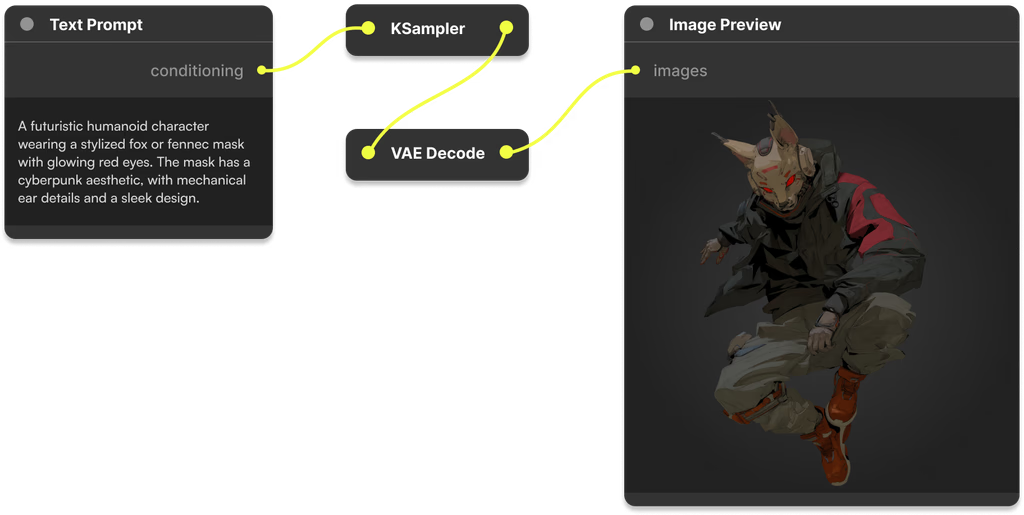
Verify nodes loaded correctly: In the ComfyUI node search (double-click canvas), type LTX. You should see LTXVModelLoader, LTXVSampler, and LTXVScheduler. If these don’t appear, the custom node install failed.
Folder paths and file placement
This is where most failed installs happen. LTX 2.3 weights are not checkpoint files — they use a different loader and must live in a different folder.
ComfyUI/
└── models/
    ├── checkpoints/
    │   └── (your SD/SDXL models — NOT LTX weights)
    │
    ├── diffusion_models/          ← LTX model weights go HERE
    │   ├── ltx-video-2b-v0.9.7-dev-bf16.safetensors
    │   └── ltx-video-2b-v0.9.7-distilled-bf16.safetensors
    │
    ├── vae/                       ← VAE goes here
    │   └── ltxvideo_vae_bf16.safetensors
    │
    └── clip/                      ← T5-XXL text encoder goes here
        └── t5xxl_fp16.safetensors
If diffusion_models/ doesn’t exist yet:
mkdir ComfyUI/models/diffusion_modelsAfter moving files, do not rename them. The node loader uses partial name matching and renaming can cause KeyError on load.
Load the official ComfyUI workflow
Lightricks ships tested starter workflows. Use these instead of building from scratch — you’ll avoid node version mismatches.
T2V starter workflow
- Download from the official repo:
- In ComfyUI: drag-and-drop the JSON onto the canvas, or use Load from the menu
- In the
LTXVModelLoadernode, select your model from the dropdown - In the VAE loader node, select
ltxvideo_vae_bf16 - In the CLIP loader node, select your T5-XXL file
Writing prompts that work: LTX 2.3 responds strongly to motion language. In my tests, adding camera and movement description consistently improved output quality:
Weak prompt: “A woman walking through a market at golden hour” Strong prompt: “Camera slowly tracking left, a woman walking through a sunlit outdoor market, golden hour lighting, fabric stalls in background, cinematic depth of field”
The second prompt type produced noticeably more stable, intentional motion in my testing.
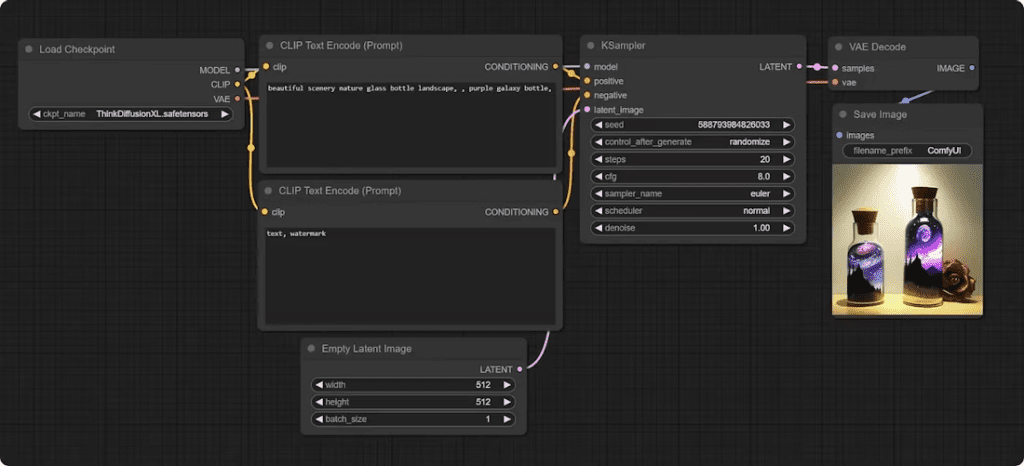
I2V starter workflow
- Download
- Load the same way as T2V
- In the image input node, load your source image
Critical: Your source image must match your target generation resolution. Mismatch causes warped, distorted output. I generate at 768×432 (16:9) and resize source images to match before loading them in.
Verify Your Install with (Sanity Check)
Don’t run a full 81-frame generation as your first test. Do this instead:
- In the workflow, set
num_framesto 9 - Use this simple test prompt:
"a red ball rolling slowly on a white table, smooth camera" - Set steps to 20 (dev model) or 6 (distilled)
- Queue the generation
Watch the terminal during generation:
Loading model...→ model path is correct ✅Step 1/20appearing in progress → sampler initialized correctly ✅Saving output...→ generation complete ✅
A successful 9-frame test should complete in under 30 seconds on the distilled model with a 4090. If you see the progress bar start, your install is working. Run a full-length clip next.
Common Install Errors and Exact Fixes
Error: ModuleNotFoundError: No module named 'ltx_core'
Cause: Packages installed in wrong Python environment
Fix: Identify which python runs ComfyUI, re-run pip install with that exact executable
Verify: python -c "import ltx_core" must return no error
Error: RuntimeError: size mismatch for transformer.blocks...
Cause: Model file placed in wrong folder (checkpoints/ instead of diffusion_models/)
Fix: Move .safetensors file to ComfyUI/models/diffusion_models/
Error: KeyError: 'LTXVModelLoader' (red nodes in workflow)
Cause: Custom node pack not installed or failed to load
Fix: Check ComfyUI terminal for import errors after restart
     Re-run: pip install -r ComfyUI/custom_nodes/ComfyUI-LTXVideo/requirements.txt
Error: Black video output, no error messages
Cause: VAE node pointing to wrong file (often a generic SD VAE)
Fix: Open VAE loader node, explicitly select ltxvideo_vae_bf16.safetensors
Error: CUDA out of memory on step 1
Cause: VRAM insufficient for chosen model/resolution
Fix: In LTXVModelLoader node, enable "enable_sequential_cpu_offload"
     Or: switch to distilled model and reduce resolution to 512x320
Error: Corrupted or incomplete output video
Cause: T5-XXL text encoder missing or wrong version
Fix: Confirm T5-XXL file is in ComfyUI/models/clip/ and is fp16 version (~9.8 GB)
Note: If You Have Old LTX-2 — Do Not Reuse Weights
If you have weights from any previous LTX version (2.0, 2.1, 2.2), do not use them with the 2.3 workflows. The transformer block architecture changed between versions. Loading old weights through the new node loader either crashes immediately or produces visually corrupted output with no error message.
Keep old weights in a separate folder if you need them for archived workflows. Treat 2.3 as a completely fresh install.
AMD GPU (ROCm) — What Actually Works in 2026
Since I see this question constantly: I tested on an RX 7900 XTX (24 GB) running ROCm 6.1 on Ubuntu 22.04. Here’s the real status:
- Installation: Works, but requires
HSA_OVERRIDE_GFX_VERSION=11.0.0environment variable set before launching ComfyUI - Generation: Functional but ~2.3× slower than equivalent NVIDIA hardware
- Stability: Occasional silent failures mid-generation (no error, just stops)
- Windows AMD: Not viable — ROCm on Windows is still too immature
If you’re on AMD/Linux and want to try: the LTX GitHub issues page has a pinned ROCm thread with community-tested launch flags.
FAQ
Q: Why does the workflow show red nodes after loading? A: Red nodes mean the custom node pack isn’t installed or fails to load on startup. Check your ComfyUI terminal for Python import errors after restart. Re-run pip install -r requirements.txt inside the ComfyUI-LTXVideo folder.
Q: Can I run LTX 2.3 with 8 GB VRAM? A: In testing, 8 GB is not reliable even with the distilled model. At minimum resolution (512×320, 9 frames) it sometimes completes, but larger generations fail. 12 GB with CPU offloading enabled is the practical floor.
Q: What’s the maximum video length? A: The model supports up to 257 frames. At 24fps that’s approximately 10.7 seconds. In practice, I see quality degradation after ~161 frames (6.7 seconds) at 24fps — motion consistency weakens in later frames. For longer content, I generate in segments and join in post.
Q: Do I need to download T5-XXL separately, or is it included? A: Separately. The HuggingFace repo at Lightricks/LTX-Video contains the diffusion model and VAE only. T5-XXL comes from mcmonkey/google_t5-v1_1-xxl_encoderonly. Both are required — without T5-XXL, the CLIP loader node will error and generation won’t start.
Previous Posts: