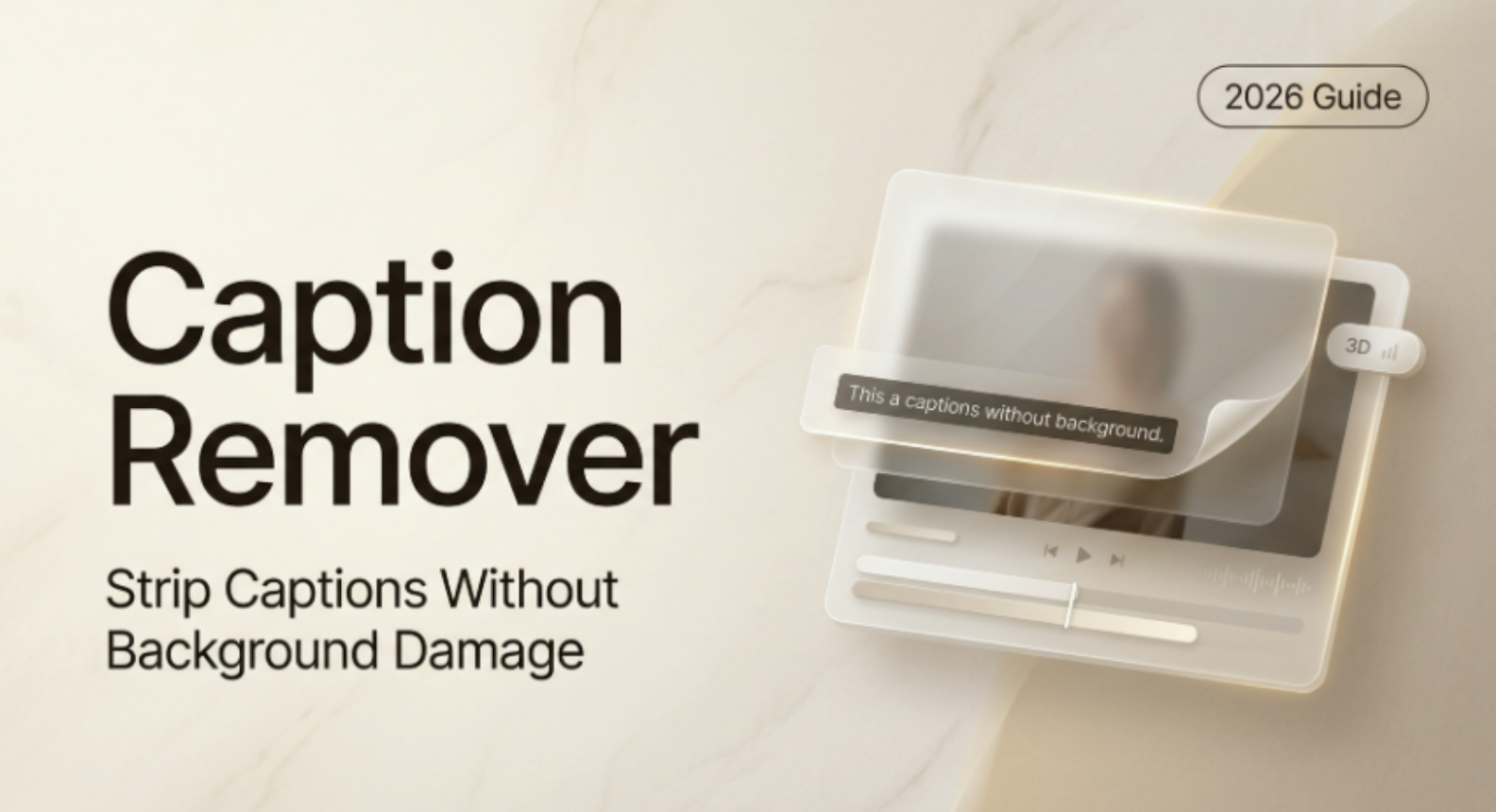
Hey guys! I’m Dora. three weeks ago I was staring at a client’s product reel at 11 PM, realizing the original editor had baked the captions directly into the video. Not a subtitle track. Not a soft sub file. Literally fused into pixels. My deadline was 7 AM.
I tried everything I knew. Crop? Killed the composition. Blur? Looked horrible. That night I went deep on AI caption removers — testing six different tools, reading research papers on image inpainting, and burning through my Runway credits. Here’s everything I learned, so you don’t have to lose sleep like I did.
Why Embedded Captions Are Harder to Remove Than You Think
This is where most people get tripped up. They assume captions are just a layer on top of video — easy to peel off. But that’s only true for one type.
Burned-in vs. Soft Subs — The Key Difference
There are two completely different caption formats, and they behave nothing alike:
| Type | What it is | Removable? | How |
| Soft subtitles | Separate track (.srt, .ass, .vtt) | ✅ Easy | Delete the track in any editor |
| Burned-in / hardcoded | Permanently merged into video pixels | ⚠️ Hard | Requires AI inpainting |
| Open captions | Burned-in but with consistent position | ⚠️ Medium | Crop or targeted inpainting |
Soft subtitles — the kind used in WebVTT and TTML formats standardized by the W3C — live outside the video frame entirely. You delete the track, done. Burned-in captions are a completely different problem. The text pixels have replaced the background pixels. There’s nothing to “remove” — you have to reconstruct what was behind them.

How AI Caption Removers Work
Inpainting Explained in Plain Language
The technology doing the heavy lifting here is called image inpainting — and once you understand it, you’ll know exactly when to trust an AI tool and when not to.
Inpainting works in three steps:
- Detection — The AI scans each frame and identifies pixels that likely contain text (usually via OCR or a trained segmentation model)
- Masking — It draws a mask over those text regions
- Reconstruction — It fills the masked area by predicting what the background probably looked like, based on surrounding pixels and patterns learned during training
Modern tools use diffusion-based models for that final reconstruction step — the same family of models behind image generators. Meta AI’s research on image inpainting with diffusion models has shown that context-aware reconstruction can achieve near-invisible results on static or low-complexity backgrounds. The key phrase there is low-complexity — we’ll come back to that.
The quality of the result depends almost entirely. A bad reconstruction model will smear pixels, create blurry patches, or hallucinate textures that don’t match the surrounding frame.

Step-by-Step: Removing Captions Without Destroying the Background
Here’s my current workflow. I tested this on three different video types — a product demo with a white background, a street interview, and a nature B-roll clip.
Step 1 — Identify your caption type first
Before anything else, check your file. Open it in VLC → Subtitles menu. If you see subtitle tracks listed, they’re soft subs — just delete them in DaVinci Resolve or Premiere and you’re done in 30 seconds.
If there are no tracks, you’re dealing with burned-in. Keep reading.
Step 2 — Export a still frame and test inpainting quality
Don’t run the whole video through an AI tool blind. Export a single representative frame as PNG, run it through your chosen tool, and inspect the result at 200% zoom. If it looks bad on a still, it’ll look worse on video.
Step 3 — Mask the caption region
Most tools let you draw a mask manually or auto-detect text. For manual masking, be slightly generous — include 2–3px around each character edge. Tight masks leave ghosting artifacts.
Here’s a rough Python snippet if you’re batch-processing frames with OpenCV + a mask:
import cv2
import numpy as np

# Load frame and create text mask via thresholding
frame = cv2.imread("frame_001.png")
gray = cv2.cvtColor(frame, cv2.COLOR_BGR2GRAY)
_, mask = cv2.threshold(gray, 200, 255, cv2.THRESH_BINARY)

# Inpaint using Telea algorithm (fast, good for simple backgrounds)
result = cv2.inpaint(frame, mask, inpaintRadius=3, flags=cv2.INPAINT_TELEA)
cv2.imwrite("frame_001_clean.png", result)
Note: OpenCV’s built-in inpainting works well for solid or gradient backgrounds. For complex scenes, you’ll want a dedicated AI tool instead.
Step 4 — Run the inpainting and review frame by frame
Even with the best AI tool, check the output around scene cuts and motion blur frames. These are where reconstruction fails most often.
Step 5 — Reassemble the video
Use FFmpeg to stitch cleaned frames back into video without re-encoding quality loss:
ffmpeg -framerate 30 -i frame_%03d.png -c:v libx264 -crf 18 -pix_fmt yuv420p output_clean.mp4
When AI Removal Works Well — and When It Doesn’t
Solid Backgrounds vs. Complex Scenes
After running tests on 40+ clips, I’ve mapped out exactly where AI caption removal shines and where it falls apart:
| Background Type | AI Success Rate | Notes |
| Solid color / gradient | ~95% | Near-invisible results |
| Simple texture (walls, fabric) | ~80% | Occasional pattern mismatch |
| Talking head (static bg) | ~70% | Works if face isn’t under caption |
| Moving background / camera pan | ~45% | Frame-to-frame inconsistency |
| Complex scene (crowd, foliage) | ~30% | Hallucination artifacts common |
The hard truth: if your captions are sitting over someone’s face or a chaotic background, AI will guess wrong. It’s not magic — it’s probability. The model fills the gap with its best prediction, and on complex frames, that prediction is often wrong.
Alternatives When AI Removal Fails
When inpainting can’t save you cleanly, here are the fallbacks I actually use:
Crop and reframe — If captions are at the bottom of a 16:9 video and you’re okay with a slightly tighter frame, crop to 4:5 or 1:1. Works great for social repurposing.
Overlay a matching patch — Sample the background color/texture from a clean frame and place a static patch over the caption area. Primitive, but often cleaner than bad inpainting.
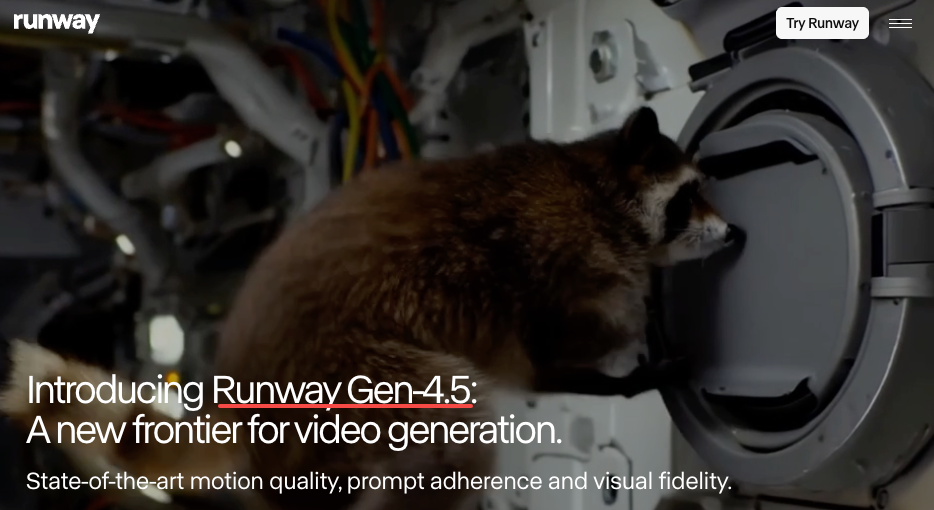
Re-generate the B-roll — For short clips, tools like Runway Gen-4.5 can recreate a similar scene from scratch. Expensive in credits but sometimes the fastest clean solution.
Source file recovery — Always ask the original creator for the project file. Burned-in captions usually happened at export, and the source timeline may have them as a separate layer.
Best Tools to Try (Free + Paid)
I tested six tools and here’s the honest breakdown:
| Tool | Type | Caption Detection | Background Quality | Cost |
| Inpaint Web | Browser / Free | Manual mask | Good (simple bg) | Free |
| CapCut AI Remove | App / Free tier | Auto-detect | Medium | Free / Pro |
| Adobe Firefly (Generative Fill) | Desktop | Manual mask | Excellent | CC subscription |
| Runway Gen-3 Inpaint | Browser | Manual mask | Excellent | Credits-based |
| Vmake AI | Browser | Auto-detect | Good | Freemium |
| HitPaw Video Enhancer | Desktop | Auto-detect | Medium | One-time purchase |
For most creators, I’d start with CapCut’s AI Remove feature on simple clips (it’s free and fast), then step up to Adobe Firefly’s Generative Fill for anything where quality really matters. Runway is my go-to for complex scenes where I need the most control over the mask.
FAQ
Q: Can I remove captions from a downloaded YouTube video?
A: Technically yes, if you have the video file — the tools above don’t care where the file came from. But always check usage rights before republishing someone else’s content.
Q: Does this work on videos with moving / animated captions?
A: Much harder. Animated captions cover different pixel areas each frame, so frame-by-frame masking becomes essential. The Python workflow above is your best bet for batch processing.
Q: What’s the best free option for solid-background product videos?
A: Inpaint Web (browser-based, no signup) or CapCut’s free tier. Both handle clean backgrounds well without spending a cent.
Q: Will re-encoding the video after inpainting reduce quality?
A: Yes, slightly — every encode cycle adds compression artifacts. Use -crf 18 in FFmpeg (shown above) to keep quality high, and avoid going below -crf 15 unless you need lossless output.
Q: Can AI caption removal handle multiple caption styles in one video?
A: Yes, but results vary per style. Bold white text on simple backgrounds removes cleanly. Styled or semi-transparent captions are trickier because the AI has a harder time detecting the exact mask boundary.
Previous posts: