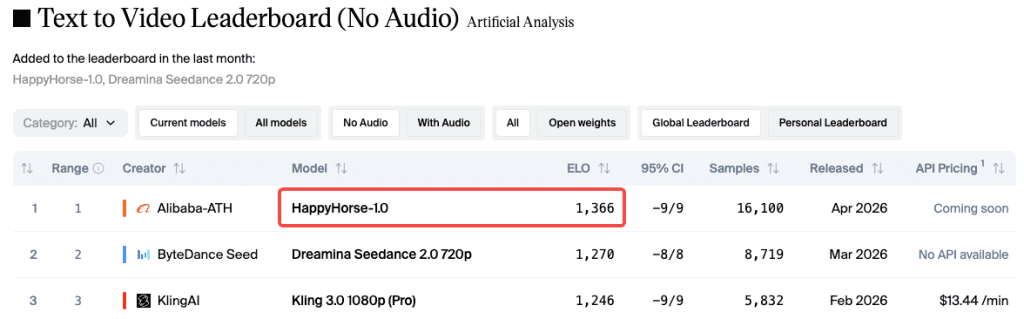
Hi, Dora here. I nearly choked on my coffee the first time I looked at the leaderboard. A model I had never heard of — no company name, no announcement, no press release — was sitting at the top of everything. Both text-to-video and image-to-video. #1.
My first instinct was: okay, is this a benchmark trick? Give it a week. But then I started seeing the actual outputs people were sharing. And I thought — I need to test this myself.
That’s what this guide is. Not a theory post. A hands-on walkthrough of how to actually use HappyHorse 1.0, what the workflow looks like on different platforms, where it genuinely impressed me, and where I hit walls I didn’t expect.
What HappyHorse 1.0 Is in One Paragraph
HappyHorse 1.0 is a 15B-parameter AI video model built by Alibaba’s Future Life Lab, led by Zhang Di (formerly of Kling AI), and its key difference is that it generates video and audio together in a single pass, unlike most models such as Runway or earlier Seedance versions, which handle audio separately or don’t generate it at all.
As of late April 2026, the Artificial Analysis Video Arena leaderboard shows HappyHorse sitting at Elo 1366 for text-to-video (no audio) and Elo 1397 for image-to-video (no audio). Both still #1. That’s based on blind human preference votes — users see two outputs side by side without knowing which model made which, and they pick the better one. No self-reported scores, no lab marketing. Just aggregate human preference.
Before You Start — Access and Requirements
Here’s the thing nobody tells you upfront: getting to HappyHorse 1.0 is messier than it should be. The situation has been evolving fast, so let me break down what’s actually live versus what’s still coming.
Which Platforms Let You Try It Now
Access is fragmented.
Here’s what’s usable:
- Artificial Analysis Arena — free, no login, best for first impressions
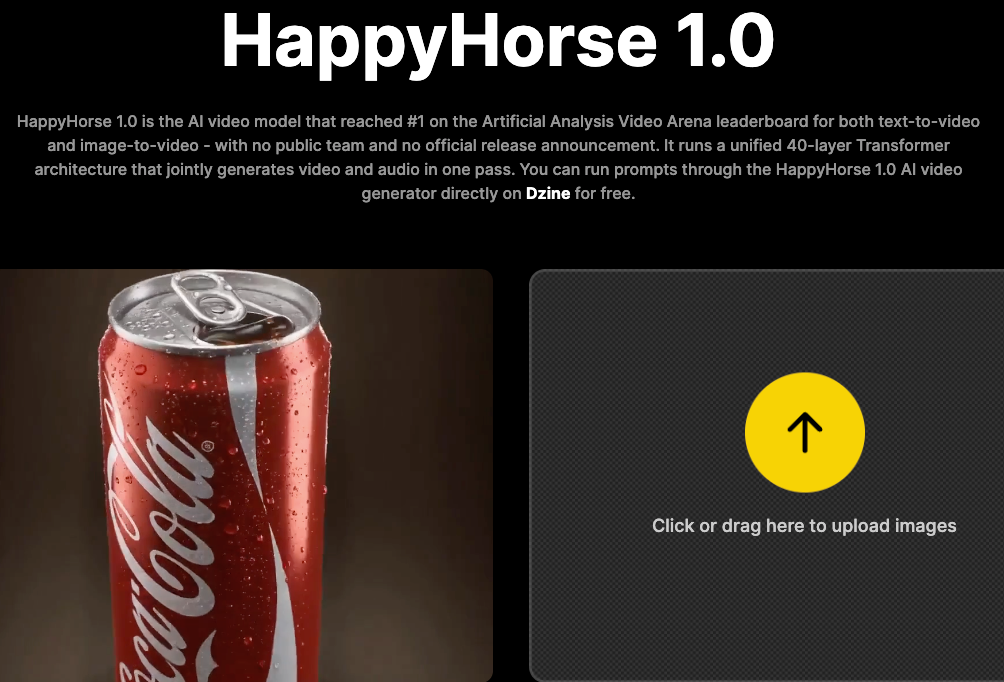
- Dzine — easiest way to run your own prompts
- Topview — best for comparing multiple models side-by-side
- fal.ai — API expected soon
- happyhorse.mobi / happy-horse.art — usable, but check terms carefully
Free Credits vs. Paid Plans (Needs Platform Verification)
Here’s a tighter version with the same meaning:
Credit and pricing across platforms aren’t consistent right now. Tools like Dzine, Topview, and official-adjacent sites all offer free credits, but amounts and rules change often — so you’ll need to check each one after logging in.
If you just want to test for free, the Artificial Analysis Arena is the simplest option: no signup, no limits.
Step-by-Step — Text-to-Video Workflow
Okay, let’s get into the actual workflow. I’ll use Dzine as the reference platform since it had the most consistent access when I was testing.
Step 1: Write the Prompt (Subject + Motion + Camera)
This is where most people fall short. A vague prompt like “a person walking in a city” will give you generic results. HappyHorse handles detailed prompts well — it doesn’t just ignore half of what you write.
What worked best for me:
[subject] + [motion] + [camera] + [environment] + [style]
Examples:
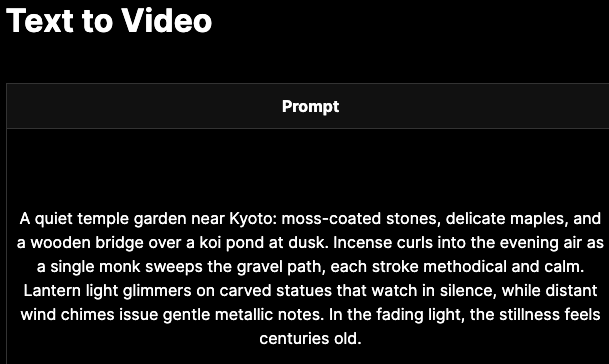
- “A lone astronaut walks across a red desert at golden hour, wide tracking shot pulling back, cinematic”
- “Ink drops fall into still water, extreme close-up, slow motion, high contrast”
- “A woman speaks at a press conference, reporters typing, camera flashes, handheld documentary style”
That last one stood out — multiple people, background motion, camera movement — and it actually held together.
Why this works: video diffusion models rely on your prompt to guide frame generation. More specific prompts = better results.
Step 2: Pick Aspect Ratio, Duration, Resolution
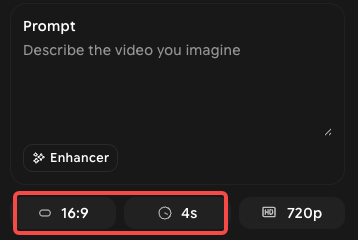
HappyHorse supports 16:9, 9:16, 4:3, 3:4, 21:9, and 1:1. Which one you pick matters more than people think:
- 16:9 — YouTube, desktop viewing, cinematic content. Default for most use cases.
- 9:16 — TikTok, Reels, Shorts. If your content is going vertical, set this from the start. Don’t generate 16:9 and crop — the model optimizes composition for the ratio you choose.
- 1:1 — Social feeds. Cleaner for product demos in square formats.
- 21:9 — Ultra-wide cinematic. Genuinely beautiful if you’re doing landscape or atmospheric shots.
Duration: 5–8 seconds — not 30, not 60. Think in moments, not full scenes. Resolution: up to 1080p. Generation takes ~38s on H100 (official estimate), but real speed varies by platform and queue.
Step 3: Generate and Wait
Hit generate. The third-party platforms handle the inference on their end — you don’t need a GPU. Generation time is typically under a minute through these UIs, though it varies.
One thing I started doing: while the first generation runs, I draft a variation of the prompt. Because if the first result is 80% of what I wanted, I want to refine fast rather than sit and stare at a loading bar.
Step 4: Review and Download
Most platforms give you a preview before download. Watch the full clip — don’t just look at the first frame. Motion consistency in HappyHorse is one of its genuine strengths, but it’s only visible in motion. A static thumbnail tells you almost nothing about whether the output actually worked.
Download as MP4 at up to 1080p. Commercial rights situation varies by platform — check the terms on whichever UI you’re using.
Step-by-Step — Image-to-Video Workflow
This is where HappyHorse really flexes. On the Artificial Analysis leaderboard, its Image-to-Video (no audio) Elo of 1397 is notably higher than its text-to-video score, which suggests the model has a particular strength in preserving reference image identity through motion.
Upload Reference Image
Most platforms support JPEG, PNG, and WebP. The image acts as the starting frame, helping keep the subject consistent.
For products, a static image can easily turn into a 5–8 second motion clip.
For portraits, clean, simple backgrounds work best — busy scenes can cause slight drift, especially with camera movement.
Add Motion Prompt
You still need a prompt in I2V mode. The image sets the base, and the prompt controls motion and changes.
Structure: [ motion/camera ] + [ environment ] + [ style ]
Example:
“Camera slowly pushes in, soft light sweeps across the product, subtle lens flare, no subject drift”
Adding “no subject drift” helps reduce unwanted changes — not perfect, but useful.
Generate and Refine
This is where iteration matters.
Small prompt tweaks can noticeably change results, so expect to run a few versions before getting the final clip.
The key advantage: it’s fast enough that refining actually feels efficient, not frustrating.
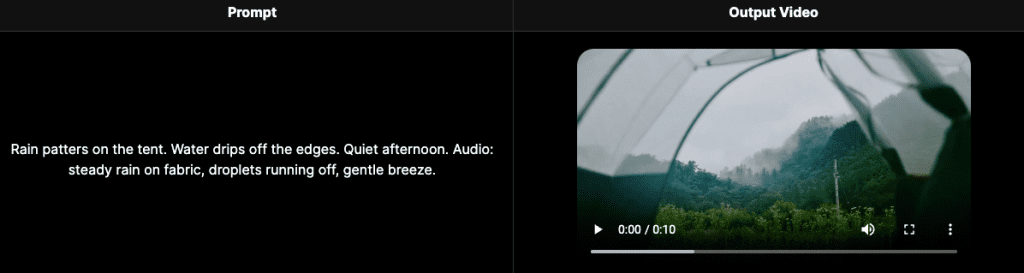
What You Should Know About Output Quality
What It Does Well
Subject motion — Physical action, full-body movement, realistic gait. The press conference test I mentioned earlier. Also tested a walking scene through a crowd and the subject stayed coherent through the whole clip.
Prompt retention — It genuinely captures more elements of a complex prompt than most models I’ve tested. Describe five things; HappyHorse usually gets four of them.
Image-to-video consistency — As noted above, this is a standout. Product shots hold their identity well. Faces stay stable on short clips.
Visual fidelity — The 1080p output is produced through a dedicated super-resolution module running in latent space (5 additional diffusion steps before decoding), not just an upscale. Sharpness in textures and edges shows it.
Native audio — When audio generation works, it genuinely sounds matched to the visual because it was generated in the same pass. Footsteps land when feet hit the ground. Ambient sound matches the environment described.
Where It Still Fails
Complex dynamic scenes — Very crowded, chaotic scenes with lots of simultaneous motion (action sequences, large crowds moving in different directions) can still produce artifacts. This is a known limitation flagged in third-party reviews, and it’s consistent with what I saw.
Audio, relative to Seedance 2.0 — In the Artificial Analysis leaderboard’s with-audio categories, HappyHorse is currently #1 in T2V-with-audio (Elo 1230) but leads by a smaller margin than in the no-audio categories. Seedance 2.0 is close. For audio-critical work, test both before committing.
Long clip coherence — At 8 seconds, some prompts start showing drift that wasn’t present at 5 seconds. For anything where identity consistency is critical, test the shorter duration first.
Limits & Trade-offs
Clip Length: 5–8 Seconds
This isn’t a bug, it’s just the constraint. The model was trained and evaluated on short clips. If your content needs 15-30 second continuous takes, HappyHorse isn’t the right tool for that — at least not in current form. Plan your content around short, modular clips that you can sequence in editing.
Audio Sync Still Behind Seedance 2.0 in Some Tests
I want to be specific here because “audio” is doing a lot of work as a feature claim. HappyHorse’s joint audio-video architecture is genuinely different and genuinely impressive for ambient sound and Foley effects. For dialogue lip-sync across all 7 supported languages — the Word Error Rate data that has been published shows HappyHorse at 14.60% WER — that’s competitive, but Seedance 2.0 remains close in blind tests that include audio. For now: test both for audio-critical content.
Access Still Fragmented
This is the honest summary of where things stand in late April 2026. The official GitHub and HuggingFace model weights were still “coming soon” as of the time I’m writing this — check directly for current status, because this is moving quickly. fal.ai API integration is expected soon. Dzine and Topview have working implementations. The Arena is always available for free testing.
There’s also a broader question worth flagging: multiple sites claim to be the “official” HappyHorse platform. Alibaba confirmed its involvement to CNBC on April 10, 2026. The team behind it is the Future Life Lab inside Taotian Group, led by Zhang Di. But the proliferation of third-party front-ends means you should check terms carefully before using any platform for commercial work.
Conclusion — Who Should Use It Now
If you create a lot of vertical short-form content (TikTok, Reels, Shorts) and want strong motion in native 1080p, HappyHorse is worth testing — especially since the Arena is free and requires no signup.
For product videos or animating static images, the I2V workflow is one of its strongest use cases.
If you need a stable API with clear pricing and SLAs, it’s not there yet — but it’s moving in that direction.
And if you’re evaluating AI video models for a larger workflow — the kind where you want to test multiple models against the same prompts and pick the best output — platforms like Topview that let you run comparisons in one workspace make a lot more sense than running tests across five different sites.
The weights aren’t publicly downloadable yet. When they are, the self-hosting story gets interesting fast. Until then: the Arena for first impressions, Dzine or Topview for structured testing, and keep an eye on fal.ai for the API.
FAQ
Q: Is HappyHorse 1.0 free to use? It depends on where you access it. Platforms like the Artificial Analysis Arena are completely free with no login required, while tools like Dzine or Topview usually offer limited free credits and then switch to paid plans. Pricing isn’t standardized yet, so always check directly on the platform.
Q: Is HappyHorse 1.0 better for text-to-video or image-to-video? Right now, it’s stronger in image-to-video. It preserves subject identity better and produces more stable motion when starting from a reference image. The leaderboard rankings also reflect this, with higher scores in I2V tasks.
Q: How long can videos generated by HappyHorse 1.0 be? Clips are currently limited to 5–8 seconds. It’s designed for short-form content rather than long continuous scenes, so the best workflow is generating multiple clips and editing them together.
Previous Posts: